Chapter 1: Choosing Your Laptop PC
Portable computers, generally referred to as laptops or notebooks, began as a great tool for people who travelled and wanted to bring their computer along. Today, laptops with high-end displays and huge processing power are taking over the desktop, as well.
Although laptop models vary by weight, size, keyboard configuration and more, they share some common traits. For example, on a laptop, the keyboard, pointing device and monitor are built-in.
Like their desktop counterparts, laptop computers run an operating system, most commonly Microsoft Windows. Computers that run Windows are generally referred to as PCs, which stands for personal computers.
Explore a Laptop
Laptop computers are very similar to their desktop counterparts. Both contain a hard drive and other hardware. Both use an operating system, run software and save files. And both can be connected to peripheral devices, such as printers.
Key differences exist, however. For example, laptops, which are designed for portability, are much more compact. In addition, whereas desktops require an external keyboard and mouse, these features along with a monitor are built into laptops (although you can plug in a standard keyboard or mouse if desired). Finally, laptops can run on a battery, whereas desktops require an electrical outlet.
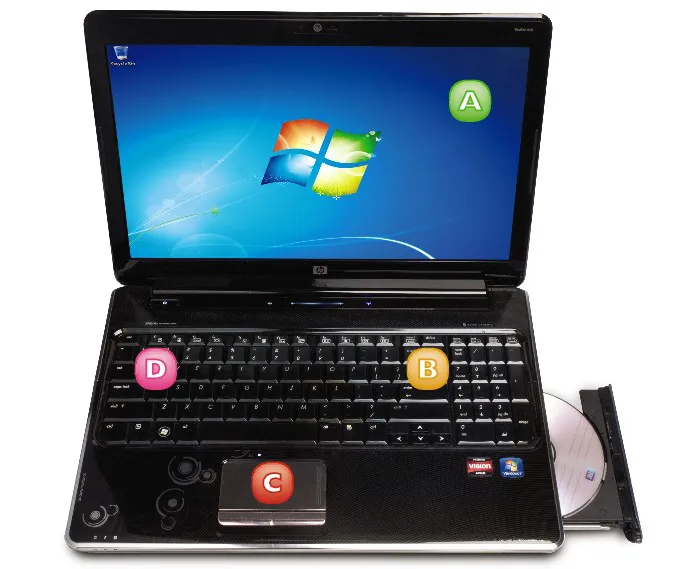
A Monitor
The monitor on a laptop is typically made of a soft-to-the-touch, and somewhat fragile, liquid crystal display.
B Keyboard
Keyboard configurations vary based on the size of the laptop, with larger laptops having a separate number pad and smaller ones embedding number-pad functionality within the regular keys.
C Touchpad Pointing Device
Laptops feature a built-in pointing device – usually a touchpad, as shown here. You move your finger over the pad to move the mouse pointer on your screen.
D Function Keys
Most laptops preassign functions to these aptly named function keys. Typical uses are for muting the speakers or accessing the Internet.
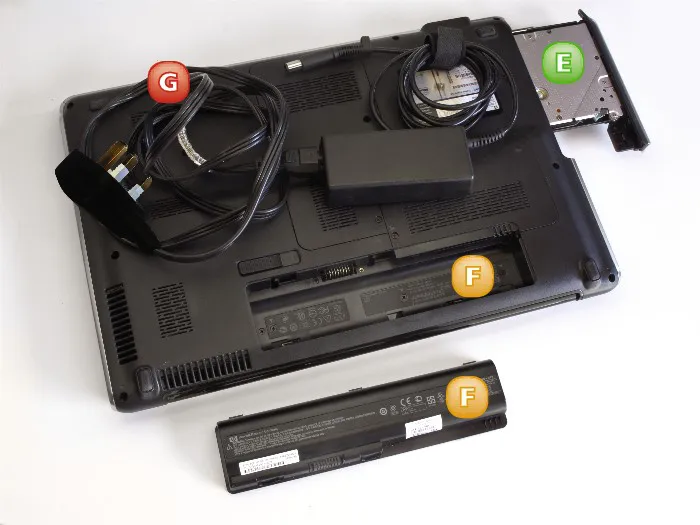
E DVD Drive
Most laptops include a DVD drive, although some still feature a CD drive. The location of these drives varies by model.
F Battery
A battery usually slots into the bottom of a laptop. The battery needs to be recharged on a regular basis.
G Power-Cord Connector
To recharge your battery, you plug your laptop into a power socket using this power-cord connector.
Explore Slots and Ports
You can use the various slots and ports built into your laptop to connect peripheral devices to it, such as a printer, a mouse, a keyboard, an extra monitor, headphones, a microphone, a digital camera and more. Most of these slots and ports are located on the sides or back of the chassis.
Note that, in addition to using the slots and ports built into your laptop to connect peripheral devices, you can also connect these devices to ports and slots in a docking station. You can then plug your laptop into the docking station to access the peripheral devices.
USB Port
You can use a universal serial bus (USB) port to connect a wide variety of devices, from a flash drive for data storage to a printer or digital camera. Devices that can be connected via USB are generally plug-and-play – that is, you need not restart your computer to use them after connecting them via a USB cable. Windows can automatically install many USB devices when you connect them, requiring no additional input from you.
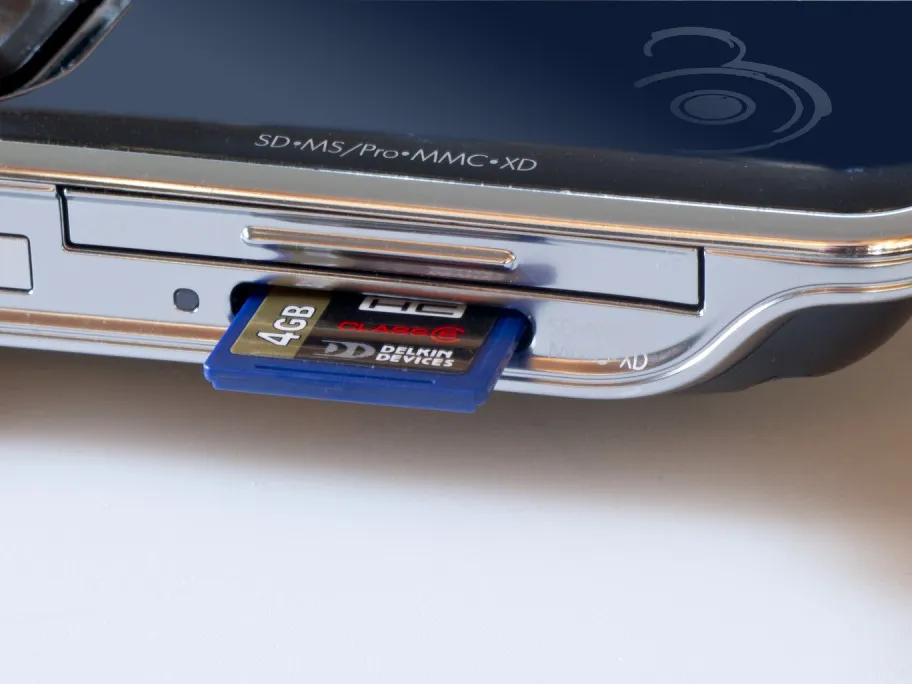
Memory Card Reader
A memory card is a small, removable digital storage device used in many electronic gadgets such as digital cameras, MP3 players and so on. Many laptops feature memory card readers – small slots into which you can insert a memory card. You can then view the contents of the memory card and even use the memory card as an external storage device to save data from your laptop.
Monitor Port
Some laptop computers include a monitor port. If you want to connect an external monitor to your laptop – for example, to show a presentation on a larger screen or if you use a dual-monitor system in your workflow – you can connect a standard monitor cable to the laptop’s monitor port.
Ethernet Jack
You use an Ethernet jack to connect your computer to a router that controls your local area network (LAN) through a coaxial or fibre-optic cable. You can also use an Ethernet jack to establish a high-speed connection to the Internet. You simply plug the Ethernet cable into the Ethernet jack on your laptop and then connect the other end of the cable to a high-speed modem.
Modem Jack
Although most people use an Ethernet cable or a wireless signal to access the Internet, there may be times when you must use a phone line. If you need to use a phone line to dial up your Internet connection, you can plug a phone cable into the modem jack to pick up a signal.
PC Card Slot
The Personal Computer Memory Card International Association (PCMCIA), a group of industry-leading companies, defined and developed a standard for PCMCIA (or PC) cards. A PC card was originally a type of storage card but it has expanded to house other devices, such as network cards and modems. Many laptops include slots for PC cards.
Headphone and Microphone Jacks
If you want to use headphones to listen to music from your computer, you plug them into the headphone jack. You can also use this jack to plug in computer speakers. You use the microphone jack to plug in a microphone. You might use a microphone, for example, to communicate with others using a video-chat application.
Choose a Monitor Size
Laptop displays range in size from 5 inches – perfect for portability – to 17 or even 20 inches. These larger monitors are ideal for handling graphics and animations. In addition to varying in size, laptop monitors can also vary in image quality.
Which monitor is right for you depends on how many hours you will spend in front of it and what functions you need to perform. When choosing a monitor, you should keep both size and image quality in mind.
Note that laptop monitors are notoriously fragile. Avoid scratching them or submitting them to extreme temperatures.
Display Size
If you mainly need to check e-mail or type a few memos on the road, a smaller monitor might be adequate. However, if you spend hours reading reports, studying graphs and viewing high-end graphics, a larger monitor is best. Of course, monitor size affects portability, with larger monitors best suited for stay-at-home laptops.
Display Quality
Laptop monitors vary widely in quality. When resear...