Day 1: Accounts Command Centre and Card File Centre
Key terms and concepts
• General ledger account: a collection of ledger accounts into which transactions are posted in total from journals. It holds the details of business transactions of the same type — that is, transactions related to particular types of asset, liability, income, owner’s equity and expense items.
• Chart of accounts: a list of all the account names and numbers used in a business’s general ledger, organised in such a way that it reflects the financial structure of the business. It serves as an index, enabling a given account to be located within the ledger.
• Goods and services tax (GST): a tax on goods and services sold within Australia. The tax (currently 10 per cent) is collected by the provider of the goods or service and remitted to the Australian Taxation Office (ATO) on a quarterly basis.
To start learning MYOB, your first step is to install MYOB software on your computer if it’s not already there. You can download a free trial version of MYOB software from www.myob.com.au. To fully benefit from this book, I suggest you download MYOB AccountRight Plus if you use a PC or MYOB Account Edge if you use a Mac. Even if you have other MYOB software, you may like to do this for the purpose of working through this book. You will be able to create a data file that will last for 30 days, which is sufficient time to undertake all the exercises in this book.
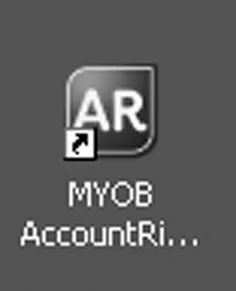
Once you’ve installed MYOB AccountRight Plus, an MYOB AccountRight Plus icon will appear on your desktop (see figure 1.1).
Figure 1.1: MYOB AccountRight Plus desktop icon
Double-click the icon, and the MYOB welcome screen opens (see figure 1.2). This gives you access to the company data file.
We will start by creating a brand-new company file. The activities in this book are oriented around a small fitness studio called Green Apple Gym. Click ‘Create a company file’ on the left-hand side, and the New Company File Assistant: Introduction window opens (see figure 1.3). At this stage you can choose the MYOB product you wish to create: AccountRight Basics, AccountRight Standard or AccountRight Plus. Select AccountRight Plus.
Figure 1.2: MYOB welcome screen
Figure 1.3: New Company File Assistant: Introduction window
On the left-hand side of this screen you will see a wizard with seven tabs. The tab that is currently active is always violet. I encourage you to read the information on the MYOB screen, but I will specify the required options as we work through the wizard.
Click the Company Information tab, and the New Company File Assistant: Company Information window appears (see figure 1.4). The contact information that is entered here will feed through to other areas, such as reports and invoices. Fill out the fields with the information shown in this window. As you click through to the next field, the tabs along the left-hand side will become active. For the purpose of working through this book I suggest that you use the data I provide. Once you have completed the seven-day course you can go back to the start and enter your own data if you wish, as you are able to create an unlimited number of trial MYOB data files.
Figure 1.4: New Company File Assistant: Company Information window
Click the Financial Year tab, and the New Company File Assistant: Financial Year window will open (see figure 1.5). This is where you enter the financial year you wish to start with. If you wish to enter data from a previous year, you will need to change the default financial year. If your business does not run along the standard 1 July to 30 June financial year, you can change the last month of the financial year here.
Before you move on, check that you have selected the correct financial year for your business, as you cannot change it later on. For the purpose of this exercise, accept the default fields that appear, which should reflect the current financial year.
Figure 1.5: New Company File Assistant: Financial Year window
Click the Accounts List Options tab, and the New Company File Assistant: Accounts List Options window opens (see figure 1.6, overleaf). This area allows you to choose how you will set up the company’s chart of accounts. As you can see, you have three choices. You can use the industry-specific list defined by MYOB; or you can import an accounts list; or, as we are going to do, you can select the third option, ‘Build your own list’. Once you’ve selected the third option, the Accounts List Selection tab is deactivated and fades to grey.
Figure 1.6: New Company File Assistant: Accounts List Options window
Click the Create Company File tab, and the New Company File Assistant: Create Company File window will open (see figure 1.7). Here you can specify where you want to save the data file. You will notice that the software has created an area called ‘My Library’. For our purposes it’s fine to accept the default library area. Once you have entered all the information, click Create Company File, and MYOB AccountRight Plus will take a few moments to create your new company file.
Once the new data file has been created, the New Company File Assistant: Conclusion window opens (see figure 1.8). Click the Command Centre button to access the company data file for the Green Apple Gym.
Figure 1.7: New Company File Assistant: Create Company Fil...