![]()
After successful completion of this section you will be able to show you have achieved these outcomes:
•Understand the various icons and symbols and structure used in this book and online.
•Understand how to use the learning activities and other features.
1.1 Introduction
This textbook should be used in conjunction with the ATT multimedia materials; it is not intended to be a standalone resource. But, it is designed to help you learn …
… and the best way to learn anything new is to interact with it. In other words, be an active learner. Sitting back being passive and expecting your brain to remember stuff doesn’t work!
| You will find this button (or something similar) on all our multimedia learning screen – click it to see what happens! |
As you work through this book you will see this symbol next to some paragraphs:
| This means that there is a video or animation associated with the text. You can access this online or from the locally installed version of ATT. This is a good way to interact. |
The other image you will see at the start of each main chapter, is a QR code (as above). If you have suitable software on your computer (and a camera) or a smartphone app, pointing at this image will link to some useful resources.
Note that the practical sections are not in this book (to save space) but they are all available in full multimedia online.
Online learning link: http://www.automotivett.org
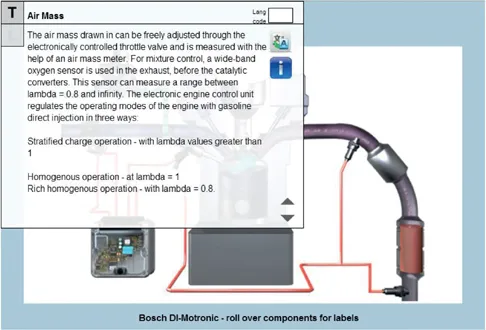
Screen title Most of the paragraphs of text in this book with start with a title in bold as shown here! This is the title that you will see on the multimedia learning screen. And to help you interact even more and make learning about automotive technology fun as well as interesting, we have developed ATT interactive. All the activities in this book can be carried out with using features on the interactive website. Paper and pencils will work too in most cases too so you can still work if you don’t have internet access.
Figure 1.1 Example screen showing the interactive and translate buttons
Visit: http://www.automotivett.org to access a demonstration of the amazing and unique features of ATT interactive:
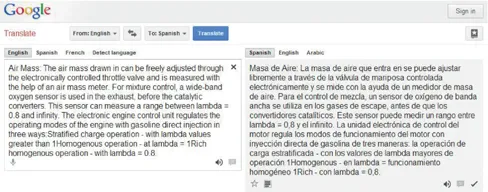
The translate feature available on all our learning screens. Enter the language code in the small box and then click the Google translate button. I used ‘es’ (Spanish) and the result is shown as Figure 1.2.
Figure 1.2 Google translate website
Now although this machine translation is very good it is not perfect and so fluent speakers will notice some amusing errors (filing metal and filing papers can be mixed up for example!). However, the feedback we have received is that it is a great help for people working in English as a second language.
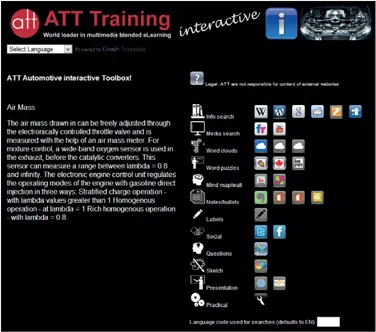
Figure 1.3 ATT interactive website
Clicking the blue interactive button takes you to the website sho...