eBook - ePub
Available until 23 Dec |Learn more
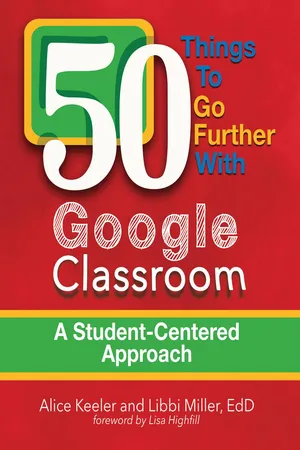
50 Things to Go Further with Google Classroom
A Student-Centered Approach
This book is available to read until 23rd December, 2025
- English
- ePUB (mobile friendly)
- Available on iOS & Android
eBook - ePub
Available until 23 Dec |Learn more
About this book
Today's technology empowers educators to move away from the traditional classroom where teachers lead and students work independently—each doing the same thing. In 50 Things to Go Further with Google Classroom: A Student-Centered Approach, authors and educators Alice Keeler and Libbi Miller offer inspiration and resources to help you create a digitally rich, engaging, student-centered environment. They show you how to tap into the power of individualized learning that is possible with Google Classroom.
Frequently asked questions
Yes, you can cancel anytime from the Subscription tab in your account settings on the Perlego website. Your subscription will stay active until the end of your current billing period. Learn how to cancel your subscription.
At the moment all of our mobile-responsive ePub books are available to download via the app. Most of our PDFs are also available to download and we're working on making the final remaining ones downloadable now. Learn more here.
Perlego offers two plans: Essential and Complete
- Essential is ideal for learners and professionals who enjoy exploring a wide range of subjects. Access the Essential Library with 800,000+ trusted titles and best-sellers across business, personal growth, and the humanities. Includes unlimited reading time and Standard Read Aloud voice.
- Complete: Perfect for advanced learners and researchers needing full, unrestricted access. Unlock 1.4M+ books across hundreds of subjects, including academic and specialized titles. The Complete Plan also includes advanced features like Premium Read Aloud and Research Assistant.
We are an online textbook subscription service, where you can get access to an entire online library for less than the price of a single book per month. With over 1 million books across 1000+ topics, we’ve got you covered! Learn more here.
Look out for the read-aloud symbol on your next book to see if you can listen to it. The read-aloud tool reads text aloud for you, highlighting the text as it is being read. You can pause it, speed it up and slow it down. Learn more here.
Yes! You can use the Perlego app on both iOS or Android devices to read anytime, anywhere — even offline. Perfect for commutes or when you’re on the go.
Please note we cannot support devices running on iOS 13 and Android 7 or earlier. Learn more about using the app.
Please note we cannot support devices running on iOS 13 and Android 7 or earlier. Learn more about using the app.
Yes, you can access 50 Things to Go Further with Google Classroom by Alice Keeler, Libbi Miller in PDF and/or ePUB format, as well as other popular books in Education & Education Technology. We have over one million books available in our catalogue for you to explore.
Information
50 Things to Go Further with Google Classroom
1. Always Start with Google Classroom
Consistency and routine have always been an important part of any classroom. This is even more important when technology and devices are part of the classroom environment. Rather than waiting for the teacher to begin the class session, students start each day by going to Google Classroom and locating the task for the day. This reduces transition time and confusion, and contributes to students having a greater role in the running of the class.
Throughout the class session, any new information or links to be shared can be updated in Classroom. With this consistent routine, students know to always locate the information they need in Google Classroom. When students need to access other websites, the links can be provided in Google Classroom as well.


Go Further
Chromebook users will want to add the Google Classroom Chrome App: goo.gl/vRC6E9
This will add the Google Classroom icon to all the apps listed on the Chromebook.
Go Further
The Add to Google Classroom Chrome extension (goo.gl/4Kb34F) was created by Andrew Caffrey. The Chrome extension allows teachers to create an assignment or announcement in Google Classroom with a link attachment of the current webpage that is being viewed. From the student perspective, the Add to Google Classroom Chrome extension permits submitting the URL of the page a students is viewing directly to an assignment.
2. Use Google Classroom with a Website or LMS
When used in conjunction with a classroom website or learning management system (LMS), Google Classroom works great as a tool to develop student-centered instruction. The class does not have to revolve around the teacher, nor does learning have to happen only inside of the classroom. Students can engage in the learning process from anywhere.
When using Google Classroom with other platforms, the function of Google Classroom changes. Rather than starting with Google Classroom, students start by going to the class website or LMS for directions and lesson instruction. Since Google Classroom is a closed environment, it protects student privacy. The Google Classroom Stream is not visible to people outside of the classroom. Because of this, Google Classroom can be used to distribute documents and collect work that includes student information and names.
The Google Classroom description box is not a rich-text editor. This means that teachers are not able to have bold or underlined text, or to embed videos in the description box. Utilizing a classroom website allows lessons to be created that are visible to parents, include rich text, and have embedded videos.
The teacher can easily direct students from the website to the Google Classroom with a link and directions such as “Go to Google Classroom and locate assignment #023. Click on the link for the collaborative spreadsheet and find the tab with your name to add your research notes.” It is best for teachers to have a consistent workflow and always use Google Classroom for distributing and collecting documents.

Go Further
In the description space for the assignment in Google Classroom, provide procedural directions rather than assignment directions. Remind students to click on the “Open” button in Google Classroom to locate documents you have copied for each student, and to locate assignments’ directions on the class website or in the LMS.
3. Number Your Assignments
When creating assignments or announcements in Google Classroom, numbering each of them makes Google Classroom significantly easier to use and more student friendly. This allows for teachers to step back and let students take control of their learning. A three-digit numbering system allows the teacher to reference the assignments or announcements in the Stream. For example #001, #002, #003, etc. Place the assignment number first in the assignment title. “#057 Proper Noun Activity.”
Students can easily locate assignments and resources in the Stream. They can also use keyboard shortcuts to search for the assignment number (Ctrl+F on the PC or Chromebook and Command-F on the Mac). For example, to search for assignment #019, students can to use the shortcut and type in #019.

Go Further
Documents created by students in Google Classroom are titled with the assignment name.
Numbering the assignments adds the assignment number to student work, making them easier to locate in Google Drive. The ListDocs and Show Me All The Docs Add-ons create a spreadsheet list of all of the documents in your Google Classroom class folder. Listing assignments on a spreadsheet allows for sorting, filtering, making notes, and marking off for record-keeping purposes.
ListDocs template: alicekeeler.com/listdocs
Show Me All The Docs template: alicekeeler.com/showdocs
One of the big advantages for numbering assignments is the Google Drive folder organization. Each time an assignment is created in Google Classroom, an assignment folder is created in Google Drive as a subfolder of the class folder. Google Drive allows files and folders to be sorted either by name or when they were last modified. Organizing assignments alphabetically is rarely helpful. Numbering assignments allows the assignment folders in Google Drive to be sorted in the order they were assigned.
Numbering assignments also helps students to easily locate which task they are on. Not all students may be working on the same task. Continually working towards mastery, students can more easily locate their assignments, even as the Stream expands with new assignments.

4. Create Authentic Assignments
Authentic assignments give student work a purpose beyond the classroom-learning objectives and provide the students with a real audience for their work. Creating authentic assignments involves identifying real-world problems, locating and collecting data, communicating with individuals outside of the classroom, and sharing solutions.
In Google Classroom, teachers and students can create and share numerous resources to support student engagement in authentic assignments. Teachers can provide links to community resources and data by using the “link” icon when creating assignments. They can also create templates for project elements such as expert interviews. Authentic assignments are going to generate a lot of questions. Students can post these questions in the assignment in the Stream.
Google Classroom does not dictate or limit what teachers or students can attach. This allows for students to provide evidence of their learning in many different formats, such as links to student-created blogs or websites, video interviews with experts, or multimedia projects.
Go Further
Students can also collaborate and share their ideas in Google Classroom. Attaching documents in Google Classroom as “Students can edit file” gives the entire class access to a single document. This allows for crowdsourcing of information and lets them build off the work of other students’ ideas while working on different parts of an assignment. A Google Form in Google Cl...
Table of contents
- Foreword
- The Student-Centered Classroom
- Voices of the Students
- Voice of a Teacher
- Google Classroom
- 50 Things to Go Further with Google Classroom
- 1. Always Start with Google Classroom
- 2. Use Google Classroom with a Website or LMS
- 3. Number Your Assignments
- 4. Create Authentic Assignments
- 5. Collaboration Is King
- 6. Provide Directions
- 7. Create a Directions Document
- 8. Differentiating Tasks
- 9. Update a Post
- 10. Ditch Worksheets
- 11. Stop Grading; Focus on Feedback
- 12. Grade with Rubrics
- 13. Side-by-Side Windows
- 14. Share to Classroom
- 15. Ask a Question
- 16. Connect with Other Students
- 17. Understand Other Cultures
- 18. Share Student Ideas
- 19. Create Manipulatives with Google Drawing or Google Slides
- 20. Choose Tools Strategically
- 21. Collaborate Using Google Slides
- 22. Provide HyperDocs
- 23. The Classroom Is a Community
- 24. Share Student Work
- 25. Peer Evaluation
- 26. Using the “About” Tab
- 27. Create a Daily Warm-Up
- 28. Provide Links on the Fly
- 29. Share Solutions to Assignments
- 30. Submit Paper Assignments
- 31. Make Students Co-Teachers
- 32. Short-Term Goal Setting
- 33. Experience Digital Literacy
- 34. Create Non-Rostered Classes
- 35. Use Animated GIFs
- 36. Students Read Aloud
- 37. Students Responsible for Their Learning
- 38. Provide Challenges, Not Assignments
- 39. Feedback Workflows
- 40. Critique the Reasoning of Others
- 41. Student Portfolio
- 42. Students Share Their Learning
- 43. Move to the Top
- 44. Create Yearlong Journals
- 45. Explain the Thought Process
- 46. Persevere in Problem Solving
- 47. Crowdsource Ideas, Facts, and Projects
- 48. Replace Homework with Engaging In-Class Activities
- 49. Jigsaw Activities
- 50. Create a Student-Driven Classroom
- Frequently Asked Questions
- Conclusion
- Acknowledgments
- More from Dave Burgess Consulting, Inc
- About the Authors