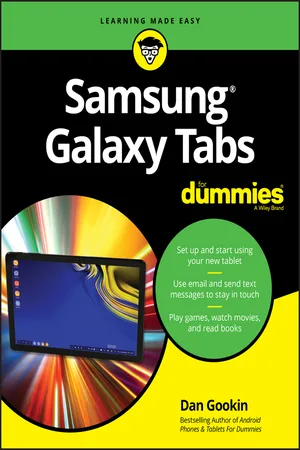
Samsung Galaxy Tabs For Dummies
eBook - ePub

Samsung Galaxy Tabs For Dummies

  1. English
  2. ePUB (mobile friendly)
  3. Available on iOS & Android
eBook - ePub

Samsung Galaxy Tabs For Dummies

About this book

Welcome to the Galaxy

Popular for both work and play, Android tablets fill a useful niche between smartphone and computer. Samsung's Galaxy Tab kicks it up a notch, offering both hardware and software technology beyond its competitors. Samsung enhances the basics—web, email, eReader, navigation, music, video, camera—and offers unique tools such as the Bixby assistant and the high-tech S-Pen. Coupled with an envious design, Galaxy Tab is a formidable contender to other devices, offering features you won't find anywhere else.

Samsung Galaxy Tab For Dummies helps you take full advantage of everything this sweet device has to offer. Whether you're looking to keep in touch with friends and family on social media, want a portable way to stay connected to your work, or desire to read the latest potboiler or catch-up with the latest streaming TV drama, the Galaxy Tab makes it possible—and this book shows you how.

  • Set up and start using your new tablet
  • Connect with email, video chat, and explore social media
  • Play games, enjoy music, watch movies and streaming TV
  • Browse digital magazines and enjoy ebooks

A whole new galaxy awaits! Get ready to soak it all in!

Frequently asked questions

Yes, you can cancel anytime from the Subscription tab in your account settings on the Perlego website. Your subscription will stay active until the end of your current billing period. Learn how to cancel your subscription.
No, books cannot be downloaded as external files, such as PDFs, for use outside of Perlego. However, you can download books within the Perlego app for offline reading on mobile or tablet. Learn more here.
Perlego offers two plans: Essential and Complete
  • Essential is ideal for learners and professionals who enjoy exploring a wide range of subjects. Access the Essential Library with 800,000+ trusted titles and best-sellers across business, personal growth, and the humanities. Includes unlimited reading time and Standard Read Aloud voice.
  • Complete: Perfect for advanced learners and researchers needing full, unrestricted access. Unlock 1.4M+ books across hundreds of subjects, including academic and specialized titles. The Complete Plan also includes advanced features like Premium Read Aloud and Research Assistant.
Both plans are available with monthly, semester, or annual billing cycles.
We are an online textbook subscription service, where you can get access to an entire online library for less than the price of a single book per month. With over 1 million books across 1000+ topics, we’ve got you covered! Learn more here.
Look out for the read-aloud symbol on your next book to see if you can listen to it. The read-aloud tool reads text aloud for you, highlighting the text as it is being read. You can pause it, speed it up and slow it down. Learn more here.
Yes! You can use the Perlego app on both iOS or Android devices to read anytime, anywhere — even offline. Perfect for commutes or when you’re on the go.
Please note we cannot support devices running on iOS 13 and Android 7 or earlier. Learn more about using the app.
Yes, you can access Samsung Galaxy Tabs For Dummies by Dan Gookin in PDF and/or ePUB format, as well as other popular books in Computer Science & Hardware. We have over one million books available in our catalogue for you to explore.

Information

Publisher
For Dummies
Year
2019
Print ISBN
9781119466604
eBook ISBN
9781119466581
Part 1

A Galaxy at Your Fingertips

IN THIS PART …
Get started with your Samsung Galaxy Tab.
Work through the Tab setup.
Learn how to operate the tablet.
Discover various parts of the Tab.
Explore DeX and use the S Pen.
Chapter 1

Tab Orientation

IN THIS CHAPTER
Bullet
Unboxing your Galaxy Tab
Bullet
Charging the battery
Bullet
Locating important things
Bullet
Adding or removing a microSD card
Bullet
Getting optional accessories
Bullet
Storing the tablet
I thoroughly enjoy getting a new gizmo and opening its box. Expectations build. Joy is released. Then despair descends, like a grand piano pushed out of a third-story window. That's because using any new electronic device, especially something as sophisticated as the Samsung Galaxy Tab, can be frustrating and confusing. You have a lot of ground to cover. To make your journey easier, I offer this gentle introduction.

Set Up Your Galaxy Tab

Most Galaxy tablets patiently wait in their box for your attention. The exception is the cellular, or LTE, tablet. Because it uses the mobile data signal, the kind people at the Phone Store might have worked through a setup-and-configuration process with you. This step is necessary to get the mobile data network up and running. For non-cellular, or Wi-Fi–only, tablets, the initial configuration and you are awkward strangers on a blind date.
  • Chapter 2 specifically covers the setup process as well as basic on–off procedures.
  • An LTE tablet is one that uses the mobile data network to access the Internet, the same as a smartphone. Yes, you pay monthly for that service.
  • A Wi-Fi–only tablet uses only a Wi-Fi network for Internet access. LTE tablets can also use Wi-Fi for Internet access. See Chapter 17 for information on configuring your tablet for use with a Wi-Fi network.
  • Technicalstuff
    The initial setup of an LTE tablet identifies the device with the mobile data network, giving it a network ID and associating the ID with your cellular bill.

Opening the box

Liberate your Galaxy Tab from its box by locating and lifting the cardboard tab. Gleefully remove any plastic sheeting that clings to the device. Check the sides, edges, front, and back. Also check the rear camera lens to ensure that it’s not covered with plastic.
In the box's bottom compartment, you may find:
  • A USB cable: You can use it to connect the tablet to a computer or a wall charger.
  • A wall charger: You'll find a USB connector (hole) on the charger as well as metal prongs for plugging the thing into a wall socket.
  • The S-Pen: This digital stylus allows for precise touchscreen input. You can use it instead of your stubby finger to draw images, write text, or manipulate graphical goobers.
  • Pamphlets with warnings and warranty information: I find it amazing that the Getting Started pamphlet is about 2 percent of the size of the warnings and warranty information. I blame the discrepancy on lawyers, who are obviously better than technology writers at getting work.
  • The 4G SIM card holder: For the LTE/cellular tablet, you need a 4G SIM card. The Phone Store employee may have tossed its holder into the box as well. You can throw it out.
  • Delicious air: Most of the inside of the box is air, bringing you the yummy odors of the Samsung manufacturing plant in Asia.
Go ahead and free the USB cable and power charger from their clear plastic cocoons. That’s because the next step is to charge the tablet’s battery, covered in the following section.
  • Refer to Chapter 5 for details on using the S Pen as well as the optional book cover keyboard.
  • Tip
    Keep the box for as long as you own your tablet. If you ever need to return the device or ship it somewhere, the original box is the ideal container. You can shove the useless pamphlets and papers back into the box as well.

Charging the battery

The first thing that I recommend you do with your Galaxy Tab is to give it a full charge. Obey these steps:
  1. Plug one end of the USB cable into the wall adapter.
  2. Attach the other end of the USB cable to the tablet.
    The cable attaches to the tablet's edge — usually, the bottom edge, though it can be on the side. The USB connector (hole) cannot be mistaken, and the cable plugs in only one way.
  3. Plug the wall adapter into the wall.
Upon success, you may see a Battery icon on the tablet’s touchscreen. The icon gives you an idea of the device’s current battery-power level and lets you know that...

Table of contents

  1. Cover
  2. Table of Contents
  3. Introduction
  4. Part 1: A Galaxy at Your Fingertips
  5. Part 2: Tab Communications
  6. Part 3: Everything in the Galaxy
  7. Part 4: Nuts and Bolts
  8. Part 5: The Part of Tens
  9. Index
  10. About the Author
  11. Advertisement Page
  12. Connect with Dummies
  13. End User License Agreement