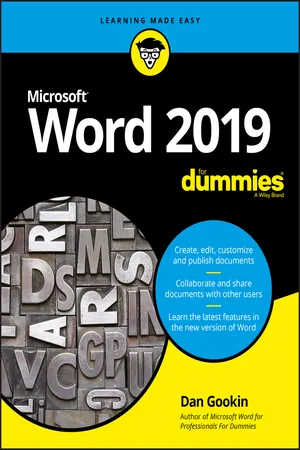
Word 2019 For Dummies
About this book
The bestselling beginner's guide to Microsoft Word
Whether you've used older versions of this popular program or have never processed a single word, this hands-on guide gets you going with the latest version of Microsoft Word. In no time, you'll begin editing, formatting, proofing, and dressing up your Word documents like a pro.
In this leading book about the world's number one word processing application, Dan Gookin talks about using Microsoft Word in friendly, easy-to-follow terms. Focusing on the needs of the beginning Word user, it provides everything you need to know about Word—without any painful jargon.
- Covers the new and improved features found in the latest version of Word
- Create your own templates
- Explains why you can't always trust the spell checker
- Offers little-known keyboard shortcuts
If you're new to Word and want to spend more time on your actual work rather than figuring out how to make it work for you, this new edition of Word X For Dummies has you covered.
Trusted by 375,005 students
Access to over 1 million titles for a fair monthly price.
Study more efficiently using our study tools.
Information
Your Introduction to Word
Hello, Word!


Start Your Word Day
- Before you can use Word, your computer must be on and ready to work. So turn on your PC, laptop, or tablet if it’s not already on and toasty. Log in to Windows.
- Do not attempt to make toast in your computer.
- Ensure that you sport a proper posture as you write. Your wrists should be even with your elbows. Your head should tilt down only slightly, though it’s best to look straight ahead. Keep your shoulders back and relaxed. Have a minion gently massage your feet.

- Other nerdy terms for starting a program: Run. Launch. Open. Fire up. Beg. Thrash. Whimper.

Starting Word the traditional way
- Press the Windows key on the keyboard.The Windows key is adorned with the Windows logo icon, which I won’t illustrate here because it changes more frequently than teenage fashion. The key is nestled between the Ctrl and Alt keys to the left of the spacebar. A duplicate is found on the right side of the spacebar on desktop computers. Use either key.
- Look for Microsoft Word on the Start menu.The item might be titled Word or Word 2019 or something similar.If you don’t find Word right away in Windows 10, click the All Apps button to hunt it down. In Windows 7, click the All Programs button.Sometimes Word is found on a Microsoft Office or Office 2019 folder or submenu.
- Click the Word icon or button to start the program.
Starting Word the best way
- Find the Word icon on the Start menu.See the preceding section, Steps 1 and 2.
- Right-click the Word icon.
- Choose the command More, Pin to Taskbar.The Pin to Taskbar command might appear directly on the right-click menu; otherwise, you find it on the More submenu.
Opening a document to start Word
- Locate the Document icon.
Use your Windows kung fu to open the proper folders and hunt down a Word document icon, similar to the one shown in the margin. - Double-click the icon.This step is a standard Windows operation: Double-click an icon to open a program. In this case, opening a Word document starts the Word program.
- You use Word to create documents. They’re saved to storage on your computer or in the cloud. Details are offered in Chapter 8.
- The document name is assigned when it’s originally saved. Use the name to determine the document’s contents — providing that it was properly named when first saved.
- Documents are files. As such, they are managed by Windows. If you need to find a lost document or rename it or organize your documents into a folder, you use Windows, not Word.

Behold the Word Program
Working the Word Start screen

Table of contents
- Cover
- Table of Contents
- Introduction
- Part 1: Your Introduction to Word
- Part 2: Your Basic Word
- Part 3: Fun with Formatting
- Part 4: Spruce Up a Dull Document
- Part 5: The Rest of Word
- Part 6: The Part of Tens
- Index
- About the Author
- Connect with Dummies
- End User License Agreement
Frequently asked questions
- Essential is ideal for learners and professionals who enjoy exploring a wide range of subjects. Access the Essential Library with 800,000+ trusted titles and best-sellers across business, personal growth, and the humanities. Includes unlimited reading time and Standard Read Aloud voice.
- Complete: Perfect for advanced learners and researchers needing full, unrestricted access. Unlock 1.4M+ books across hundreds of subjects, including academic and specialized titles. The Complete Plan also includes advanced features like Premium Read Aloud and Research Assistant.
Please note we cannot support devices running on iOS 13 and Android 7 or earlier. Learn more about using the app
