AutoCAD 2014 Essentials
eBook - ePub

AutoCAD 2014 Essentials

Autodesk Official Press

  1. English
  2. ePUB (mobile friendly)
  3. Available on iOS & Android
eBook - ePub

AutoCAD 2014 Essentials

Autodesk Official Press

About this book

Learn crucial AutoCAD tools and techniques with this Autodesk Official Press Book

Quickly become productive using AutoCAD 2014 and AutoCAD LT 2014 with this full color Autodesk Official Press guide. This unique learning resource features concise, straightforward explanations and real-world, hands-on exercises and tutorials. Following a quick discussion of concepts and goals, each chapter moves on to an approachable hands-on exercise designed to reinforce real-world tactics and techniques. Compelling, full-color screenshots illustrate tutorial steps, and chapters conclude with related and more open-ended projects to further reinforce the chapter's lessons.

Starting and ending files for the exercises are also available for download, so you can compare your results with those of professionals. You'll follow a workflow-based approach that mirrors the development of projects in the real world, learning 2D drawing skills, editing entities, working with splines and polylines, using layers and objects, creating and editing text, dimensioning, modeling in 3D, and much more.

  • Hands-on exercises and their downloadable tutorial files are based on the real-world task of drawing a house
  • Covers crucial features and techniques, including 2D drawing working with layers, organizing objects with groups and blocks, using hatch patterns and gradients, using constraints and layouts, importing data, 3D modeling, and
  • Includes content to help prepare you for Autodesk's AutoCAD certification program

AutoCAD 2014 and AutoCAD LT 2014 Essentials is the Autodesk Official Press guide that helps you quickly and confidently learn the newest version of AutoCAD and AutoCAD LT.

Tools to learn more effectively

Saving Books

Saving Books

Keyword Search

Keyword Search

Annotating Text

Annotating Text

Listen to it instead

Listen to it instead

Information

Publisher
Sybex
Year
2013
Print ISBN
9781118575093
eBook ISBN
9781118755730

Chapter 1

Getting Started

As you begin this book on the AutoCAD® program, I’m reminded of a quote by Chinese philosopher Lao-Tzu: “A journey of a thousand miles begins with a single step.” In much the same way, learning AutoCAD is something anyone can do by taking it one step at a time. And I promise that AutoCAD is much easier than walking a thousand miles!
By buying this book, you have already taken the first step in this journey. When you finish, you will have a solid understanding of AutoCAD.
  • Exploring the AutoCAD 2014 for Windows user interface
  • Setting drawing units

Exploring the AutoCAD 2014 for Windows User Interface

Autodesk has recently released new versions of AutoCAD, including AutoCAD® 2014 and AutoCAD LT® 2014. The two Windows versions look nearly identical and function in almost the same way. The main difference between them is that AutoCAD LT doesn’t support automation and some of the advanced 3D functions. The Mac version looks a bit different than its Windows cousins, but it functions nearly identically to AutoCAD for Windows, albeit with a slightly reduced set of features. Although this book was written using AutoCAD 2014 running on Windows XP Professional, you can use it to learn any of the current versions of AutoCAD.
start feature
AutoCAD for Mac has a user interface that is customized to the Mac experience. Although the Mac user interface is not covered in this book, its commands and capabilities are similar to those in AutoCAD for Windows.
end feature

Exploring the Graphical User Interface

Before you can use AutoCAD, you’ll need to familiarize yourself thoroughly with its graphical user interface (GUI). The AutoCAD 2014 (for Windows) user interface is shown in Figure 1-1.
start figure
Figure 1-1: AutoCAD 2014 user interface
c01f001.eps
end figure
Let’s now step through the basic user interface for AutoCAD:
certobjective.eps
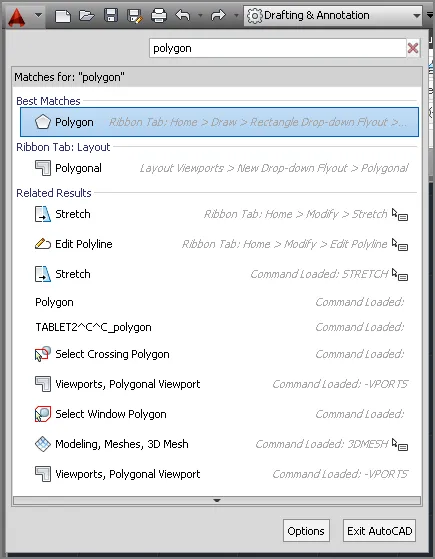
1. Click the Application menu. Type polygon, and observe that the text appears in the search box at the top of the Application menu. The search results (see Figure 1-2) list many related AutoCAD commands. Search is useful when you’re not sure how to access a command in the interface or what its exact name is.
/Level1 start figure
Figure 1-2: Searching for commands in the Application menu
c01f002.tif
end figure
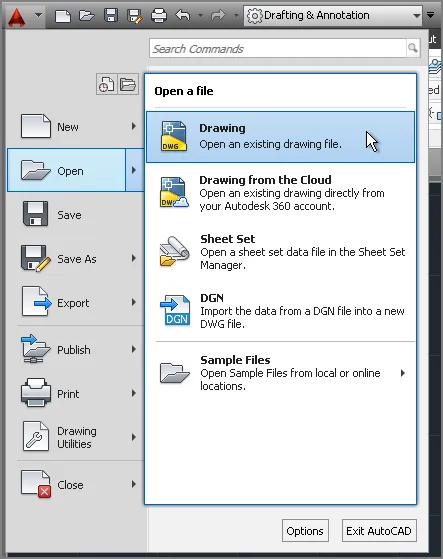
2. Click the red X at the extreme right edge of the search box to make the initial Application menu interface reappear. Here you can create new or open existing drawings, export or print drawings, and more. Hover the cursor over Open, and then click Drawing (Figure 1-3).
/Level1 start figure
Figure 1-3: Opening a drawing from the Application menu
c01f003.tif
end figure
certobjective.eps
3. Select the following sample file, and click Open in the Select File dialog box:
C:\Program Files\Autodesk\AutoCAD 2014\Sample\ Sheet Sets\Manufacturing\VW252-02-0142.dwg
/Level1 start feature
Sheet sets are not available in AutoCAD LT, and they are an optional feature in AutoCAD.
end feature
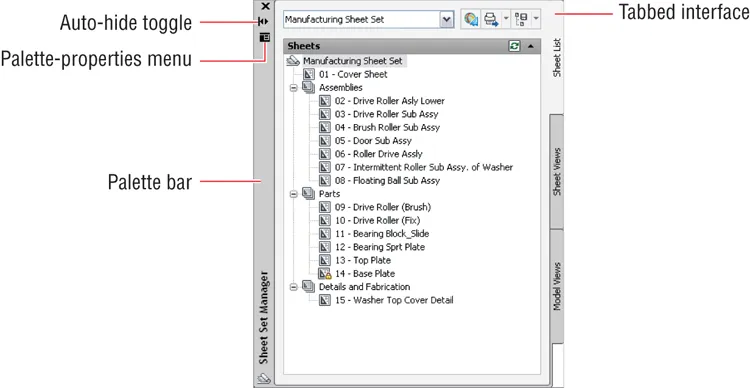
If you are using AutoCAD LT, open any of the sample files located under C:\Program Files\Autodesk\AutoCAD LT 2014\Sample. The Sheet Set Manager palette appears when the sample file is opened (see Figure 1-4). This palette automatically appears when you open any drawing that’s a part of a sheet set. AutoCAD has many palettes to organize tools and reusable drawing content.
/Level1 start figure
Figure 1-4: Opening a sample drawing reveals this palette.
c01f004.eps
end figure
4. Click the Sheet Views tab along the right edge of the Sheet Set Manager, and observe that tabs provide a means of accessing additional interface content. In its present state, the Sheet Set Manager is a floating palette. Drag its palette bar, and relocate it on screen.
/Level1 start feature
Drag floating palettes to a secondary monitor to maximize the drawing area on your primary monitor.
end feature
5. Click the Auto-hide toggle, and watch the palette collapse to its vertical palette bar; this saves space on screen. Hover the cursor over the palette bar, and watch the whole palette reappear so that you can access its content. Now toggle Auto-hide off.
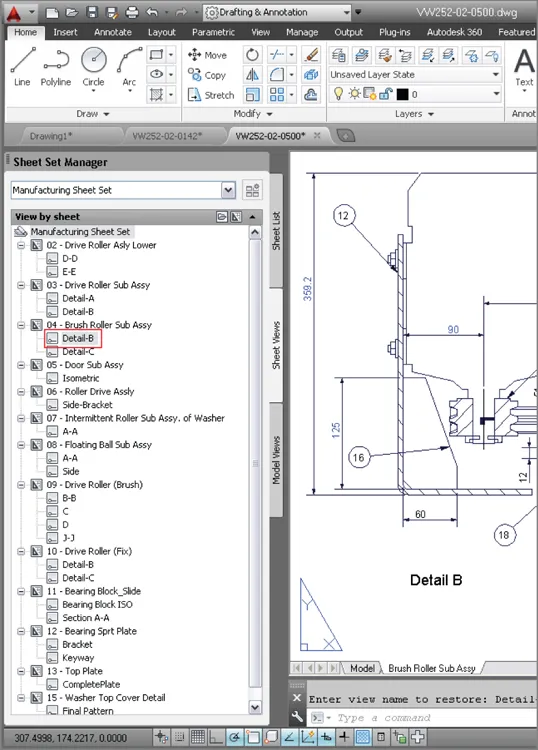
6. Click the Palette-properties menu and select Anchor Left. The Sheet Set Manager palette is docked along the left edge of the user interface. There are many options you can use to organize the user interface to match the way you work.
7. Double-click Detail-B under 04 – Brush Roller Sub Assy in the Manufacturing sheet set (see Figure 1-5). A new drawing appears in the drawing window.
/Level1 start figure
Figure 1-5: Docking a palette
c01f005.eps
end figure
certobjective.eps
c01i001.tif
8. Click the Open button in the Quick Access toolbar. Select any drawing in the Manufacturing folder and click Open. If you are using AutoCAD LT, open any other sample file.
/Level1 start feature
The Quick Access toolbar is a convenient way to open drawings, especially when you’re not using the Sheet Set Manager.
end feature
9. Click the Quick View Drawings button in the application status bar (see Figure 1-6). Move the cursor over ...

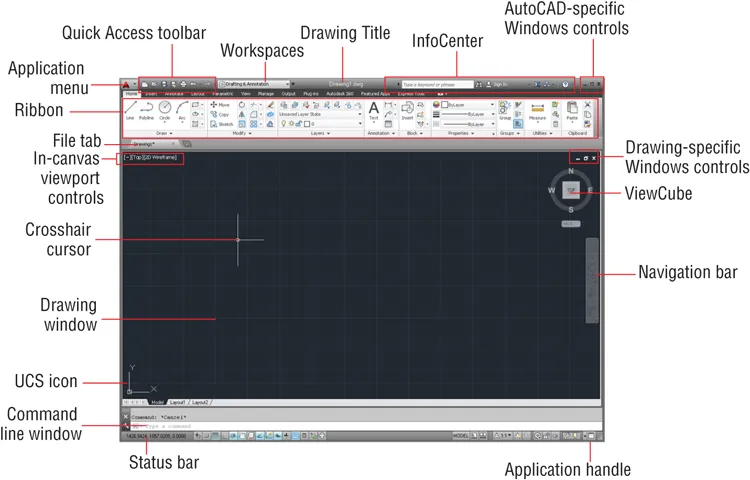
Table of contents

  1. Cover
  2. Acknowledgments
  3. About the Author
  4. Introduction
  5. Chapter 1: Getting Started
  6. Chapter 2: Basic Drawing Skills
  7. Chapter 3: Using Drawing Aids
  8. Chapter 4: Editing Entities
  9. Chapter 5: Shaping Curves
  10. Chapter 6: Controlling Object Visibility and Appearance
  11. Chapter 7: Organizing Objects
  12. Chapter 8: Hatching and Gradients
  13. Chapter 9: Working with Blocks and Xrefs
  14. Chapter 10: Creating and Editing Text
  15. Chapter 11: Dimensioning
  16. Chapter 12: Keeping In Control with Constraints
  17. Chapter 13: Working with Layouts and Annotative Objects
  18. Chapter 14: Printing and Plotting
  19. Chapter 15: Working with Data
  20. Chapter 16: Navigating 3D Models
  21. Chapter 17: Modeling in 3D
  22. Chapter 18: Presenting and Documenting 3D Design
  23. Appendix: Autodesk AutoCAD 2014 Certification

Frequently asked questions

Yes, you can cancel anytime from the Subscription tab in your account settings on the Perlego website. Your subscription will stay active until the end of your current billing period. Learn how to cancel your subscription
No, books cannot be downloaded as external files, such as PDFs, for use outside of Perlego. However, you can download books within the Perlego app for offline reading on mobile or tablet. Learn how to download books offline
Perlego offers two plans: Essential and Complete
  • Essential is ideal for learners and professionals who enjoy exploring a wide range of subjects. Access the Essential Library with 800,000+ trusted titles and best-sellers across business, personal growth, and the humanities. Includes unlimited reading time and Standard Read Aloud voice.
  • Complete: Perfect for advanced learners and researchers needing full, unrestricted access. Unlock 1.4M+ books across hundreds of subjects, including academic and specialized titles. The Complete Plan also includes advanced features like Premium Read Aloud and Research Assistant.
Both plans are available with monthly, semester, or annual billing cycles.
We are an online textbook subscription service, where you can get access to an entire online library for less than the price of a single book per month. With over 1 million books across 990+ topics, we’ve got you covered! Learn about our mission
Look out for the read-aloud symbol on your next book to see if you can listen to it. The read-aloud tool reads text aloud for you, highlighting the text as it is being read. You can pause it, speed it up and slow it down. Learn more about Read Aloud
Yes! You can use the Perlego app on both iOS and Android devices to read anytime, anywhere — even offline. Perfect for commutes or when you’re on the go.
Please note we cannot support devices running on iOS 13 and Android 7 or earlier. Learn more about using the app
Yes, you can access AutoCAD 2014 Essentials by Scott Onstott in PDF and/or ePUB format, as well as other popular books in Computer Science & Digital Media. We have over one million books available in our catalogue for you to explore.