Chapter 1: Getting Ready to Take Pictures
No matter what camera you have, you can customise it so that it works really well for you. Camera manufacturers make a lot of decisions about how a camera works based on what they think photographers who might buy a particular camera will need or use.
However, manufacturers can only guess, and sometimes, the default settings of your camera are designed for the needs of the average photographer; as a result, they are not optimal for a person who wants to take better photographs.
Is your camera set up right to support your picture taking? In this chapter, you learn the basics of getting ready to take great pictures with your camera.
Set Up Your LCD for Optimum Use
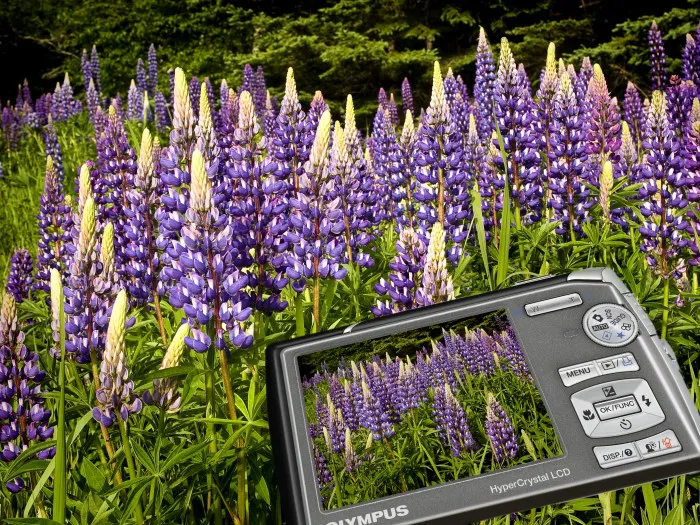
The LCD on a digital camera is a wonderful invention. It gives you an accurate view of your subject so that you see exactly what you are going to get in your photograph. But in order to get the most from your LCD, you need to use the camera’s menus to make some choices about how it works. You want to be sure it is helping you, not holding you back. Here are some tips in setting up your camera for the best use of your LCD.
Review Time
After you take the picture, the actual image shows up on most LCDs. This image review gives you a quick look at what your photo looks like. For example, you can quickly look to see that it is sharp and that your subject’s eyes are open. You know immediately if you need to make changes to your photography.
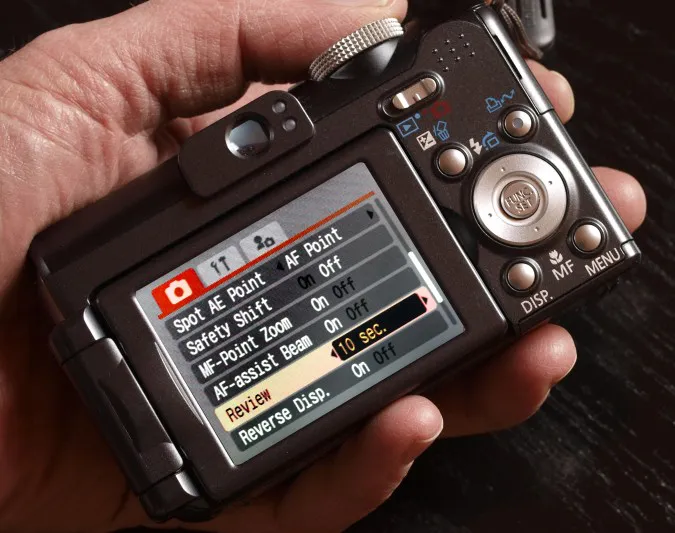
Set Review Time
On most cameras you can set review time between about 2 and 10 seconds in the camera or setup menus. Short times are not of much value because you really cannot evaluate much of what is in the picture. Try 8 to 10 seconds. Once you have seen enough, press the shutter release lightly and the review goes away. If the time is too short, simply press your playback button for a longer view.
Auto Rotate
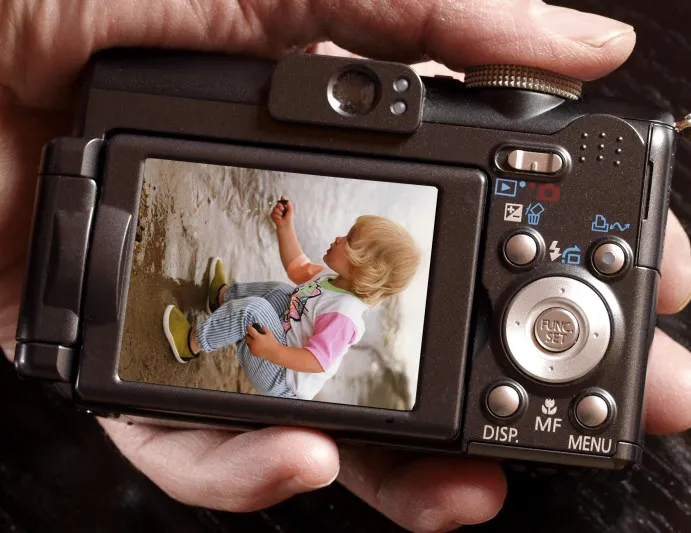
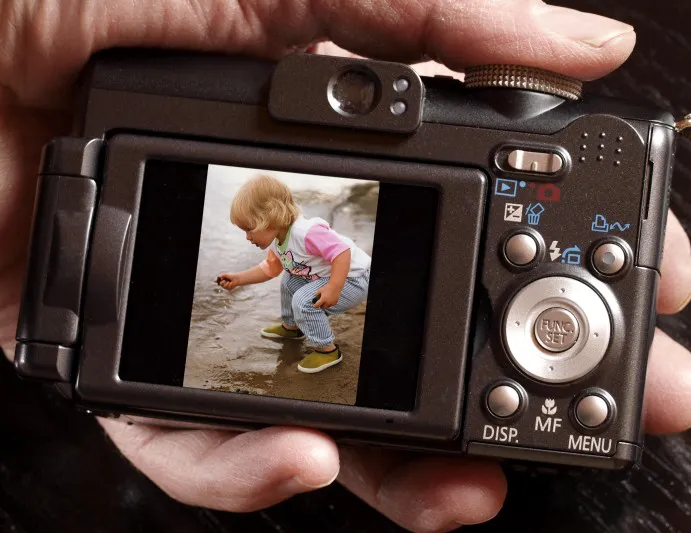
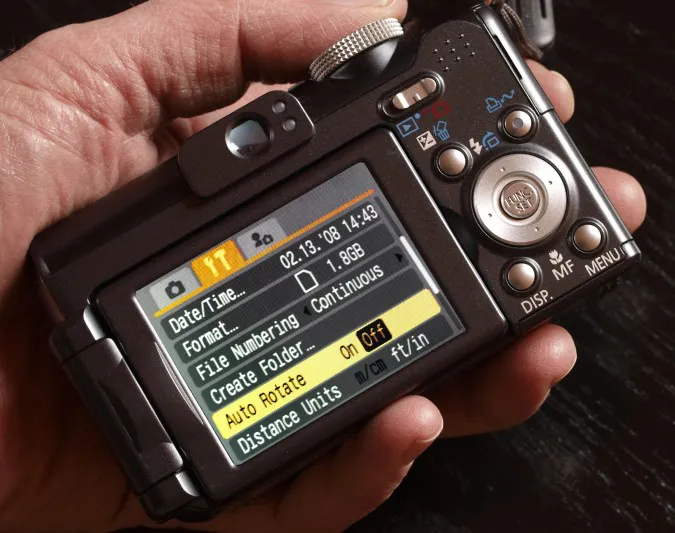
Most digital cameras today automatically rotate a vertical picture so that it shows up vertically in the LCD when you hold the camera horizontally. Unfortunately, a vertical picture does not fill the horizontal space and uses the LCD inefficiently. You can get the most from your LCD and get the largest picture possible if you set the camera so that it does not auto-rotate vertical pictures. The Auto Rotate setting is usually in the playback or setup menus.
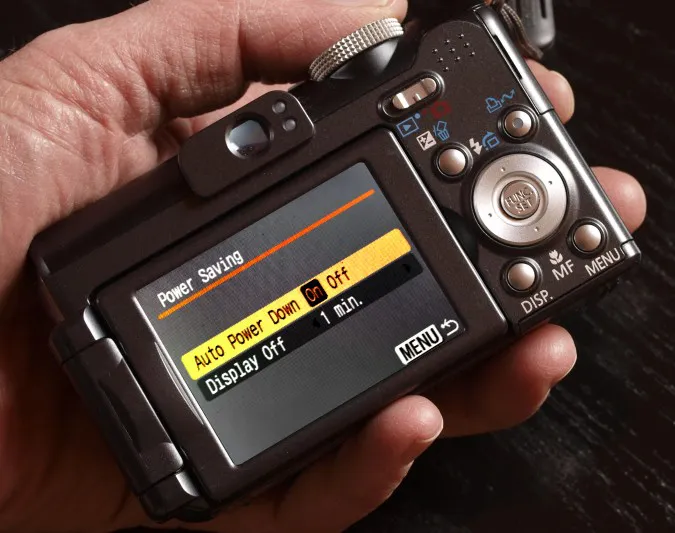
Camera Sleep Time (Auto Power Down)
A frustrating thing for digital photographers is to try to take a picture and find that your camera has gone to sleep. Most digital cameras have the auto power down time set too early. This option is usually in the setup menu and a good setting would be 2 to 4 minutes for most people. You can set this time longer but then you could be using your battery more than you want to.
Viewfinder or LCD – Which to Use?
Many cameras have both a viewfinder and an LCD. Viewfinders can be either optical or electronic (known as “EVF”). A viewfinder only works when you hold your eye up to it. Most people use the LCD when possible because it seems so natural to do. And some cameras do not even have viewfinders. Why would you want to use a viewfinder rather than an LCD? There are some distinct advantages to both. Knowing the possibilities of a viewfinder can help you use your camera better.
Use the Viewfinder in Bright Light
LCDs can be hard to see in bright light, especially when there are bright subjects that you are photographing. Because an optical or electronic viewfinder limits extraneous light and your head blocks more light, both allow you to see the subject better for framing in those conditions.
Use the LCD Inside
The LCD is ideal for shooting indoors. It has a consistent brightness, even if the light is low, which makes it easier to use than a viewfinder in those conditions. It also shows you if your exposure and white balance are correct so that you can get the best-looking image.
Use the Viewfinder for Moving Subjects
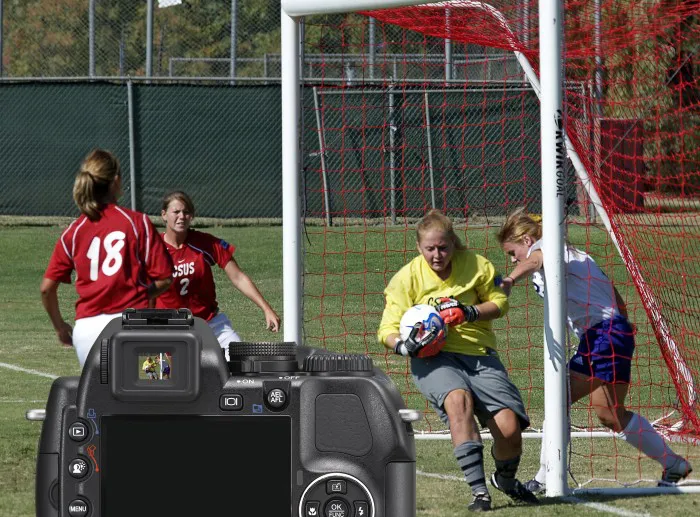
Movement can be hard to follow with an LCD held away from your face. This is where a viewfinder comes in handy. You have to have the camera up to your eyes to use a viewfinder. This makes it easier to follow movement (the camera simply follows your gaze) and distracting movement around the camera and LCD is blocked from view and not seen. Optical viewfinders are especially good for action.
Use the LCD for Close Shooting
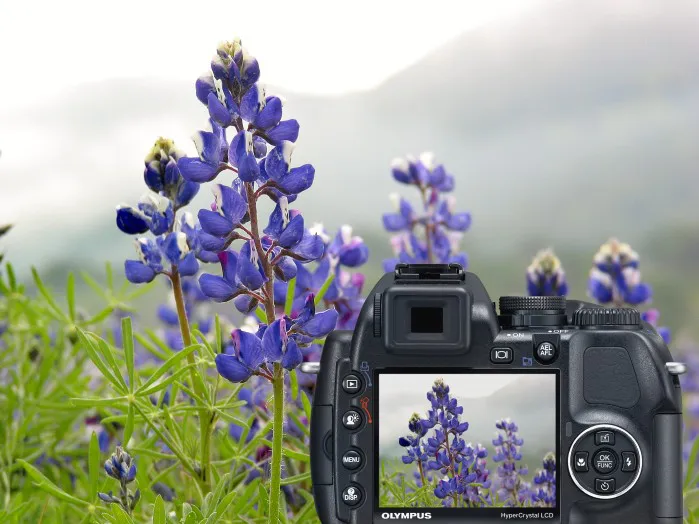
Your LCD is showing you exactly what the lens is seeing on your camera. A separate optical viewfinder, as used on compact digital cameras has its own lens system, and so it is seeing something slightly different. At a distance, this does not matter. But when you get up close, the optical viewfinder may not frame the scene correctly, which can mean that parts of your subject get cut off. You never have that problem with the LCD.
Choose a Resolution and File Type
Your camera comes with a certain resolution, such as 10 or 12 megapixels. This resolution strongly affects the price of your camera and the capabilities of the sensor. Your camera also comes with a default setting for the file type and compressi...