Note: CD-ROM/DVD and other supplementary materials are not included as part of eBook file.
- English
- ePUB (mobile friendly)
- Available on iOS & Android
eBook - ePub
PDF Forms Using Acrobat and LiveCycle Designer Bible
About this book
This comprehensive guide to creating fillable forms with the latest release of Adobe Acrobat is packed with real-world insights and techniques gained from daily use of Adobe Acrobat and Adobe LiveCycle Designer under business deadline situations. You'll get step-by-step instructions that show you how to easily create and implement interactive PDF forms using both Adobe Acrobat and Adobe LiveCycle Designer.
Information
Part I: Getting Familiar with Forms
In This Part
Chapter 1: Taking a Tour of Acrobat Forms
Chapter 2: Getting Started with Acrobat Forms
Chapter 3: Knowing Form Design Standards
Chapter 4: Creating Form Designs
Chapter 2: Getting Started with Acrobat Forms
Chapter 3: Knowing Form Design Standards
Chapter 4: Creating Form Designs
This section begins with an overview of forms, forms designs, and how to convert original designs from authoring application documents to PDF. We start in Chapter 1 by walking you through steps to create and deploy a form. Remaining chapters in this part cover forms design issues and standards. Much of the content in this section applies to both Acrobat Forms and LiveCycle Designer XML forms.
Chapter 1: Taking a Tour of Acrobat Forms
In This Chapter
Converting documents to PDF
Adding form fields
Modifying forms
Enabling special features in PDF documents
Merging data
Looking ahead
Adding form fields
Modifying forms
Enabling special features in PDF documents
Merging data
Looking ahead
The chapters ahead cover many things you need to know to become a real PDF forms specialist. But now it's 4:45 p.m. on a Wednesday afternoon, and the boss wants you to hand over a fillable form to the IT department for hosting on the company's Web site. You have 15 minutes before jumping in the car, speeding home to make dinner, and trying to get a little recreational time before you face another day's work. Can you do it?
Fortunately, you've picked just the right tool whether it be Adobe Acrobat Standard, Acrobat Professional, or Acrobat Professional Extended on Windows or Adobe Acrobat Professional on the Macintosh. You also picked the right book because we'll show you how to create that form in just 15 minutes with time to spare.
Starting with a PDF Document
The first thing you need to do to begin your tour of Acrobat Forms is to start with a PDF file. All documents you open in any Acrobat viewer, including the free Adobe Reader software, begin with an authoring application document that is converted to a PDF file. Your favorite authoring tool can be used to construct the layout and look of your form designs, and from there you convert your file to a PDF document.
If you're starting with a Microsoft Office program, the process of converting the original Office document to a PDF file is made very easy after you install Adobe Acrobat. All Office programs include a button, installed by Adobe Acrobat, to convert your Office document to a PDF file.
If you're using Office 2007, click the Acrobat tab in the Ribbon, and the Ribbon changes to show all the options you have for working with PDF documents, as shown in Figure 1.1.
FIGURE 1.1
Click the Acrobat tab in the Ribbon, and the Ribbon displays options for creating Adobe PDF files.
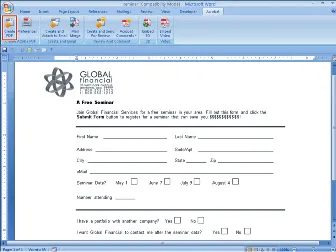
To convert to PDF, click the Create PDF button on the far left side of the Ribbon. The Save Adobe PDF File As dialog box opens. Locate the target folder where you want to save your PDF document, and click Save.
If you're using Office 2003, you have similar options using a Create Adobe PDF button. Just click the button, and save the file as a PDF document.

On the Macintosh, choose File⇒Print in Microsoft Word. In the Print dialog box, choose Save as PDF from the PDF pull-down menu.
Populating a Form with Field Objects
After you convert a document to a PDF document, it'...
Table of contents
- Cover
- Table of Contents
- Title Page
- Foreword
- Part I: Getting Familiar with Forms
- Part II: Using Acrobat Forms Tools and Properties
- Part III: Preparing Forms for Deployment
- Part IV: Managing Form Data
- Part V: Working with JavaScript
- Part VI: Getting Started with LiveCycle Designer
- Part VII: Creating XML Forms
- Part VIII: Creating Dynamic Forms with LiveCycle Designer
- Part IX: Working with Data and Scripts
Trusted by 375,005 students
Access to over 1.5 million titles for a fair monthly price.
Study more efficiently using our study tools.
Frequently asked questions
Yes, you can cancel anytime from the Subscription tab in your account settings on the Perlego website. Your subscription will stay active until the end of your current billing period. Learn how to cancel your subscription
No, books cannot be downloaded as external files, such as PDFs, for use outside of Perlego. However, you can download books within the Perlego app for offline reading on mobile or tablet. Learn how to download books offline
Perlego offers two plans: Essential and Complete
- Essential is ideal for learners and professionals who enjoy exploring a wide range of subjects. Access the Essential Library with 800,000+ trusted titles and best-sellers across business, personal growth, and the humanities. Includes unlimited reading time and Standard Read Aloud voice.
- Complete: Perfect for advanced learners and researchers needing full, unrestricted access. Unlock 1.5M+ books across hundreds of subjects, including academic and specialized titles. The Complete Plan also includes advanced features like Premium Read Aloud and Research Assistant.
We are an online textbook subscription service, where you can get access to an entire online library for less than the price of a single book per month. With over 1.5 million books across 990+ topics, we’ve got you covered! Learn about our mission
Look out for the read-aloud symbol on your next book to see if you can listen to it. The read-aloud tool reads text aloud for you, highlighting the text as it is being read. You can pause it, speed it up and slow it down. Learn more about Read Aloud
Yes! You can use the Perlego app on both iOS and Android devices to read anytime, anywhere — even offline. Perfect for commutes or when you’re on the go.
Please note we cannot support devices running on iOS 13 and Android 7 or earlier. Learn more about using the app
Please note we cannot support devices running on iOS 13 and Android 7 or earlier. Learn more about using the app
Yes, you can access PDF Forms Using Acrobat and LiveCycle Designer Bible by Ted Padova,Angie Okamoto in PDF and/or ePUB format, as well as other popular books in Computer Science & Entreprise Applications. We have over 1.5 million books available in our catalogue for you to explore.