Part I
Breezing through Basic Training
In this part . . .
A solid understanding of certain basic concepts and techniques makes learning Photoshop much easier. Heck, it’s difficult to understand a discussion of feathered selections when you don’t know your pixels from a hole in the ground, right?
In Chapter 1, I introduce you to Adobe Photoshop. Chapter 2 focuses on the basic concepts of digital imaging and offers a look at the primary file formats in which you save Photoshop images. Chapter 3 makes sure we’re all reading from the same menu as we discuss Photoshop’s various commands, tools, and features — and provides some critical trouble-shooting procedures. Finally, Chapter 4 covers bringing images into Photoshop from digital cameras or scanners, organizing those files, and basic output through printing.
1
Welcome to Photoshop!
In This Chapter
What Photoshop does very well, kind of well, and just sort of, well . . .
What you need to know to work with Photoshop
What you need to know about installing Photoshop
Adobe Photoshop is, without question, the leading image-editing program in the world. Photoshop has even become somewhat of a cultural icon. It’s not uncommon to hear Photoshop used as a verb (“That picture is obviously Photoshopped!”), and you’ll even see references to Photoshop in the daily comics and cartoon strips. And now you’re part of this whole gigantic phenomenon called Photoshop.
Before I take you on this journey through the intricacies of Photoshop, I want to introduce you to Photoshop in a more general way. In this chapter, I tell you what Photoshop is designed to do, what it can do (although not as capably as job-specific software), and what you can get it to do if you try really, really hard. I also review some basic computer operation concepts and point out a couple of places where Photoshop is a little different than most other programs. At the end of the chapter, I have a few tips for you on installing Photoshop to ensure that it runs properly.
Exploring Adobe Photoshop
Photoshop is used for an incredible range of projects, from editing and correcting digital photos to preparing images for magazines and newspapers to creating graphics for the Web. You can also find Photoshop in the forensics departments of law-enforcement agencies, scientific labs and research facilities, and dental and medical offices, as well as in classrooms, offices, studios, and homes around the world. As the Help Desk Director for the National Association of Photoshop Professionals (NAPP), my team and I solve problems and provide solutions for Photoshop users from every corner of the computer graphics field and from every corner of the world. People are doing some pretty amazing things with Photoshop, many of which are so far from the program’s original roots that it boggles the mind!
What Photoshop is designed to do
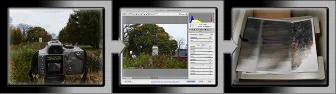
Adobe Photoshop is an image-editing program. It’s designed to help you edit images — digital or digitized images, photographs, and otherwise. This is the core purpose of Photoshop. Over the years, Photoshop has grown and developed, adding features that supplement its basic operations. But at its heart, Photoshop is an image editor. At its most basic, Photoshop’s workflow goes something like this: You take a picture, you edit the picture, and you print the picture (as illustrated in Figure 1-1).
Figure 1-1: Basic Photoshop: Take photo, edit photo, print photo. Drink coffee (optional).
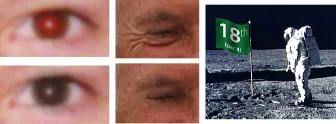
Whether captured with a digital camera, scanned into the computer, or created from scratch in Photoshop, your artwork consists of tiny squares of color, which are picture elements called pixels. (Pixels and the nature of digital imaging are explored in depth in Chapter 2.) Photoshop is all about changing and adjusting the colors of those pixels — collectively, in groups, or one at a time — to make your artwork look precisely how you want it to look. (Photoshop, by the way, has no Good Taste or Quality Art filter. It’s up to you to decide what suits your artistic or personal vision and what meets your professional requirements.) Some very common Photoshop image-editing tasks are shown in Figure 1-2: namely, correcting red-eye and minimizing wrinkles (both discussed in Chapter 9); and compositing images (see Chapter 10).
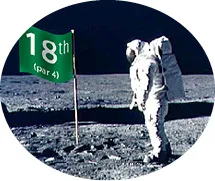
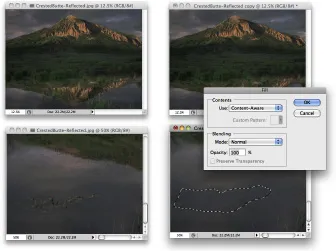
It seems that every time a new version of Photoshop is released, it has at least one new feature that I just can’t wait to tell you about. Of all the great improvements in Photoshop CS5 (including 64-bit cross platform performance — more on that in a bit), perhaps the biggest Wow! factor is Content-Aware Fill. When you’re retouching and compositing, Content-Aware Fill can really help make your result look more natural and seamless. When you make a selection and press the Delete/Backspace key, the Fill dialog box pops up, offering you the opportunity to simply delete the content of the selection, fill with color, or use the Content-Aware option. Content-Aware Fill looks at the pixels surrounding the selection and tries (very successfully, in most cases) to match the colors, textures, and patterns. In Figure 1-3, compare the original to the left, zoomed, and the full image, to the same views on the right, after content-aware filling of the selection. The Spot Healing Brush offers Content-Aware in the Options bar now, too! Astronaut image courtesy of NASA
Figure 1-2: Some common Photoshop tasks.
Figure 1-3: Content-Aware Fill matches color, texture, and pattern to the surrounding area.