- Updated to cover all the latest features and capabilities of Access 2007, this resource provides new and inexperienced Access users with eight task-oriented minibooks that cover begininning to advanced-level material
- Each minibook covers a specific aspect of Access, such as database design, tables, queries, forms, reports, and macros
- Shows how to accomplish specific tasks such as database housekeeping, security data, and using Access with the Web
- Access is the world's leading desktop database solution and is used by millions of people to store, organize, view, analyze, and share data, as well as to build powerful, custom database solutions that integrate with the Web and enterprise data sources
eBook - ePub
Microsoft Office Access 2007 All-in-One Desk Reference For Dummies
- English
- ePUB (mobile friendly)
- Available on iOS & Android
eBook - ePub
Microsoft Office Access 2007 All-in-One Desk Reference For Dummies
About this book
Information
Book VIII
Programming in VBA
Chapter 1: What the Heck Is VBA?
In This Chapter

V isual Basic for Applications — often abbreviated VBA — is a programming language you can use to extend the functionality of Microsoft Access and other products in the Microsoft Office suite of programs. A programming language is a means of writing instructions for the computer to execute (perform). Programmers often refer to the written instructions as code because the instructions aren’t in plain English. Rather, they’re in a code that the computer can interpret and execute.
You can create sophisticated Access databases without using VBA at all. In most cases, the other objects offered by Access — tables, queries, forms, reports, and macros — offer more than enough flexibility and power to create just about any database imaginable. But once in a while, you come across a situation where you want to do something that none of those other objects can do. That’s where VBA comes in. If you can find no other way to accomplish some goal in Access, writing code is usually the solution.
Finding VBA Code
So what the heck is VBA code, anyway? To the untrained eye, VBA code looks like gibberish — perhaps some secret code written by aliens from another planet. But to Access, the code represents very specific instructions on how to perform some task.
Within any given database, Access stores code in two places:

| Figure 1-1: Every form and report has a class module behind it. |  |
Opening a class module
If you want to view or change the code for a form or report’s class module, first open, in Design view, the form or report to which the module is attached. Then click the View Code button, shown near the mouse pointer in Figure 1-2.
| Figure 1-2: The View Code button. | 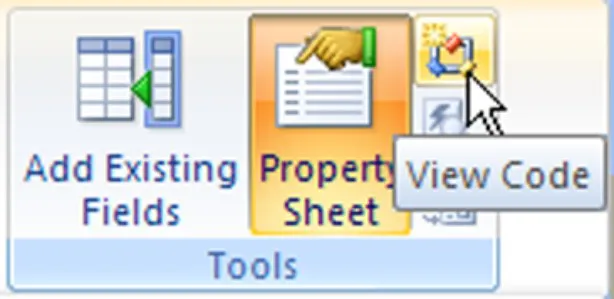 |
You can also get to a class module from the Event tab of the Property sheet in the Design View window. The Property sheet allows you to zoom right in on the VBA code that’s associated with a given control. For example, some controls contain code created by wizards. When you click such a control and then click the Events tab in the Property sheet, the property value chose [Event Procedure]. When you click [Event Procedure], you see a button with three dots, like the one near the mouse pointer in Figure 1-3. That’s the Build button. Click it to see the code that executes in response to the event.
| Figure 1-3: Look for the code that executes in response to the event. | 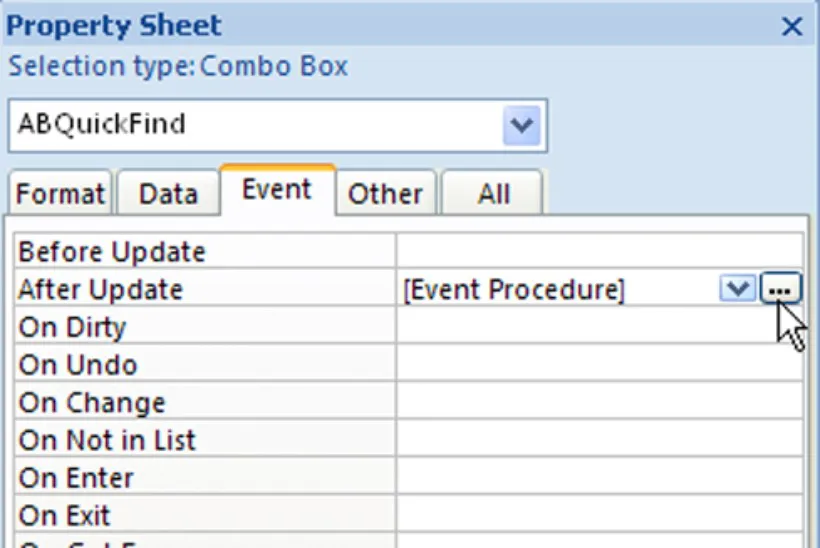 |

After you open a module, you’re taken to an entirely separate progra...
Table of contents
- Title
- Contents
- Introduction
- Book I : Essential Concepts
- Book II : Tables
- Book III : Queries
- Book IV : Forms
- Book V : Reports
- Book VI : Macros: Automating Stuff in Access
- Book VII : Database Administration
- Book VIII : Programming in VBA
- Appendix: Installing Microsoft Access
- : Further Reading
Trusted by 375,005 students
Access to over 1.5 million titles for a fair monthly price.
Study more efficiently using our study tools.
Frequently asked questions
Yes, you can cancel anytime from the Subscription tab in your account settings on the Perlego website. Your subscription will stay active until the end of your current billing period. Learn how to cancel your subscription
No, books cannot be downloaded as external files, such as PDFs, for use outside of Perlego. However, you can download books within the Perlego app for offline reading on mobile or tablet. Learn how to download books offline
Perlego offers two plans: Essential and Complete
- Essential is ideal for learners and professionals who enjoy exploring a wide range of subjects. Access the Essential Library with 800,000+ trusted titles and best-sellers across business, personal growth, and the humanities. Includes unlimited reading time and Standard Read Aloud voice.
- Complete: Perfect for advanced learners and researchers needing full, unrestricted access. Unlock 1.5M+ books across hundreds of subjects, including academic and specialized titles. The Complete Plan also includes advanced features like Premium Read Aloud and Research Assistant.
We are an online textbook subscription service, where you can get access to an entire online library for less than the price of a single book per month. With over 1.5 million books across 990+ topics, we’ve got you covered! Learn about our mission
Look out for the read-aloud symbol on your next book to see if you can listen to it. The read-aloud tool reads text aloud for you, highlighting the text as it is being read. You can pause it, speed it up and slow it down. Learn more about Read Aloud
Yes! You can use the Perlego app on both iOS and Android devices to read anytime, anywhere — even offline. Perfect for commutes or when you’re on the go.
Please note we cannot support devices running on iOS 13 and Android 7 or earlier. Learn more about using the app
Please note we cannot support devices running on iOS 13 and Android 7 or earlier. Learn more about using the app
Yes, you can access Microsoft Office Access 2007 All-in-One Desk Reference For Dummies by Alan Simpson,Margaret Levine Young,Alison Barrows,April Wells,Jim McCarter in PDF and/or ePUB format, as well as other popular books in Computer Science & Databases. We have over 1.5 million books available in our catalogue for you to explore.