![]()
Part I
My Word, and Welcome to It
In This Part
Chapter 1 Brave New Word
Chapter 2 Quick Start
Chapter 3 Where in the Word Is…?
Chapter 4 Making Word Work for You
Chapter 5 The X Files—Understanding and Using Word's New File Format
Chapter 6 Make It Stop! Cures and Treatments for Word's Top Annoyances
The post-Word 2003 world is different. Part I's mission is to get you past the differences and up and running with Word 2010. This section offers answers to questions such as “Why did they change it?” and “How do I do what I used to do?”
Part I begins with things you need to know and want to know about Word 2010. Chapter 1 explains the post-Word 2003 interface and why Microsoft chose to radically overhaul Word's look and feel. Chapter 2 offers a quick start, showing both beginning and seasoned Word users how to start Word and use its many facets. Chapter 3 is targeted at veteran pre-Word 2003 users who might feel a little lost in the maze of new methods and features. Chapter 4 offers the best advice the author can give you about how to get the most out of Word by using styles and taking advantage of power user techniques. Chapter 5 demystifies Word's .docx file format, explaining why and how it's different from Word's legacy .doc format. Finally, Chapter 6 tries to anticipate your reaction to certain “helpful” features by showing you how to tame or take advantage of Word behaviors that you might consider annoying.
![]()
Chapter 1
Brave New Word
In This Chapter
Discoverability
The “results-oriented” interface
Ribbons and other new things
Backstage view
Reviewing your options
Welcome to 2010. Word 2010, that is. If you came here from Word 2007, changes will seem evolutionary. If you arrived from Word 2003 or earlier, the changes are more revolutionary. This chapter provides an overview of what's new—changes since Word 2007 and changes since Word 2003.
If you're completely new to Word and have been using another Windows word processor such as WordPerfect or OpenOffice, you're likely more accustomed to toolbars and menus than you are to Word 2010's ribbons, so when I contrast Word 2010's ribbons with pre-Word 2003's interface, you'll likely immediately grasp just how different the ribbon is, even if you never touched Word 2003.
The ribbon is a set of contextual tools designed to put what you need where you need it when you need it. When you click one of the major tabs on the ribbon, the tools you need for specific tasks should mostly be right where you need them. The ideal result is that you don't need to go looking for what you want.
In fact, the ribbon might actually be considered a kind of toolbar. Instead of a list of different toolbars accessed from the View menu, however, the different parts of the ribbon are organized into tabs and groups. The result is that more of the tools are exposed to you, making it more likely that you'll discover what you need. At least that's the theory.
If you've used Word 2003 or earlier versions in the past, Word 2010 will seem strange and different. Imagine that you left Earth in the year 1994—the last time Word's interface was overhauled—and returned in the year 2010. Over the ensuing sixteen years, Word for Windows 6 had gradually evolved into Word 14 (Word 2010), slowly transitioning from menus and toolbars to the ribbon.
When considered from that evolutionary perspective, perhaps Word 2010 doesn't look so different. What you, the space traveler, do not realize, however, is that the radical changes occurred not slowly and gradually over more than a decade, but in one giant leap from Word 11 to Word 12, three years before you landed. You're not aware of the “missing link” (Word 2007). Never mind why there was no Word 13.
Discoverability
If pre-2003 versions of Word were driven mostly by functionality and usability, Word 2010's catchwords are discoverability and results. Studies show that typical Word users use only a fraction of the myriad features contained in Word. Yet the same studies show that users often employ the wrong features. For example, rather than use an indent setting, a user might press the spacebar five times (gasp!) or the Tab key once (again gasp, but not quite as loud).
Microsoft's challenge, therefore, was to design an interface that made discovering the right features easier, more direct, and more deliberate.
Has it succeeded? Well, you'll have to be the judge.
Let's suppose you want to create a table. Assuming for the moment that you even know that a table is what you want, in Word 2003 and earlier you might choose Table ⇒ Draw Table or Table ⇒ Insert ⇒ Table from the menu. Or perhaps you would click the Table tool on the Standard toolbar, assuming you recognize the icon as representing that functionality.
The point is that you had to navigate sometimes dense menus or toolbars in order to find the needed functionality—perhaps not even knowing what that functionality was called. It's akin to wandering through a hardware store looking for something that will twist a spiraling piece of metal into a piece of wood, without knowing whether such a tool actually exists. You don't even know what the piece of metal is called, so you wander about, and finally discover, to your utter delight, the perfect tool…a hammer. Oops! There's an old saying: When the only tool you have is a hammer, everything looks like a nail.
Like a hammer, the time-proven spacebar has been used countless times to perform chores for which it was never intended. Yes, a hammer can compel a screw to join two pieces of wood together; and a spacebar can be used to move text around so it looks like a table. However, just as a hammered screw makes for a shaky wooden table, a word processing table fashioned together with spaces is equally fragile. Add something to the table and it doesn't hold together. Which table? Take your pick.
In Word 2010, there are no dense menus and toolbars. To insert a table—again assuming you even know a table is what you're looking for—you stare at the Home ribbon and see nothing that looks remotely like a table.
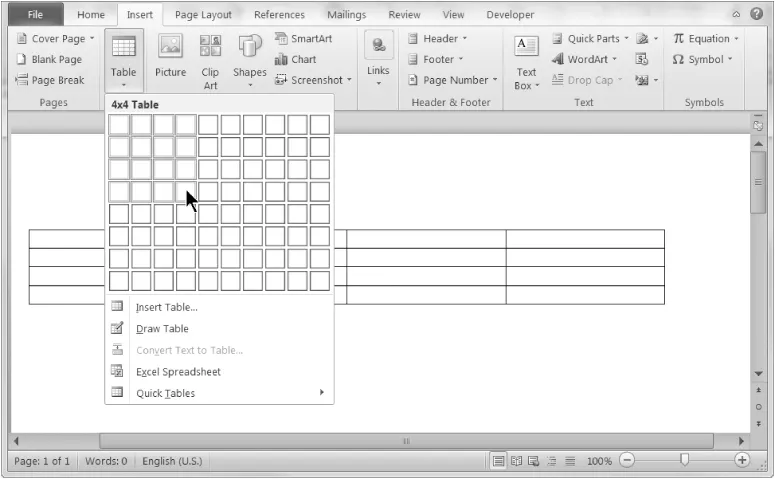
Thinking that the act of inserting may be what you need, you click Insert, and there you see a grid with the word Table under it. You click Table, move the mouse, and perhaps you see what's shown in Figure 1.1, as an actual table is previewed inside your document, changing as the mouse moves. Epiphany! Well, maybe just “Yay!”
If you've ever spent endless hours wrestling with a document because its numbering is haunted by ghosts that won't let you do what you need to do, you might find relief in Word 2010. More on this in Chapter 5, but for now you might be happy to know that pre-Word 2007's proprietary .doc document format was replaced by .docx, which uses XML (eXtensible Markup Language). XML is an open format in the public domain. At its heart are plain-text commands that can be resolved by Word and a variety of other programs. The bottom line for the user is that the mysterious so-called binary format is gone, meaning that Word documents are now harder to corrupt. If they do get corrupted, your work is easier to salvage.
Note
If you're a glutton for punishment or you like taking risks, Word 2010 still supports its legacy formats. You can even tell Word to always save documents in earlier formats. This is a good option when you share your work with users of Word 2003 and earlier. For those same Word 2003 users (as well as Word 2000 and 2002 users), however, Microsoft provides a free compatibility pack that enables them to read and write Word 2010 documents (although Word 2010-specific enhancements will be lost in the translation). To find the compatibility pack, visit http://office.microsoft.com and search the Downloads tab for “compatibility.”
The “Results-Oriented” User Interface
If you're like most users, when you begin a letter or a report, the first thing you do is check whether you've ever written a letter or report like the one you are about to write. If you have written something similar, then you very likely will open it and use it as a starting point.
If you don't have a document to use as a starting point, then you check whether there's an existing template in Microsoft Word's repertoire. Failing there, you might search online. Indeed, it's not uncommon to come across questions in online communities or newsgroups asking if anyone has a particular type of template, e.g., “Does anyone have a template for a resignation letter?” I just love replying to that kind of request: Dear meat-for-brains boss…but I digress.
Knowing that most people don't prefer to begin documents with a clean slate, so to speak, Microsoft designed Office to give users what they want. The goal is to offer them a collection of the results they are probably seeking, to save time and guesswork.
Microsoft has done this in a variety of ways. One of the most prominent is to provide galleries of already formatted options. Coupled with this is something called live preview, which instantly shows the user the effect of a given option in the current document—not in a preview window!
Rather than focus on a confusing array of tools, Word instead shows a variety of finished document parts or building blocks. It then goes on to provide context-sensitive sets of effects—also tied to live preview. These are designed to help you sculpt those document parts into, if not exactly what you want, then something close. The objective at each step is to help you ac...