
- English
- ePUB (mobile friendly)
- Available on iOS & Android
eBook - ePub
PowerPoint 2010 Bible
About this book
Master PowerPoint and improve your presentation skills-with one book!
It's no longer enough to have slide after slide of text, bullets, and charts. It's not even enough to have good speaking skills if your PowerPoint slides bore your audience. Get the very most out of all that PowerPoint 2010 has to offer while also learning priceless tips and techniques for making good presentations in this new PowerPoint 2010 Bible. Well-known PowerPoint expert and author Faithe Wempen provides formatting tips; shows you how to work with drawings, tables, and SmartArt; introduces new collaboration tools; walks you through five special presentation labs; and more.
Coverage includes:
- A First Look at PowerPoint
- What Makes a Great Presentation?
- Creating and Saving Presentation Files
- Creating Slides and Text Boxes
- Working with Layouts, Themes, and Masters
- Formatting Paragraphs and Text Boxes
- Correcting and Improving Text
- Creating and Formatting Tables
- Drawing and Formatting Objects
- Creating SmartArt Diagrams
- Using and Organizing Clip Art
- Working with Photographic Images
- Working with Charts
- Incorporating Content from Other Programs
- Adding Sound Effects, Music, and Soundtracks
- Incorporating Motion Video
- Creating Animation Effects and Transitions
- Creating Support Materials
- Preparing for a Live Presentation
- Designing User-Interactive or Self-Running Presentations
- Preparing a Presentation for Mass Distribution
- Sharing and Collaborating
- Customizing PowerPoint
- Presenting Content Without Bulleted Lists
- Adding Sound and Movement to a Presentation
- Creating a Menu-Based Navigation System
- Creating a Classroom Game
It's the book you need to succeed with PowerPoint 2010 and your next live presentation!
Frequently asked questions
Yes, you can cancel anytime from the Subscription tab in your account settings on the Perlego website. Your subscription will stay active until the end of your current billing period. Learn how to cancel your subscription.
No, books cannot be downloaded as external files, such as PDFs, for use outside of Perlego. However, you can download books within the Perlego app for offline reading on mobile or tablet. Learn more here.
Perlego offers two plans: Essential and Complete
- Essential is ideal for learners and professionals who enjoy exploring a wide range of subjects. Access the Essential Library with 800,000+ trusted titles and best-sellers across business, personal growth, and the humanities. Includes unlimited reading time and Standard Read Aloud voice.
- Complete: Perfect for advanced learners and researchers needing full, unrestricted access. Unlock 1.4M+ books across hundreds of subjects, including academic and specialized titles. The Complete Plan also includes advanced features like Premium Read Aloud and Research Assistant.
We are an online textbook subscription service, where you can get access to an entire online library for less than the price of a single book per month. With over 1 million books across 1000+ topics, we’ve got you covered! Learn more here.
Look out for the read-aloud symbol on your next book to see if you can listen to it. The read-aloud tool reads text aloud for you, highlighting the text as it is being read. You can pause it, speed it up and slow it down. Learn more here.
Yes! You can use the Perlego app on both iOS or Android devices to read anytime, anywhere — even offline. Perfect for commutes or when you’re on the go.
Please note we cannot support devices running on iOS 13 and Android 7 or earlier. Learn more about using the app.
Yes, you can access PowerPoint 2010 Bible by Faithe Wempen in PDF and/or ePUB format, as well as other popular books in Computer Science & Desktop Applications. We have over one million books available in our catalogue for you to explore.
Information
Part I
Building Your Presentation
In This Part
- Chapter 1 A First Look at PowerPoint
- Chapter 2 What Makes a Great Presentation?
- Chapter 3 Creating and Saving Presentation Files
- Chapter 4 Creating Slides and Text Boxes
- Chapter 5 Working with Layouts, Themes, and Masters
- Chapter 6 Formatting Text
- Chapter 7 Formatting Paragraphs and Text Boxes
- Chapter 8 Correcting and Improving Text
- Chapter 9 Creating and Formatting Tables
Chapter 1
A First Look at PowerPoint
In This Chapter
- Who uses PowerPoint and why?
- What's new in PowerPoint 2010?
- Learning your way around PowerPoint
- Changing the view
- Zooming in and out
- Displaying and hiding screen elements
- Working with window controls
- Using the help system and getting updates
PowerPoint 2010 is a member of the Microsoft Office 2010 suite of programs. A suite is a group of programs designed by a single manufacturer to work well together. Like its siblings—Word (the word processor), Excel (the spreadsheet), Outlook (the personal organizer and e-mail manager), and Access (the database)—PowerPoint has a well-defined role. It creates materials for presentations.
A presentation is any kind of interaction between a speaker and audience, but it usually involves one or more of the following visual aids: 35 mm slides, overhead transparencies, computer-based slides (either local or at a Web site or other network location), hard-copy handouts, and speaker notes. PowerPoint can create all of these types of visual aids, plus many other types that you'll learn about as you go along.
Because PowerPoint is so tightly integrated with the other Microsoft Office 2010 components, you can easily share information among them. For example, if you have created a graph in Excel, you can use that graph on a PowerPoint slide. It goes the other way, too. You can, for example, take the outline from your PowerPoint presentation and copy it into Word, where you can dress it up with Word's powerful document formatting commands. Virtually any piece of data in any Office program can be linked to any other Office program, so you never have to worry about your data being in the wrong format. PowerPoint also accepts data from almost any other Windows-based application, and can import a variety of graphics, audio, and video formats.
In this chapter you'll get a big-picture introduction to PowerPoint 2010, and then we'll fire up the program and poke around a bit to help you get familiar with the interface. You'll find out how to use the tabs and panes, and how to get help and updates from Microsoft.
Who Uses PowerPoint and Why?
PowerPoint is a popular tool for people who give presentations as part of their jobs, and also for their support staff. With PowerPoint, you can create visual aids that help get the message across to an audience, whatever that message may be and whatever format it may be presented in. Although the traditional kind of presentation is a live speech presented at a podium, advances in technology have made it possible to give several other kinds of presentations, and PowerPoint has kept pace nicely. The following list outlines the most common PowerPoint formats:
- Podium: For live presentations, PowerPoint helps the lecturer emphasize key points through the use of overhead transparencies, 35 mm slides, or computer-based shows.
- Kiosk shows: These are self-running presentations that provide information in an unattended location. You have probably seen such presentations listing meeting times and rooms in hotel lobbies and as sales presentations at trade show booths.
- CDs and DVDs: You can package a PowerPoint presentation on a CD or DVD and distribute it with a press release, a marketing push, or a direct mail campaign. The presentation can be in PowerPoint format, or can be converted to Web format or even a movie clip, for distribution.
- Internet formats: You can use PowerPoint to create a show that you can present live over a network or the Internet with a service such as PowerPoint Live, while each participant watches from his or her own computer. You can even store a self-running or interactive presentation on a Web site in a variety of formats and make it available for the public to download and run on a PC.
When you start your first PowerPoint presentation, you may not be sure which delivery method you will use. However, it's best to decide the presentation format before you invest too much work in your materials, because the audience's needs are different for each medium.
Cross-Reference
You learn more about planning your presen...
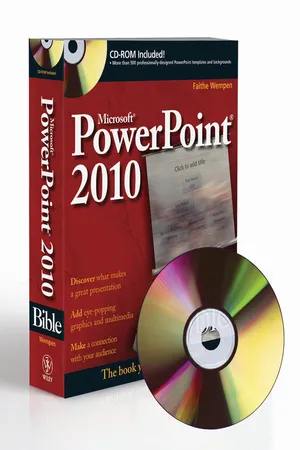
Table of contents
- Cover
- Table of Contents
- Title
- Coypright
- Dedication
- Credits
- About the Author
- About the Technical Editor
- Acknowledgments
- Preface
- Part I: Building Your Presentation
- Part II: Using Graphics and Multimedia Content
- Part III: Interfacing with Your Audience
- Part IV: Project Labs
- Appendix: What's on the CD-ROM?
- Index
- Advertisement
- Wiley Publishing, Inc. End-User License Agreement
- End User License Agreement