Excel 2007 Bible
eBook - ePub

Excel 2007 Bible

  1. English
  2. ePUB (mobile friendly)
  3. Available on iOS & Android
eBook - ePub

Excel 2007 Bible

About this book

  • This book is a single reference that's indispensable for Excel beginners, intermediate users, power users, and would-be power users everywhere
  • Fully updated for the new release, this latest edition provides comprehensive, soup-to-nuts coverage, delivering over 900 pages of Excel tips, tricks, and techniques readers won't find anywhere else
  • John Walkenbach, aka "Mr. Spreadsheet, " is one of the liworld's leading authorities on Excel
  • Thoroughly updated to cover the revamped Excel interface, new file formats, enhanced interactivity with other Office applications, and upgraded collaboration features
  • Includes a valuable CD-ROM with templates and worksheets from the book

Note: CD-ROM/DVD and other supplementary materials are not included as part of eBook file.

Frequently asked questions

Yes, you can cancel anytime from the Subscription tab in your account settings on the Perlego website. Your subscription will stay active until the end of your current billing period. Learn how to cancel your subscription.
No, books cannot be downloaded as external files, such as PDFs, for use outside of Perlego. However, you can download books within the Perlego app for offline reading on mobile or tablet. Learn more here.
Perlego offers two plans: Essential and Complete
  • Essential is ideal for learners and professionals who enjoy exploring a wide range of subjects. Access the Essential Library with 800,000+ trusted titles and best-sellers across business, personal growth, and the humanities. Includes unlimited reading time and Standard Read Aloud voice.
  • Complete: Perfect for advanced learners and researchers needing full, unrestricted access. Unlock 1.4M+ books across hundreds of subjects, including academic and specialized titles. The Complete Plan also includes advanced features like Premium Read Aloud and Research Assistant.
Both plans are available with monthly, semester, or annual billing cycles.
We are an online textbook subscription service, where you can get access to an entire online library for less than the price of a single book per month. With over 1 million books across 1000+ topics, we’ve got you covered! Learn more here.
Look out for the read-aloud symbol on your next book to see if you can listen to it. The read-aloud tool reads text aloud for you, highlighting the text as it is being read. You can pause it, speed it up and slow it down. Learn more here.
Yes! You can use the Perlego app on both iOS or Android devices to read anytime, anywhere — even offline. Perfect for commutes or when you’re on the go.
Please note we cannot support devices running on iOS 13 and Android 7 or earlier. Learn more about using the app.
Yes, you can access Excel 2007 Bible by John Walkenbach in PDF and/or ePUB format, as well as other popular books in Informatik & Desktop-Anwendungen. We have over one million books available in our catalogue for you to explore.

Information

Publisher
Wiley
Year
2011
Print ISBN
9780470044032
eBook ISBN
9781118050675
Edition
1
Part I

Getting Started with Excel

The chapters in this part are intended to provide essential background information for working with Excel. Here, you’ll see how to make use of the basic features that are required for every Excel user. If you’ve used Excel (or even a different spreadsheet program) in the past, much of this information may seem like review. Even so, it’s possible that you’ll find quite a few tricks and techniques.

Chapter 1: Introducing Excel

This chapter serves as an introductory overview of Excel 2007. If you’re already familiar with a previous version of Excel, reading this chapter is still a good idea. Excel 2007 is different from every previous version—very different.

What Is Excel Good For?

Excel, as you probably know, is the world’s most widely-used spreadsheet program, and is part of the Microsoft Office suite. Other spreadsheet programs are available, but Excel is by far the most popular and has become the world standard.
Much of the appeal of Excel is due to the fact that it’s so versatile. Excel’s forte, of course, is performing numerical calculations, but Excel is also very useful for non-numerical applications. Here are just a few of the uses for Excel:
• Number crunching: Create budgets, analyze survey results, and perform just about any type of financial analysis you can think of.
• Creating charts: Create a wide variety of highly customizable charts.
• Organizing lists: Use the row-and-column layout to store lists efficiently.
• Accessing other data: Import data from a wide variety of sources.
• Creating graphics and diagrams: Use Shapes and the new SmartArt to create professional-looking diagrams.
• Automating complex tasks: Perform a tedious task with a single mouse click with Excel’s macro capabilities.

Understanding Workbooks and Worksheets

The work you do in Excel is performed in a workbook file, which appears in its own window. You can have as many workbooks open as you need. By default, Excel 2007 workbooks use an XLSX file extension.
Each workbook is comprised of one or more worksheets, and each worksheet is made up of individual cells. Each cell contains a value, a formula, or text. A worksheet also has an invisible draw layer, which holds charts, images, and diagrams. Each worksheet in a workbook is accessible by clicking the tab at the bottom of the workbook window. In addition, workbooks can store chart sheets. A chart sheet displays a single chart and is also accessible by clicking a tab.
Newcomers to Excel are often intimidated by all the different elements that appear within Excel’s window. Once you become familiar with the various parts, it all starts to make sense.
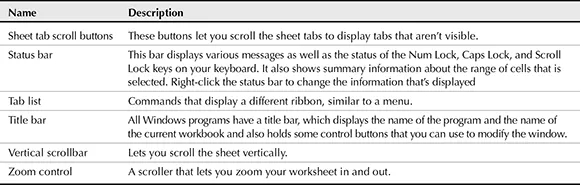
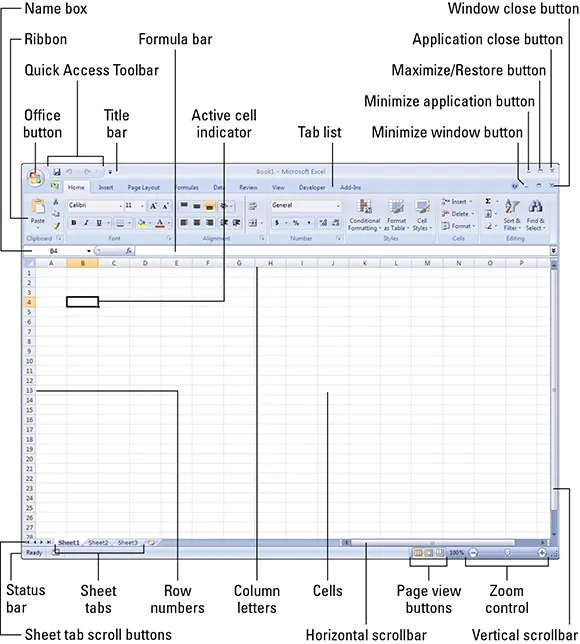
Figure 1.1 shows you the more important bits and pieces of Excel. As you look at the figure, refer to Table 1.1 for a brief explanation of the items shown in the figure.
Table 1.1
Table 1.1
Figure 1.1
The Excel screen has many useful elements that you will use often.

Moving Around a Worksheet

This section describes various ways to navigate through the cells in a worksheet. Every worksheet consists of rows (numbered 1 through 1,048,576) and columns (labeled A through XFD). After column Z comes column AA, which is followed by AB, AC, and so on. After column AZ comes BA, BB, and so on. After column ZZ is AAA, AAB, and so on.
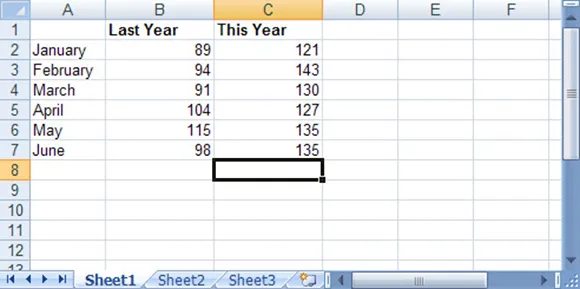
The intersection of a row and a column is a single cell. At any given time, one cell is the active cell. You can identify the active cell by its darker border, as shown in Figure 1.2. Its address (its column letter and row number) appears in the Name box. Depending on the technique that you use to navigate through a workbook, you may or may not change the active cell when you navigate.
Notice that the row and column headings of the active cell appear in different colors to make it easier to identify the row and column of the active cell.
Figure 1.2
The active cell is the cell with the dark border—in this case, cell C8.

Navigating with your keyboard

As you probably already know, you can use the standard navigational keys on your keyboard to move around a worksheet. These keys work just as you’d expect: The down arrow moves the active cell down one row, the right arrow moves it one column to the right, and so on. PgUp and PgDn move the active cell up or down one full window. (The actual number of rows moved depends on the number of rows displayed in the window.)
tip
You can use the keyboard to scroll through the worksheet without changing the active cell by turning on Scroll Lock, which is useful if you need to view another area of your worksheet and then quickly return to your original location. Just press Scroll Lock and use the direction keys to scroll through the worksheet. When you want to return to the original position (the active cell), press Ctrl+Backsp...
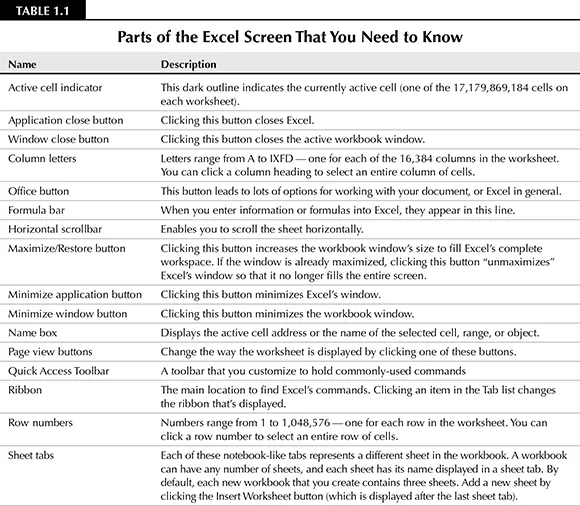
Table of contents

  1. Title
  2. Contents
  3. Acknowledgments
  4. Part I: Getting Started with Excel
  5. Chapter 1: Introducing Excel
  6. Chapter 2: What’s New in Excel 2007?
  7. Chapter 3: Entering and Editing Worksheet Data
  8. Chapter 4: Essential Worksheet Operations
  9. Chapter 5: Working with Cells and Ranges
  10. Chapter 6: Introducing Tables
  11. Chapter 7: Worksheet Formatting
  12. Chapter 8: Understanding Excel’s Files
  13. Chapter 9: Using and Creating Templates
  14. Chapter 10: Printing Your Work
  15. Part II: Working with Formulas and Functions
  16. Chapter 11: Introducing Formulas and Functions
  17. Chapter 12: Creating Formulas That Manipulate Text
  18. Chapter 13: Working with Dates and Times
  19. Chapter 14: Creating Formulas That Count and Sum
  20. Chapter 15: Creating Formulas That Look Up Values
  21. Chapter 16: Creating Formulas for Financial Applications
  22. Chapter 17: Introducing Array Formulas
  23. Chapter 18: Performing Magic with Array Formulas
  24. Part III: Creating Charts and Graphics
  25. Chapter 19: Getting Started Making Charts
  26. Chapter 20: Learning Advanced Charting
  27. Chapter 21: Visualizing Data Using Conditional Formatting
  28. Chapter 22: Enhancing Your Work with Pictures and Drawings
  29. Part IV: Using Advanced Excel Features
  30. Chapter 23: Customizing the Quick Access Toolbar
  31. Chapter 24: Using Custom Number Formats
  32. Chapter 25: Using Data Validation
  33. Chapter 26: Creating and Using Worksheet Outlines
  34. Chapter 27: Linking and Consolidating Worksheets
  35. Chapter 28: Excel and the Internet
  36. Chapter 29: Sharing Data with Other Applications
  37. Chapter 30: Using Excel in a Workgroup
  38. Chapter 31: Protecting Your Work
  39. Chapter 32: Making Your Worksheets Error-Free
  40. Part V: Analyzing Data with Excel
  41. Chapter 33: Using Microsoft Query with External Database Files
  42. Chapter 34: Introducing Pivot Tables
  43. Chapter 35: Analyzing Data with Pivot Tables
  44. Chapter 36: Performing Spreadsheet What-If Analysis
  45. Chapter 37: Analyzing Data Using Goal Seek and Solver
  46. Chapter 38: Analyzing Data with the Analysis ToolPak
  47. Part VI: Programming Excel with VBA
  48. Chapter 39: Introducing Visual Basic for Applications
  49. Chapter 40: Creating Custom Worksheet Functions
  50. Chapter 41: Creating UserForms
  51. Chapter 42: Using UserForm Controls in a Worksheet
  52. Chapter 43: Working with Excel Events
  53. Chapter 44: VBA Examples
  54. Chapter 45: Creating Custom Excel Add-Ins
  55. Part VII: Appendixes
  56. Appendix A: Worksheet Function Reference
  57. Appendix B: What’s on the CD-ROM
  58. Appendix C: Additional Excel Resources
  59. Appendix D: Excel Shortcut Keys
  60. Wiley Publishing, Inc. End-User License Agreement