Teach Yourself VISUALLY PowerPoint 2013
eBook - ePub

Teach Yourself VISUALLY PowerPoint 2013

  1. English
  2. ePUB (mobile friendly)
  3. Available on iOS & Android
eBook - ePub

Teach Yourself VISUALLY PowerPoint 2013

About this book

A straightforward, visual approach to learning the new PowerPoint 2013!

PowerPoint 2013 boasts updated features and new possibilities; this highly visual tutorial provides step-by-step instructions to help you learn all the capabilities of PowerPoint 2013. It covers the basics, as well as all the exciting new changes and additions in a series of easy-to-follow, full-color, two-page tutorials. Learn how to create slides, dress them up using templates and graphics, add sound and animation, and more. This book is the ideal "show me, don't tell me" guide to PowerPoint 2013.

  • Demonstrates how to create memorable and captivating presentations using PowerPoint 2013, the latest generation of Microsoft's presentation software
  • Walks you through PowerPoint 2013's new features, including new wide-screen themes and variants, improved collaboration tools, and an enhanced Presenter View
  • Shows you how to create slides, dress them up with templates and graphics, add sound and animation, and present in a business or Internet setting
  • Features easy-to-follow, full-color, two-page tutorials

With Teach Yourself VISUALLY PowerPoint 2013, you have the power to make a remarkable presentation!
Frequently asked questions

Yes, you can cancel anytime from the Subscription tab in your account settings on the Perlego website. Your subscription will stay active until the end of your current billing period. Learn how to cancel your subscription.
No, books cannot be downloaded as external files, such as PDFs, for use outside of Perlego. However, you can download books within the Perlego app for offline reading on mobile or tablet. Learn more here.
Perlego offers two plans: Essential and Complete
  • Essential is ideal for learners and professionals who enjoy exploring a wide range of subjects. Access the Essential Library with 800,000+ trusted titles and best-sellers across business, personal growth, and the humanities. Includes unlimited reading time and Standard Read Aloud voice.
  • Complete: Perfect for advanced learners and researchers needing full, unrestricted access. Unlock 1.4M+ books across hundreds of subjects, including academic and specialized titles. The Complete Plan also includes advanced features like Premium Read Aloud and Research Assistant.
Both plans are available with monthly, semester, or annual billing cycles.
We are an online textbook subscription service, where you can get access to an entire online library for less than the price of a single book per month. With over 1 million books across 1000+ topics, we’ve got you covered! Learn more here.
Look out for the read-aloud symbol on your next book to see if you can listen to it. The read-aloud tool reads text aloud for you, highlighting the text as it is being read. You can pause it, speed it up and slow it down. Learn more here.
Yes! You can use the Perlego app on both iOS or Android devices to read anytime, anywhere — even offline. Perfect for commutes or when you’re on the go.
Please note we cannot support devices running on iOS 13 and Android 7 or earlier. Learn more about using the app.
Yes, you can access Teach Yourself VISUALLY PowerPoint 2013 by William Wood in PDF and/or ePUB format, as well as other popular books in Computer Science & Desktop Applications. We have over one million books available in our catalogue for you to explore.

Information

Chapter 1: Starting with PowerPoint Basics
Discover PowerPoint basics such as creating, saving, and closing a presentation. Each presentation you build exists in its own separate PowerPoint file. After showing you how to create a new presentation, this chapter teaches you how to find and open existing presentation files.
9781118510421-co0101.tif
Introducing PowerPoint
Start PowerPoint and Explore the Start Screen
Start a New Presentation
Search for Templates Online
Save a Presentation
Find a Presentation
Open an Existing Presentation
Close a Presentation
Delete a Presentation
Introducing PowerPoint
With PowerPoint, you can create a professional-looking slide show. The PowerPoint program provides tools you can use to build presentations that include graphics, media, animations, and an assortment of ways to transition from slide to slide. It provides various views and user interfaces to suit your particular needs. These PowerPoint tools enable you to design and build a quality presentation. Many tasks start in Backstage view. To access this view, click the File tab on the ribbon.
Build an Outline
9781118510421-fg0101.eps
You can type text in outline form to build slides for your presentation. In the Outline view, an icon represents each slide, and each slide contains a slide title next to the icon. Second-level lines of text on the outline appear as bullet points on the slide. These bullets convey the main points you want to make about each topic.
Choose a Slide Design and Layout
9781118510421-fg0102.eps
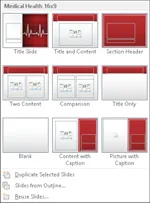
A slide design applies preset design elements such as colors, background graphics, and text styles to a slide. A particular slide layout applied to a slide determines what type of information that slide includes. For example, a Title Slide layout has a title and subtitle. A Title and Content layout includes a title, plus a placeholder that holds a list of bullet points, a table, or other graphic elements.
Add Content
9781118510421-fg0103.eps
You can add conten...

Table of contents

  1. Cover
  2. Table of Contents
  3. Title Page
  4. Chapter 1: Starting with PowerPoint Basics
  5. Chapter 2: Navigating PowerPoint
  6. Chapter 3: Changing PowerPoint Options
  7. Chapter 4: Writing and Formatting Text
  8. Chapter 5: Working with Layouts
  9. Chapter 6: Organizing Slides
  10. Chapter 7: Working with Outlines
  11. Chapter 8: Using Themes
  12. Chapter 9: Using Masters
  13. Chapter 10: Adding Graphics and Drawings
  14. Chapter 11: Enhancing Slides with Action
  15. Chapter 12: Incorporating Media
  16. Chapter 13: Finalizing a Slide Show
  17. Chapter 14: Printing Presentations
  18. Chapter 15: Presenting a Slide Show
  19. Chapter 16: Publishing a Presentation