- 80 pages
- English
- ePUB (mobile friendly)
- Available on iOS & Android
eBook - ePub
Excel Dynamic Arrays Straight to the Point 2nd Edition
About this book
New for Office 365 customers, one single formula sitting in one single cell can return many results. Those extra results will spill into adjacent cells. This is a major change to the calculation engine in Excel. This book covers the new functions added for Dynamic Arrays: SORT, SORTBY, FILTER, UNIQUE, SEQUENCE and RANDARRAY. It shows how Dynamic Arrays make the new XLOOKUP even more powerful. Dynamic arrays make every Excel calculation function more powerful. Pass a SEQUENCE to another function and Excel will Lift the function to return many results. Learn how to use the new # and @ operators in your formulas. After fifteen months of preview, the Dynamic Arrays are reaching general availability. Learn how the FastExcel SpeedTools add-in offers much-needed improvements, such as TOTALS, SLICES, VSTACK and UNPIVOT. Join in lobbying the Excel team to incorporate these improvements.
Information
Subtopic
Business SkillsIndex
Computer Science1 - Getting Started
Formulas Can Now Spill
This chapter covers the new =A2:A20 formula, the #SPILL! error, and the new Implicit Intersection Operator: @.
Let's start with the basic array formula. Go to cell E3. Type =A2:C10, as shown here. In the past, you would have had to wrap that formula in an aggregation function and maybe use Ctrl+Shift+Enter.
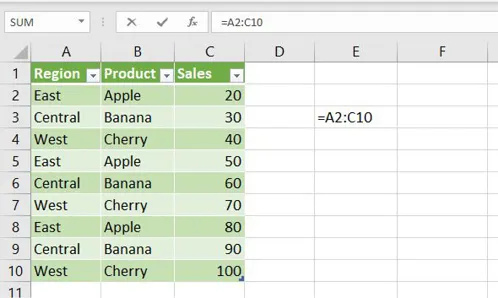
Figure 2 One cell, pointing to many cells.
But now you can simply press Enter. Excel returns 27 answers—and the answers spill into the adjacent cells! Look at the formula in the formula bar...there aren’t any curly braces, which means no one pressed Ctrl+Shift+Enter.
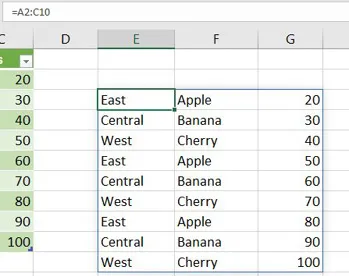
Figure 3 One formula brought all of these answers.
Cell E4 contains the value Central, and although the formula bar contains a formula for this cell, it is grayed out.
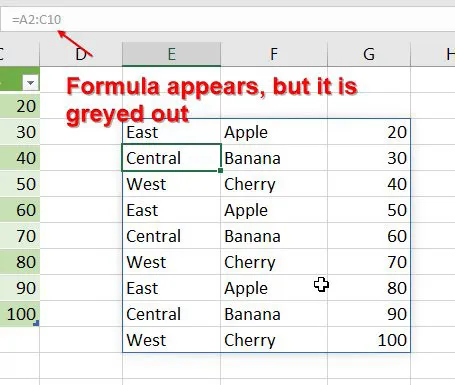
Figure 4 We are in a whole new world here, Captain.
Just to prove that E4 does not contain a formula, here are some queries typed into the Immediate pane in VBA. VBA reports that there is a value in E4 but no formula.
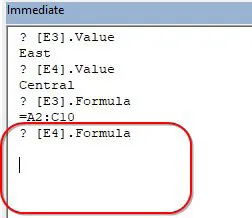
Figure 5 VBA is reporting no formula in E4.
But if you select D1:H20 and then select Go To Special, Formulas, only E3 is selected.
One of the first questions on YouTube in response to my first Dynamic Array videos: Can you copy and paste values? Yes! You would select E3:G11, select Copy, select a new cell, and select Paste Values.
What Happens if A Formula can't spill?
What if we put some stuff in the way and enter one of the Dynamic Array formulas, what will happen? (I like the way you are thinking: Let's try to break it.)
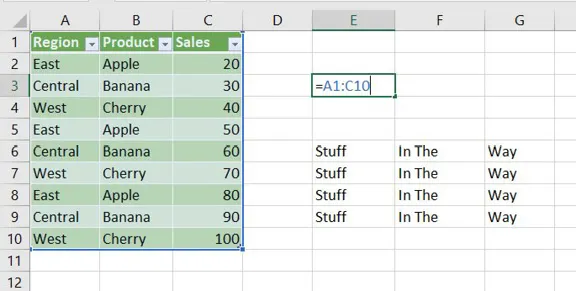
Figure 6 How will Excel deal with this?
This is quite possibly the first published screenshot of the new #SPILL! error. This is Excel's way of saying that it can't return all the results, so it won't return any of the results. The little drop-down to the left of the cell gives you the choice Select Obstructing Cells, so perhaps you can cut them and paste them elsewhere.
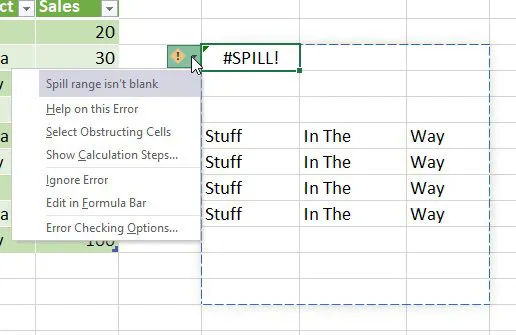
Figure 7 We've got a #SPILL! error in Aisle E...
As soon as you clear out the obstructing cells, the results appear.
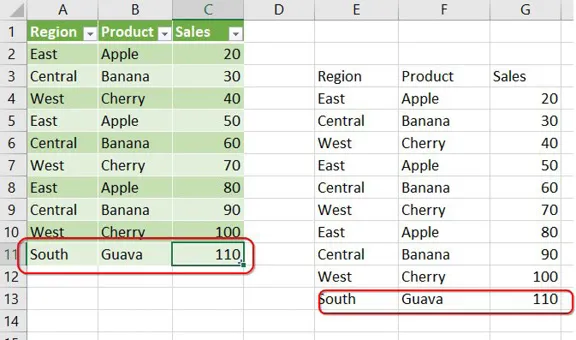
Figure 8 Clear the obstructing cell, and the results appear.
There are several types of #SPILL! errors. The one above is Spill Range Is Not Blank. Other ...
Table of contents
- About the Author
- Introduction
- 1 - Getting Started
- 2 - The SORT Function
- 3 - The SORTBY Function
- 4 - The FILTER Function
- 5 - The UNIQUE Function
- 6 - Combining Functions
- 7 - The SEQUENCE Function
- 8 - The RANDARRAY Function
- 9 - Why CSE Arrays Were So Hard: Implicit Intersection
- 10- XLOOKUP and Dynamic Arrays
- 11 - Other Functions That Are Now Dynamic Arrays
- 12 - Building on Dynamic Arrays
Trusted by 375,005 students
Access to over 1.5 million titles for a fair monthly price.
Study more efficiently using our study tools.
Frequently asked questions
Yes, you can cancel anytime from the Subscription tab in your account settings on the Perlego website. Your subscription will stay active until the end of your current billing period. Learn how to cancel your subscription
No, books cannot be downloaded as external files, such as PDFs, for use outside of Perlego. However, you can download books within the Perlego app for offline reading on mobile or tablet. Learn how to download books offline
We are an online textbook subscription service, where you can get access to an entire online library for less than the price of a single book per month. With over 1.5 million books across 990+ topics, we’ve got you covered! Learn about our mission
Look out for the read-aloud symbol on your next book to see if you can listen to it. The read-aloud tool reads text aloud for you, highlighting the text as it is being read. You can pause it, speed it up and slow it down. Learn more about Read Aloud
Yes! You can use the Perlego app on both iOS and Android devices to read anytime, anywhere — even offline. Perfect for commutes or when you’re on the go.
Please note we cannot support devices running on iOS 13 and Android 7 or earlier. Learn more about using the app
Please note we cannot support devices running on iOS 13 and Android 7 or earlier. Learn more about using the app
Yes, you can access Excel Dynamic Arrays Straight to the Point 2nd Edition by Bill Jelen in PDF and/or ePUB format, as well as other popular books in Computer Science & Business Skills. We have over 1.5 million books available in our catalogue for you to explore.