- 44 pages
- English
- ePUB (mobile friendly)
- Available on iOS & Android
eBook - ePub
Ergonomics Analysis and Problem Solving Manual
About this book
Ergonomics Analysis and Problem Solving is a powerful software tool that helps you streamline the process of producing a comprehensive ergonomics analysis. The program was designed around the three major steps involved in the ergonomics analysis process, which include arriving at a concise job description in a task format, identifying specific ergonomic hazards, and examining possible interventions in a logical and orderly manner.
Information
How To Use The Program
An ergonomic jobsite analysis is a process which involves observation of a worker performing all or some of their job. Each job can be broken down into units called Duties. Each duty can be broken down into tasks. These terms will be defined later in this manual. The amount of time and or the number of times that each duty or task is performed is listed.
Specific potentially hazardous ergonomic conditions (Risk Factors) are identified by the analyst. The approach is to look at specific regions of the body and identify specific positions, postures, forceful exertions, and environmental exposures. The frequency of the risk factor or the amount of exposure is determined based on the information determined in the Duty and Task lists.
Suggestions (Ergonomic Interventions) for alleviating or reducing risk factors and therefore making the job safer are determined. Interventions in the form of modifications or additions to the workplace, changes to the procedures, or employee participation in specific programs are listed.
Finally, a customized report reflecting the findings of the analysis can be generated.
Help!
Help is available at any time by striking the <F1> Key
Getting Started
From the C:\ prompt,
- Type CD\ERGO. The screen will display c:\ERGO
- Type ERGO. The screen will display a title screen for a few seconds and then display the Main Menu.
The Main Menu will offer you the opportunity to select which phase of the jobsite analysis processes you wish to perform. The first step will always be to enter a new job or recall a previously entered one. To do this you must first choose the “Background Information” option.
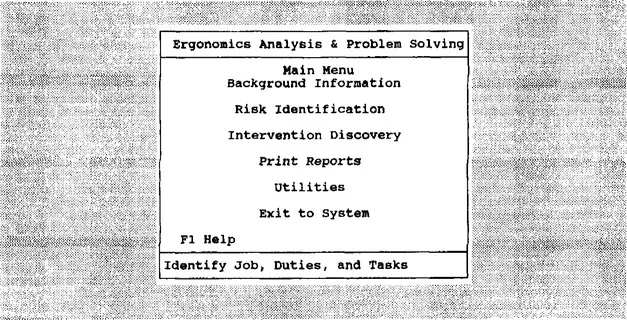
- Use the arrow keys to highlight “Background Information” and strike <Enter>.
The “Background Information” menu will be displayed. There are several steps in the background information process. These steps are displayed in the menu below.
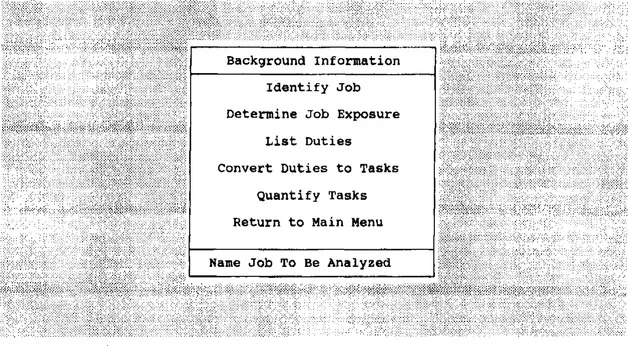
Background Information
The goal of this step is to produce a description of the job to be analyzed in the most practical units. This will facilitate the risk identification process by providing clearly definable units upon which to focus and quantify risk factors. In addition this will allow you to be certain that the job you are analyzing from year to year has remained the same. The final product here is a list of duties or tasks and the amount of time or the number of repetitions for each. Each duty or task can then be evaluated individually.
How to Identify Job
This screen can be accessed by highlighting “Identify Job” from the Background Information menu and striking <Enter>. The cursor will be displayed in the “Company “space. Either type in a new company name and job or select one from jobs already entered. Entering this information will allow you to save all your data about this job.
The program will not allow you to continue until you have entered a company name and job title or selected one from those already entered. Entering a job number is opional.
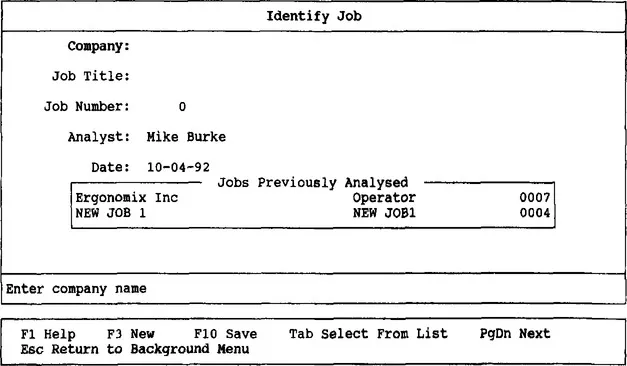
How to Add a New Job Title
- Type in the Company Name <Enter>
- Type in the Job Title <Enter>
- Type in the Job Number <Enter> (Optional)
- Strike <Page Down> to save this information and proceed to the next step.
How to Select a Previously Entered Job
- Strike the <Tab> Key to move the cursor into the menu box.
- Use the Up and Down Arrow keys to highlight the desired job title.
- Strike <Enter> to select and move on to “Determine Job Exposure” step. The “Determine Job Exposure” screen will be displayed.
- If the job identification information displayed at the top of the screen is not correct, strike <Escape> to return to the Background Information Menu.
How to Modify “Jobs Previously Analyzed” Identification Data
- Strike the <Tab> Key to move the cursor into the menu box.
- Use the Up and Down Arrow keys to highlight the desired job title.
- Strike <Tab> to move back into the main screen to make modifications to information.
- Strike <Page Down> to proceed to the “Determine Job Exposure” step.
How to Determine Job Exposure
This screen can be accessed by either selecting it from the Background Information Menu, or by striking <Page Down> from the Identify Job screen. The screen is already set up to reflect an eight hour job exposure. You may accept them as is or, use steps detailed below to determine a different job exposure.
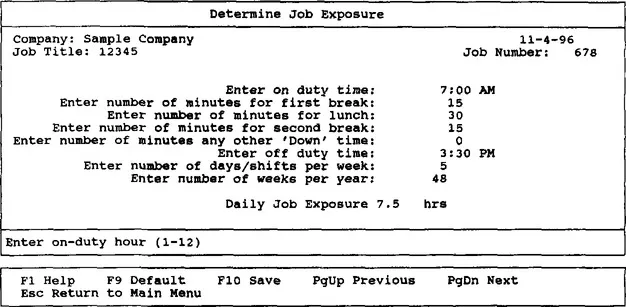
The purpose of this step is to determine the amount of time that a worker actually spends performing work. In most cases this may be different from either the number of hours spent at work or the number of hours that a worker is paid for.
- Type in the Time that a worker goes on Duty including AM or PM <Enter>
- Type in the number of minutes of the first coffee break of the day <Enter>
- Type in the number of minutes for a mid shift meal break. (If there are several meal breaks, then add up the total number of meal break minutes and type in here) <Enter>
- Type in the number of minutes of the second coffee break of the day <Enter>
- Type in any additional down time. This includes any known set up times, unofficial breaks, or anticipated unofficial rest periods (goofing off time). <Enter>The Arrow up and Arrow down keys can also be used to move around in this screen.
- Strike <Page Down> to save this information and proceed to the next step.
How to List Duties
This screen can be accessed by either selecting it from the Background Information Menu, or by striking <Page Down> from the Job Exposure screen.
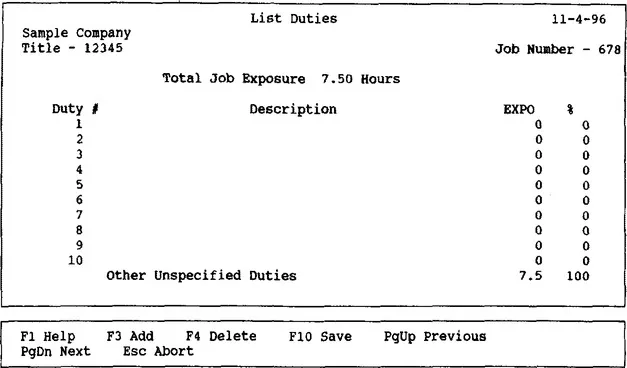
In this step you will create a list of duties for this job title. A Duty is a general statement which describes an activity which is a responsibility of a worker. Examples would b...
Table of contents
- Cover
- Title Page
- Copyright Page
- Contents
- Dedication
- INTRODUCTION
- How To Use The Program
Trusted by 375,005 students
Access to over 1.5 million titles for a fair monthly price.
Study more efficiently using our study tools.
Frequently asked questions
Yes, you can cancel anytime from the Subscription tab in your account settings on the Perlego website. Your subscription will stay active until the end of your current billing period. Learn how to cancel your subscription
No, books cannot be downloaded as external files, such as PDFs, for use outside of Perlego. However, you can download books within the Perlego app for offline reading on mobile or tablet. Learn how to download books offline
Perlego offers two plans: Essential and Complete
- Essential is ideal for learners and professionals who enjoy exploring a wide range of subjects. Access the Essential Library with 800,000+ trusted titles and best-sellers across business, personal growth, and the humanities. Includes unlimited reading time and Standard Read Aloud voice.
- Complete: Perfect for advanced learners and researchers needing full, unrestricted access. Unlock 1.5M+ books across hundreds of subjects, including academic and specialized titles. The Complete Plan also includes advanced features like Premium Read Aloud and Research Assistant.
We are an online textbook subscription service, where you can get access to an entire online library for less than the price of a single book per month. With over 1.5 million books across 990+ topics, we’ve got you covered! Learn about our mission
Look out for the read-aloud symbol on your next book to see if you can listen to it. The read-aloud tool reads text aloud for you, highlighting the text as it is being read. You can pause it, speed it up and slow it down. Learn more about Read Aloud
Yes! You can use the Perlego app on both iOS and Android devices to read anytime, anywhere — even offline. Perfect for commutes or when you’re on the go.
Please note we cannot support devices running on iOS 13 and Android 7 or earlier. Learn more about using the app
Please note we cannot support devices running on iOS 13 and Android 7 or earlier. Learn more about using the app
Yes, you can access Ergonomics Analysis and Problem Solving Manual by Michael J. Burke in PDF and/or ePUB format, as well as other popular books in Technology & Engineering & Industrial Engineering. We have over 1.5 million books available in our catalogue for you to explore.