Stepping Up to Google Classroom
eBook - ePub
Available until 23 Dec |Learn more

Stepping Up to Google Classroom

50 Steps for Beginners to Get Started

  1. English
  2. ePUB (mobile friendly)
  3. Available on iOS & Android
eBook - ePub
Available until 23 Dec |Learn more

Stepping Up to Google Classroom

50 Steps for Beginners to Get Started

About this book

In this Stepping Up to Google Classroom, Google education experts Alice Keeler and Kimberly Mattina give you the tools you'll need to ensure that your first foray into blended learning is a successful one—for you and your students. This book empowers educators to take the leap into the digital classroom with confidence and purpose. By guiding readers through fifty straightforward and accessible steps and offering a host of tips for customization, it ensures that teachers with all levels of tech comfortability can make the most of Google Classroom's powerful tools.

Frequently asked questions

Yes, you can cancel anytime from the Subscription tab in your account settings on the Perlego website. Your subscription will stay active until the end of your current billing period. Learn how to cancel your subscription.
At the moment all of our mobile-responsive ePub books are available to download via the app. Most of our PDFs are also available to download and we're working on making the final remaining ones downloadable now. Learn more here.
Perlego offers two plans: Essential and Complete
  • Essential is ideal for learners and professionals who enjoy exploring a wide range of subjects. Access the Essential Library with 800,000+ trusted titles and best-sellers across business, personal growth, and the humanities. Includes unlimited reading time and Standard Read Aloud voice.
  • Complete: Perfect for advanced learners and researchers needing full, unrestricted access. Unlock 1.4M+ books across hundreds of subjects, including academic and specialized titles. The Complete Plan also includes advanced features like Premium Read Aloud and Research Assistant.
Both plans are available with monthly, semester, or annual billing cycles.
We are an online textbook subscription service, where you can get access to an entire online library for less than the price of a single book per month. With over 1 million books across 1000+ topics, we’ve got you covered! Learn more here.
Look out for the read-aloud symbol on your next book to see if you can listen to it. The read-aloud tool reads text aloud for you, highlighting the text as it is being read. You can pause it, speed it up and slow it down. Learn more here.
Yes! You can use the Perlego app on both iOS or Android devices to read anytime, anywhere — even offline. Perfect for commutes or when you’re on the go.
Please note we cannot support devices running on iOS 13 and Android 7 or earlier. Learn more about using the app.
Yes, you can access Stepping Up to Google Classroom by Alice Keeler,Kimberly Mattina in PDF and/or ePUB format, as well as other popular books in Computer Science & Computer Science General. We have over one million books available in our catalogue for you to explore.
1

Access Google Classroom

Access Google Classroom by going to classroom.google.com.
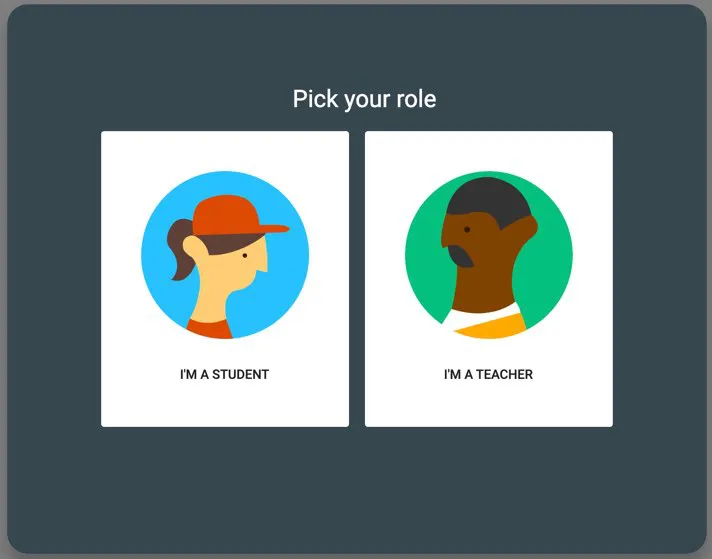
The first time you go to Google Classroom, you will be asked if you are a teacher or a student. It is essential that you select I’m a Teacher. Users designated as Teachers can enroll as a student in a class in addition to being able to teach a class. Those designated as Students can enroll in a class or co-teach a class. If you accidentally choose I’m a Student, contact your school’s G Suite administrator to address the issue.
Access Google Classroom
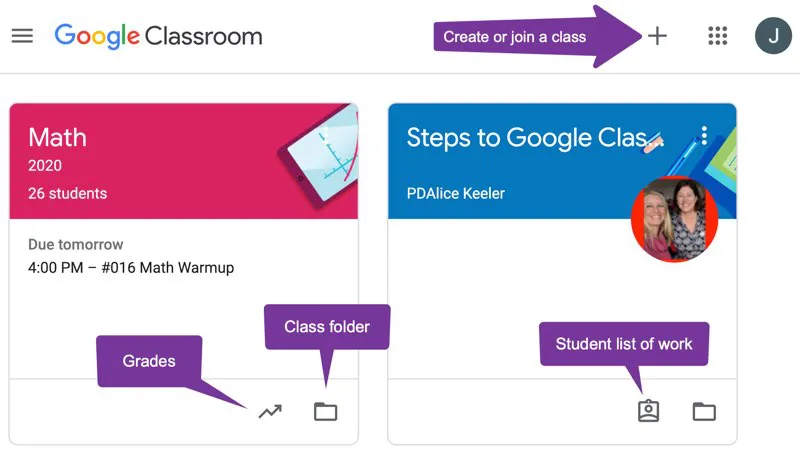
Google Classroom’s home page is called Classes, and it displays tiles for the classes that you teach or are enrolled in as a student. Each tile will list the class title, section, how many students are enrolled, and any assignments—with due dates—that are upcoming in the next week
Access Google Classroom
Google Classroom Tip

Create a new class every six weeks or for a new unit, semester, or marking period. This makes it easier to reuse assignments for a new class. You can archive classes from the class tiles by clicking on the Three Dots. Assignments can still be reused even if the class is archived.
2

Create a Class

You must be designated as a Teacher to create a class.
In the upper-right corner of Google Classroom you will find a Plus Icon. Click on this icon and choose Create Class.
Google Classroom Tip

Take advantage of the Section line when creating a new class. We recommend that you include the school year and your name.
3

View the Stream

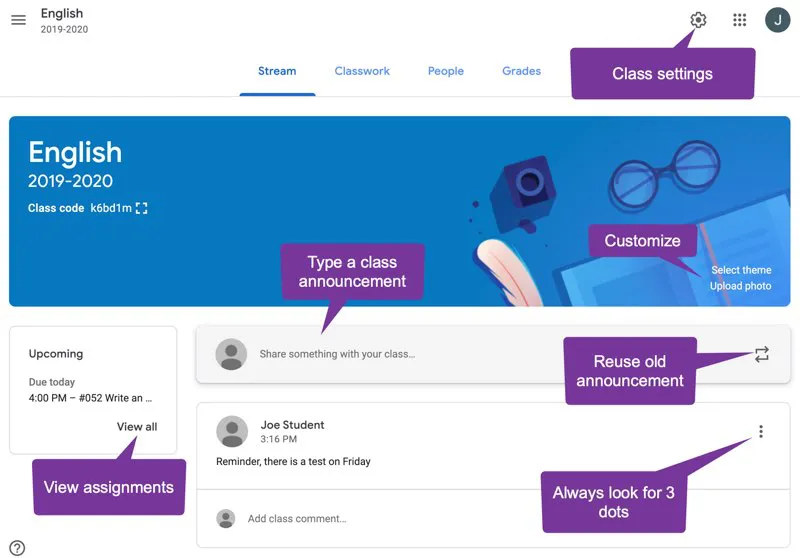
After creating a class, you will be immediately taken to its Stream. The Stream is the landing page for your class, and it’s a great quick reference for teachers and students to access announcements and assignments.
The Stream’s header will display a default image, and you’ll likely want to change the picture there. In the bottom-right corner of the header image, you can click on Select Theme to choose a new theme from the Gallery.
View the Stream
Google Classroom Tip

Create your own custom header for your Google Classroom. Try making one with the Google Drawings template at alicekeeler.com/gcheader. When you’re done, use the File menu to Download as PNG for upload into Google Classroom.
4

Go to the Settings Cog

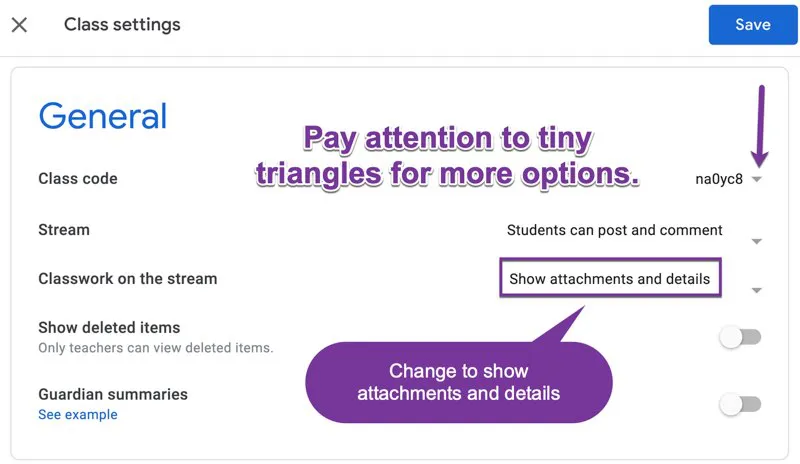
In the upper-right corner of Google Classroom is the Settings Cog. This opens an area where you can review and change the course details and general settings for things like student permissions to post and comment to the Stream Page, how classwork attachments for posts are shown, and Grading.
Go to the Settings Cog
In Google Classroom you can always click on the Tiny Triangles for more options.
Google Classroom Tip

It is important that students of all ages and grades, including kindergartners, are able to join a Google Classroom class using the Class Code. In the Settings, use the Tiny Triangle next to the Class Code to reset the code. Rese...

Table of contents

  1. Cover
  2. Title Page
  3. Copyright
  4. Contents
  5. Introduction
  6. 1. Access Google Classroom
  7. 2. Create a Class
  8. 3. View the Stream
  9. 4. Go to the Settings Cog
  10. 5. Set Grading Categories
  11. 6. Create and Plan Out Topics
  12. 7. Get Your Files into Google Drive
  13. 8. Review the Create Button
  14. 9. Add a Class Resources Topic
  15. 10. Number Your Titles
  16. 11. Ask a Question
  17. 12. Create a Nondigital Assignment
  18. 13. Create an Assignment for Multiple Classes
  19. 14. Assign to Selected Students
  20. 15. Explore the Three Lines Menu
  21. 16. Post an Announcement
  22. 17. Display the Class Code
  23. 18. Discuss Digital Etiquette and Classroom Expectations
  24. 19. Students Mark as Done
  25. 20. Return to the Classwork Page
  26. 21. Students Create Their Own Documents
  27. 22. Students Add Additional Files
  28. 23. Students Turn In Work
  29. 24. Locating Student Work
  30. 25. Use the Feedback Tool
  31. 26. Leave Assignment Feedback with Private Comments
  32. 27. Announce when Feedback Is Given
  33. 28. Assign a Private Comments Exit Ticket
  34. 29. Assign a Score
  35. 30. Return Student Work
  36. 31. Return to the Stream
  37. 32. Students Unsubmit Their Work
  38. 33. View Submission History
  39. 34. Link to Digital Quizzes
  40. 35. Have Students Submit Screenshots
  41. 36. You Want Google Forms
  42. 37. Try Quizlet Diagrams
  43. 38. Check the To-Do List
  44. 39. Save an Assignment as a Draft
  45. 40. Schedule an Assignment
  46. 41. Reuse an Assignment from Another Class
  47. 42. Collaborating in Classroom
  48. 43. Use Version History
  49. 44. Students Submit the Link to Their Slides
  50. 45. Install the Google Classroom App
  51. 46. Create a Copy per Student
  52. 47. Use Google Slides
  53. 48. Create a Feedback Conversation
  54. 49. Manage Email Notifications
  55. 50. Add a Co-Teacher
  56. Google Classroom Updates
  57. Conclusion
  58. Acknowledgments
  59. About the Authors
  60. More from Dave Burgess Consulting, Inc.