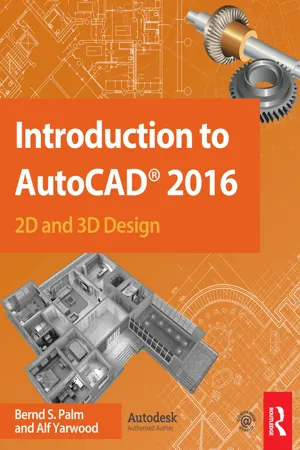
Introduction to AutoCAD 2016
eBook - ePub

Introduction to AutoCAD 2016

2D and 3D Design

  1. 422 pages
  2. English
  3. ePUB (mobile friendly)
  4. Available on iOS & Android
eBook - ePub

Introduction to AutoCAD 2016

2D and 3D Design

About this book

Master the complexities of the world's bestselling 2D and 3D software with Introduction to AutoCAD 2016. Ideally suited to new users of AutoCAD, this book will be a useful resource for drawing modules in both vocational and introductory undergraduate courses in engineering and construction.

A comprehensive, step-by-step introduction to the latest release of AutoCAD. Covering all the basic principles and acting as an introduction to 2D drawing, it also contains extensive coverage of all 3D topics, including 3D solid modelling and rendering.

    • Written by a member of the Autodesk Developer Network.
    • Hundreds of colour pictures, screenshots and diagrams illustrate every stage of the design process.
    • Worked examples and exercises provide plenty of practice material to build proficiency with the software.

Further education students in the UK will find this an invaluable textbook for City & Guilds AutoCAD qualifications as well as the relevant Computer Aided Drawing units of BTEC National Engineering, Higher National Engineering and Construction courses from Edexcel. Students enrolled in Foundation Degree courses containing CAD modules will also find this a very useful reference and learning aid.

Trusted by 375,005 students

Access to over 1.5 million titles for a fair monthly price.

Study more efficiently using our study tools.

Information

Publisher
Routledge
Year
2015
Print ISBN
9781138925854
eBook ISBN
9781317406457
Part A
2D Design

Chapter 1
Introducing AutoCAD 2016

Aims of this Chapter

The contents of this chapter are designed to introduce features of the AutoCAD 2016 window and methods of operating AutoCAD 2016.

Opening AutoCAD 2016

AutoCAD 2016 is designed to work in a Windows operating system. In general, to open AutoCAD 2016 double-click on the AutoCAD shortcut in the Windows desktop (Fig. 1.1).
Fig. 1.1 The AutoCAD 2016 shortcut on the Windows desktop
When working in education or in industry, computers may be configured to allow other methods of opening AutoCAD, such as a list appearing on the computer in use when the computer is switched on, from which the operator can select the program he/she wishes to use.
When AutoCAD 2016 is opened, the Start page appears, giving access to recent drawings, system information and the Start Drawing button (Fig. 1.2). After starting a new drawing a new window is shown, depending upon whether a 3D Basics, a 3D Modeling, or a Drafting & Annotation workspace has been set as QNEW (in the Options dialog). In this example, the Drafting & Annotation workspace is shown and includes the Ribbon with Tool panels (Fig. 1.3). The Drafting & Annotation workspace shows the following details:
Ribbon: which includes tabs, each of which when clicked will include a set of panels containing tool icons. Other tool panels can be seen by clicking an appropriate tab.
Fig. 1.2 The Start Page
Fig. 1.3 The AutoCAD 2016 Drafting & Annotation workspace
Fig. 1.4 The Menu Browser
Menu Browser icon: A left-click on the arrow to the right of the A symbol at the top left-hand corner of the AutoCAD 2016 window causes the Menu Browser menu to appear (Fig. 1.4). Workspaces Switching menu: appears with a click on the Workshop Switching button in the status bar (Fig. 1.5). Command line: can be changed as shown in Fig 1.6. Tool panels: each includes tool icons appropriate to the panel. Taking the Home/Draw panel as an example, Fig. 1.7 shows that placing the mouse cursor on one of the tool icons in a panel brings a tooltip on screen showing details of how the tool can be used. Two types of tooltip can be used in AutoCAD 2016. In the majority of future illustrations of tooltips, the smaller version will be shown. Other tool icons have popup menus appearing with a click. In the example given in Fig. 1.8, place the cursor over the Circle tool icon and a tooltip appears. A click on the arrow to the right of the tool icon brings down a popup menu showing the construction method options available for the tool. Quick Access toolbar: The toolbar at the top left of the AutoCAD 2016 window holds several icons, one of which is the Open tool icon. A click on the icon opens the Select File dialog (Fig. 1.9). Navigation bar: contains several tools that may be of value.
Fig. 1.5 The Workspace Switching popup menu
Fig. 1.6 The command palette when dragged from its position at the bottom of the AutoCAD window
Fig. 1.7 The extended tooltip appearing with a click on the Line tool icon
...

Table of contents

  1. Cover
  2. Title
  3. Copyright
  4. Contents
  5. PART A - 2D DESIGN
  6. PART B - 3D DESIGN
  7. PART C - INTERNET TOOLS AND DESIGN
  8. APPENDICES
  9. Index

Frequently asked questions

Yes, you can cancel anytime from the Subscription tab in your account settings on the Perlego website. Your subscription will stay active until the end of your current billing period. Learn how to cancel your subscription
No, books cannot be downloaded as external files, such as PDFs, for use outside of Perlego. However, you can download books within the Perlego app for offline reading on mobile or tablet. Learn how to download books offline
Perlego offers two plans: Essential and Complete
  • Essential is ideal for learners and professionals who enjoy exploring a wide range of subjects. Access the Essential Library with 800,000+ trusted titles and best-sellers across business, personal growth, and the humanities. Includes unlimited reading time and Standard Read Aloud voice.
  • Complete: Perfect for advanced learners and researchers needing full, unrestricted access. Unlock 1.5M+ books across hundreds of subjects, including academic and specialized titles. The Complete Plan also includes advanced features like Premium Read Aloud and Research Assistant.
Both plans are available with monthly, semester, or annual billing cycles.
We are an online textbook subscription service, where you can get access to an entire online library for less than the price of a single book per month. With over 1.5 million books across 990+ topics, we’ve got you covered! Learn about our mission
Look out for the read-aloud symbol on your next book to see if you can listen to it. The read-aloud tool reads text aloud for you, highlighting the text as it is being read. You can pause it, speed it up and slow it down. Learn more about Read Aloud
Yes! You can use the Perlego app on both iOS and Android devices to read anytime, anywhere — even offline. Perfect for commutes or when you’re on the go.
Please note we cannot support devices running on iOS 13 and Android 7 or earlier. Learn more about using the app
Yes, you can access Introduction to AutoCAD 2016 by Bernd S. Palm,Alf Yarwood in PDF and/or ePUB format, as well as other popular books in Computer Science & Civil Engineering. We have over 1.5 million books available in our catalogue for you to explore.