Print designers make the transition to multimedia by mastering the interactive capabilities of InDesign with this tutorial-based guide to the new CS5 toolset that integrates with the Adobe Flash platform.
This section provides the foundation to get you up and running with the rich interactive capabilities of InDesign CS5. You’ll learn guidelines for interactive design, become familiar with the interactive design tools, customize the interface, and get a taste of what you can really do when you put InDesign through its paces. Get ready for a wild ride! You’re not going to believe the amazing things you can do.
Chapter 1
SHOWCASE
You’re going to be blown away by what you can create with InDesign CS5. This chapter provides a first taste of what can be accomplished with this awesome tool as you tour some of the completed project files from the book. Both in a browser and in Adobe Reader or Acrobat, you’ll see video and animation in action, navigate through the pages, send email, and open a web page. Then, when all is said and done, you’ll have the rest of the book to learn how to do all it all and more.
Welcome to the PrInteractive Paradigm
THIS JUST IN: InDesign is not just for print anymore! The folks at Adobe have gone way above and beyond, smashing the mold with this release of InDesign. Defying categorization as an application purely for print, InDesign CS5 represents a new category of hybrid technology, making a lunar leap toward seamlessly migrating print content to web and interactive content.
While it’s true that this is not the first version of InDesign to include interactivity, it is the first version with animation capabilities and media support, which makes all the difference. The previous version of InDesign supported export directly to SWF (the export format for Flash animation), but it created a more static file. In CS5, the combination of new features, with which you’ll become intimately familiar, along with Acrobat and Reader 9 support for Flash media, has made interactive InDesign a reality that can’t be denied.
To orient you to what’s in store, you might want to take some time to play with the sample files we’ve collected for you from the exercises later in the book. Since the next two chapters lay the groundwork for designing for interactivity, this chapter is meant to get you hooked and excited enough to hang in through the foundation stuff. If you prefer surprises, and don’t require extra inspiration, feel free to just dive right in and skip to Chapter 2. Otherwise, hang onto your hat and prepare to be amazed—and try to remember, everything you’re seeing was created in a “print layout†application.
Exercise 1.1: Kicking the Tires and Taking Her for a Spin
To check out the sample files for this exercise, you’ll need to have Adobe Reader or Acrobat 9 (Standard or Professional) as well as a browser with Flash Player installed on your system.
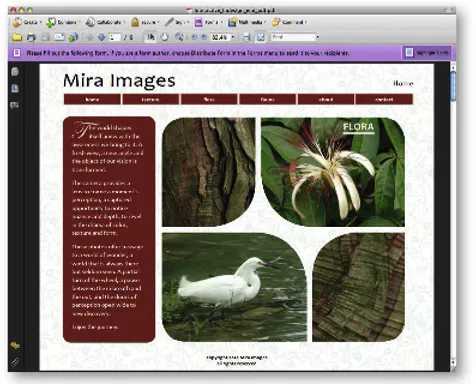
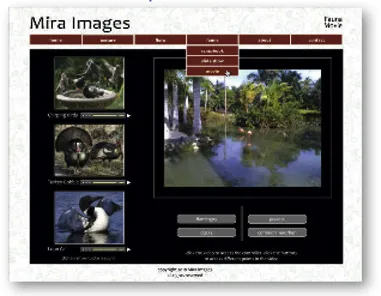
1. Open your browser of choice, go to File > Open, and browse to the chapter1_exercises folder. Open interactive_indesign_end.html and marvel at the images flying in from the left of the page. The animation was created entirely in InDesign!
This HTML page contains interactive buttons, Flash animation, video, and audio.
2. Mouse over the large images and then the buttons on the navigation bar at the top of the page to see the dropdown menus. Click the upper left image of the tree bark to navigate to the Texture page.
3. Note the animation of the thumbnail images flying onto the filmstrip as the page loads. Mouse over the thumbnails to see the button rollover effect, and then click the thumbnails to display large versions of their images.
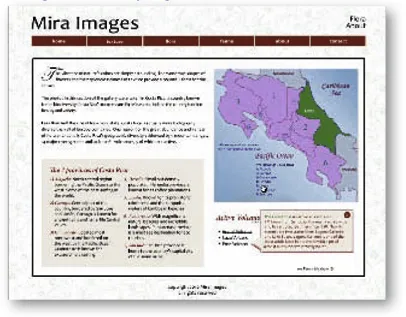
4. Click the Flora button on the navbar (navigation bar) and explore the Flora About page. Mouse over the province names (below the “Pacific Ocean†text on the map) to highlight the Costa Rica provinces. Click the volcano names at the lower right of the page to display popups that tell you more about each volcano. When you’re done, click the see Flora slide show text (yet another button) at the lower right of the page.
InDesign allows you to create rollovers and popups that translate to both Interactive PDF and SWF.
5. On the Flora Slide Show page, click the Next and Previous arrow buttons on either side of the flower images to cycle through the slide show. Click the fauna button on the navbar to navigate to the Fauna Scrap Book page.
6. Note how the scrap book images position themselves along an arc as the page loads. Click each of the thumbnail images, and when the large popup image appears, click to close it.
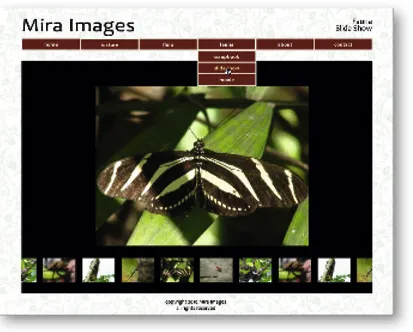
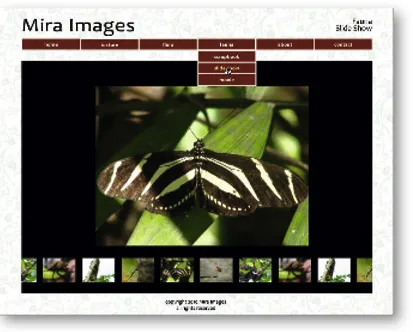
7. Mouse over the fauna button on the navbar to display the dropdown menu, and then click on slide show. Click the thumbnail buttons on the scrolling navbar to display larger versions of the images.
You can even use InDesign’s animation features to animate buttons.
From the fauna dropdown on the navbar, choose movie. This page includes Flash video and audio files. Play the movie slideshow by clicking on the photo of the flamingos. Click the gray buttons below the video to jump to preset cue points in the movie. Play each audio clip by clicking on the right-facing arrow below each photo.
Whether exporting to Flash SWF or Interactive PDF, you can include rich media in the documents you export from InDesign.
8. Click the Contact button on the navbar and mouse over the envelope on the page to see the rollover effect. Click to bring up your email client with a pre-addressed email, and then close your email application without sending.
9. Back in the browser, click the www.miraimages.com link to open the web page in a new browser window. Close the new window and, when you’re done exploring, close the file.
The rich media file you’ve just seen is 100% InDesign, created with no external development, and not one line of code. The layout, the buttons, the animation—all of it was done directly in the foremost print layout application in the industry. With a few minor adjustments, the same file can be exported to Interactive PDF with similar results: the video, the audio, and even animation. But wait, there’s more!
10. Once again, still in the browser, go to File > Open, and from the chapter1_exercises folder, open banner_ad.html.
Chapter 11, starting on page 208, is all about banner ads.
Banner ads are to web as print ads are to magazines and newspapers. Chapter 11, starting on page 208, teaches you how to create a banner ad with the proper dimensions and gives you the skinny on industry standards. The file size of the banners you can create in InDesign is too hefty for commercial placement, but might work perfectly for a local site. In whatever way you choose to use them, the animation skills you’ll learn in this chapter will serve you well.
11. Close the file, quit the browser, and open either Acrobat 9 Standard or Professional, or Adobe Reader 9. Go to File > Open, navigate to the chapter1_exercises folder, and open flower_gallery.pdf. When the alert pops up, click Yes to allow the file to display in Full Screen Mode. When the file opens, click the flower images to explore the gallery.
InDesign provides a wide assortment of page transitions you can apply to your projects and presentations with just a click.
In real life, you wouldn’t want a different transition on every page of your document, but this file is built for demonstration purposes, to familiarize you with InDesign’s wide assortment of Page Transitions.
12. When you’re finished exploring the document, press Esc on your keyboard to exit Full Screen mode and then close the file. Still in Acrobat or Reader, go to File > Open and, once again, navigate to the chapter1_exercises folder. This time, open multistate_presentation.pdf. You may need to scale the document window to see the buttons at the bottom of the screen. Click the octagon buttons in the main content to see an assortment of animations. Click the buttons at the bottom of the screen to navigate to the different “pages†of the presentation.
InDesign’s interactive capabilities are perfect for creating dynamic and engaging presentations.
13. When you’re finished checking out the document, close the file and quit Acrobat or Reader.
The files you’ve just toured provide you with a taste, just a bit of a tease, and hopefully your mind is churning with ideas of how you might apply some of the effects you’ve seen to projects of your own. By the end of the book, you’ll be able to do all this and more. So, without further ado, let’s get started!
CHAPTER SUMMARY
This chapter got you up close and personal with a bunch of really remarkable results you can achieve with InDesign CS5’s interactive tools. You viewed documents exported to both Interactive PDF and F...
Table of contents
Cover
Halftitle
Title
Copyright
Contents
Introduction
PART 1. Interactive Indesign!
PART 2. Buttons
PART 3. Animation
PART 4. Lights, Camera, Action!: Working with Media in Indesign
PART 5. Bookmarks, Hyperlinks, and Cross-References
PART 6. Layout
PART 7. Output: Processes, Pitfalls, and Performance
Trusted by 375,005 students
Access to over 1.5 million titles for a fair monthly price.
Study more efficiently using our study tools.
Frequently asked questions
Yes, you can cancel anytime from the Subscription tab in your account settings on the Perlego website. Your subscription will stay active until the end of your current billing period. Learn how to cancel your subscription
No, books cannot be downloaded as external files, such as PDFs, for use outside of Perlego. However, you can download books within the Perlego app for offline reading on mobile or tablet. Learn how to download books offline
Perlego offers two plans: Essential and Complete
Essential is ideal for learners and professionals who enjoy exploring a wide range of subjects. Access the Essential Library with 800,000+ trusted titles and best-sellers across business, personal growth, and the humanities. Includes unlimited reading time and Standard Read Aloud voice.
Complete: Perfect for advanced learners and researchers needing full, unrestricted access. Unlock 1.5M+ books across hundreds of subjects, including academic and specialized titles. The Complete Plan also includes advanced features like Premium Read Aloud and Research Assistant.
Both plans are available with monthly, semester, or annual billing cycles.
We are an online textbook subscription service, where you can get access to an entire online library for less than the price of a single book per month. With over 1.5 million books across 990+ topics, we’ve got you covered! Learn about our mission
Look out for the read-aloud symbol on your next book to see if you can listen to it. The read-aloud tool reads text aloud for you, highlighting the text as it is being read. You can pause it, speed it up and slow it down. Learn more about Read Aloud
Yes! You can use the Perlego app on both iOS and Android devices to read anytime, anywhere — even offline. Perfect for commutes or when you’re on the go. Please note we cannot support devices running on iOS 13 and Android 7 or earlier. Learn more about using the app
Yes, you can access Interactive InDesign CS5 by Mira Rubin in PDF and/or ePUB format, as well as other popular books in Computer Science & Desktop Applications. We have over 1.5 million books available in our catalogue for you to explore.