![]()
| |
Project Fact Card: Project 1: Decision making with a mouse |
Who is it for? 4– to 6-year-olds (Working towards NC Levels 1–2) What will the children do? Pupils will explore and interact with decision-making games on a website, using a simple input device, e.g. a mouse. They will select options by clicking a button and/or by dragging and dropping. They will recognise that the choices they make will lead to different outcomes and the computer can give feedback. In the context of the subject, they will make observations about where things are located and recognise changes in an environment. | What do I need to know? The URLs of the BBC Schools website ( www.bbc.co.uk/schools) and the BBC Barnaby Bear website ( www.bbc.co.uk/schools/barnabybear) Appropriate geographical vocabulary to describe features in an environment What resources will I need? A web browser, e.g. Microsoft Internet Explorer or Mozilla Firefox |
What should the children know already? That a mouse can be used to control a pointer on screen They can follow simple spoken instructions, given by a computer That certain objects and features can be found in specific localities, e.g. a cow on a farm, a deckchair on a beach | |
What will the children learn? How to control effects and actions on screen using mouse functions, e.g. clicking a mouse button, dragging and dropping That a computer representation allows the user to make choices and that different decisions produce different outcomes |
How to challenge the more able Move the pupils on to more challenging games on the BBC Barnaby Bear website – these may be more advanced in terms of ICT skill requirements and/or geographical content | How to support the less able Provide support from a teaching assistant or other helper Use an input device which requires fewer fine motor skills, e.g. a large trackball |
Why teach this? The project provides scope for children to demonstrate key aspects of the early learning goal for ICT in Curriculum Guidance for the Foundation Stage, specifically that they ‘complete a simple program’ on the computer. It provides an opportunity for an early years practitioner to develop skills across the areas of learning, especially in relation to sense of place. The project also provides a seamless link to ICT NC KS1 PoS statements 1a and 2d. The project supports the content of QCA ICT Scheme of Work Units 1A, 1C and 2B. It also supports Geography Scheme of Work Unit 5: Where in the world is Barnaby Bear? |
PROJECT 1
Decision making with a mouse
What will the children do?
Children coming into Foundation Stage settings will have a range of basic computer skills. Some will be quite sophisticated users of PC input devices, such as mouse and keyboard. Others will have had little or no experience of computers, but may be familiar with games consoles and their keypads. A few children will have had no experience of interactive electronic devices of any kind. Relatively simple ‘games’ such as those on the BBC Barnaby Bear website – www.bbc.co.uk/schools/barnabybear – provide a means by which pupils from a range of back-grounds can acquire and/or practise ‘mouse skills’ in a purposeful way. More skilled pupils will be able to focus on the geographical content more readily and can be moved on to use their skills in other contexts within the site. Children who are less familiar with the mouse and its functions will gain competence/confidence by performing relatively simple tasks and will be supported by positive feedback from the Barnaby Bear character.
Activity 1: Introducing the Barnaby Bear website
Prior to the first ICT-based activity, children should be introduced to the character of Barnaby Bear and his travels. The original idea, on which Geography Scheme of Work Unit 5 is based, is that Barnaby is a teddy bear soft toy, which accompanies adults (teachers, parents, governors) and children whenever they visit places away from the school's local area. Barnaby is photographed in these new places and sends back postcards to the children describing what he has seen and done. Although a Barnaby Bear soft toy puppet can be purchased from the Geographical Association (www.geographyshop.org.uk), any teddy bear can be used as ‘a firsthand object’ to give children a sense of personal involvement in visits to distant localities. Barnaby now also features in a range of books published by the Geographical Association (www.geography.org.uk) and is the subject of a BBC Schools television series (www.bbc.co.uk/schools). The Barnaby Bear website is an offshoot of the latter series and contains a set of related activities. It is not reliant on the series, however, and providing children are familiar with the character, the activities can be carried out independently.
After introducing the Barnaby Bear character, preferably in the form of a soft toy that is familiar to the children, explain to them that they are going to carry out an activity on the computer. Gather children (either the whole class or a group) so that they can see the website on a large screen. Show the site's home page, with its picture of Barnaby and a suitcase – then, using either the link on one of the suitcase's labels or the link on the left of the screen, go to the ‘Games’ section of the site. Discuss with the children what can be seen on screen. Point out the link to the ‘Out of Place’ game and click on it – select the Full Screen mode for the game. Ask the children to listen carefully and then let Barnaby explain the activity on screen. Explain to the children that when they come to do the activity on their own or in groups, the game will have been located for them and they will not need to navigate through the site.
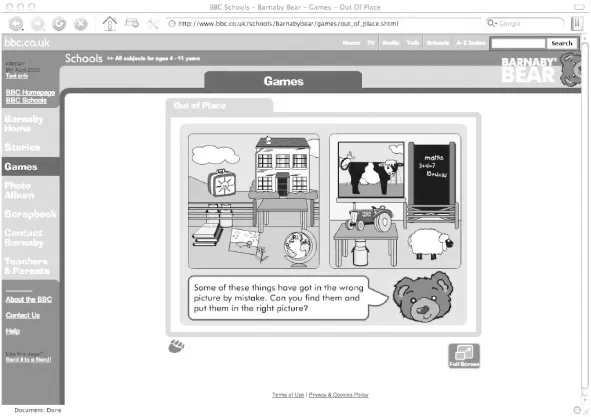
Check that the children understand the task. They have to identify features and objects which are ‘out of place’ in two settings – an airport and a beach. They then have to move the objects to the correct location by dragging and dropping. Demonstrate how this is done – click and hold down the left mouse button when the mouse pointer is over an object, then move the pointer and object across the screen. When an object has been moved to the correct setting, releasing the mouse button makes it jump into place with a satisfying ‘boing’ sound. When all objects have been moved successfully, the Barnaby character gives positive feedback, in the form of on-screen text and speech. Ask selected children to come out to the computer and try the task. Explain that when they have placed all the objects in the correct settings, there is a second game that you want them to try, in which misplaced objects must be moved between a classroom and a farm.
The second pair of environments in the ‘Out of Place’ game – a classroom and a farm
Depending on the size of the group, it may be possible to use this introductory activity as a means of assessing the children's mouse skills or you may already have a fair idea of their skills from previous experience of their work or play on the computer. Stress to the children that, when they come to do the activity independently, they must take turns in using the mouse and also talk to each other about the objects they move and why.
Activity 2: Dragging and dropping
Children can either work through the ‘Out of Place’ game individually, in pairs or with the help of a teaching assistant. Groupings will depend very much on your professional judgement of children's abilities. Working in pairs is the preferable option, as it will allow you to group children so that the more experienced/confident mouse users can support the less skilled (without, of course, dominating and taking over). Pairings of children will also provide a context for exploratory talk (for more information, see Learning ICT in English Project 3). You may use a teaching assistant to help the least skilled mouse users and/or to prompt discussion about the objects and the settings.
Monitoring of children's performance will help you decide how to move them on. Further practice in dragging and dropping on-screen objects could be gained by working through the ‘Weather Report’ and ‘Recycling’ games. Children needing practice in selecting and clicking on objects could work through the ‘What's Changed?’ activity. Although the mouse skills required by these are relatively easy, they are more demanding in terms of geographical understandings and knowledge.
When all the children have completed the two stages of the ‘Out of Place’ game, gather them together for a plenary. Ask them to describe the different environments in the game. Ask individuals to explain why they moved objects from one setting to another. How did they know that they were right in their choices of objects? Make the point that the computer and mouse made their decision making easier, because they quickly knew if they were right or wrong. Ask children who have moved on to other games to describe what they did. Did they use the mouse in the same or in diff...