Chapter 1: Learning the Interface
In an effort to become familiar with the look and feel of Windows Server 2019, in this chapter, you will learn how to navigate through some daily tasks using the graphical interface.
Windows 8 and Server 2012 brought us a drastic change in the way that we interfaced with the Windows operating system, and most of us didn't think that change was for the better. By now, I assume you have seen, used, and are hopefully deploying Windows 10 on your client computers, which brings some relief with regard to the user interface. With Windows 10, we have kind of a mix between Windows 7 and Windows 8, and it fits the needs of most people in a better way. Just like the last couple of rollouts of the Microsoft Windows operating systems, the Server platform follows on the heels of the Desktop version. Beginning with Windows Server 2016 Microsoft, went back to the basics and returned with the look and feel of Windows 10. Thankfully, Windows Server 2019 keeps this interface.
If you have been using Windows 10, you already have a good head start if you wish to successfully interface with Windows Server 2019. However, if you are still using older equipment and haven't had a chance to really dive into the latest and greatest operating systems, these big changes in the way that we interact with our servers can be a big stumbling block to successfully utilizing the new tools. Many differences exist when comparing Server 2019 to something like Server 2008, and when you are working within three levels of Remote Desktop Protocol (RDP), bouncing from one server to another, all of these little differences are compounded. It suddenly becomes difficult to know which server it is that you are working on or changing. Let's have a show of hands – how many of you have mistakenly rebooted the wrong server? Or, even more likely, how many of you have rebooted your own computer while you were trying to reboot a remote server? I know I have! And not just once.
Hope is not lost! I promise you that once you learn how to manage the interface rather than letting it manage you, some of these changes may start to seem like good ideas. They can increase productivity and help make accomplishing tasks easy – we just need some pointers on making the best use of the new interface.
We're also going to start making use of PowerShell to do a lot of administrative tasks. First introduced in 2006, PowerShell is Microsoft's command-line interface and it's one of the ways Microsoft really wants new administrators like yourself to work. After 13 years of constant development and work, PowerShell is an excellent tool for managing Windows. But if you really love your mouse and GUI, then don't fret – we're going to include both methods where possible!
The recipes in this chapter are dedicated to helping you find your way around the basic Windows Server 2019 interfaces. Let's work together to gain a better understanding of why the interface was built the way it is and learn to take advantage of these new screens and settings.
Let's look at the list of recipes in this chapter:
- Shutting down or restarting the server
- Launching Administrative Tools
- Using WinKey + X for quick admin tasks
- Using the search function to launch applications quickly
- Managing remote servers from a single pane with Server Manager
- Using PowerShell to accomplish any function in Windows Server
- Installing a role or feature
- Administering Server 2019 from a Windows 10 machine
- Managing your servers through the Windows Admin Center
- Identifying useful keyboard shortcuts in Server 2019
- Setting up your PowerShell execution policy
- Building and executing your first PowerShell script
- Searching for PowerShell cmdlets with Get-Help
Shutting down or restarting the server
I just couldn't resist starting with this one. Yes, this seems trivial. Silly even. However, the number of times that I have watched a simple server restart consume more mouse clicks than creating a domain controller has convinced me that this needed to be in this book. Perhaps the shutdown and restart options were hidden away purposefully, because once your system is up and running, there is not often a need to accomplish either of these tasks. When first configuring the box, though, it is very common to have to reboot a couple of times or shut down a machine to move it to another location. Let's face it, it doesn't seem to matter how many years computers have been around – sometimes, the magical reboot process is still the fix.
Getting ready
To complete this recipe, you will need a Windows Server 2019 system online. There are no other prerequisites.
How to do it…
Let's take a look at three different ways to shut down or restart your system. The first is going to be the most commonly employed. The second is still being used by quite a few folks who had to work hard at getting this strange location in their heads during the Windows 8 rollout, and they have continued to use it from that point forward. The third is less commonly known but is by far my favorite when tasked with restarting a remote server.
Using the Start menu
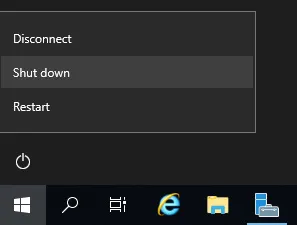
The first option, thankfully, is in a location that makes sense to anyone using Windows 10. We can simply click on the Start button, and see right there, near the bottom, that we have Power control options available to us:
Figure 1.1 – Power control options in the Start menu
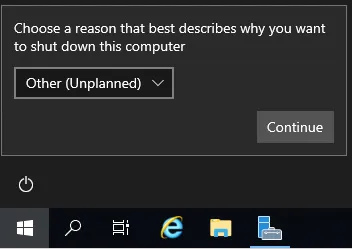
Now, when you click on Shut down or Restart, you will be asked to supply a reason why you are restarting. Common sense tells us that if you are manually clicking on the Restart button, there is a pretty good chance you are actually intending to restart the server, right? A planned occurrence? But what is the default option that presents itself? Other (Unplanned). Alas, this default option is certainly going to cause us log files full of unplanned restarts, even though all of those restarts were actually planned. Because let's be real – nobody takes the time to change that drop-down menu before they click Continue:
Figure 1.2 – Shut down/Restart prompt, asking users to choose a reason for shutting down or restarting
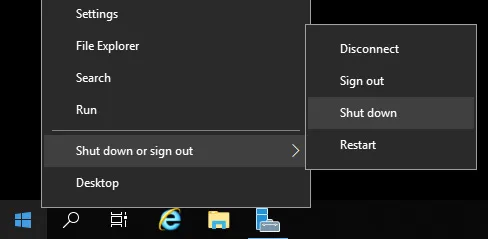
The second method to accomplish shutting down or restarting is by right-clicking on the Start button. We will discuss this little menu that is presented when right-clicking on Start in our next recipe, but for the sake of a quick shutdown or restart, you can simply right-click on the Start button and then choose Shut down or sign out:
Figure 1.3 – The shutdown or sign out prompt in the Start menu
These two examples run the risk of rebooting the wrong system. Depending on how many layers of remote connections, such as RDP, you are using, it is fairly easy to reboot your own computer or the wrong server instead of the server you intended to rebo...