eBook - ePub
Essential Computer Security: Everyone's Guide to Email, Internet, and Wireless Security
- 279 pages
- English
- ePUB (mobile friendly)
- Available on iOS & Android
eBook - ePub
Essential Computer Security: Everyone's Guide to Email, Internet, and Wireless Security
About this book
Essential Computer Security provides the vast home user and small office computer market with the information they must know in order to understand the risks of computing on the Internet and what they can do to protect themselves.Tony Bradley is the Guide for the About.com site for Internet Network Security. In his role managing the content for a site that has over 600,000 page views per month and a weekly newsletter with 25,000 subscribers, Tony has learned how to talk to people, everyday people, about computer security. Intended for the security illiterate, Essential Computer Security is a source of jargon-less advice everyone needs to operate their computer securely.* Written in easy to understand non-technical language that novices can comprehend* Provides detailed coverage of the essential security subjects that everyone needs to know * Covers just enough information to educate without being overwhelming
Information
Part I
Bare Essentials
Chapter 1 Basic Windows Security
Topics in this chapter:
- Why Do You Need to Be Secure?
- Why Are You at Risk?
- Summary

- Additional Resources
Introduction
The majority of home computers use some version of Microsoft Windows as the operating system. Most of those users, either by purchasing a new computer system in the past couple of years or by upgrading, rely on a version of Windows XP.
Before we go on to the rest of this book and explore how to use different applications securely, such as Web browsers or e-mail clients, you need to understand the fundamental security of the operating system itself. This chapter will explain the following:
- Basic risks of computer use
- Accessing Windows
- User accounts and Security Groups
- File and folder security
- Protecting Windows services
- Dangers of hidden file extensions
- Screen savers as security tools
Why Do You Need to Be Secure?
Do you want your computer to be absolutely, positively, 100-percent secure against all vulnerabilities and exploits, not only those known now, but those yet to be discovered? It’s simple: leave your computer in the box, because once you turn the computer on, you begin to walk a tightrope between functionality (or convenience) and security. Unfortunately, many of the features that make your computer easier to use also create various security issues as well.
Some people appreciate that their printer is able to communicate with the computer and alert them with messages when the ink is running low or the paper tray is empty. However, leaving the Windows Messenger Service—the service used for such communication between your printer and your computer—enabled may also leave your computer open to being inundated with unsolicited spam pop-up messages.
One of the points of setting up a network in the first place is to share resources such as data and printers. You may want to share out files or folders so they can be accessed from other computers on the network. Unfortunately, many viruses and worms use these same connections to jump from one computer to the next and infect the whole network.
I assume by reading this book that you do not intend to leave your computer disconnected and sealed in the box. I commend you. There is a vast world of information and productivity awaiting as long as you invest just a little time to do so securely. A little bit of knowledge applied with a little bit of common sense is enough to protect you from most computer threats.
Microsoft has made vast improvements in the security of their operating systems and applications in the last couple of years. Windows XP Service Pack 2 made some dramatic changes aimed at making the operating system even more secure. Sadly though, the operating systems intended for home users, a market that arguably needs the security features the most, are more insecure.
Many users view security from the perspective of “I don’t have anything of value worth protecting, so why should I care?” First of all, there is a lot more of value on your computer than you may be aware of. Have you done your own income taxes on your computer and saved the files? Are there any files or documents that contain your full name? Birth date? Social Security Number? All of this information has value to someone that may want to access your financial information or steal your identity.
The other reason to operate your computer securely is “to protect the rest of us,” which is a different concept. If you leave your house unlocked and you get robbed, it really only affects you. If you leave your car unlocked and your CD stereo gets stolen, it really only affects you. But, if you leave your computer “unlocked” and it gets “stolen,” it can impact other computer systems on the network or the Internet.
Why Are You at Risk?
It has become so common to hear about viruses, worms, identity theft, phishing scams, and other computer attacks that you may actually be wondering “where isn’t there a threat?” Understanding the importance of computer security is easier, though, if you have some idea of the threats you are defending against
Malware
Malware is a general term used to refer to a wide variety of malicious programs. It includes threats such as viruses, worms, Trojan horses, spyware, and any other malicious programs.
Even if you believe you have nothing of value to protect on your computer system, leaving it unprotected can leave you vulnerable to hundreds of different malware programs floating around the Internet which could arrive in your e-mail inbox daily. These programs can accomplish a wide variety of malicious activities, including possibly capturing your passwords and credit card numbers, sending out malware to other computers or to e-mail addresses of people you know, using your computer in a denial-of-service attack against a Web site, and more.
Weak Passwords
Passwords are the primary method most users are familiar with for gaining access to a computer system or program. If you have a weak password and an attacker manages to guess or crack it, he or she can access your private information, steal your identity, install and execute programs using your account, and more. Even worse, some of this can be done without ever knowing your password—by using remote threats.
Physical Security
Physical security is admittedly less of an issue in a home environment. Generally, you aren’t concerned with someone in your home sitting down at your computer and hacking into it. Nevertheless, your computer could still be stolen or lost.
The bottom line when it comes to physical security is that once someone has physical access to your computer, the gloves are off. There are ways that an attacker sitting at your computer and using your keyboard and disk drives can bypass the various security measures you have put in place to gain access to your data.
Network “Neighbors”
Computers that are connected to the same network as yours or within the same range of IP addresses are able to communicate with your computer more freely and gather information easier than other computers.
If you are using a cable modem to access the Internet, you are sharing the network with the other subscribers in your area. That means it is possible for other cable modem users in your area to view and access your drives and data if you aren’t careful about how you share them out and what security measures you implement.
These are just a few of the ways your computer and the data it contains are at risk. The following sections will walk you through securing your computer, limiting the power of users, controlling access to files and folders, and other security measures you should put in place before you start networking with other computers around you or connecting your computer to the Internet.
Logging In
Windows XP has a slick feature called the Welcome screen. The first time the system boots up you will be greeted with the Welcome screen like the one shown in Figure 1.1.
Figure 1.1 The Windows XP Welcome Screen Is Displayed by Default When a Windows XP System Is First Booted
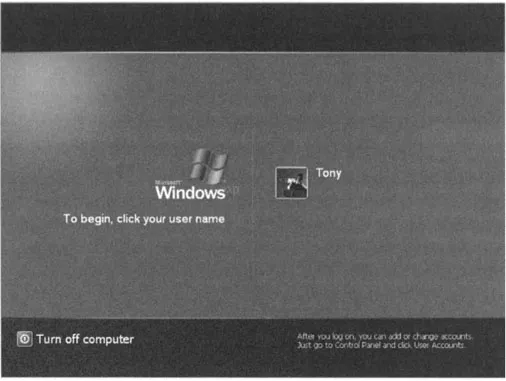
Initially, you will be able to access the system, as an Administrator, simply by clicking the picture next to the username. If you assign a password to a user account, clicking the picture will open a box for you to enter the password before logging in to the system.
On Windows XP Professional machines connected to a domain network, the Welcome screen is replaced with a login screen like Windows 2000. The user is required to press the Ctrl, Alt, and Delete keys simultaneously and then a window appears where you must enter a valid username and password to log in to the system.
User Accounts
A User Account is one of the primary means of controlling access to your data and resources as well as customizing Windows to look and act the way you want it to. Older versions of Windows, like Windows 95 and Windows 98, have User Profiles which allow each user to customize the look and feel of Windows, but the User Profiles offer no security whatsoever. They give an illusion of security because they are associated with a password, but anyone can simply hit the Esc key and log in to the system with the default user profile.
The goal of this book is not necessarily to teach you every detail of User Accounts, but to show you in simple language how to set up your User Accounts in a secure fashion. The bad guys know a thing or two about the User Accounts that are installed by default. By following the advice in this section you can throw most novice hackers off the trail and thwart their attacks.
When Windows XP is first installed, it forces you to create at least one User Account and allows you to create as many as five (see Figure 1.2). Any accounts created at this point are automatically added to the Administrators group for the machine and are created with a blank password. For these reasons, I recommend that you add only one account at this point and add other accounts later when you can control what level of access to grant and assign appropriate passwords.
Figure 1.2 Creating User Accounts with Windows XP
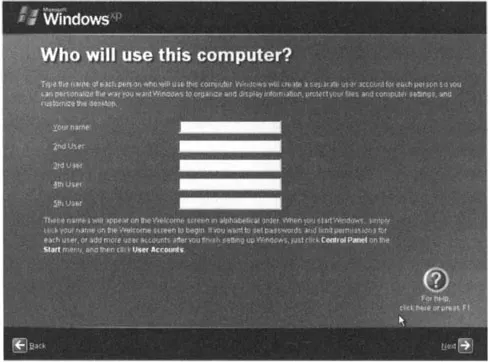
If you are upgrading from a previous Windows version, any existing users will also be automatically added to the Administrators group with a blank password when installing Windows XP. One exception is that if you are installing Windows XP Professional on a system connected to a network domain rather than in a workgroup or as a stand-alone system, the installation will offer ...
Table of contents
- Cover
- Title Page
- Acknowledgments
- Dedication
- Author Acknowledgments
- Lead Author
- Contributing Authors
- Technical Editor
- Foreword
- Table of Contents
- Introduction
- Part I: Bare Essentials
- Part II: More Essential Security
- Part III: Testing and Maintenance
- Part IV: Security Resources
- Index
- Instructions for online access
Trusted by 375,005 students
Access to over 1.5 million titles for a fair monthly price.
Study more efficiently using our study tools.
Frequently asked questions
Yes, you can cancel anytime from the Subscription tab in your account settings on the Perlego website. Your subscription will stay active until the end of your current billing period. Learn how to cancel your subscription
No, books cannot be downloaded as external files, such as PDFs, for use outside of Perlego. However, you can download books within the Perlego app for offline reading on mobile or tablet. Learn how to download books offline
We are an online textbook subscription service, where you can get access to an entire online library for less than the price of a single book per month. With over 1.5 million books across 990+ topics, we’ve got you covered! Learn about our mission
Look out for the read-aloud symbol on your next book to see if you can listen to it. The read-aloud tool reads text aloud for you, highlighting the text as it is being read. You can pause it, speed it up and slow it down. Learn more about Read Aloud
Yes! You can use the Perlego app on both iOS and Android devices to read anytime, anywhere — even offline. Perfect for commutes or when you’re on the go.
Please note we cannot support devices running on iOS 13 and Android 7 or earlier. Learn more about using the app
Please note we cannot support devices running on iOS 13 and Android 7 or earlier. Learn more about using the app
Yes, you can access Essential Computer Security: Everyone's Guide to Email, Internet, and Wireless Security by T. Bradley in PDF and/or ePUB format, as well as other popular books in Computer Science & Computer Science General. We have over 1.5 million books available in our catalogue for you to explore.