- 488 pages
- English
- ePUB (mobile friendly)
- Available on iOS & Android
eBook - ePub
GFI Network Security and PCI Compliance Power Tools
About this book
Today all companies, U.S. federal agencies, and non-profit organizations have valuable data on their servers that needs to be secured. One of the challenges for IT experts is learning how to use new products in a time-efficient manner, so that new implementations can go quickly and smoothly. Learning how to set up sophisticated products is time-consuming, and can be confusing. GFI's LANguard Network Security Scanner reports vulnerabilities so that they can be mitigated before unauthorized intruders can wreck havoc on your network. To take advantage of the best things that GFI's LANguard Network Security Scanner has to offer, you'll want to configure it on your network so that it captures key events and alerts you to potential vulnerabilities before they are exploited.In this book Brien Posey has pinpointed the most important concepts with examples and screenshots so that systems administrators and security engineers can understand how to get the GFI security tools working quickly and effectively. His straightforward, no nonsense writing style is devoid of difficult to understand technical jargon. His descriptive examples explain how GFI's security tools enhance the security controls that are already built into your server's operating system.* Secure Your Network Master the various components that make up the management console and prepare to use it for most tasks.* Analyze Scan Results View detected vulnerabilities, save and print results, query open ports, and filter your results.* Install and Use the ReportPack Learn how to build custom reports and schedule reports. See how filters allow you to control the information that is processed when a reports is run.* Perform a Hardware Inventory and Compile a Software Inventory Use GFI to do your inventories and perform audits. See how to blacklist and whitelist applications to make your reports more meaningful.* Manage Patches Effectively See how to deploy a specific patch, perform a scan comparison, uninstall a patch, and deploy custom software.* Use GFI EndPointSecurity to Lock Down Hardware Be prepared for users trying to install unauthorized software, copy sensitive data onto removable media, or perform other actions to try and circumvent your network's security.* Create Protection Policies Control the level of device access allowed on a system and create separate protection policies; one for servers, one for workstations, and one for laptops. Learn how to deploy agents.* Regulate Specific Devices Master some of the advanced features of GFI: locking device categories, blacklisting and whitelisting devices, and using file type restrictions.* Monitor Device Usage Keep tabs on your network by setting logging options, setting alerting options, and generating end point security reports.
- Use GFI EndPointSecurity to Lock Down Hardware
- Create Protection Policies to Control the Level of Device Access
- Master Advanced Features of GFI: Locking Device Categories, Blacklisting and Whitelisting Devices, Using File Type Restrictions and More
Information
Chapter 1. Solutions in this chapter:
- Installing GFI LANguard Network Security Scanner
- Summary
- Solutions Fast Track
- Frequently Asked Questions
Introduction
When Syngress asked me to write a book on the various GFI security products, I wasn't quite sure what I was going to write. Most of the GFI products are fairly intuitive, and GFI always seems to do a good job on the instruction manuals for their products, all of which can be downloaded from the GFI Web site.
When I stopped and thought about it, I began to realize that although the various GFI instruction manuals are both comprehensive and well written, they tend to be a little bit bloated because they cover every feature that the various products have to offer. That's not necessarily a bad thing (especially for an instruction manual), but instruction manuals rarely reflect how people use the products in the real world.
Since GFI already offers such thorough instruction manuals, I decided to write this book as a guide to using the various products in a real-world environment. What that means is that I'm not going to waste your time by talking about the more obscure product features, or by showing you convoluted techniques that you would never use in practice. I'm also going to try to avoid using a lot of technical jargon. My goal is to write a book that's easy to read and that teaches you what you need to know, but without wasting your time in the process.
For each of the products that this book covers, I will walk you through the installation process, and then walk you through the most useful administrative tasks in a step-by-step manner. As I do, I will also share with you any hints or tricks that I have found for getting better results or for accomplishing your goals more quickly. I sincerely hope that you will find this book to be a useful reference.
Installing GFI LANguard Network Security Scanner
Installing GFI LANguard Network Security Scanner is pretty simple and straightforward, but I wanted to go ahead and walk you through the process just so there aren't any surprises later on.
GFI LANguard Network Security Scanner can be installed on any of the following operating systems:
- Windows 2000 (with SP4 or higher)
- Windows XP (with SP2 or higher)
- Windows Server 2003
- Windows Vista (with SP1 or higher)
- Windows Server 2008
Windows Vista and Windows Server 2008 can be running either the X86 version or the X64 version of Windows.
Are You Owned?
Checking for Infections
The whole point of installing GFI Network Security Scanner is to help you to secure your network. Using a security product like this one does you absolutely no good though, if the server that will be running it has already been compromised. I recommend scanning the server that you will be installing the product onto for malware prior to performing the installation.
GFI LANguard Network Security Scanner also requires you to be running Internet Explorer 5.1 or higher, and the Client for Microsoft Networks component, which is installed by default in every version of Windows since Windows 95. To install GFI LANguard Network Security Scanner, perform the following steps:
- Download the languardnss8.exe file from the GFI Web site (www.gfi.com/downloads/downloads.aspx?pid=lanss&lid=EN), place the file into a temporary directory, and then double click on it.
- Depending on the version of Windows that you are using, you may see a security warning that asks you if you want to run this file, as shown in Figure 1.1. If you receive such a warning, click the Run button.
- Windows will now launch the InstallShield Wizard, which will extract the various files used by the Setup process.
- When the process completes, Windows will launch the Setup wizard, which will initially display a welcome screen. Click Next to bypass the welcome screen, and you will see a screen prompting you to accept the end user license agreement
- Choose the option to accept the license agreement, and click Next
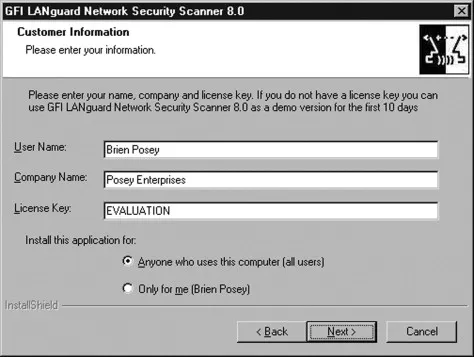
- At this point, the Setup wizard will display the Customer Information screen that's shown in Figure 1.2. As you can see in the figure, you are prompted to enter a user name, a company name, and a license key. GFI LANguard Network Security Scanner allows you to enter the word EVALUATION (all caps) in place of a license key. If you choose to do so, you will be able to use all of the product's features for the next ten days. GFI offers this evaluation feature as a way of allowing you to test drive their products. If you have purchased a license for GFI LANguard Network Security Scanner, then the license key should be listed in the e-mail message that you receive from GFI.
- Click Next, and Setup will prompt you to choose an account to use for the Attendant Service to run under. Unlike many other services, the Attendant Service cannot run using the Local System account. You can specify any account that you want, but the account needs to be a domain member, and it must have administrative privileges for the domain.
- When you finish entering the service account credentials, click Next, and you will see a screen asking you if you want GFI LANguard Network Security Scanner to use a Microsoft Access Database, or a SQL Server database.
Figure 1.1. If You Receive This Security Warning, Click the Run Button
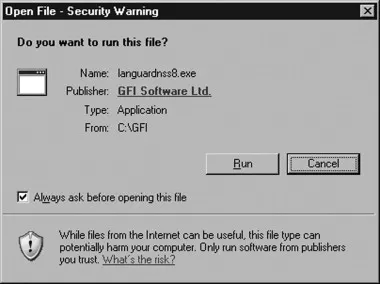
Figure 1.2. You Have the Option of Entering the Word EVALUATION in Lieu of a License Key
If you want to take the easy out, go with the Microsoft Access database option. If you choose this option, you don't even have to install Microsoft Access.
The down side to using a Microsoft Access database is that it does not offer the performance or scalability of a Structured Query Language (SQL) Server database. Using a Microsoft Access database will work fine if you have a small- to medium-sized network, or if you are just installing GFI LANguard Network Security Scanner for evaluation purposes. If you have a larger network, then performance is typically going to suffer if you try using a Microsoft Access Database.
If you choose the SQL Server option, then you have the option of using SQL Server 2000 or higher, or of using Microsoft Database Engine (MSDE). In case you are not familiar with MSDE, it is Microsoft's free version of SQL Server.
So why would Microsoft offer SQL Server for free? Well, from what I have heard, they did it because so many of their products (and so many third-party products) require a backend database, and in a lot of cases a full blown SQL Server would be overkill. MSDE provides you with a way of using products that require a SQL Server database, but without having to spend good money on SQL Server licenses or on the supporting hardware.
As great as MSDE sounds, you've got to remember ...
Table of contents
- Brief Table of Contents
- Table of Contents
- Copyright
- Technical Editor
- Foreword
- Acknowledgements
- Chapter 1. Installing GFI LANguard Network Security ScannerSolutions in this chapter:
- Chapter 2. An Introduction to the GFI LANguard Network Security Scanner Management ConsoleSolutions in this chapter:
- Chapter 3. Performing a Security ScanSolutions in this chapter:
- Chapter 4. Analyzing the Scan ResultsSolutions in this chapter:
- Chapter 5. Using the ReportPackSolutions in this chapter:
- Chapter 6. Inventories and AuditingSolutions in this Chapter:
- Chapter 7. Patch ManagementSolutions in this Chapter:
- Chapter 8. Installing GFI EndPointSecuritySolutions in this chapter:
- Chapter 9. Defining Protection PoliciesSolutions in this chapter:
- Chapter 10. Advanced Security ConfigurationsSolutions in this chapter:
- Chapter 11. End Point ManagementSolutions in this chapter:
- Chapter 12. Monitoring Device UsageSolutions in this chapter:
- Chapter 13. Installing GFI EventsManager
- Chapter 14. Browsing the Event LogsSolutions in this chapter:
- Chapter 15. Event Processing RulesSolutions in this chapter:
- Chapter 16. Getting the Big Picture
- Chapter 17. Installing and Configuring GFI Network Server Monitor
- Chapter 18. Working with GFI Network Server Monitor's Configuration Console
- Chapter 19. GFI Network Monitor's Additional ComponentsSolutions in this chapter:
- Index
Trusted by 375,005 students
Access to over 1.5 million titles for a fair monthly price.
Study more efficiently using our study tools.
Frequently asked questions
Yes, you can cancel anytime from the Subscription tab in your account settings on the Perlego website. Your subscription will stay active until the end of your current billing period. Learn how to cancel your subscription
No, books cannot be downloaded as external files, such as PDFs, for use outside of Perlego. However, you can download books within the Perlego app for offline reading on mobile or tablet. Learn how to download books offline
Perlego offers two plans: Essential and Complete
- Essential is ideal for learners and professionals who enjoy exploring a wide range of subjects. Access the Essential Library with 800,000+ trusted titles and best-sellers across business, personal growth, and the humanities. Includes unlimited reading time and Standard Read Aloud voice.
- Complete: Perfect for advanced learners and researchers needing full, unrestricted access. Unlock 1.5M+ books across hundreds of subjects, including academic and specialized titles. The Complete Plan also includes advanced features like Premium Read Aloud and Research Assistant.
We are an online textbook subscription service, where you can get access to an entire online library for less than the price of a single book per month. With over 1.5 million books across 990+ topics, we’ve got you covered! Learn about our mission
Look out for the read-aloud symbol on your next book to see if you can listen to it. The read-aloud tool reads text aloud for you, highlighting the text as it is being read. You can pause it, speed it up and slow it down. Learn more about Read Aloud
Yes! You can use the Perlego app on both iOS and Android devices to read anytime, anywhere — even offline. Perfect for commutes or when you’re on the go.
Please note we cannot support devices running on iOS 13 and Android 7 or earlier. Learn more about using the app
Please note we cannot support devices running on iOS 13 and Android 7 or earlier. Learn more about using the app
Yes, you can access GFI Network Security and PCI Compliance Power Tools by Brien Posey in PDF and/or ePUB format, as well as other popular books in Business & Business Intelligence. We have over 1.5 million books available in our catalogue for you to explore.