
- 550 pages
- English
- ePUB (mobile friendly)
- Available on iOS & Android
eBook - ePub
Object-oriented Programming with Smalltalk
About this book
Object oriented programming is a way of thinking about problems. Smalltalk is one of the purest incarnations of an object-oriented programming language. Using a pedagogical approach, this book covers all aspects of object oriented programming: first through the study of various preexisting Smalltalk classes, their implementation and use; then through a detailed description of an implementation of an interactive Lindenmayer system and through implementation of a series of calculators.
The author addresses such subjects as graphics programming, dependency mechanisms and hierarchical specialization.
This book fills the gap for an in-depth self-study reference, permitting the reader to master all aspects of object-oriented programming through a large set of exercises with highly detailed resources.
- Downloadable software content for practice applications
- Covers all aspects of Smalltalk: theconcepts of primitive objects, classes and instances, static and dynamic inheritance and methods, as well as graphical programming, the dependency mechanisms and the handling of exceptions
- Features in-depth studies of two programming projects and annotated solutions to all exercies and appendices
Information
Part 1
The Basics of Smalltalk Programming
1
A Brief Tour of Squeak
Abstract
We begin by giving a brief scenario for the use of SQUEAK. However, in order for us to truly experience it, we must first acquire an interpreter of this wonderful language. In order to do this, we simply have to proceed to the download page of the Website www.squeak.org to download the necessary files. Currently, there are versions for Windows, OS X and Linux. For installation, follow their advice on installation.
Keywords
Indication
Integer class
Main menu
Pen example effect
Selector
SQUEAK
"Squeak squeak.image"
System browser
Upside-down system browser
Workspace window
We begin by giving a brief scenario for the use of Squeak. However, in order for us to truly experience it, we must first acquire an interpreter1 of this wonderful language. In order to do this, we simply have to proceed to the download page of the Website www.squeak.org to download the necessary files. Currently, there are versions for Windows, OS X and Linux. For installation, follow their advice on installation.
Once the system has been installed, you should run Squeak. On Windows, this can be done by clicking the Squeak icon and then choosing your image, on Unix you activate it with the command “squeak squeak.image” from the directory containing the three files squeak.image, squeak.changes, SqueakV?.sources (in place of the question mark, there should be the version number). These three files are described in the table in Figure 1.1.
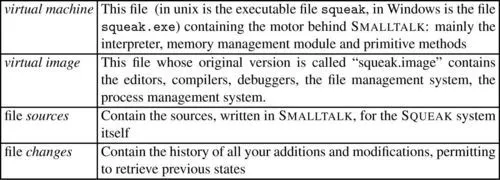
Figure 1.1 The most important Smalltalk files
Once Squeak has been launched, you should see a screen similar to that in Figure 1.2.
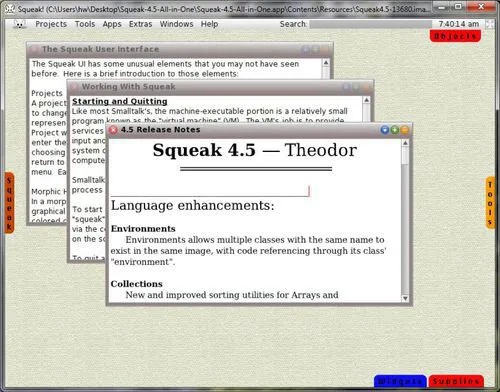
Figure 1.2 Squeak (version 4.5) start screen
When you work in Squeak, everything you do is done through this screen. Squeak is a complete system with its own editors, browsers, debuggers, etc. You will even have a tool for sending and receiving email, celeste, and another one called scamper, which provides us with the basics for browsing the Internet.
This window is your interface with the Squeak system and the rest of the world. For now, the first thing to do is construct a private virtual image in which you will be able to do whatever you want, and which will guarantee you are always able to find the original image, if you were to get completely lost. In order to do this, place your mouse anywhere in the Squeak window, outside of any subwindows, and click on the left button, this should bring up the main menu shown in Figure 1.3.
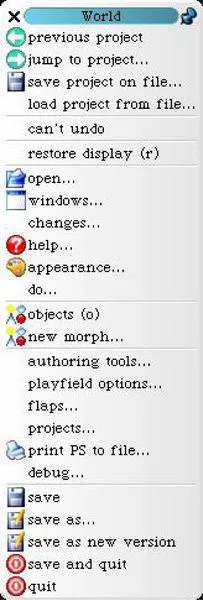
Figure 1.3 Main menu
Choose save as…, and then in the window New File Name? (see Figure 1.4), which opens automatically, give a name of your choice (such as myImage.image), and then from that moment on, you will be working in your own image, and not the initial image distributed with Squeak. Then in the same menu, choose save or, when you want to quit, save and quit, you will save a personal image, accessible through the name that you have chosen (myImage.image in the example here), and usable in any subsequent Squeak launch.
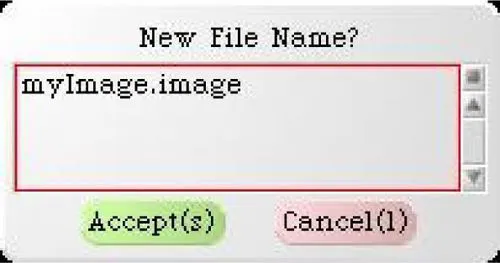
Figure 1.4 A name for the image
Finally, we can begin to explore Squeak.
1.1 The first contact
On the start screen (Figure 1.2 page 4), the border of the Smalltalk window is decorated with small colored rectangles: these are the “flaps”. By default, there is a flap called Squeak in the middle left of the window called Tools, and in the middle right, and at the bottom of the window there are, from left to right, the flaps Widgets and Supplies. All these flaps, if activated (by the click of the left mouse button), give access to a set of Squeak tools2. Figure 1.5, page 7, shows the content of the flap “Supplies”. In order to activate any of its tools, simply select it (always with the left mouse button3) and pull it out of the flap (keeping the button pressed and by moving the mouse to the inside of the Squeak window).

Figure 1.5 The graphic object flap (Supplies)
If we activate the tool Workspace of the flap Tools, we obtain a window similar to the one in Figure 1.6. In this window, we can en...
Table of contents
- Cover image
- Title page
- Table of Contents
- Copyright
- Preface
- Introduction
- Part 1: The Basics of Smalltalk Programming
- Part 2: Programming in Squeak
- Part 3: Appendices
Trusted by 375,005 students
Access to over 1.5 million titles for a fair monthly price.
Study more efficiently using our study tools.
Frequently asked questions
Yes, you can cancel anytime from the Subscription tab in your account settings on the Perlego website. Your subscription will stay active until the end of your current billing period. Learn how to cancel your subscription
No, books cannot be downloaded as external files, such as PDFs, for use outside of Perlego. However, you can download books within the Perlego app for offline reading on mobile or tablet. Learn how to download books offline
Perlego offers two plans: Essential and Complete
- Essential is ideal for learners and professionals who enjoy exploring a wide range of subjects. Access the Essential Library with 800,000+ trusted titles and best-sellers across business, personal growth, and the humanities. Includes unlimited reading time and Standard Read Aloud voice.
- Complete: Perfect for advanced learners and researchers needing full, unrestricted access. Unlock 1.5M+ books across hundreds of subjects, including academic and specialized titles. The Complete Plan also includes advanced features like Premium Read Aloud and Research Assistant.
We are an online textbook subscription service, where you can get access to an entire online library for less than the price of a single book per month. With over 1.5 million books across 990+ topics, we’ve got you covered! Learn about our mission
Look out for the read-aloud symbol on your next book to see if you can listen to it. The read-aloud tool reads text aloud for you, highlighting the text as it is being read. You can pause it, speed it up and slow it down. Learn more about Read Aloud
Yes! You can use the Perlego app on both iOS and Android devices to read anytime, anywhere — even offline. Perfect for commutes or when you’re on the go.
Please note we cannot support devices running on iOS 13 and Android 7 or earlier. Learn more about using the app
Please note we cannot support devices running on iOS 13 and Android 7 or earlier. Learn more about using the app
Yes, you can access Object-oriented Programming with Smalltalk by Harald Wertz in PDF and/or ePUB format, as well as other popular books in Computer Science & Programming. We have over 1.5 million books available in our catalogue for you to explore.