- English
- ePUB (mobile friendly)
- Available on iOS & Android
eBook - ePub
Windows 10 Portable Genius
About this book
Your no-fluff, fast-paced guide to everything Windows 10
This handy, jargon-free guide is designed to help you quickly learn whatever you need to know about Windows 10. Perfect for novices and experienced users alike, you'll get tips, tricks, and savvy advice on how to install programs, set up user accounts, play music and other media files, download photos from your digital camera, go online, set up and secure an email account, and much, much more.
- Shows how to perform more than 150 Windows tasks, including working with files, digital images, and media; customizing Windows; optimizing performance; and sharing a computer with multiple users
- Covers installing and repairing applications, system maintenance, setting up password-protected accounts, downloading photos to your computer, and staying safe online
With concise, easy-to-follow instructions, and its small, portable size, this is the ideal, on-the-go guide for Windows 10 users everywhere.
Frequently asked questions
Yes, you can cancel anytime from the Subscription tab in your account settings on the Perlego website. Your subscription will stay active until the end of your current billing period. Learn how to cancel your subscription.
No, books cannot be downloaded as external files, such as PDFs, for use outside of Perlego. However, you can download books within the Perlego app for offline reading on mobile or tablet. Learn more here.
Perlego offers two plans: Essential and Complete
- Essential is ideal for learners and professionals who enjoy exploring a wide range of subjects. Access the Essential Library with 800,000+ trusted titles and best-sellers across business, personal growth, and the humanities. Includes unlimited reading time and Standard Read Aloud voice.
- Complete: Perfect for advanced learners and researchers needing full, unrestricted access. Unlock 1.4M+ books across hundreds of subjects, including academic and specialized titles. The Complete Plan also includes advanced features like Premium Read Aloud and Research Assistant.
We are an online textbook subscription service, where you can get access to an entire online library for less than the price of a single book per month. With over 1 million books across 1000+ topics, weāve got you covered! Learn more here.
Look out for the read-aloud symbol on your next book to see if you can listen to it. The read-aloud tool reads text aloud for you, highlighting the text as it is being read. You can pause it, speed it up and slow it down. Learn more here.
Yes! You can use the Perlego app on both iOS or Android devices to read anytime, anywhere ā even offline. Perfect for commutes or when youāre on the go.
Please note we cannot support devices running on iOS 13 and Android 7 or earlier. Learn more about using the app.
Yes, you can access Windows 10 Portable Genius by Paul McFedries in PDF and/or ePUB format, as well as other popular books in Computer Science & Computer Science General. We have over one million books available in our catalogue for you to explore.
Information
Chapter 1: How Do I Customize Windows?

Youāve probably found that Windows works pretty well right out of the box. Microsoft has configured Windows with default settings that make Windows relatively easy and efficient for most users. Ah, but your purchase of this book shows that you donāt fall into the Most Users category. You are your own, unique self, and that uniqueness cries out for and deserves a correspondingly unique Windows experience. Fortunately, as you learn in this chapter, Windows is bristling with tools that enable you to customize almost every aspect of the system, including the Start menu, taskbar, and Lock screen.
Working with Settings
Customizing the Start Menu
Customizing the Taskbar
Customizing the Lock Screen
Extending Your Desktop with Multiple Monitors
Setting Up Multiple Desktops
Working with Settings
Most of your Windows customization work involves tweaking settings, which are optionsāusually in the form of a check box, switch, radio button, or listāthat control the look and operation of either Windows itself or of a particular app thatās installed on your PC.
Opening the Settings app
When you want to customize Windows, youāll almost always need to open the aptly named Settings app, which is home to most Windows customization options. The Settings app is so important that Windows gives you a dozen or so ways to open it. Here are the six most useful methods:
- Click Start and then click Settings (the gear icon).
- Press Windows+I. (The Windows key is the one that has the Windows logo on it; youāll find it on the lowest row of the keyboard, to the left of the spacebar, between the Ctrl and Alt keys.)
- Click the Notifications icon on the far right of the taskbar and then click All Settings.
- In the taskbarās Search box, type se (which should be enough to display the Settings app in the search results; if not, continue typing settings until you see Settings in the results) and then press Enter.
- If you have Cortana enabled (see Chapter 5), say āHey Cortanaā and then say āOpen Settings.ā
- Right-click the Start icon and then click Settings.
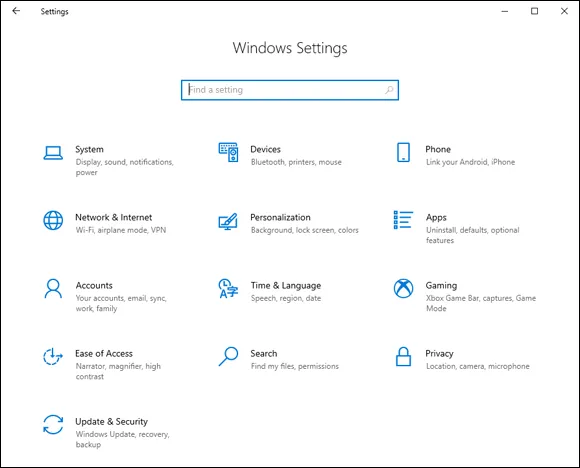
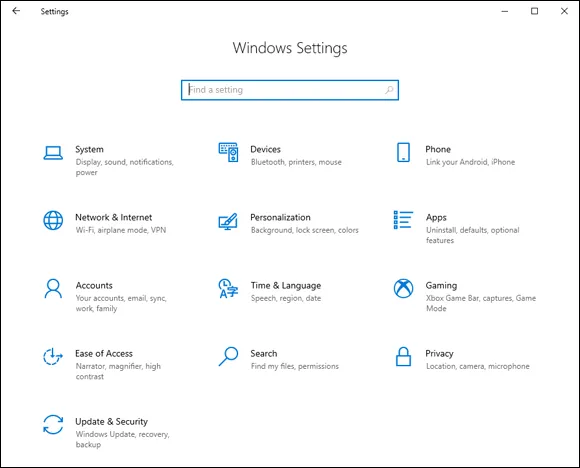
Whichever method you use, you see the Home screen of the Settings app, as shown in Figure 1.1.
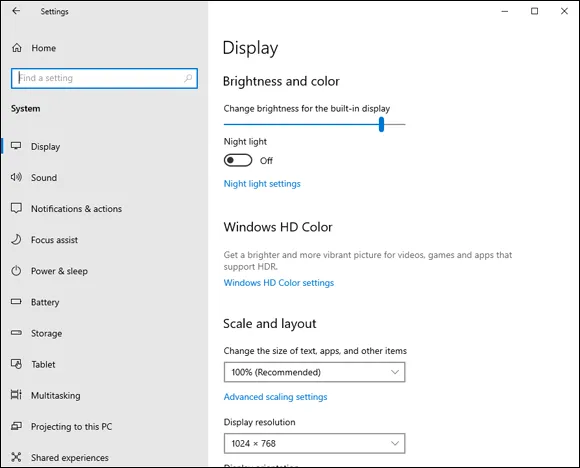
From here, you can either use the Settings app's Search box to locate the setting you want or click a category to see the subcategories and settings associated with that category. For example, Figure 1.2 shows the screen that appears when you click the System category. When you click a subcategory on the left, the settings for that subcategory appear on the right (such as for the Display subcategory shown in Figure 1.2). To return to the previous Settings screen, click the Back arrow in the top-left corner; to return directly to the Home screen, click Home.

1.1 The Home screen of the Settings app.

1.2 When you open a category, click a subcategory on the left to see its settings on the right.

Synchronizing settings between PCs
If you use the same Microsoft account to sign in to Windows on multiple devices, you can get a more consistent and more efficient experience by synchronizing your settings on all those devices. Hereās how to set this up:
- Open the Settings app.
- Click Accounts.
- Click Sync Your Settings. The Sync Your Settings screen appears.
- Make sure the Sync Settings switch is set to On. Click it to toggle it On if needed.
- In the Individual Sync Settings section, set the switch to On for each type of setting you want synced. The four setting types are Theme, Passwords, Language Preferences, and Other Windows Settings.
Accessing an appās settings
Most apps also come with a collection of their own settings, which you can work with to get more out of the app or to customize the app to suit the way you work. For most Windows apps, there are two main ways to access settings:
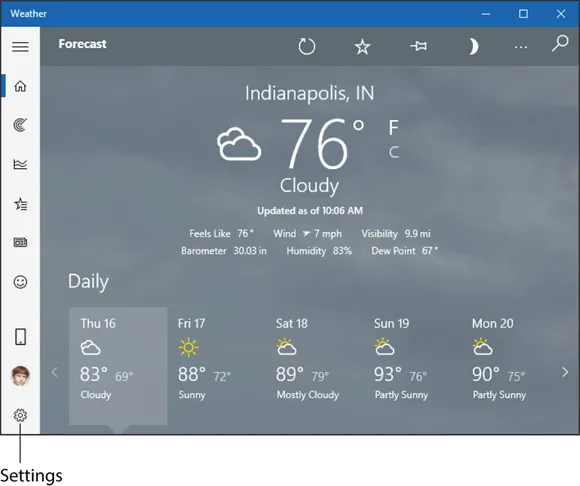
- Open the app and click Settings (the gear icon), which usually appears in the lower-left corner of the screen (see Figure 1.3).
- In the Start menu, right-click the app, click More, and then click App Settings.

1.3 For many Windows apps, click Settings (the gear icon) to access the appās options.
Customizing the Start Menu
Although you can use keyboard shortcuts and features such as the taskbar to launch and work with apps and other features, to perform most of your Windows work, you need to negotiate the Start menu. Therefore, you can make your Windows chores easier and more efficient if you take a few moments to customize the Start menu to suit your needs.
Pinning an app to the Start menu
If you have an app that doesnāt appear as a tile on the Start menu, you usually open the app by first navigating the Start menuās apps list to locate the app, possibly negotiating one or more submenus along the way. For an app you use often, you can avoid this extra work by pinning the app ...
Table of contents
- Cover
- Title Page
- Table of Contents
- Introduction
- Chapter 1: How Do I Customize Windows?
- Chapter 2: How Can I Make the Most of Surfing the Web?
- Chapter 3: How Do I Maximize Sending and Receiving Email?
- Chapter 4: Can I Use Windows to Manage Contacts and Appointments?
- Chapter 5: What Other Day-to-Day Tasks Can I Perform?
- Chapter 6: How Do I Max Out the Windows Image Tools?
- Chapter 7: Can I Share My Computer?
- Chapter 8: How Can I Get More from a Tablet PC?
- Chapter 9: How Do I Work with Documents?
- Chapter 10: What Are Some Ways to Enhance PC Security?
- Chapter 11: How Do I Increase Internet Privacy and Security?
- Chapter 12: How Do I Maintain Windows?
- Index
- End User License Agreement