Data Analysis with Excel
eBook - ePub

Data Analysis with Excel

Tips and tricks to kick start your excel skills

  1. English
  2. ePUB (mobile friendly)
  3. Available on iOS & Android
eBook - ePub

Data Analysis with Excel

Tips and tricks to kick start your excel skills

About this book

Simplify the Usage of Excel Features and Functionalities, with the Help of Examples Key Features

  • Basic components of excel, the available menu options and tools, some customizations working with multiple workbooks and worksheets, most frequently used and useful keyboard shortcuts.
  • An initial introduction to what are formulas, functions, and their components.
  • Usage of multiple examples to explain the application in real world scenario.
  • Explaining of different chart types available in Excel and how best it can be used for creating different views of data, good graphics, visualizations for dashboards, and so on.
  • Different ways and methods to consolidate data, complex analysis, and prediction or forecast based on trends.
  • Excel features that help in automating tasks.


Description
Book is written in a lucid manner to explain the concepts in details, with adequate emphasis on examples. The intent of this book is to explain and simplify the usage of Excel features and functionalities, with help of examples. Book will enable users in working efficiently and will increase their workplace productivity. It explains:

  • Functions for calculations
  • Graphing tools
  • Pivot tables
  • Data analysis tools
  • Micro programming
  • Add-ins that enable core complex operations.


What You Will Learn

  • Performing functions with shortcut keys.
  • Formulas and functions
  • Data visualization with new chart types
  • Gantt and Milestone Chart
  • Smart Art and Organization Chart
  • Putting data in perspective with Pivots
  • Complex data analysis using Tool Pak
  • Forecasting in Excel
  • Mail Merge using Excel
  • Macros in Excel
  • What is in Excel 2019

  • Who This Book is For
    Anyone who wants to learn Excel, do the mundane task easily and quickly, do complex calculations, analysis huge data from internal or external sources, take decisions based on predictions, do forecasting, create plans and charts, monitor dashboards for progress and status, and so on. Table of Contents
    1. Getting Started with Excel
    2. Perform Functions with Shortcut Keys
    3. Formulas and Functions
    4. Data Visualization with New Chart types
    5. Gantt and Milestone Chart
    6. SmartArt and Organization Chart
    7. Putting Data in perspective with Pivots
    8. Complex Data Analysis using ToolPak
    9. Forecasting in Excel
    10. Mail Merge using Excel
    11. Macros in Excel.
    12. What's in Excel 2019 About the Author
    Manisha Nigam is a seasoned management professional with twenty plus years of information technology experience, working with multinationals across the globe. Her expertise in Excel comes from the vast experience she has in using and understanding the software over the years, that helped her in working efficiently and managing complex programs. A certified PMP (PMI - Project Management Professional), CSM (Scrum Alliance - Scrum Master), TOGAF 9.1 (The Open Group - Enterprise Architecture) and holds a post-graduate degree in computer science and business management from prestigious universities in India. LinkedIn Profile: linkedin.com/in/mnigam10

Frequently asked questions

Yes, you can cancel anytime from the Subscription tab in your account settings on the Perlego website. Your subscription will stay active until the end of your current billing period. Learn how to cancel your subscription.
At the moment all of our mobile-responsive ePub books are available to download via the app. Most of our PDFs are also available to download and we're working on making the final remaining ones downloadable now. Learn more here.
Perlego offers two plans: Essential and Complete
  • Essential is ideal for learners and professionals who enjoy exploring a wide range of subjects. Access the Essential Library with 800,000+ trusted titles and best-sellers across business, personal growth, and the humanities. Includes unlimited reading time and Standard Read Aloud voice.
  • Complete: Perfect for advanced learners and researchers needing full, unrestricted access. Unlock 1.4M+ books across hundreds of subjects, including academic and specialized titles. The Complete Plan also includes advanced features like Premium Read Aloud and Research Assistant.
Both plans are available with monthly, semester, or annual billing cycles.
We are an online textbook subscription service, where you can get access to an entire online library for less than the price of a single book per month. With over 1 million books across 1000+ topics, we’ve got you covered! Learn more here.
Look out for the read-aloud symbol on your next book to see if you can listen to it. The read-aloud tool reads text aloud for you, highlighting the text as it is being read. You can pause it, speed it up and slow it down. Learn more here.
Yes! You can use the Perlego app on both iOS or Android devices to read anytime, anywhere — even offline. Perfect for commutes or when you’re on the go.
Please note we cannot support devices running on iOS 13 and Android 7 or earlier. Learn more about using the app.
Yes, you can access Data Analysis with Excel by Manisha Nigam in PDF and/or ePUB format, as well as other popular books in Computer Science & Desktop Applications. We have over one million books available in our catalogue for you to explore.

CHAPTER 1

Getting Started with Excel

1.1 Workbook and Worksheets

When we talk about working in Excel, we basically work in a workbook, that is, the file that is created by Excel with the default extension “.xlsx”. Each workbook contains one or more worksheets and by default, they are named as Sheet1, Sheet2, Sheet3, and so on, in the sequence in which they get created. The users can rename the worksheets by right-clicking on the sheet name and selecting Rename from the options, with a condition that each sheet name in a workbook is unique.
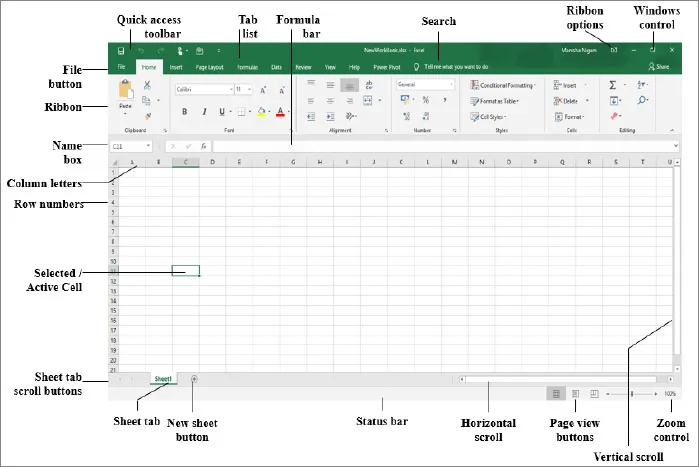
Sheets are structured as two-dimensional matrix with the columns named alphabetically (A-Z, AA-AZ, BA …, ZZ, AAA, AAB, and so on) and the rows numerically (1 through 1048576). Each sheet contains individual cells which can contain number, text, or formula. The intersection of a row and a column is a single cell which is referenced using the column letter and row number. For example, the first cell in the worksheet is referenced as A1, that is, column A row 1. A worksheet also has an invisible drawing layer which holds charts, images, and diagrams. Objects on the drawing layer sit over the top of the cells, however, they are not inside the cells like a number or a formula.
An open Excel workbook screen looks like the following screenshot. It also shows the important and useful elements that are often used:
Figure 1.1 Workbook Screen

1.2 Navigation with Keyboard

Users are quite familiar with and find it easy to navigate through the cells using their mouse. But you can also use the standard navigation keys on the keyboard to move around the worksheet. For example, the down arrow moves the active cell down by one row, the right arrow moves it one column to the right, and so on, the pgup and pgdn keys move the active cell up or down by one full window. There are a lot of useful keyboard shortcuts available which are listed in Chapter 2 Perform Functions with Shortcut Keys.

1.3 Tabs and Ribbons

The user interface of Excel, like all other Microsoft products such as Word, PowerPoint, and so on, has Tabs and Ribbons. Each tab (Home, Insert, Page Layout, and so on) has an associated Ribbon with several group of buttons for working. For example, if you click the Formulas tab, you get a Ribbon with buttons that are useful for working with formulas. Also, when you hover the mouse pointer over a Ribbon button, it will show the description that contains the command’s name along with a brief description.
Figure 1.2 Tabs and Ribbons

1.3.1 Contextual Tabs

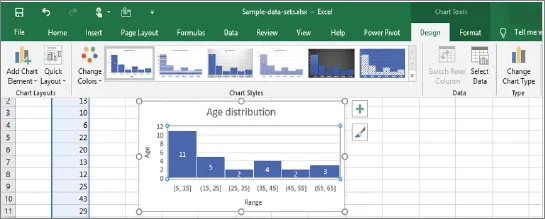
In addition to the standard tabs, Excel includes contextual tabs. Whenever an object (such as a chart, a table, or a SmartArt diagram) is selected, specific tools for working with that object are made available in the Ribbon. For example, when you select a chart, two tabs (Design and Format) become visible in the Chart Tools tab:
Figure 1.3 Contextual Tabs and Ribbons

1.3.2 Tab and Ribbon Visibility

If you need more space, you can right-click on any Ribbon and select Collapse the Ribbon button, you can then restore it in the same way. Also, note that depending on the width of the Excel window, some Ribbons might not show fully, however, everything is still available. To toggle the Ribbon’s visibility, use the keyboard shortcut CTRL + F1 (or double-click a tab at the top). You can also change the Tab and Ribbon visibility option using a control named Ribbon Display Options (next to the Minimize button) on the title bar. The control has three options: Auto-Hide Ribbon, Show Tabs, or Show Tabs and Commands.
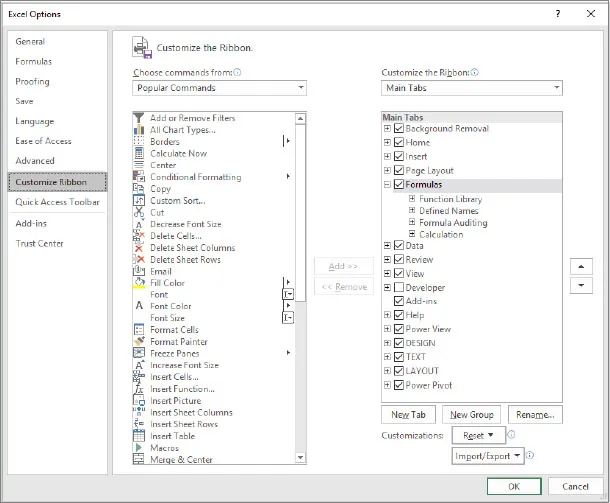
There is also an option for customizing the Ribbons, you can right-click on any Ribbon and select Customize the Ribbon.
Figure 1.4 Customizing Ribbons

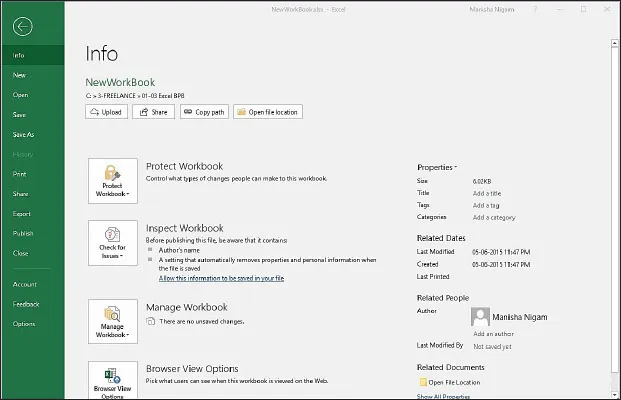
1.4 File Menu

The File menu takes you to the backstage view where you can perform file operations. You can also open the Excel Options dialog box from there. To go back and leave backstage view, simply click on the back arrow at the top-left.
Figure 1.5 File Menu

1.5 Quick Access Toolbar

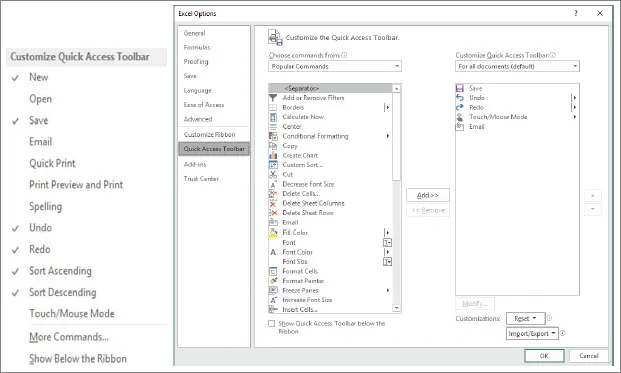
There is a Quick Access Toolbar (QAT) at the top-left corner of the Excel window. You can put your favorite buttons on this toolbar so that they are always visible and available. The QAT comes with a few favorite buttons, however, you can add more. The QAT can be customized by clicking on the drop-down arrow to the right of your QAT. You will see a list to the right of the most commonly used buttons, which you can then check to add them to your QAT. You can also click on the More Commands item in this list to launch the dialog box which contains several other buttons that you can add to your QAT.
Figure 1.6 Quick Access Toolbar

1.6 Excel Options

Excel has many options for changing the software’s behavior. Click on the File button in the upper-left corner of the screen and then on Options to see all the options. Options are grouped in categories: General, Formulas, and others. Though the option names are self-explanatory, for more details on what each option means, you can either click on the information icon or the help button on the upper-right corner of the screen.
For example, under the Advanced group, you will see many Editing options which you can change based on your style of working, such as using the Enter key to move the selection down, allowing Automatic flash fill, ...

Table of contents

  1. Cover Page
  2. Title Page
  3. Copyright Page
  4. Preface
  5. About the Author
  6. Table of Contents
  7. 1. Getting Started with Excel
  8. 2. Perform Functions with Shortcut Keys
  9. 3. Formulas and Functions
  10. 4. Data Visualization with New Chart types
  11. 5. Gantt and Milestone Chart
  12. 6. SmartArt and Organization Chart
  13. 7. Putting Data in perspective with Pivots
  14. 8. Complex Data Analysis using ToolPak
  15. 9. Forecasting in Excel
  16. 10. Mail Merge using Excel
  17. 11. Macros in Excel
  18. 12. What’s in Excel 2019