- 212 pages
- English
- ePUB (mobile friendly)
- Available on iOS & Android
eBook - ePub
About this book
This book will introduce you to the controls and steer you towards understanding what Blender can do. With this program you can create 3D models of objects and characters. The objects and characters can be placed in scenes. The scenes are captured by camera and rendered into digital images. The objects and characters can be animated and then, again, captured by camera and rendered to video files. Video files can then be compiled into movies. This book will show you how to make the Blender program go through some of its paces and give you an insight into this fantastic world. You will be shown the controls and given operation instructions allowing you to activate a variety of features.
Trusted by 375,005 students
Access to over 1.5 million titles for a fair monthly price.
Study more efficiently using our study tools.
Information
Subtopic
Computer GraphicsIndex
Computer Science1 Chapter 1 Introduction
What Is Blender?
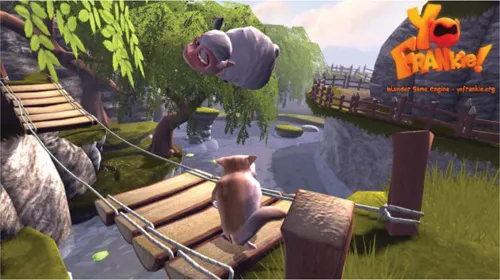
Blender is a computer graphics program for making three-dimensional (3D) models of characters and objects. The characters and objects are placed in scenes like the one shown in the picture above. Parts of the scene are captured as digital images or a series of images then rendered into image files or video. The scene in the picture is from a Blender game called Yo Frankie!
You can make computer games with Blender.
What Is Computer Graphics?
Computer graphics is the process of using a computer to make still pictures and moving pictures just like all the ads and cartoons you see on TV. You also use computer graphics to make games like the ones on your i-pad or i-phone.
Yes! You can make your own games.
How Much Does Blender Cost?
Blender is absolutely FREE! It doesn’t cost anything. You can download the program and use it for anything you wish.
Amazing Images Made with Blender

Image created by: Linolafett

Image created by: Yusuf Umar
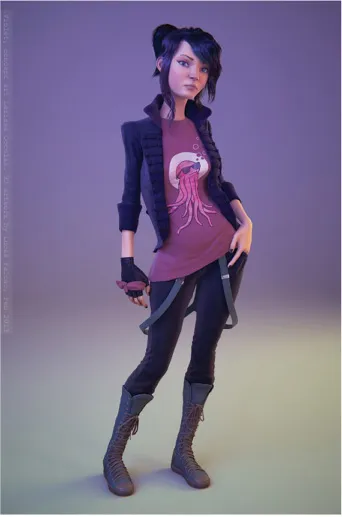
Image created by: Lucas Falcao
It’s easy to show you pictures in a book but not so easy to show you examples of video.
Grab your computer and head over to the Blender website to see some fantastic demo reels.
www.blender.org
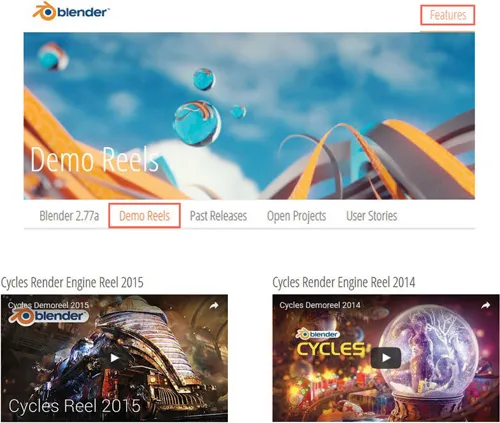
This is the website where you get the program. When you are on the Blender page, click on Features in the border at the top. It’s not surprising that some of Blender’s fantastic features are shown on the next page that opens. To see the video demonstrations click on Demo Reels in the header just below the big colored window at the top of the page. Click on the little white triangle in any of the windows and see some amazing stuff.
How Do I Get Blender?
You can download the Blender program from the same website where you found the Demo Reel.
If you know how to download and install programs, you won’t want to read through a whole bunch of instructions so I have put these at the back of the book. If you need some help with downloading, read through the instruction page and if you need to, ask for help.
When you have the program installed, you are ready to find out how to drive Blender. It’s like learning to drive a car. You have to know which buttons and pedals to push to make it do what you want and Blender has a lot of pedals.
Learning to drive will get you used to reading and following the instructions. This is very important since I write in a peculiar way. You have to be peculiar to write this stuff.
Before I start the driving lesson on how to drive the program, I have to assume that you know how to drive the computer. The computer can be a PC or a laptop but it is preferable that you have a keyboard—and a mouse.
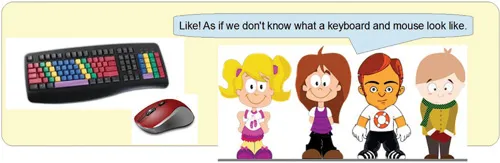
Blender is designed to be operated using a keyboard and a three-button mouse. The mouse can be a wheel mouse. That’s the one with a scroll wheel in the middle which acts as a middle mouse button (MMB). You can use the laptop touch pad but you will have to learn special keystrokes to do this. I recommend you connect a mouse to your laptop.
Start Your Engine
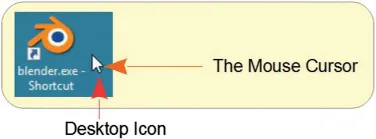
OK! You have Blender installed. Place your mouse cursor on the desktop icon and give it a double click with the left mouse button (LMB).
This Is What You See
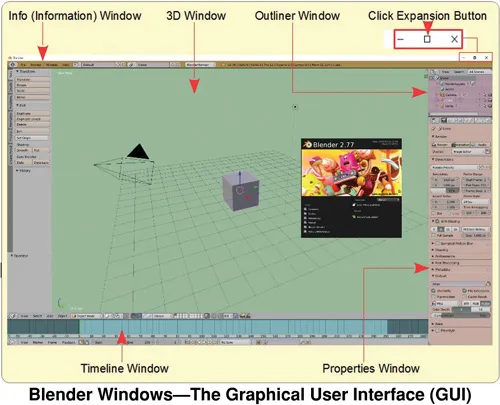
If Blender doesn’t open full size on your screen, click the Expansion button.
I told you Blender has a lot of buttons and pedals. We call the pedals things like Windows, Panels, Headers, Buttons, Sliders, Selection Drop Down Menus, etc. There is a lot of “et cetera.” Don’t Freak Out! You will soon get the hang of it.
The Blender Screen Arrangement
The Start Screen shows five different Windows with a Splash Screen in the middle. The splash screen shows you what version of BLENDER you have and gives you some links to websites.
When you click with your mouse cursor in the 3D Window, the Splash Screen disappears.
Blender is updated regularly as the developers tweak and improve things and add more fantastic features. Each time the program is updated, the Splash Screen is changed so you know what version you have. The program doesn’t update automatically. You have to visit the Blender website and download and install the new version.
What Are Windows?
Windows are the different panels into which the screen is divided. They have nothing to do with the “Windows Operating System” which allows you to run the Blender program. You may be running a different operating system. The different Windows are:
The 3D Window—This is the main workspace which is a view of a 3D World.
The Info (Information) Window—Gives you access to controls.
The Outliner Window—Shows you a list of everything in the 3D Window.
The Timeline Window—Is where you set up and operate animations.
The Properties Window—Contains information about things in the 3D Window.
Don’t be concerned about the detail of what all the Windows with all the buttons do at this point. Everyone finds the arrangement confusing when they first see it. Blender can do lots and lots of things so you would expect lots and lots of buttons. As you can see there are lots and lots. As you work through the book, the windows and buttons will be explained as you need to know them.
Take a Look at the 3D Window
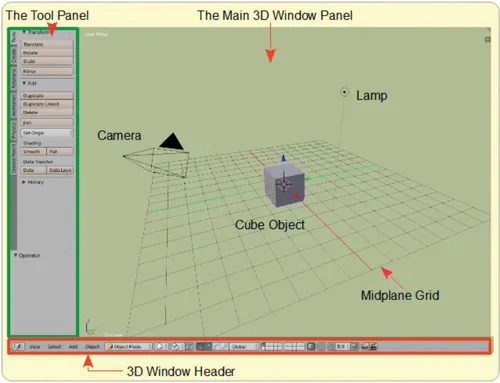
Now that doesn’t look so bad when you take a closer look. It’s pretty simple.
The 3D Window is divided into three panels. The main 3D Window where you do the work. The Tool Panel and the Header contain buttons and subpanels where you click your mouse to access settings for things in the 3D Window.
In the 3D Window Main Panel you see that there is a Cube Object, a Lamp, and a Camera. There is also a Midplane Grid.
The Camera will take a picture of whatever it is pointed at in the 3D Space. The 3D Space is ve...
Table of contents
- Cover
- Title Page
- Copyright Page
- Contents
- Acknowledgments
- Author
- Chapter 1 Introduction
- Chapter 2 Playing with Fire
- Chapter 3 Quick Explode
- Chapter 4 Exploding the Long Way
- Chapter 5 Modeling
- Chapter 6 Saving Your Work
- Chapter 7 Materials
- Chapter 8 Textures
- Chapter 9 Downloading and Using Models
- Chapter 10 Spin Magic
- Chapter 11 Quick Fluid
- Chapter 12 Animation
- Chapter 13 Dynamic Paint
- Chapter 14 Physics
- Chapter 15 Games
- Chapter 16 Project
- Chapter 17 Installation
- Chapter 18 Blender Overhaul
- Conclusion
- Index
Frequently asked questions
Yes, you can cancel anytime from the Subscription tab in your account settings on the Perlego website. Your subscription will stay active until the end of your current billing period. Learn how to cancel your subscription
No, books cannot be downloaded as external files, such as PDFs, for use outside of Perlego. However, you can download books within the Perlego app for offline reading on mobile or tablet. Learn how to download books offline
Perlego offers two plans: Essential and Complete
- Essential is ideal for learners and professionals who enjoy exploring a wide range of subjects. Access the Essential Library with 800,000+ trusted titles and best-sellers across business, personal growth, and the humanities. Includes unlimited reading time and Standard Read Aloud voice.
- Complete: Perfect for advanced learners and researchers needing full, unrestricted access. Unlock 1.5M+ books across hundreds of subjects, including academic and specialized titles. The Complete Plan also includes advanced features like Premium Read Aloud and Research Assistant.
We are an online textbook subscription service, where you can get access to an entire online library for less than the price of a single book per month. With over 1.5 million books across 990+ topics, we’ve got you covered! Learn about our mission
Look out for the read-aloud symbol on your next book to see if you can listen to it. The read-aloud tool reads text aloud for you, highlighting the text as it is being read. You can pause it, speed it up and slow it down. Learn more about Read Aloud
Yes! You can use the Perlego app on both iOS and Android devices to read anytime, anywhere — even offline. Perfect for commutes or when you’re on the go.
Please note we cannot support devices running on iOS 13 and Android 7 or earlier. Learn more about using the app
Please note we cannot support devices running on iOS 13 and Android 7 or earlier. Learn more about using the app
Yes, you can access Test Drive Blender by John M. Blain in PDF and/or ePUB format, as well as other popular books in Computer Science & Computer Graphics. We have over 1.5 million books available in our catalogue for you to explore.