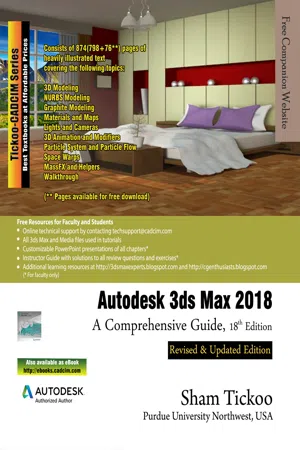
Autodesk 3ds Max 2018: A Comprehensive Guide, 18th Edition
eBook - ePub

Autodesk 3ds Max 2018: A Comprehensive Guide, 18th Edition

  1. English
  2. ePUB (mobile friendly)
  3. Available on iOS & Android
eBook - ePub

Autodesk 3ds Max 2018: A Comprehensive Guide, 18th Edition

About this book

Autodesk 3ds Max 2018: A Comprehensive Guide textbook aims at harnessing the power of Autodesk 3ds Max for modelers, animators, and designers. The textbook caters to the needs of both the novice and the advanced users of 3ds Max. Keeping in view the varied requirements of the users, the textbook first introduces the basic features of 3ds Max 2018 and then gradually progresses to cover the advanced 3D models and animations. In this textbook, two projects based on the tools and concepts covered in the book have been added to enhance the knowledge of users.This book will help you unleash your creativity, thus helping you create stunning 3D models and animations. The textbook will help the learners transform their imagination into reality with ease. Also, it takes the users across a wide spectrum of animations through progressive examples, numerous illustrations, and ample exercises.
Following are the salient features of this book:

  • Consists of 18 chapters and 1 project that are organized in a pedagogical sequence covering various aspects of modeling, texturing, lighting, and animation.
  • The author has followed the tutorial approach to explain various concepts of modeling, texturing, lighting, and animation.
  • The first page of every chapter summarizes the topics that are covered in it.
  • Step-by-step instructions that guide the users through the learning process.
  • Additional information is provided throughout the book in the form of notes and tips.
  • Self-Evaluation test and Review Questions are given at the end of each chapter so that the users can assess their knowledge.

Brief Table of Contents Chapter 1: Introduction to Autodesk 3ds Max 2018Chapter 2: Standard PrimitivesChapter 3: Extended PrimitivesChapter 4: Working with Architectural ObjectsChapter 5: Splines and Extended SplinesChapter 6: Modifying SplinesChapter 7: Materials and MapsChapter 8: Modifying 3D Mesh ObjectsChapter 9: Graphite Modeling TechniqueChapter 10: NURBS ModelingChapter 11: Compound ObjectsChapter 12: ModifiersChapter 13: Lights and CamerasChapter 14: Animation BasicsChapter 15: Systems, Hierarchy, and KinematicsChapter 16: Rigid Body Dynamics and HelpersChapter 17: Particle Systems and Space Warps-I (For free download)Chapter 18: Particle Systems and Space Warps-II (For free download)Project 1: Creating a DinerIndex
Frequently asked questions

Yes, you can cancel anytime from the Subscription tab in your account settings on the Perlego website. Your subscription will stay active until the end of your current billing period. Learn how to cancel your subscription.
No, books cannot be downloaded as external files, such as PDFs, for use outside of Perlego. However, you can download books within the Perlego app for offline reading on mobile or tablet. Learn more here.
Perlego offers two plans: Essential and Complete
  • Essential is ideal for learners and professionals who enjoy exploring a wide range of subjects. Access the Essential Library with 800,000+ trusted titles and best-sellers across business, personal growth, and the humanities. Includes unlimited reading time and Standard Read Aloud voice.
  • Complete: Perfect for advanced learners and researchers needing full, unrestricted access. Unlock 1.4M+ books across hundreds of subjects, including academic and specialized titles. The Complete Plan also includes advanced features like Premium Read Aloud and Research Assistant.
Both plans are available with monthly, semester, or annual billing cycles.
We are an online textbook subscription service, where you can get access to an entire online library for less than the price of a single book per month. With over 1 million books across 1000+ topics, we’ve got you covered! Learn more here.
Look out for the read-aloud symbol on your next book to see if you can listen to it. The read-aloud tool reads text aloud for you, highlighting the text as it is being read. You can pause it, speed it up and slow it down. Learn more here.
Yes! You can use the Perlego app on both iOS or Android devices to read anytime, anywhere — even offline. Perfect for commutes or when you’re on the go.
Please note we cannot support devices running on iOS 13 and Android 7 or earlier. Learn more about using the app.
Yes, you can access Autodesk 3ds Max 2018: A Comprehensive Guide, 18th Edition by Prof. Sham Tickoo in PDF and/or ePUB format, as well as other popular books in Technology & Engineering & Electrical Engineering & Telecommunications. We have over one million books available in our catalogue for you to explore.
Chapter 1
Introduction to Autodesk 3ds Max 2018
Learning Objectives
After completing this chapter, you will be able to:
• Understand the Autodesk 3ds Max interface components
• Use controls for creating or modifying objects
• Use and customize hotkeys in Autodesk 3ds Max
• Customize the colors of the scene elements
Introduction to Autodesk 3ds Max 2018
Welcome to the world of Autodesk 3ds Max, an advanced application that is used to create still or animated 3D models and objects. With the help of this application, you can create realistic scenes by modifying objects, applying maps and materials to a scene, assigning environment to a scene, adding lights and cameras, and so on. Before working with Autodesk 3ds Max, you should have the basic knowledge of various tools and commands available in this software. In this chapter, you will learn the basic features of Autodesk 3ds Max.
Getting Started With Autodesk 3ds Max
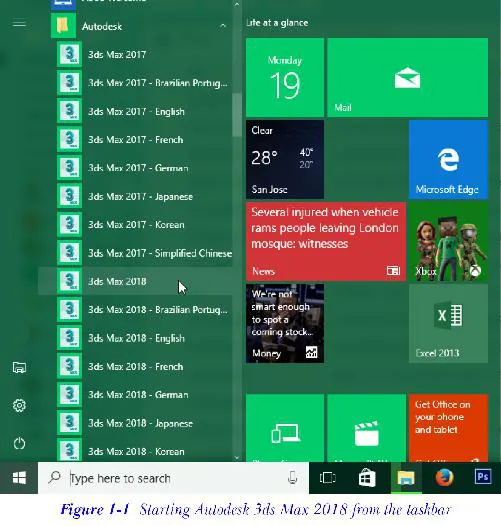
First, you need to install Autodesk 3ds Max 2018 on your computer. On installing the software, the 3ds Max 2018 shortcut icon will be created automatically on the desktop. Double-click on this icon to start Autodesk 3ds Max. Alternatively, you can start Autodesk 3ds Max from the Start menu. To do so, click the Start button from the taskbar to display the Start menu and then choose All Apps > Autodesk > 3ds Max 2018, refer to Figure 1-1.
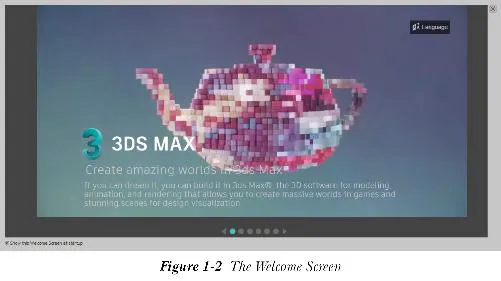
When you first time start 3ds Max, the Welcome Screen is displayed, as shown in Figure 1-2. The Welcome Screen consists of a set of slides that contains information for new users to inspire and get them started. If you do not want see the Welcome Screen the next time you start 3ds Max, clear the Show this Welcome Screen at startup check box located in the bottom-left corner of the screen. You can bring back the Welcome Screen anytime by choosing Help > Welcome Screen from the menubar.
Starting a New File in Autodesk 3ds Max
To start a new file in Autodesk 3ds Max, choose the File > New from the menu bar; a new file will be displayed in the 3ds Max interface. The new file will clear all the contents of the current file. Alternatively, press the CTRL+N keys; the New Scene dialog box will be displayed, as shown in Figure 1-3. By default, the New All radio button is selected in this dialog box. Choose the OK button; a new file will be displayed.
You can also reuse the objects from the current scene in the new scene. Select the Keep Objects radio button in the New Scene dialog box to keep only the objects from the current scene for the new file. However, on selecting this radio button, all the animation keys and links between the objects will be cleared. To keep the objects and the links between them, select the Keep Objects and Hie...

Table of contents

  1. Preface
  2. Chapter 1: Introduction to Autodesk 3ds Max 2018
  3. Chapter 2: Standard Primitives
  4. Chapter 3: Extended Primitives
  5. Chapter 4: Working with Architectural Objects
  6. Chapter 5: Splines and Extended Splines
  7. Chapter 6: Modifying Splines
  8. Chapter 7: Materials and Maps
  9. Chapter 8: Modifying 3D Mesh Objects
  10. Chapter 9: Graphite Modeling Technique
  11. Chapter 10: NURBS Modeling
  12. Chapter 11: Compound Objects
  13. Chapter 12: Modifiers
  14. Chapter 13: Lights and Rendering
  15. Chapter 14: Animation Basics
  16. Chapter 15: Systems, Hierarchy, and Kinematics
  17. Chapter 16: Rigid Body Dynamics and Helpers
  18. Project
  19. Other Publications