Section 1: Introducing the New Windows Terminal
In this section, we'll learn to make efficient use of Windows Terminal. We'll start out learning about what Windows Terminal is and why it's interesting, and then quickly move on to installing and using it. We'll cover all the user interface components of Windows Terminal, including tabs, panes, and the profile menu. We'll also set up an Ubuntu profile using WSL2, so we'll have functioning PowerShell, cmd.exe, and Ubuntu profiles ready to use!
This section comprises the following chapters:
- Chapter 1, Getting started with the new Windows Terminal
- Chapter 2, Learning the Windows Terminal UI
- Chapter 3, Configuring an Ubuntu Linux profile
Chapter 1: Getting started with the new Windows Terminal
At the Build 2019 conference, Microsoft made an exciting announcement: Windows 10 was getting a brand new command-line terminal! Custom built for the command prompt, PowerShell, and the Windows Subsystem for Linux, this new terminal promised to bring a modern, configurable, and open source command-line experience. In May 2020, Microsoft released the 1.0 version of the new Windows Terminal.
Windows Terminal is a separate application from the old Windows command line. This approach allows both terminals to live side by side, and enables Microsoft to rapidly release new features for Windows Terminal without endangering the backward compatibility of the old terminal.
By the end of this chapter, we will be up and running with Windows Terminal, having covered the following topics:
- Why a new terminal?
- The modern foundations of Windows Terminal
- Installing Windows Terminal
- Launching Windows Terminal
We'll cover why Windows needed a new terminal at all, how this new terminal is radically different from the old one, and take our first steps to download, install, and launch it.
Technical requirements
To get started with Windows Terminal, you'll need a Windows 10 installation with access to the built-in Microsoft Store application. The minimum version of Windows 10 supported is the May 2019 Update (version 1903, as reported in the output of the winver command). If you have a relatively up-to-date Windows 10 installation, you have all the tools you need to get started.
Why a new terminal?
Microsoft's old terminal, conhost.exe, has been showing its age. While it has seen some impressive improvements lately, such as ANSI/VT support and advanced settings, the primary goal of conhost.exe is to be backward-compatible with older applications. This backward-compatibility constraint can sometimes be at odds with the fast-paced improvements in other parts of Windows 10.
While both PowerShell and the shells running under Windows Subsystem for Linux (WSL) have been seeing constant, rapid improvement, the "user experience" of the Windows command line was in vast need of an upgrade, when compared to its macOS and GNU/Linux counterparts.
As we're getting started, it's useful to understand the difference between a terminal and a shell. A terminal is essentially "what you see" when using the command line—it renders the text, draws any user interface (UI) widgets, and accepts keyboard and mouse input. The terminal will then send this input to the shell for processing. The old terminal on Windows was called conhost.exe and was the only built-in terminal; however, there were and still are alternative third-party terminals such as ConEmu and Hyper.
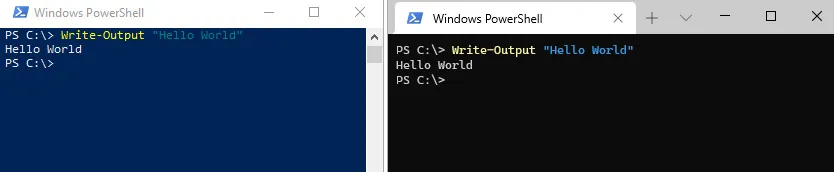
A shell doesn't have a UI; it's a command-line program that receives input from the terminal, evaluates that input, and returns the result. Shells, such as the command prompt, PowerShell, and those running in WSL, require a terminal to collect input and display output. Launching the cmd.exe or powershell.exe shells from the Start menu or Run dialog will implicitly start the conhost.exe terminal, which can make the distinction less obvious for end users:
Figure 1.1 – PowerShell, running in both the old conhost on the left, and the new Windows Terminal on the right
This delineation between terminals and shells means that switching to the new Windows Terminal is painless—the shells, such as the command prompt and PowerShell, are not changing. All existing knowledge and documentation of the command prompt, PowerShell, and shells under WSL can be reused, but commands will be sent through the new, more powerful Windows Terminal instead of the older, more barebones conhost.exe. Let's see what makes this new Windows Terminal so much better!
Note
A more in-depth discussion about the differences between shells and terminals can be found on Scott Hanselman's blog at https://www.hanselman.com/blog/whats-the-difference-between-a-console-a-terminal-and-a-shell.
The modern foundations of Windows Terminal
Earlier, we learned that Windows Terminal is built from the ground up to provide a more modern and flexible command-line experience. This command-line experience has three main parts: a modern UI, a flexible JSON-based customization system, and its open source development.
A Modern UI
When working with the command line, it's common to have a couple of command lines open. Perhaps a couple of operations need to be monitored at the same time, or some commands need to execute in PowerShell, and others need to use WSL. In the old terminal, the only option is to open separate windows and then Alt + Tab between them.
The new Windows Terminal comes with multiple options for managing these tasks. It features built-in tab support, each tab with its own shell, and all ...