Explore the complex app development concepts for iOS application programming with fun and ease.
Key Features ? In-depth knowledge with practical examples on how to develop professional iOS apps.? Includes coverage on the entire iOS application development, right from designing the UI to application deployment.? Get to know more about machine learning and augmented reality, and their impact on iOS apps.
Description Grab this book if you want to make Apps for Apple's iOS devices and that too efficiently like a skilled developer. This book covers the complete development of iOS applications, right from concepts of designing an application to adding machine learning capabilities in the applications. You will learn and practice the App development environment with Xcode and Swift programming. Concepts like different types of views and UI components, data manipulations, animations, different iOS screen views, and integrating web services are covered in detail with examples. You will also learn the popular machine learning technology and fascinating features like Augmented Reality to be put into use in your app. You will learn to run automated application testing, use SwiftUI, and deploy applications on the network.
What you will learn ? Build strong familiarity with the entire application development environment. ? Revive essential coding concepts and methods of Swift and Xcode. ? Simplify integration of iOS apps with web services, including JSON and XML decoding. ? Learn to work with iOS ARKit and add the experience of augmented reality to applications.
Who this book is for This book caters to mobile developers, application developers, and students who want to build sound proficiency in the entire process of iOS Application development. Knowing basic programming concepts would be good, although not mandatory.
Table of Contents 1. iOS App Development Environment 2. Swift Programming Language 3. User Interface and Data Handling 4. Different Views in iOS Devices 5. Image and Animation 6. Multi-View Application and Navigation 7. Data Persistence for iOS Devices 8. Integration with Web Services 9. Augmented Reality 10. Machine Learning 11. App Testing and Deployment 12. SwiftUI
About the Authors Rudra is an Apple Certified Trainer (ACT) in various technologies, including App Development with Swift. He holds degrees in Business Administration and Computer Applications. He started his career as a teacher followed by a software engineer. He has played various roles from middle-level to senior-level management. He is actively involved in content creation, R&D, technical blogging, and technology awareness programs. LinkedIn Profile: www.linkedin.com/in/rudrasankar Blogs: www.techsheaf.blogspot.com
Xcode is an IDE from Apple to create apps for its ecosystem. With the Xcode IDE and Swift programming, you can create apps and services for iOS, ipadOS, macOS, tvOS, and watchOS. In this book, we will mainly focus on the iOS app development with Xcode and Swift. Here, we will focus on creating an iOS app development environment.
Structure
The following topics are covered in this chapter:
Xcode
Customized development environment
Apple’s App Development Team
Xcode Simulator
Use the real iOS devices
iOS architecture
Objective
In this chapter, you will learn how to properly set up the app development environment, so that you can make use of the technological advantages at the fullest during your app development learning and creation journey. We will also discuss the different developer programs from Apple, as well as the internal architecture of the iOS.
Xcode
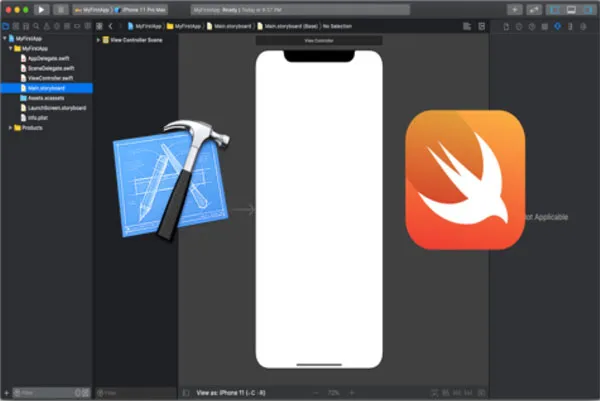
Developing an app always demands a proper Software Development Kit (SDK). Xcode is the one and only best IDE that helps the developers to create and manage the apps for the Apple ecosystem. Yes, by using the Xcode, you can develop apps for the entire range of Apple's operating system like iOS, ipadOS, macOS, watchOS, and tvOS. With Xcode IDE and the SDKs of available platforms, you can design, write the code, run tests, publish to the App Store, as well as maintain the apps. That is why Xcode has been considered as a complete development tool for Apple. A typical Xcode environment may look like the following screenshot:
Figure 1.1: Xcode with Swift
Get your Xcode
Xcode is freely available from your macOS’s App Store. To kick start the app development journey, you need to set up the development environment, considering the following pointers:
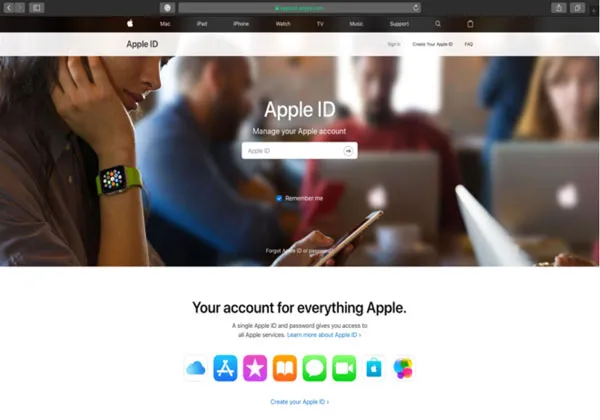
Apple ID: The key to all Apple services is the Apple ID. So, you should have at least one Apple ID. If you don’t have one, do visit the following link and create one for yourself:
https://appleid.apple.com/
This website is even helpful in managing the Apple ID, if you have one, and want to change the settings or details:
Figure 1.2: Apple ID website
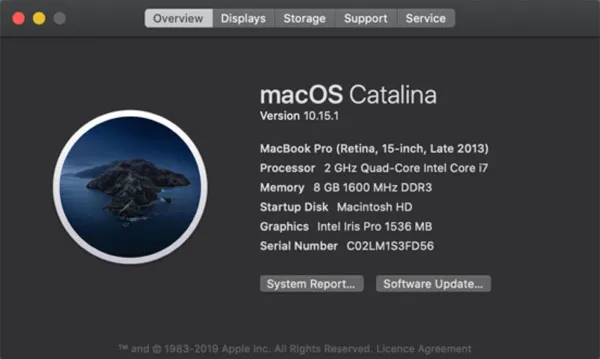
macOS: Xcode can be installed only on macOS. So, make sure that you have a computer with the latest macOS installed on it. For now (year 2020), the latest major released macOS is called Catalina, with version number 10.15. If you are running a macOS computer, click on the Apple menu and select About This Mac to know about the installed macOS. If required, you can update the OS and the security files from here by choosing the Software Update… option, as shown in the following screenshot:
Figure 1.3: About this mac
App Store: From the daily usage apps to the operating systems, App Store of macOS is a genuine place to download from. It is maintained by Apple with a highly proficient way to provide the best apps and services to its users. An App Store for macOS may look like the following screenshot:
Figure 1.4: App Store for macOS
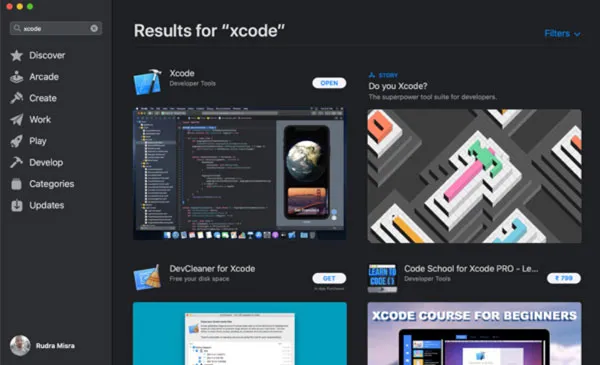
Let’s find out the Xcode from the App Store. Open the App Store from macOS’s Dock. If you can’t see it or remove it from the Dock, open Finder, and then search for the App Store from the Application folder. You can directly search for the App Store using the Spotlight search.
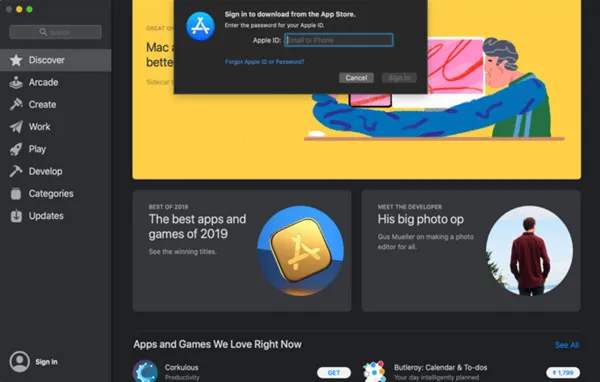
To grab the Xcode, you must sign-in to the App Store with your existing Apple ID. One can even be created from the App Store. As shown in the following screenshot, click on the Sign in option, which displays the following dialog box to enter your Apple ID credential:
Figure 1.5: App Store Sign-in
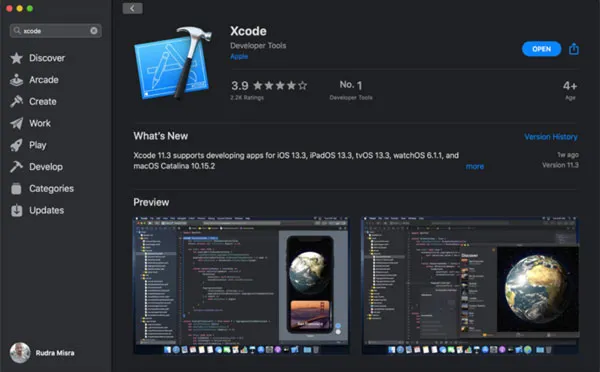
On the successful signing with Apple ID, you can search for the Xcode from the App Store. Once you get it, click on the Download button. If asked, do authenticate yourself with your Apple ID again. Now, the download has started for you. If you already got your Xcode downloaded into your computer, your App Store with Xcode may look like the following screenshot, where you have the OPEN option rather than the Download option:
Figure 1.6: Xcode in App Store
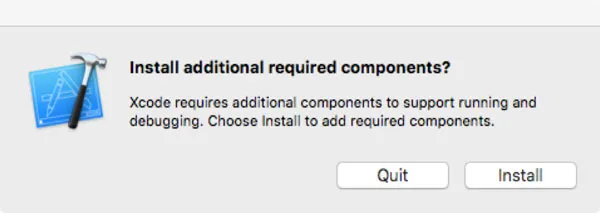
You can track the download progress from the Launchpad, available in the Dock. Once the download is completed, launch the Xcode. For the first launch, the Xcode demands for a few additional files to be downloaded to create the developed environment, by producing the following dialog box. Do click on the Install button and let the Xcode get those required files from the web:
Figure 1.7: Xcode additional component install
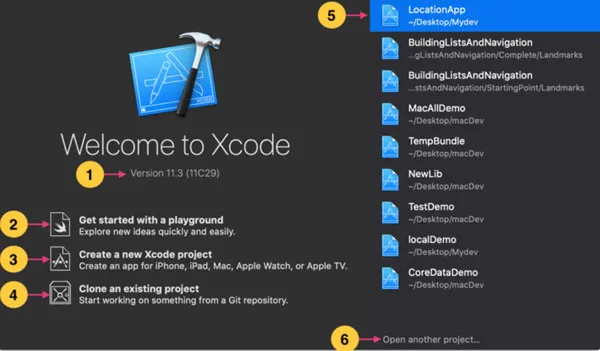
Welcome screen
Once the additional downloads are completed, the Xcode will welcome you with its Welcome window. This window will give you the information about the Xcode, like the current version of the software, the latest development, and what kind of work you wanted to do with it. Also, it provides you with different options to start your development journey:
Figure 1.8: Xcode Welcome
In the preceding screenshot, you must be familiar with the Xcode’s Welcome screen. We marked certain areas with numbers to help you understand their needs, which are as follows:
Shows the current version and the build number of Xcode.
Get started with a playground: The typical coding only environment.
Create a new Xcode project: The actual app development environment.
Clone an existing project: Old or existing project migration environment.
List of the latest activities, app development. Top most is the very recent task.
Allows to browse the other projects that are not listed in Section 5.
In the upcoming lessons, we will talk about these areas in detail.
Customize development environment
In the previous section, you have installed the Xcode and are in the Xcode’s welcome screen. Let’s move further and start working with Xcode. Be ready to create your very first app with Xcode and Swift.
Create your first app
The following step-by-step process will help you to create your very first app with Xcode:
On the Welcome window, click on Create a new Xcode project.
A template window will appear, as shown in the following screenshot, where you can pick the required templates and start working on them. This template window will give you an opportunity to pick any template from the entire Apple’s OSs series, like the iOS, watchOS, macOS, as well a...
Table of contents
Cover Page
Title Page
Copyright Page
Dedication Page
About the Author
About the Reviewer
Acknowledgement
Preface
Errata
Table of Contents
1. iOS App Development Environment
2. Swift Programming Language
3. User Interface and Data Handling
4. Different Views in iOS Devices
5. Image and Animation
6. Multi-View Application and Navigation
7. Data Persistence for iOS Devices
8. Integration with Web Services
9. Augmented Reality
10. Machine Learning
11. App Testing and Deployment
12. SwiftUI
Index
Trusted by 375,005 students
Access to over 1.5 million titles for a fair monthly price.
Study more efficiently using our study tools.
Frequently asked questions
Yes, you can cancel anytime from the Subscription tab in your account settings on the Perlego website. Your subscription will stay active until the end of your current billing period. Learn how to cancel your subscription
No, books cannot be downloaded as external files, such as PDFs, for use outside of Perlego. However, you can download books within the Perlego app for offline reading on mobile or tablet. Learn how to download books offline
Perlego offers two plans: Essential and Complete
Essential is ideal for learners and professionals who enjoy exploring a wide range of subjects. Access the Essential Library with 800,000+ trusted titles and best-sellers across business, personal growth, and the humanities. Includes unlimited reading time and Standard Read Aloud voice.
Complete: Perfect for advanced learners and researchers needing full, unrestricted access. Unlock 1.5M+ books across hundreds of subjects, including academic and specialized titles. The Complete Plan also includes advanced features like Premium Read Aloud and Research Assistant.
Both plans are available with monthly, semester, or annual billing cycles.
We are an online textbook subscription service, where you can get access to an entire online library for less than the price of a single book per month. With over 1.5 million books across 990+ topics, we’ve got you covered! Learn about our mission
Look out for the read-aloud symbol on your next book to see if you can listen to it. The read-aloud tool reads text aloud for you, highlighting the text as it is being read. You can pause it, speed it up and slow it down. Learn more about Read Aloud
Yes! You can use the Perlego app on both iOS and Android devices to read anytime, anywhere — even offline. Perfect for commutes or when you’re on the go. Please note we cannot support devices running on iOS 13 and Android 7 or earlier. Learn more about using the app
Yes, you can access Learn iOS Application Development by Rudra S Misra in PDF and/or ePUB format, as well as other popular books in Informatik & Softwareentwicklung. We have over 1.5 million books available in our catalogue for you to explore.