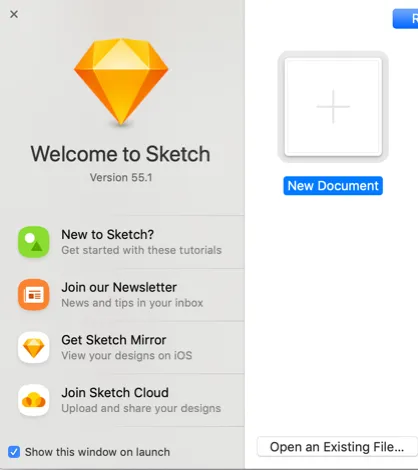
Once you download Sketch, the first thing you will see upon opening is the Welcome box; since this is the first time you’ve used Sketch, you’ll only be able to start a new document.
From this box, you can also learn more about the app. The box will appear each time you open the software, so if you don’t want to see it again, uncheck the “Show this window on open” in the lower left corner.

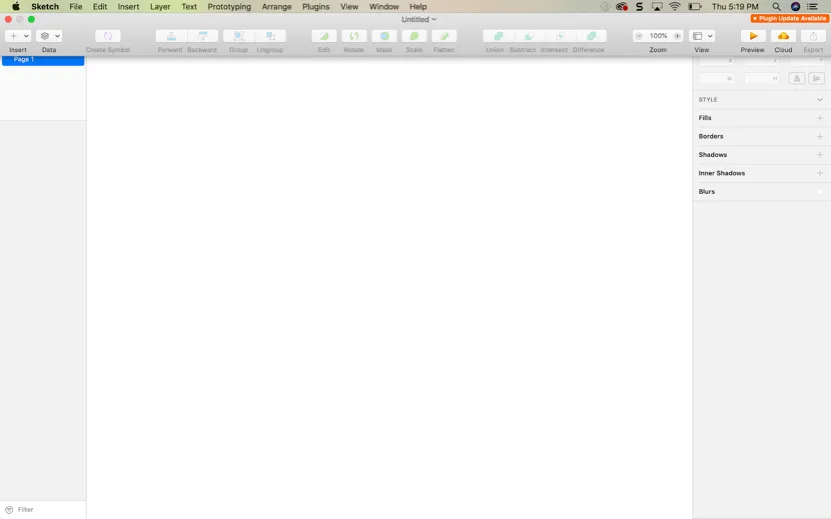
Once you start a New Document, you’ll be greeted with the blank canvas. There’s a lot of options, but you’ll only have to know a few to get started.

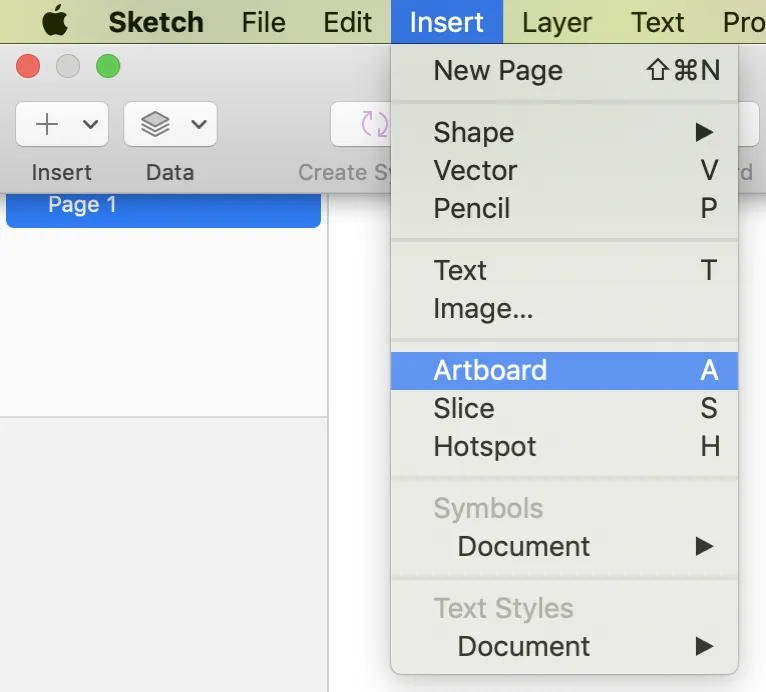
The first thing you’ll want to do is create an Artboard. Think of an Artboard as a slide in a Keynote or PowerPoint presentation. Within that Artboard (or slide), you’ll be adding your graphics and text.A finished project could have only one or two Artboards, or several dozen.
To create an Artboard, go to the top menu and select “Insert” and “Artboard”.

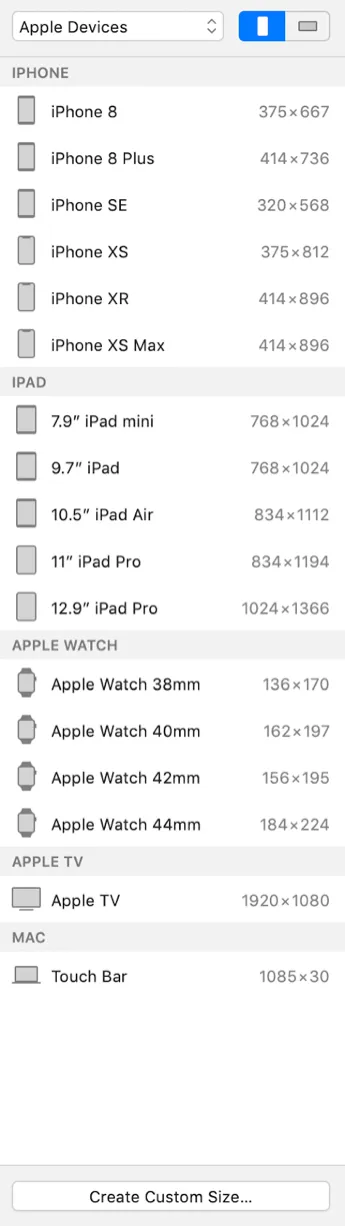
Looking at the options that just came up, you can probably guess that Sketch App is a popular tool with Apple designers. Just about every Apple product you can think of is there and the first thing you’ll see!

You can create a custom size by clicking on the bottom button, but before you do that, make sure the device you want isn’t in...
Table of contents
I Got This Idea!
The Drive
Start Here
This Won’t Last Forever
Design It With Sketch App
What is Sketch?
A Quick Note
Getting Started
Prototype Away!
Let’s Go Further!
Constraints
Get Stylish!
Plug It In!
Installing Plugins
Parting Words On Sketch App
Type
Arranging Layers, Groups and Artboards
Mock It Up In InVision
Introduction
Getting Started
Creating Your First High Fidelity Prototype
Explain It With Camtasia
Introduction
Capturing
Adding effects and overlays
Creating a Winning Pitch Deck In Keynote
PowerPoint or Keynote
The Four Key Points to Remember
The Winning Pitch
Conclusion
Trusted by 375,005 students
Access to over 1.5 million titles for a fair monthly price.
Study more efficiently using our study tools.
Frequently asked questions
Yes, you can cancel anytime from the Subscription tab in your account settings on the Perlego website. Your subscription will stay active until the end of your current billing period. Learn how to cancel your subscription
No, books cannot be downloaded as external files, such as PDFs, for use outside of Perlego. However, you can download books within the Perlego app for offline reading on mobile or tablet. Learn how to download books offline
Perlego offers two plans: Essential and Complete
Essential is ideal for learners and professionals who enjoy exploring a wide range of subjects. Access the Essential Library with 800,000+ trusted titles and best-sellers across business, personal growth, and the humanities. Includes unlimited reading time and Standard Read Aloud voice.
Complete: Perfect for advanced learners and researchers needing full, unrestricted access. Unlock 1.5M+ books across hundreds of subjects, including academic and specialized titles. The Complete Plan also includes advanced features like Premium Read Aloud and Research Assistant.
Both plans are available with monthly, semester, or annual billing cycles.
We are an online textbook subscription service, where you can get access to an entire online library for less than the price of a single book per month. With over 1.5 million books across 990+ topics, we’ve got you covered! Learn about our mission
Look out for the read-aloud symbol on your next book to see if you can listen to it. The read-aloud tool reads text aloud for you, highlighting the text as it is being read. You can pause it, speed it up and slow it down. Learn more about Read Aloud
Yes! You can use the Perlego app on both iOS and Android devices to read anytime, anywhere — even offline. Perfect for commutes or when you’re on the go. Please note we cannot support devices running on iOS 13 and Android 7 or earlier. Learn more about using the app
Yes, you can access Starting Up by Scott La Counte in PDF and/or ePUB format, as well as other popular books in Business & Entrepreneurship. We have over 1.5 million books available in our catalogue for you to explore.