Michelle’s pretty happy with her declaration, but she’s still a little old school—she likes to read through her work the old fashion way with that little thing called paper. So, she obviously needs to print it.
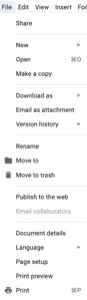
You probably can guess that you do this a way you are familiar with: File > Print.

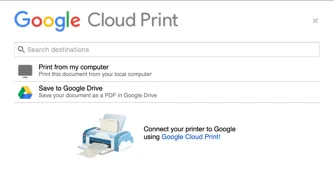
From here, it gets a little…complicated. Printing is not something Google Docs excels at.

You have two main options:
Save it to your computer and then print it from your computer.
Add your computer to Google
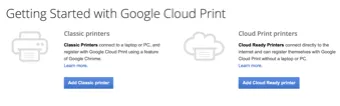
If you want to add your computer to Google Cloud print, then click the link.

It will walk you through the steps. The steps change depending on the kind of printer you have. It’s not rocket science, but you’ll need to pay attention to details.
If you want to skip the fuss there’s a longer, but less hassle, way: export as a PDF, open the PDF on your computer, print it from your computer. Because you already have a printer on your computer, it will show up when you do File > Print.
Adding Photos to Google Docs
Okay, so you’ve printed it, you’ve agreed the text is where you want it to be by collaborating with others—now you want to jazz it up.
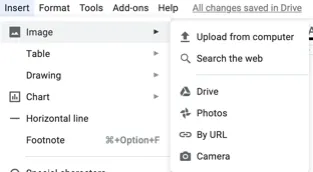
Google Docs works just like any other word processor. You can add in images wherever you want, either by copying and pasting, or by adding them in from Insert > Image.
Just find a place where you want to add an image. If you have found the image online and copied it, then just do CTRL-V, and it will be added in.
If you have the image stored on your computer, in your Google Drive, or any number of other places, then you can do one of two things. One: click Insert > Image:

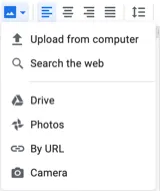
Or, two, click the Picture icon in the toolbar:

If you simply want to add the image from your computer, then choose “Upload from computer” and find it on your computer. You can also search the web for the file, paste a link to the file, or, if you are using a ...
Table of contents
Google Docs Crash Course
Your First Document
Sharing Is Caring
Beyond the Basics
This and That
Appendix: Keyboard Shortcuts
About the Author
Trusted by 375,005 students
Access to over 1.5 million titles for a fair monthly price.
Study more efficiently using our study tools.
Frequently asked questions
Yes, you can cancel anytime from the Subscription tab in your account settings on the Perlego website. Your subscription will stay active until the end of your current billing period. Learn how to cancel your subscription
No, books cannot be downloaded as external files, such as PDFs, for use outside of Perlego. However, you can download books within the Perlego app for offline reading on mobile or tablet. Learn how to download books offline
Perlego offers two plans: Essential and Complete
Essential is ideal for learners and professionals who enjoy exploring a wide range of subjects. Access the Essential Library with 800,000+ trusted titles and best-sellers across business, personal growth, and the humanities. Includes unlimited reading time and Standard Read Aloud voice.
Complete: Perfect for advanced learners and researchers needing full, unrestricted access. Unlock 1.5M+ books across hundreds of subjects, including academic and specialized titles. The Complete Plan also includes advanced features like Premium Read Aloud and Research Assistant.
Both plans are available with monthly, semester, or annual billing cycles.
We are an online textbook subscription service, where you can get access to an entire online library for less than the price of a single book per month. With over 1.5 million books across 990+ topics, we’ve got you covered! Learn about our mission
Look out for the read-aloud symbol on your next book to see if you can listen to it. The read-aloud tool reads text aloud for you, highlighting the text as it is being read. You can pause it, speed it up and slow it down. Learn more about Read Aloud
Yes! You can use the Perlego app on both iOS and Android devices to read anytime, anywhere — even offline. Perfect for commutes or when you’re on the go. Please note we cannot support devices running on iOS 13 and Android 7 or earlier. Learn more about using the app
Yes, you can access The Ridiculously Simple Guide to Google Docs by Scott La Counte in PDF and/or ePUB format, as well as other popular books in Business & Business Writing. We have over 1.5 million books available in our catalogue for you to explore.