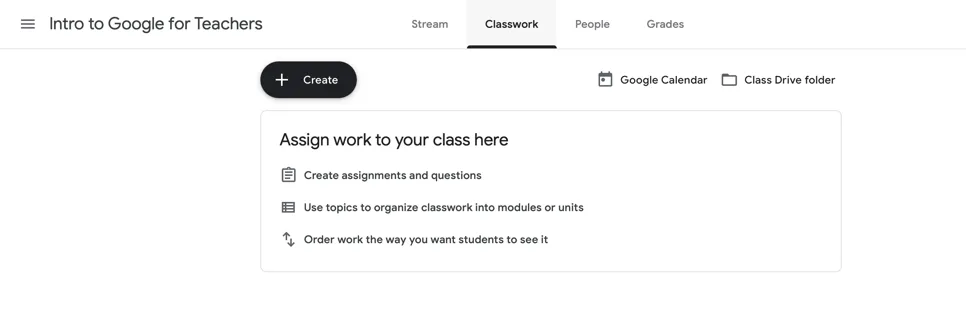
Now that you have students in the class, you are ready to start assigning classwork. Click the Classwork button in the top menu to get started. Because we haven’t created anything yet, this area is going to look different once you go back in and there are assignments.

Before I dig into creating classwork, I’ll point out two things. The first is Google Calendar. Click on that:

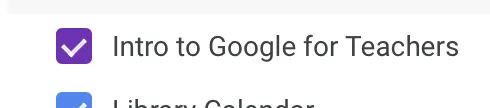
Every class you create has its own calendar. So, when you click on it, you’ll see over on the left side that there’s a new calendar checked off:

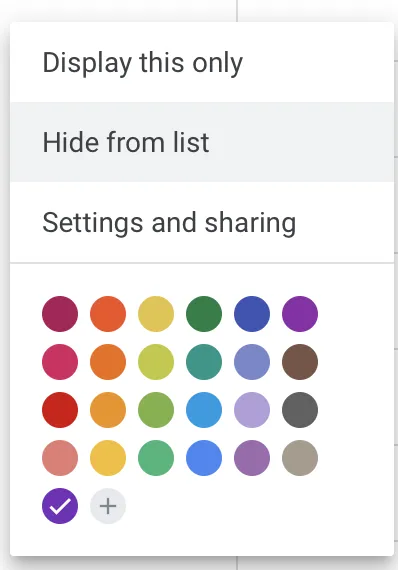
Click the three dots to the right of that and you can hide it or change the settings:

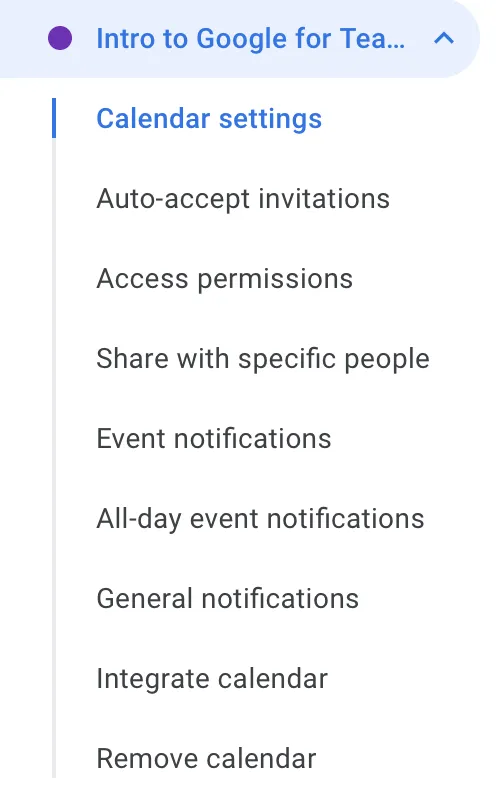
Clicking on the settings brings up a whole other slew of settings. You can, for example, only share it with certain people:

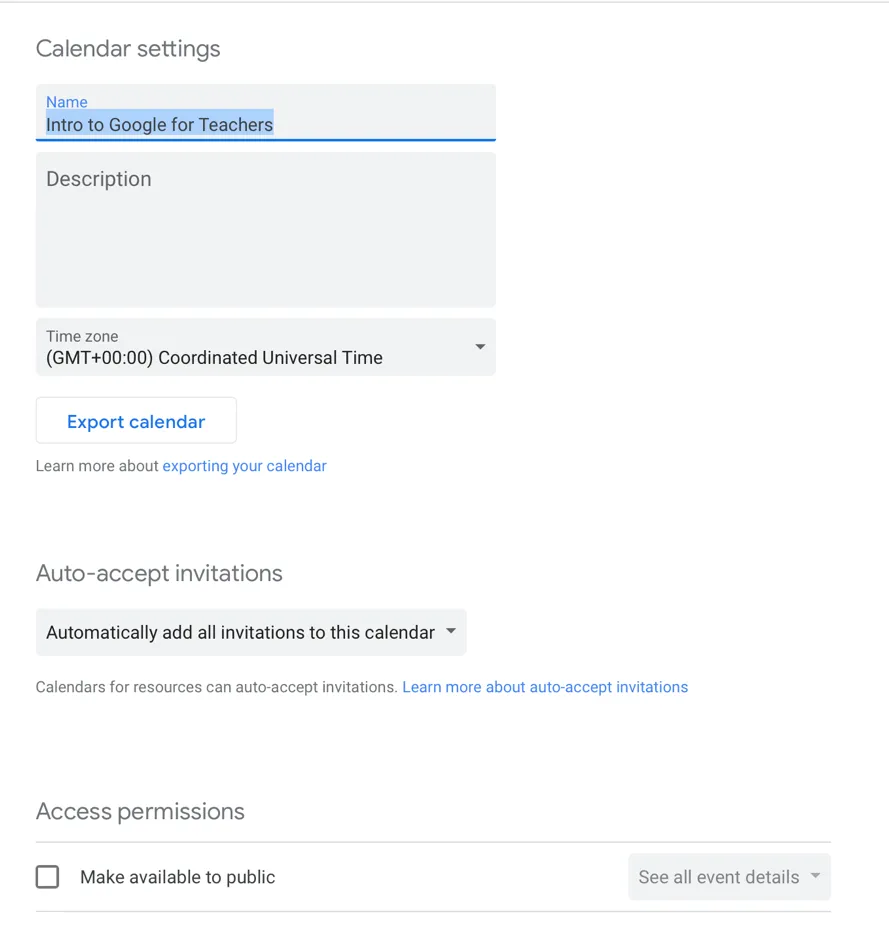
You can also go in and add descriptions for the class, change the time zone, and much more:

The second thing I’ll point out: Class Drive folder. Click on that:

This opens up your Google Drive. Every class gets its own folder. This is where you’ll store lectures, videos, class photos, or anything else you need the class to see:

If you click the people button, you’ll get to share it with specific people. For example, you could create a new folder just for parents and then share it with them:
...
Table of contents
Introduction
Getting Started
Classwork
Beyond Basics
Google Forms
About the Author
Trusted by 375,005 students
Access to over 1.5 million titles for a fair monthly price.
Study more efficiently using our study tools.
Frequently asked questions
Yes, you can cancel anytime from the Subscription tab in your account settings on the Perlego website. Your subscription will stay active until the end of your current billing period. Learn how to cancel your subscription
No, books cannot be downloaded as external files, such as PDFs, for use outside of Perlego. However, you can download books within the Perlego app for offline reading on mobile or tablet. Learn how to download books offline
Perlego offers two plans: Essential and Complete
Essential is ideal for learners and professionals who enjoy exploring a wide range of subjects. Access the Essential Library with 800,000+ trusted titles and best-sellers across business, personal growth, and the humanities. Includes unlimited reading time and Standard Read Aloud voice.
Complete: Perfect for advanced learners and researchers needing full, unrestricted access. Unlock 1.5M+ books across hundreds of subjects, including academic and specialized titles. The Complete Plan also includes advanced features like Premium Read Aloud and Research Assistant.
Both plans are available with monthly, semester, or annual billing cycles.
We are an online textbook subscription service, where you can get access to an entire online library for less than the price of a single book per month. With over 1.5 million books across 990+ topics, we’ve got you covered! Learn about our mission
Look out for the read-aloud symbol on your next book to see if you can listen to it. The read-aloud tool reads text aloud for you, highlighting the text as it is being read. You can pause it, speed it up and slow it down. Learn more about Read Aloud
Yes! You can use the Perlego app on both iOS and Android devices to read anytime, anywhere — even offline. Perfect for commutes or when you’re on the go. Please note we cannot support devices running on iOS 13 and Android 7 or earlier. Learn more about using the app
Yes, you can access Google for the Classroom by Scott La Counte in PDF and/or ePUB format, as well as other popular books in Didattica & Informatica generale. We have over 1.5 million books available in our catalogue for you to explore.