Just like any computer, your Chromebook will have apps installed right out of the box. Here is an overview and what they’re good for.
GOOGLE DOCS
Google Docs, briefly, is Google’s version of Microsoft Word or Apple Pages. You can edit a document just like you would in any other processor, but it’s all online and synced automatically, which means it’s very difficult to lose anything. You can also share documents and collaborate in real time.
Docs really shines through its connection to Google Drive. Anything you start in Google Docs is automatically saved in your Google Drive account—no need to worry about losing work through power failures, device catastrophes, or really just about any other scenario. Changes are saved as you go, and so are versions, so it’s easy to revert to an earlier stage of a draft if you need to.
The main Docs menu consists of File, Edit, Insert, Format, Tools, Table, Add-ons, and Help. Each of these menu items contains a dropdown menu full of features. The full power of Docs is beyond the scope of this guide, but we’ll show you some of the basics.
Starting a New Google Doc
To start a new document, simply open Docs for the first time, or click File > New to open a new document. Notice that Google Docs > File > New will also let you start new Sheets, Slides, Drawings, or Forms projects as well.
Saving a Google Doc
Google Docs saves everything as you go so you’ll rarely need to save manually. You can find the status of your file to the right of the menu if you’re concerned. Google Docs does save your work offline as well, so if you’re not connected to Drive, you won’t lose your work and you can verify that Chromebook has saved it for you.


Formatting a Google Doc
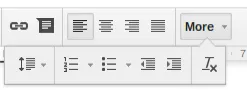
You’ll find all the standard text editing options you’d expect in the top menu area, including font size, typeface, bold, italic, underline, text color, hyperlinks, and text alignment. If that doesn’t cover you, though, you’ll also find spacing, lists, indent control, and format clearing under More.

Collaborating Using Google Docs
Google Docs is hands-down one of the easiest ways to work on a group document. To invite people to share your Doc, click the blue Share button in the top right corner (note that hovering over this button will also give you the current shared status of your Doc).
You can add existing Google contacts by entering their names, or you can invite anyone through their email address. Note that your collaborators will need to set up a free Google Account to use Google Drive. You can choose the level of access you want collaborators to have—they can edit, comment, or merely view your shared document. You can remove them at any time by using the Share button again.
When two or more people are editing a document at the same time, you’ll be able to see that person’s cursor position and watch edits in real time. If you’re concerned about losing work, remember that Google Docs saves version history for you, so it’s easy to revert if you need to. Click File > See revision history (or press CTRL+ALT+SHIFT+G). By default, revisions are shown grouped into daily periods, but if you wa...
Table of contents
Introduction
Zoom
Welcome to Zoom
Getting Started
Your First Videocall
Advance Conference Settings
Managing Zoom
Google Meet
Google Meet Overview
Google Meet Environment
Slack
Introduction
Welcome to Slack
Channeling Slack
Messages
Slack Calls
Account Settings and Apps
Introduction
Trello
Welcome to Trello
Crash Course
Creating A List
Creating A Card
Creating Your Team
The Butler
Account Settings
Introduction
Tell Me the Basics and Keep It Ridiculously Simple
All About Chrome OS
Getting Around the OS
All About Chrome OS
There’s a Pre-Installed App for That
Making It Your Own With Customizations
Appendix A: Specs
Appendix B: Shortcut Keys
Google Apps
Introduction
Google Drive
The Google Drive Crash Course
Google Docs
Google Docs Crash Course
Your First Document
Sharing Is Caring
Beyond the Basics
This and That
Google Docs Keyboard Shortcuts
Google Sheets
Google Sheets Crash Course
Getting Started With Google Sheets
Beyond the Basics
Sharing is Caring
This and That
Google Sheets Keyboard Shortcuts
Google Slides
Google Slides Crash Course
Getting Started With Google Slides
Sharing Is Caring
Presenting Your Big Idea!
Beyond the Basics
This and That
Google Slides Keyboard Shortcuts
Lesser Used Google Apps
Part 3: Google for the Classroom
Introduction
Getting Started
Classwork
Beyond Basics
Google Forms
About the Author
Trusted by 375,005 students
Access to over 1.5 million titles for a fair monthly price.
Study more efficiently using our study tools.
Frequently asked questions
Yes, you can cancel anytime from the Subscription tab in your account settings on the Perlego website. Your subscription will stay active until the end of your current billing period. Learn how to cancel your subscription
No, books cannot be downloaded as external files, such as PDFs, for use outside of Perlego. However, you can download books within the Perlego app for offline reading on mobile or tablet. Learn how to download books offline
Perlego offers two plans: Essential and Complete
Essential is ideal for learners and professionals who enjoy exploring a wide range of subjects. Access the Essential Library with 800,000+ trusted titles and best-sellers across business, personal growth, and the humanities. Includes unlimited reading time and Standard Read Aloud voice.
Complete: Perfect for advanced learners and researchers needing full, unrestricted access. Unlock 1.5M+ books across hundreds of subjects, including academic and specialized titles. The Complete Plan also includes advanced features like Premium Read Aloud and Research Assistant.
Both plans are available with monthly, semester, or annual billing cycles.
We are an online textbook subscription service, where you can get access to an entire online library for less than the price of a single book per month. With over 1.5 million books across 990+ topics, we’ve got you covered! Learn about our mission
Look out for the read-aloud symbol on your next book to see if you can listen to it. The read-aloud tool reads text aloud for you, highlighting the text as it is being read. You can pause it, speed it up and slow it down. Learn more about Read Aloud
Yes! You can use the Perlego app on both iOS and Android devices to read anytime, anywhere — even offline. Perfect for commutes or when you’re on the go. Please note we cannot support devices running on iOS 13 and Android 7 or earlier. Learn more about using the app
Yes, you can access Your Virtual Classroom by Scott La Counte in PDF and/or ePUB format, as well as other popular books in Education & Education Technology. We have over 1.5 million books available in our catalogue for you to explore.