![]()
The power that drives the Excel spreadsheet derives from the formulas and functions in the individual cells. We begin our review of these by examining the values and formulas that may be stored in the cells, and see how Excel can assist in handling these.
Cell Contents
Values
Formulas
Operators
Order of Calculation
Creating Formulas
Named References
Named Constants
Formula Assistance
Adding Comments
Error Values
Cell Contents
However simple or complex the spreadsheet, its cells will contain one of three possibilities:
• | l | Label | Some form of text |
• | v | Value | Number, with formatting |
• | b | Blank | Empty cell |
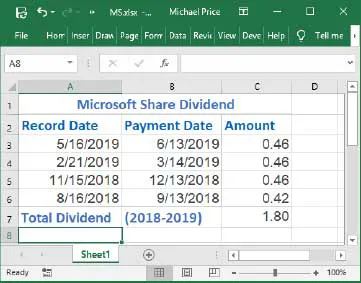
Review the cells in this example spreadsheet:
The cells are displayed with their associated formatting applied. For example, the numbers in cells A3:B6 are displayed as dates. To see the actual contents of the cells:
Press
Ctrl +
` (the grave accent key) or select the
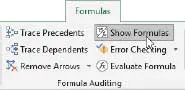
Formulas tab and click
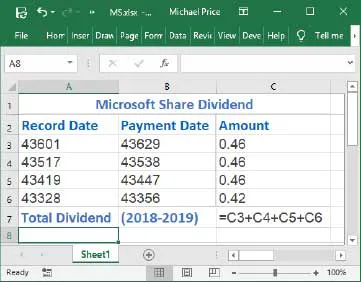
Show Formulas The actual contents of the cells, as entered, are displayed:
To check the type of cell content, you use the CELL function – e.g. to get the type of cell C3: =CELL(“type”,C3)
This shows the cell contents as entered. For a date, the entered value is converted to the number of days since January 1st, 1900.
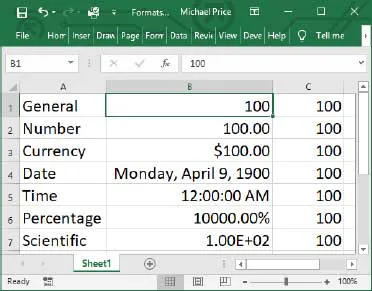
Numbers in the cells are displayed according to the cell format that has been assigned. The same value can appear in many different ways – for example:
The value 100 in cell B1 is copied to cells B2 to B7, and a different numeric format is applied to each cell.
The number 100 takes on significantly different appearances, depending on the format applied. However, when the cell contents are referenced, the same underlying value is assigned, irrespective of the format.
Press
Ctrl + ` , or select the
Formulas tab and click
Show Formulas to show the...