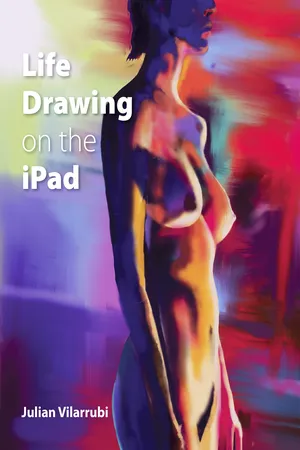
Artists have always looked for new ways of making images and today's technology offers a whole range of exciting possibilities. This practical book shows you how an Apple iPad and stylus can transform the way you paint and draw the human figure. As an accessible and convenient device, the iPad can simulate the practical materials you know whilst discovering and exploring further possibilities to bring your subject and ideas to life. Combining the skills of rendering the human figure with the potential of the iPad, this book is a must-have for all artists new to this medium and all iPad owners keen to start painting the body. The book introduces the basic approaches of observational drawing and painting from the figure whilst guiding you through some of the many available apps, in particular Procreate, and explains how to start making images quickly and easily. It stresses the significance and use of layers, as well as selecting and adapting brushes, working with the palette, storing colour, styluses, saving, sending and sharing. It then suggests how to see and record the figure, focusing on measuring and proportion, tone, line drawing and colour. Illustrated examples explain what to look for in the figure and how to render it, offering practical advice in order to encourage dynamic individual development. Superbly illustrated with 169 illustrations.
- 128 pages
- English
- ePUB (mobile friendly)
- Available on iOS & Android
eBook - ePub
Life Drawing on the iPad
About this book
Trusted by 375,005 students
Access to over 1.5 million titles for a fair monthly price.
Study more efficiently using our study tools.
Information
Topic
ArteSubtopic
Técnicas artísticasCHAPTER 1
Essentials
To draw and paint on the iPad you will have to download an app from the Apple App Store. Apple’s mobile operating system is known as iOS. Different tablets have other systems available. All Apple iPads have the iOS operating system. Google’s system is Android and Microsoft’s is Windows. Each has its own app store and not all apps are available across the different stores.

There is a vast choice of apps. Some of the most popular ones are Procreate, Inspire Pro, Adobe Sketch, Adobe Draw, Sketchbook Pro, Paper by FiftyThree and Brushes Redux. The app most commonly referred to in this book will be Procreate. The other apps featured and mentioned will be Adobe Sketch, Brushes Redux and Auryn Ink.
Some apps become more established than others as a result of their quality and reliability. Apps are updated every so often, improving their functionality. Updating is quick and easy through the App Store.
It helps to try out a few of the apps to find a good fit. Some are easier to follow than others but they will all eventually make sense to you. It is a matter of perseverance. The more sophisticated apps offer more or less the same options presented in slightly different ways. Procreate is a top-of-the-range app used by professionals, yet it is easy to navigate. It has been optimized for use on the iPad Pro with the iPencil. You can still use Procreate on any iPad with any stylus, except the iPencil.
To use the apps effectively it will be helpful to understand some of the basic features listed here as essentials. These are the features that are the most commonly used and that differentiate digital drawing with an app from working on paper or canvas. The urge to get going is strong but with a basic understanding in place the results will be, hopefully, better, quicker and easier to accomplish.
There will be moments when you may wonder what relevance a particular approach or technique may have for you. By familiarizing yourself in advance with some idea of what is possible you will be able to adapt your approach accordingly, extending your process and ultimately your outcomes. The voyage of discovery as you navigate through the apps is a revelation. There are techniques and approaches to be discovered that will challenge your notions about making artworks and will make coming back to work with the iPad fresh and exciting each time.
CANVAS OPTIONS

This is a screenshot of the charcoal brush palette in the Procreate app. Within each palette there are eight choices. Burnt Tree has been selected and is in blue highlight. The screen image has been drawn using some of the charcoal styles.

This Procreate painting was made using a selection of the spray paints brushes.
To begin drawing and painting you will need to choose a surface to work on. As you open an app you will be given a number of options. Begin by pressing the + and selecting from the choices offered. This may differ slightly across apps but they will be more or less the same and will include preset canvas sizes for speed and simplicity. Orientation, shape and resolution will be the main options. When you select an image size, the number of pixels may vary between one size and another and that could determine the detail available for the drawing depending on the kind of drawing being made.

Another Procreate screenshot shows a selection of brushes from the industrial selection. Concrete Block is the active brush.
In Procreate there are a number of options to consider. It is possible to customize the size by setting the height and width and the DPI. The size of the canvas may have a bearing on the number of layers available for drawing on. The larger the size the fewer the layers available. To begin, choose one of the options available before you start customizing. If you plan to print out your work and are in doubt as to which canvas size to choose select a large canvas size.
BRUSHES AND EFFECTS

These are some of the brush options available with the Brushes Redux app.

The background image in this screenshot of the Adobe Sketch app was made using the Watercolor Flat Brush which is selected in blue.

An Auryn Ink screenshot showing the different brush options. Brush tips and sizes can be adjusted.

This image was created using Procreate spray-paint brushes in conjunction with a sharp eraser to maintain clear edges.

A drawing using a selection from the Procreate charcoal brushes palette.

Using the Adobe Sketch app this painting has been made using the heavy acrylic brush. The brushstroke attempts to simulate impasto paint and could be likened to the look of oil paint as well as thick acrylic. Notice how the stroke appears streaky, suggesting variation in the thicknesses of paint as the stroke is laid in. As a result, there is a suggestion of light striking this uneven surface.
Brushes for painting and drawing are found in the brushes option of the apps. This is usually a brush symbol. Whether the brush styles are imitating wet or dry media or another less familiar style they are still all known as brushes. There should be a good range of brush styles available. From their names some will sound familiar and others will sound very unfamiliar. The more obvious choices will include brushes that imitate how traditional drawing and painting media might work. For example, in Procreate, there are options for charcoal, inking, sketching, oil paint, acrylic and spray paints. It is fairly easy to imagine what kind of marks might be made with these. There are other options that might not be so easy to interpret. Examples of these in Procreate might be abstract, elements, touch up, retro, industrial, organic and water. The challenge for you is to discover how you might eventually use and incorporate some of these into your work.

On the left side are seven different examples of Procreate brushes using a basic stylus. On the right the same seven brushes have been drawn with the iPencil. Notice the differences. The iPencil is capable of making the same mark but can alter the width and tone depending on the pressure applied. This gives a truer, more life-like experience of painting and drawing. From the top, the brush styles are: Medium Nozzle from the spray-paints palette, Hard Airbrush from airbrushing; Fresco, Acrylic, Gouache and Watercolor from artistic, and Ink Bleed from inking.
Within each brush category in Procreate there are eight variations or interpretations. For the ‘charcoals’ option you can choose from vine charcoal, willow charcoal, 2B compressed, 4B compressed, 6B compressed, carbon stick, charcoal black and burnt tree. They handle fairly convincingly like actual charcoal but with subtle differences between them. The choices within a less obvious category such as ‘industrial’ are heavy metal, caged, twisted tree, wasteland, stone wall, rusted decay, corrugated iron and concrete block. You can use as many brushes as you wish in a single painting or drawing.

Further experiments in mark-making using the iPencil. Testing the linear possibilities of the Bamboo brush from the organic brush set.
All the choices in Procreate can be adjusted to your own specification. The settings allow you to take the basic mark and increase or decrease, amongst a selection, the streamline, jitter and spacing. You could even design your own mark-making tools by combining the two core elements, the shape and the grain. In Brushes Redux there is also a large selection of brushes that can be altered and added to in a similar way.
You can add brushes into Adobe Sketch by creating your own custom brush styles. Using Adobe Capture you can create a brush from your own captured image. This can be easily saved in Adobe Sketch as part of the Adobe Creative Cloud network.
TOOLS FOR DRAWING AND MARK-MAKING
Marks reflect the mark maker. They are imbued with information and they have a personality. A stroke can be exuberant, bold, confident and grand or faint, thin, nervous and timid. They can be made within a fraction of a second, exuding passion, movement, risk and energy or slowly communicating care, planning, focus and concern. If your stylus is capable of making such marks then you are well equipped.
In the early days of drawing and painting on the iPad you could use your finger on the screen or choose a basic stylus. Options were limited. Drawing with the finger felt strange to begin with. We p...
Table of contents
- Cover Page
- Title Page
- Copyright Page
- Contents Page
- Introduction
- 1 Essentials
- 2 Measured Drawing
- 3 Tone
- 4 Ways of creating Tone
- 5 Line
- 6 Colour and Colour Contrast
- 7 Being Inspired
- 8 What to Do Now?
- Conclusion
- Notes
- Glossary
- Further Information
- Index
Frequently asked questions
Yes, you can cancel anytime from the Subscription tab in your account settings on the Perlego website. Your subscription will stay active until the end of your current billing period. Learn how to cancel your subscription
No, books cannot be downloaded as external files, such as PDFs, for use outside of Perlego. However, you can download books within the Perlego app for offline reading on mobile or tablet. Learn how to download books offline
Perlego offers two plans: Essential and Complete
- Essential is ideal for learners and professionals who enjoy exploring a wide range of subjects. Access the Essential Library with 800,000+ trusted titles and best-sellers across business, personal growth, and the humanities. Includes unlimited reading time and Standard Read Aloud voice.
- Complete: Perfect for advanced learners and researchers needing full, unrestricted access. Unlock 1.5M+ books across hundreds of subjects, including academic and specialized titles. The Complete Plan also includes advanced features like Premium Read Aloud and Research Assistant.
We are an online textbook subscription service, where you can get access to an entire online library for less than the price of a single book per month. With over 1.5 million books across 990+ topics, we’ve got you covered! Learn about our mission
Look out for the read-aloud symbol on your next book to see if you can listen to it. The read-aloud tool reads text aloud for you, highlighting the text as it is being read. You can pause it, speed it up and slow it down. Learn more about Read Aloud
Yes! You can use the Perlego app on both iOS and Android devices to read anytime, anywhere — even offline. Perfect for commutes or when you’re on the go.
Please note we cannot support devices running on iOS 13 and Android 7 or earlier. Learn more about using the app
Please note we cannot support devices running on iOS 13 and Android 7 or earlier. Learn more about using the app
Yes, you can access Life Drawing on the iPad by Julian Vilarrubi in PDF and/or ePUB format, as well as other popular books in Arte & Técnicas artísticas. We have over 1.5 million books available in our catalogue for you to explore.