iOS 15 Application Development for Beginners
eBook - ePub

iOS 15 Application Development for Beginners

Learn Swift Programming and Build iPhone Apps with SwiftUI and Xcode 13

  1. English
  2. ePUB (mobile friendly)
  3. Available on iOS & Android
eBook - ePub

iOS 15 Application Development for Beginners

Learn Swift Programming and Build iPhone Apps with SwiftUI and Xcode 13

About this book

Learn iOS App development with advanced Apple technology and developer-centric tools.

Key Features
? Loaded with core developer tools, including SwiftUI, Xcode, and CoreML.
? Covers app architecture, design patterns, and mobile hardware use in app development.
? Numerous examples covering database, GPS, image recognition, and ML.

Description
This book is a step-by-step, hands-on guide for Apple developers to build iOS apps using Swift programming with minimal effort. This book will help develop the knowledge and skills necessary to program Apple applications independently. This book introduces you to Swift, SwiftUI, MapKit, Xcode, and Core ML and guides you through the process of creating a strong, marketable iOS application.The book begins with the fundamentals of Swift, which will serve as the foundation for future app development. This book will help readers to develop user interfaces for iOS applications, using SwiftUI and Interface Builder, as well as the code for views, view controllers, and data managers. The book teaches how to use Core Data and SQLite to store databases. It will help you work with Apple technologies and frameworks, including Core Location and MapKit for GPS tracking, Camera and Photo Library for image storage, Core ML for machine learning, and implementations of artificial intelligence solutions.By the end of this book, you will have developed a solid foundation for writing Swift apps, utilizing best practices in architecture, and publishing them to the app store. The book successfully introduces you to the entire iOS application development journey in a manageable manner and instills an understanding of Apple apps.

What you will learn
? Develop practical skills in Swift programming, Xcode, and SwiftUI.
? Learn to work around the database, file handling, and networking while building apps.
? Utilize the capabilities of mobile hardware to include sound, images, and videos.
? Bring machine learning capabilities using the Core ML framework.
? Integrate features such as App Gestures and Core Location into iOS applications.
? Utilize mobile design patterns and maintain a clean coding style.

Who this book is for
This book is ideal for beginners in programming, students, and professionals interested in learning how to program in iOS, use various developer tools, and create Apple apps. Working knowledge of any programming language is an advantage but not required.

Table of Contents
1. Getting Started with Xcode
2. Swift Fundamentals
3. Classes, Struct, and Enumerations
4. Protocols, Extensions, and Error Handling
5. TabBar, TableView, and CollectionView
6. User Interface Design with SwiftUI
7. Database with SQLite and Core Data
8. File Handling in iOS
9. App Gesture Recognizers in iOS
10. Core Location with MapKit
11. Camera And Photo Library
12. Machine Learning with Core ML
13. Networking in iOS Apps
14. Mobile App Patterns and Architectures
15. Publish iOS App on App Store
Tools to learn more effectively

Saving Books

Saving Books

Keyword Search

Keyword Search

Annotating Text

Annotating Text

Listen to it instead

Listen to it instead

Information

CHAPTER 1

Getting Started with Xcode

Introduction

After a big success in Mac computers, Apple shifted their focus to consumer electronic products such as iPod, iPhone, iPad etc. Apple introduced their new products with the success and advancements of iOS (Apple's OS for their consumer electronic products). With the iPhone achieving an even bigger success, in 2008, Apple introduced the App Store for third party apps, which began a new era of app developments. As the consumers started moving from the Mac machines to mobiles, the application development opened a new platform for the business to acquire more consumers that can use apps on the go while they are walking, traveling etc. Apple already had an IDE Xcode which was used by the developers for Mac application development. They have now made upgrades to it and accommodated the iOS app development in the same Xcode. In this chapter, we will start our application development with Xcode and build our first simple sample application which will look like a blank app in a simulator while testing.

Structure

In this chapter, we will cover the following topics:
  • Xcode IDE
  • Download and Install Xcode
  • Xcode User Interface
  • Configuring Xcode Project
  • Run and Build Xcode iOS Project
  • Code with Xcode Playground
  • Xcode Organizer

Objectives

After studying this chapter, you will be able to use Xcode IDE for app development, use a simulator to test the developed applications, and create an iOS Project in Xcode IDE.

Xcode IDE

Xcode is an Integrated Development Environment (IDE) which contains the software development tools developed by the Apple Company for developing the applications and software for MacOS, iPhone, iPad, iPod Touch, iWatch, and Apple TV.
Xcode includes the Xcode IDE, Swift, SwiftUI and C/ C++/ Objective-C compilers, Instruments analysis tool, simulators, the latest SDKs, and other hundreds of powerful features. Swift is a programming language that is fast, safe, and modern. SwiftUI is a declarative UI language used for the interactive app user interface.
Technical requirements
To fulfil the learning requirements and coding goals of this book, we will require the following:
  • An Apple system such as Mac mini, Macbook, iMac, etc, with MacOS 10.16Big Sur OS version.
  • An Apple ID (if you don't have one, this chapter will help you to create an Apple ID).
  • Apple iOS device (optional) (if you have one, you can run the apps on the device; otherwise Xcode Simulator will be enough to check how your apps work).
We will start downloading the Xcode IDE for developing iOS applications from the Mac App Store.

Download and install Xcode

Before starting the development of the iOS apps, we need to download and install Xcode; the following are the steps to perform the Xcode installation:
  1. Open the Mac App Store.
  2. Search for the keyword Xcode and press the return key.
  3. In Search Results, Xcode version 13.0 will appear, click on Get and Install.
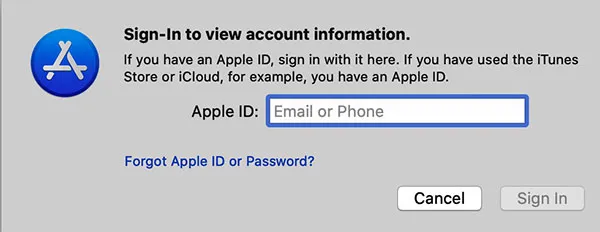
  4. Now, a box will appear which will ask for an Apple ID; if you already have an Apple ID, fill in the mentioned field and it will ask for a password for your Apple account. Refer to figure 1.1 as follows:
    1.1: Account information
    If you don't have Apple ID, you must create a new Apple ID with the help of the following Apple support article:
    https://support.apple.com/en-in/HT204316
  5. The latest version of Xcode is 13 which includes Swift 5.5, SDKs for iOS 15, iPadOS 15, tvOS 15, watchOS 8, and MacOS Big Sur.
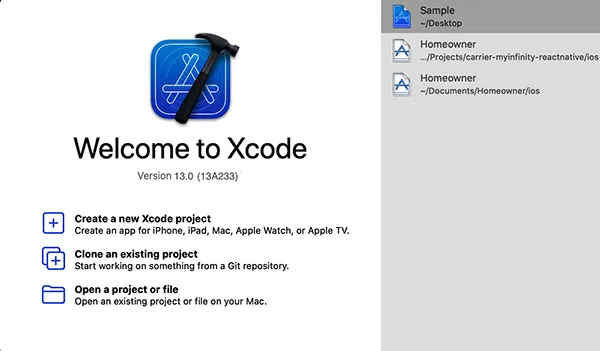
  6. Open the Xcode from the App Store. This will install some supported SDK software for some time and will open the Xcode Welcome page, shown in figure 1.2 as follows:
    Figure 1.2: Xcode Welcome Window
    No recent projects will be seen if you are launching it for the first time. Click on Create a new Xcode project to set up a new project for iOS apps development.
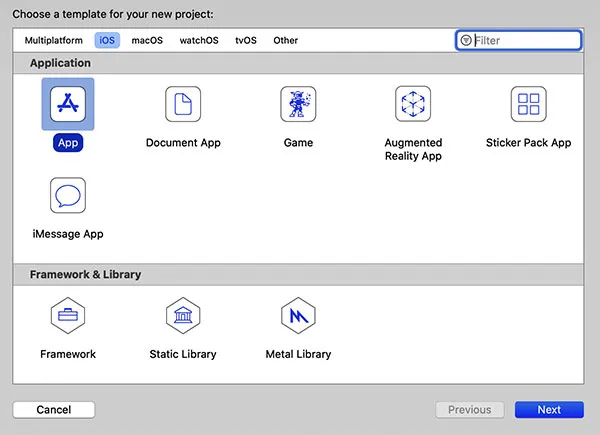
  7. Now, you will see a set of new options to choose from, shown in figure 1.3 as follows:
    Figure 1.3: Select Application Platform
    To make an app for iPhone and iPad, select the option as iOS. Similarly, select watchOS, tvOS MacOS, and multi-platform for iWatch, Apple TV, Mac apps, and hybrid apps respectively. Then select App and click on Next.
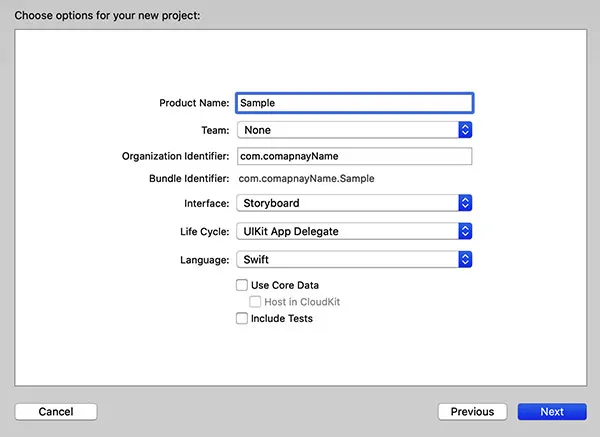
  8. The next screen will have some fields to fill up regarding the setting up of the project, such as product name, team, organization name, organization identifier, language, and user interface. Let's understand what possible values these fields could have and how it would impact the project, which is going to be created, as follows:
    • Product Name: This will be the name of your App which will be entered in the text field of the project name.
    • Team: Apple Developer account of Team for the project. We will discuss this in detail in Chapter 15: Publish Apps on the App Store.
    • Organization Name: The name of your company that owns the development of this project. You can just put your name for now while you learn.
    • Organization Identifier: This identifier is created with the conjunction of company name. For now, enter com.organizationname.
    • Bundle Identifier: This field is not allowed for you to edit. It's automatically created by combining an organization name with an organization identifier. This identifier is used to identify the apps uniquely on the Apple App Store. Refer to figure 1.4 as follows:
      Figure 1.4: New iOS Project
    • Language: This specifies the programming language to be used in app development. Select Swift from the drop box field.
    • User Interface: For now, set this to Storyboard. We will discuss another type of user interface selection, SwiftUI.
    • Life Cycle: When you create a new SwiftUI Application in an Xcode, you'd be given an option to choose between SwiftUI App Lifecycle and UIKit App Delegate. If the user interface is selected as Storyboard, it would be UIKit App Delegate by default.
    • Checkboxes: These checkboxes are used to include the core data for the purpose of local database, unit test, and the UI unit test cases in the project. Keep them unchecked for now.
  9. Choose the location where you want to save this project code in your Mac machine.

Xcode user interface

Before moving further towards app development, we first need to understand the navigation of Xcode, tools, and the options used during the development of the iOS applications. Let's discuss the different sections of Xcode Interface to understand clearly how we will use this IDE during app development, as follows:
  • ToolBar: This toolbar on the top left side of Xcode is used to build, run the app, and view the execution progress of your app.
  • Windows pan bar: This will help you configure the Xcode development environment.
    • Object Library: Addition or plus button will be used to add UI or object components to the project.
    • Version Editor: This will be used to check for differences of codes between two versions.
    • Open and close buttons for Navigator, Debug, and Editor Area in Complete windows pan.
  • Navigator area: This provides quick access to all the parts of the project. The Navigation area is shown by default in the Xcode window.
  • Editor area: The Editor area allows you to edit your code, user interface components, and resource files, if required in the project.
  • Inspector area: This area will allow you to edit the information related to the items in the Navigator area and Editor area.
  • Debug area: This area contains two portions – one for the view of variables and their values and another one for the console.
Here, we are trying to get familiar with the different parts of Xcode, so don't be overwhelmed by such information on the parts and their relation. We will study all these in detail and use each portion many times in the upcoming chapters.

Xcode search navigator

In the Project Navigator Area, when you click on the Search icon, it will open a search navigation bar form where you can search for any text and in the results. Xcode Editor Navigation area will show all the results of that project containing the text which is searched in the Xcode search navigation bar.
To use it via a shortcut, you can use the command cmd + shift + F, which will open the search navigation bar. These command operations would be helpful when you need to search multiple times and be quick. Refer to figure 1.5 as follows:
Figure 1.5: Application Development window

Xcode issue navigator

When there are some issues in the project while compiling and executing the app, the project navigation area shows warnings in the yellow symbolic icon and errors in red. A project can be built and run with warnings but not with errors. All errors need to be resolved to run a successful app.
Warnings could be potential issues in further development of the apps, so we should ...

Table of contents

  1. Cover Page
  2. Title Page
  3. Copyright Page
  4. Dedication Page
  5. About the Author
  6. About the Reviewer
  7. Acknowledgement
  8. Preface
  9. Errata
  10. Table of Contents
  11. 1. Getting Started with Xcode
  12. 2. Swift Fundamentals
  13. 3. Classes, Struct, and Enumerations
  14. 4. Protocols, Extensions, and Error Handling
  15. 5. TabBar, TableView, and CollectionView
  16. 6. User Interface Design with SwiftUI
  17. 7. DataBase with SQLite and Core Data
  18. 8. File Handling in iOS
  19. 9. App Gesture Recognizers in iOS
  20. 10. Core Location with MapKit
  21. 11. Camera and Photo Library
  22. 12. Machine Learning with Core ML
  23. 13. Networking in iOS Apps
  24. 14. Mobile App Patterns and Architectures
  25. 15. Publish iOS App on the App Store
  26. Index

Frequently asked questions

Yes, you can cancel anytime from the Subscription tab in your account settings on the Perlego website. Your subscription will stay active until the end of your current billing period. Learn how to cancel your subscription
No, books cannot be downloaded as external files, such as PDFs, for use outside of Perlego. However, you can download books within the Perlego app for offline reading on mobile or tablet. Learn how to download books offline
Perlego offers two plans: Essential and Complete
  • Essential is ideal for learners and professionals who enjoy exploring a wide range of subjects. Access the Essential Library with 800,000+ trusted titles and best-sellers across business, personal growth, and the humanities. Includes unlimited reading time and Standard Read Aloud voice.
  • Complete: Perfect for advanced learners and researchers needing full, unrestricted access. Unlock 1.4M+ books across hundreds of subjects, including academic and specialized titles. The Complete Plan also includes advanced features like Premium Read Aloud and Research Assistant.
Both plans are available with monthly, semester, or annual billing cycles.
We are an online textbook subscription service, where you can get access to an entire online library for less than the price of a single book per month. With over 1 million books across 990+ topics, we’ve got you covered! Learn about our mission
Look out for the read-aloud symbol on your next book to see if you can listen to it. The read-aloud tool reads text aloud for you, highlighting the text as it is being read. You can pause it, speed it up and slow it down. Learn more about Read Aloud
Yes! You can use the Perlego app on both iOS and Android devices to read anytime, anywhere — even offline. Perfect for commutes or when you’re on the go.
Please note we cannot support devices running on iOS 13 and Android 7 or earlier. Learn more about using the app
Yes, you can access iOS 15 Application Development for Beginners by Arpit Kulsreshtha in PDF and/or ePUB format, as well as other popular books in Computer Science & Programming. We have over one million books available in our catalogue for you to explore.