Microsoft Azure, commonly referred to as Azureis a cloud computing service created by Microsoft for building, testing, deploying, and managing applications and services through Microsoft-managed data centers. It provides software as a service (SaaS), platform as a service (PaaS) and infrastructure as a service (IaaS) and supports many different programming languages, tools, and frameworks, including both Microsoft-specific and third-party software and systems. The major benefit of a remote desktop connection is being able to connect to your data from anywhere in the world. Your data is in one place that is easy to see and you no longer have to have software installed on your own computer.Azure is one of the best virtual computers and networks providers for remote desktop (RDP) connections. When you create Azure account, you pay as you go. You purchase Azure services with pay-as-you-go pricing. You pay only for what you use each month, with no upfront commitment, and cancel anytime. You must add your credit/debit card for billing to use pay as you go subscription.But I was looking for totally free subscription where I dont need to add my credit card for billing. I found there are two possible options for that: 1) A sandbox gives you access to Azure resources. Your Azure subscription will not be charged. The sandbox may only be used to complete training on Microsoft Learn. Creating the Azure Virtual machines using sandbox which is learning subscription, you can connect to the VM via RDP port but you cannot access to Internet through the Internet Explorer. 2) Alternatively Microsoft Azure provides a free $100 credit for students accounts registered through university emails (free student subscription for around one year). There is internet access in the VM machine under this type of subscription.Azure documentations is too deep and it is hard to be understand creating and managing virtual computers and networks in Auzre for remote access connection by any beginner. So, I tried to outline in this report the most important topics as reference guide to assist the user to create and manage virtual computers and networks in Azure for remote access connection in simplified and clear way. This report will include the following parts: 1.Getting free Azure subscription through Sandbox Microsoft Learn subscription (No credit card needed)2.Free 12 months, then pay-as-you-go Azure account subscription (Credit card needed) 3.Student subscription (No debit/credit cards needed)4.How to get university email5.Virtual networks and virtual machines in Azure6.Quick start for PowerShell in Azure Cloud Shell7.Quick start with Azure PowerShell8.Installing Azure CLI on Windows and creating virtual machine9.Creating a Windows virtual machine in Azure10.Quick start to create a Linux virtual machine in the Azure portal11.Tutorial to create a NAT Gateway using the Azure portal and test the NAT service12.What is Azure Network Watcher?13.Network Watcher Agent14.Troubleshoot connections with Azure Network Watcher using the Azure portal15.Troubleshoot Azure VM connectivity problems16.Quick start to configure Load Balancer17.Quick start to configure VPN Gateway using Azure portal18.Tutorial to connect to a virtual machine using Azure Bastion19.Exercise to create Window Virtual Machine 20.Exercise to create Ubuntu Virtual Machine
eBook - ePub
Creating and Managing Virtual Machines and Networks Through Microsoft Azure Services for Remote Access Connection
- 93 pages
- English
- ePUB (mobile friendly)
- Available on iOS & Android
eBook - ePub
Creating and Managing Virtual Machines and Networks Through Microsoft Azure Services for Remote Access Connection
About this book
Information
Subtopic
Computer NetworkingIndex
Computer Science1) Overview:
Microsoft Azure, commonly referred to as Azureis a cloud computing service created by Microsoft for building, testing, deploying, and managing applications and services through Microsoft-managed data centers. It provides software as a service (SaaS), platform as a service (PaaS) and infrastructure as a service (IaaS) and supports many different programming languages, tools, and frameworks, including both Microsoft-specific and third-party software and systems.
The major benefit of a remote desktop connection is being able to connect to your data from anywhere in the world. Your data is in one place that is easy to see and you no longer have to have software installed on your own computer.
Azure is one of the best virtual computers and networks providers for remote desktop (RDP) connections.
When you create Azure account, you pay as you go. You purchase Azure services with pay-as-you-go pricing. You pay only for what you use each month, with no upfront commitment, and cancel anytime. You must add your credit/debit card for billing to use pay as you go subscription.
But I was looking for totally free subscription where I don’t need to add my credit card for billing. I found there are two possible options for that:
1) A sandbox gives you access to Azure resources. Your Azure subscription will not be charged. The sandbox may only be used to complete training on Microsoft Learn. Creating the Azure Virtual machines using sandbox which is learning subscription, you can connect to the VM via RDP port but you cannot access to Internet through the Internet Explorer.
2) Alternatively Microsoft Azure provides a free $100 credit for students accounts registered through university emails (free student subscription for around one year). There is internet access in the VM machine under this type of subscription.
Azure documentations is too deep and it is hard to be understand creating and managing virtual computers and networks in Auzre for remote access connection by any beginner. So, I tried to outline in this report the most important topics as reference guide to assist the user to create and manage virtual computers and networks in Azure for remote access connection in simplified and clear way. This report will include the following parts:
- Getting free Azure subscription through Sandbox Microsoft Learn subscription (No credit card needed)
- Free 12 months, then pay-as-you-go Azure account subscription (Credit card needed)
- Student subscription (No debit/credit cards needed)
- How to get university email
- Virtual networks and virtual machines in Azure
- Quick start for PowerShell in Azure Cloud Shell
- Quick start with Azure PowerShell
- Installing Azure CLI on Windows and creating virtual machine
- Creating a Windows virtual machine in Azure
- Quick start to create a Linux virtual machine in the Azure portal
- Tutorial to create a NAT Gateway using the Azure portal and test the NAT service
- What is Azure Network Watcher?
- Network Watcher Agent
- Troubleshoot connections with Azure Network Watcher using the Azure portal
- Troubleshoot Azure VM connectivity problems
- Quick start to configure Load Balancer
- Quick start to configure VPN Gateway using Azure portal
- Tutorial to connect to a virtual machine using Azure Bastion
- Exercise to create Window Virtual Machine
- Exercise to create Ubuntu Virtual Machine
2) Getting free Azure subscription through Sandbox Microsoft Learn subscription (No credit card needed):
A sandbox gives you access to Azure resources. Your Azure subscription will not be charged. The sandbox may only be used to complete training on Microsoft Learn. Use for any other reason is prohibited, and may result in permanent loss of access to the sandbox. The sandbox may only be used to complete training on Microsoft Learn.
You can obtain Sandbox free subscription for duration of 1or 2 hrs. each time through some exercises in Microsoft learn, as an example these exercises
• https://docs.microsoft.com/en-us/learn/modules/deploy-vms-from-vhd-templates/4-exercise-create-image-provision-vm?pivots=windows-cloud
• https://docs.microsoft.com/en-us/learn/modules/create-windows-virtual-machine-in-azure/3-exercise-create-a-vm
• https://docs.microsoft.com/en-us/learn/modules/create-linux-virtual-machine-in-azure/
• https://docs.microsoft.com/en-us/learn/modules/improve-app-scalability-resiliency-with-load-balancer/
• https://docs.microsoft.com/en-us/learn/modules/connect-on-premises-network-with-vpn-gateway/3-exercise-prepare-azure-and-on-premises-vnets-using-azure-cli-commands.
Creating the Azure Windows Virtual machine using sandbox which is learning subscription. You can connect to the VM via RDP port but you cannot access to Internet through the Internet Explorer.
Outbound data transfer is charged at the normal rate and inbound data transfer is free. Refer to these articles for more information:
https://docs.microsoft.com/en-us/learn/support/faq?pivots=sandbox
https://azure.microsoft.com/en-us/pricing/details/bandwidth/
3) Free 12 months, then pay-as-you-go Azure account subscription (Credit card needed):
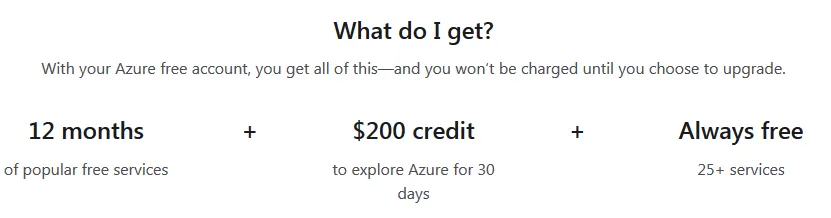
You can create your Azure free account. Get started with 12 months of free services. With your Azure free account, you get all of this—and you won’t be charged until you choose to upgrade.
12 months of popular free services + $200 credit to explore Azure for 30 days.
After the free 12 months period, you purchase Azure services with pay-as-you-go pricing. The debit/credit card details must be provided during registration for billing of non-free services.
What you can do with free account? Here are just a few ideas of all you can do with Azure
- Create personalized experiences with AI: Build connected, cross-platform experiences—tailored to customer interactions using AI and machine learning.
- Drive innovation for existing and future apps: Modernize applications. Deploy Windows and Linux virtual machines across cloud and hybrid environments.
- Build scalable apps and release features faster: Create workloads that scale up and down based on demand. Plus, deliver software more rapidly and reliably with end-to-end DevOps solutions.


You can see the pay as you go pricing calculator from this website
https://azure.microsoft.com/en-us/pricing/calculator/
4) Student subscription (No debit/credit cards needed):
Get a $100 credit when you create your free Azure for Students account
No credit card needed. Simply verify your student status through your school email address, and you're ready to go with $100 in credit.
Free developer tools . Build your skills in trending tech including data science, artificial intelligence (AI), machine learning, and other areas with access to professional de...
Table of contents
- Creating and Managing Virtual Machines and Networks Through Microsoft Azure Services for Remote Access Connection
- 1) Overview:
- 2) Getting free Azure subscription through Sandbox Microsoft Learn subscription (No credit card needed):
- 3) Free 12 months, then pay-as-you-go Azure account subscription (Credit card needed):
- 4) Student subscription (No debit/credit cards needed):
- 5) How to get university email:
- 6) Virtual networks and virtual machines in Azure:
- 7) Quick start for PowerShell in Azure Cloud Shell:
- 8) Quick start with Azure PowerShell:
- 9) Installing Azure CLI on Windows and creating virtual machine:
- 10) Creating a Windows virtual machine in Azure:
- 11) Quick start to create a Linux virtual machine in the Azure portal:
- 12) Tutorial to create a NAT Gateway using the Azure portal and test the NAT service:
- 13) What is Azure Network Watcher?
- 14) Network Watcher Agent:
- 15)Troubleshoot connections with Azure Network Watcher using the Azure portal
- 16) Troubleshoot Azure VM connectivity problems
- 17) Quick start to configure Load Balancer:
- 18) Quick start to configure VPN Gateway using Azure portal
- 19) Tutorial to connect to a virtual machine using Azure Bastion:
- 20) Exercise to create Window Virtual Machine:
- 21) Exercise to create Ubuntu Virtual Machine:
Trusted by 375,005 students
Access to over 1.5 million titles for a fair monthly price.
Study more efficiently using our study tools.
Frequently asked questions
Yes, you can cancel anytime from the Subscription tab in your account settings on the Perlego website. Your subscription will stay active until the end of your current billing period. Learn how to cancel your subscription
No, books cannot be downloaded as external files, such as PDFs, for use outside of Perlego. However, you can download books within the Perlego app for offline reading on mobile or tablet. Learn how to download books offline
Perlego offers two plans: Essential and Complete
- Essential is ideal for learners and professionals who enjoy exploring a wide range of subjects. Access the Essential Library with 800,000+ trusted titles and best-sellers across business, personal growth, and the humanities. Includes unlimited reading time and Standard Read Aloud voice.
- Complete: Perfect for advanced learners and researchers needing full, unrestricted access. Unlock 1.5M+ books across hundreds of subjects, including academic and specialized titles. The Complete Plan also includes advanced features like Premium Read Aloud and Research Assistant.
We are an online textbook subscription service, where you can get access to an entire online library for less than the price of a single book per month. With over 1.5 million books across 990+ topics, we’ve got you covered! Learn about our mission
Look out for the read-aloud symbol on your next book to see if you can listen to it. The read-aloud tool reads text aloud for you, highlighting the text as it is being read. You can pause it, speed it up and slow it down. Learn more about Read Aloud
Yes! You can use the Perlego app on both iOS and Android devices to read anytime, anywhere — even offline. Perfect for commutes or when you’re on the go.
Please note we cannot support devices running on iOS 13 and Android 7 or earlier. Learn more about using the app
Please note we cannot support devices running on iOS 13 and Android 7 or earlier. Learn more about using the app
Yes, you can access Creating and Managing Virtual Machines and Networks Through Microsoft Azure Services for Remote Access Connection by Dr. Hidaia Mahmood Alassouli in PDF and/or ePUB format, as well as other popular books in Computer Science & Computer Networking. We have over 1.5 million books available in our catalogue for you to explore.