eBook - ePub
Windows 7
About this book
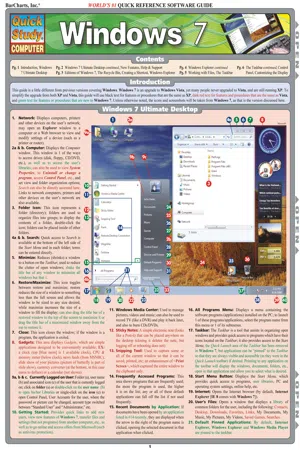
As an upgrade to Windows Vista, the Windows 7 operating system includes an array of new features designed to enhance one's computing experience. This guide will help end-users navigate through this cutting-edge operating system with our jam-packed 3-panel (6-page) guide. Each Windows 7 feature is described in up-to-date detail and color-coded for easy reference to the differences between Windows 7, Windows Vista and Windows XP. In addition, screen captures and icons on every page highlight particular components of the operating system.
Tools to learn more effectively

Saving Books

Keyword Search

Annotating Text

Listen to it instead
Information

The Taskbar
The Taskbar is a bar that appears at the bottom of the screen by default; it contains the Start Menu button, which displays the Start Menu, icons for launching programs (if they have been pinned to the Taskbar), notifications from programs, and the system clock. It is also highly customizable to be as efficient as possible for the way many people work.
Managing Applications on the Taskbar
Windows 7 makes it easy to switch between applications and control the clutter of many windows open at once.
To minimize all windows:
- Click and drag and shake the title bar of the 1 window you don’t want minimized; all others will be minimized
OR
Click the Show Desktop button next to the clock on the Taskbar.
To maximize a window:
- Click the Maximize button
OR
Drag the title bar to the top of the screen and a shaded background will appear over the entire screen, indicating that the window will be maximized if the mouse button is released.
To size a window to half the window (horizontally):
- Click and drag the title bar all the way to the left of the screen and a shaded background will appear over the left half of the screen, indicating that the window will be sized to the size of the shaded background if the mouse button is released.
To switch between applications:
- Press <Alt> + <Tab> to switch between applications
OR
Press <Windows Key> + <Tab> to use 3D flip (if Aero has been enabled; otherwise it does nothing), which will stack the windows at an angle and flip through them like a deck of cards; release <Tab> to open the window on top
OR
Point to icon on Taskbar and a list of recent or open documents will be displayed (or a preview of each open document if Aero is enabled); click on the desired document to open or switch to it.
Customizing the Taskbar & Start Menu
Windows 7 provides many options for customizing the operation and use of the Taskbar and the Start Menu; they are specified through the Taskbar and Start Menu Properties dialog box.
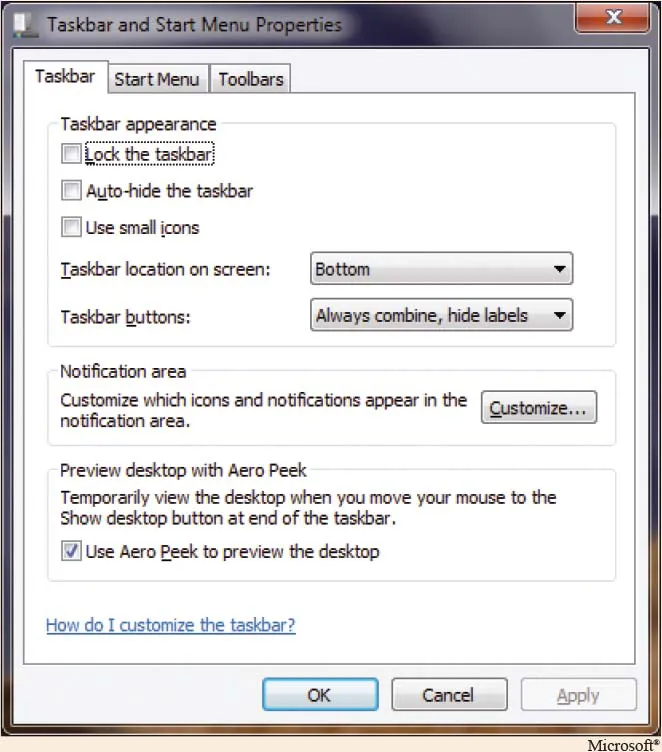
To display the Taskbar and Start MenuProperties window:
- Right-click on the Taskbar, making sure the cursor is not over a Taskbar element such as a task button, the system clock or the Start Menu button.
- From the shortcut menu, select Properties to display the figure shown above.
To set Taskbar properties:
- Display the Taskbar and Start Menu Properties window.
- Click the Taskbar tab.
- Set options as desired; commonly used checkboxes include:
- Lock the Taskbar: Keeps the Taskbar where it is on the screen and prevents it from being resized.
- Auto-hide the Taskbar: Hides the Taskbar unless the mouse is moved over the edge of the screen where the Taskbar is located, when it will reappear; gives more room on the screen for programs.
- Taskbar buttons: Task buttons can be configured in 1 of 3 ways:
- Always combine, hide labels: Don’t display the name of the program and list all open documents; this is the default.
- Combine when Taskbar is full: If multiple documents are open inside an application (EX: Word or Internet Explorer) that normally creates 1 task button for each document (browser, etc.), they will be located next to each other on the Taskbar, but if the width of the buttons becomes too ...
Table of contents
- Introduction
- Windows 7 Ultimate Desktop
- New Features
- Help & Support
- Editions of Windows 7
- The Recycle Bin
- Creating a Shortcut
- Windows Explorer
- Working with Files
- The Taskbar
- Control Panel
- Customizing the Display
Frequently asked questions
Yes, you can cancel anytime from the Subscription tab in your account settings on the Perlego website. Your subscription will stay active until the end of your current billing period. Learn how to cancel your subscription
No, books cannot be downloaded as external files, such as PDFs, for use outside of Perlego. However, you can download books within the Perlego app for offline reading on mobile or tablet. Learn how to download books offline
Perlego offers two plans: Essential and Complete
- Essential is ideal for learners and professionals who enjoy exploring a wide range of subjects. Access the Essential Library with 800,000+ trusted titles and best-sellers across business, personal growth, and the humanities. Includes unlimited reading time and Standard Read Aloud voice.
- Complete: Perfect for advanced learners and researchers needing full, unrestricted access. Unlock 1.4M+ books across hundreds of subjects, including academic and specialized titles. The Complete Plan also includes advanced features like Premium Read Aloud and Research Assistant.
We are an online textbook subscription service, where you can get access to an entire online library for less than the price of a single book per month. With over 1 million books across 990+ topics, we’ve got you covered! Learn about our mission
Look out for the read-aloud symbol on your next book to see if you can listen to it. The read-aloud tool reads text aloud for you, highlighting the text as it is being read. You can pause it, speed it up and slow it down. Learn more about Read Aloud
Yes! You can use the Perlego app on both iOS and Android devices to read anytime, anywhere — even offline. Perfect for commutes or when you’re on the go.
Please note we cannot support devices running on iOS 13 and Android 7 or earlier. Learn more about using the app
Please note we cannot support devices running on iOS 13 and Android 7 or earlier. Learn more about using the app
Yes, you can access Windows 7 by John Hales in PDF and/or ePUB format, as well as other popular books in Computer Science & Operating Systems. We have over one million books available in our catalogue for you to explore.