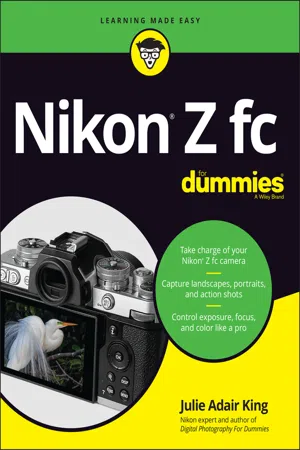
Nikon Z fc For Dummies
eBook - ePub

Nikon Z fc For Dummies

  1. English
  2. ePUB (mobile friendly)
  3. Available on iOS & Android
eBook - ePub

Nikon Z fc For Dummies

About this book

Say cheese! Explore this beginner-friendly guide to digital photography with the Nikon Z fc camera

With a design that looks like an old-school film camera, the Nikon Z fc makes photographers want to grab this very-modern model off the shelf and start taking photos. But if you really want to set your pictures apart from the average snapshot, you need Nikon Z fc For Dummies.

This book takes you on a comprehensive and user-friendly tour of the Nikon Z fc camera, its settings, and all of its automatic and manual options. You'll learn how to control exposure, take advantage of advanced focusing options, fix color problems, and get the best image quality.

You'll also get:

  • Accessible instruction on tried and tested photography techniques
  • Instruction on how to adjust color and exposure settings
  • Strategies for when to use your camera's auto options to when to take full control of settings

Ideal for anyone who wants to get the most out of their Nikon Z fc camera, Nikon Z fc For Dummies covers the photography basics you need to understand to take fantastic pictures along with how to apply those techniques to the Nikon Z fc.

Trusted by 375,005 students

Access to over 1.5 million titles for a fair monthly price.

Study more efficiently using our study tools.

Information

Publisher
For Dummies
Year
2022
Print ISBN
9781119873174
eBook ISBN
9781119873198
Part 1

Fast Track to Super Snaps

IN THIS PART …
Familiarize yourself with the basics of using your camera, from attaching lenses to navigating menus.
Discover which setup options to adjust and which ones to leave alone.
Get step-by-step help with shooting pictures in Auto mode and Self-Portrait mode.
Choose the right Shooting mode and Release mode for your subject.
Understand how the Image Size (resolution), Image Quality (JPEG or Raw file type), and Image Area settings affect pictures.
Chapter 1

First Steps, First Shots

IN THIS CHAPTER
Bullet
Preparing the camera for its first outing
Bullet
Becoming acquainted with the touchscreen and other camera features
Bullet
Viewing and adjusting camera settings
Bullet
Setting a few basic preferences
Bullet
Taking a picture in Auto and Self-Portrait Shooting modes
Shooting for the first time with a camera as sophisticated as the Nikon Z fc can produce a blend of excitement and anxiety. On one hand, you can't wait to start using your new equipment, but on the other, you're a little intimidated by all its dials, buttons, and menu options.
Fear not: This chapter provides information to help you become comfortable with your Z fc. The first section walks you through initial camera setup; following that, you can discover how to view and adjust picture settings and get my take on additional setup options. At the end of this chapter, I explain how to take pictures using the Auto and Self-Portrait Shooting modes, which offer point-and-shoot simplicity until you're ready for more advanced options.

Getting Started

As with any new camera, you need to take a few steps before you can shoot your first picture or video. First, juice up the camera battery using the supplied charger. You also need to check that the lens and memory card you plan to use are compatible with the camera. Here’s the score on those components:
  • Lenses: The only lenses you can attach directly to the camera are Z-mount lenses. I show the camera in this book with the Nikkor DX 16–50mm Z-mount lens, which is available in a kit with the camera body. However, you may be able to use lenses that have a different mount, such as a Nikon F-mount, by purchasing the Nikon FTZ adapter. See the later section “Exploring a Few Lens Features” for more about the adapter and lenses in general.
  • SD (Secure Digital) memory card: You can see an SD card in Figure 1-1. This card comes in a variety of flavors, and the specs can be confusing, so if you need help choosing a card, see the sidebar “Memory cards: How big, how fast?” elsewhere in this chapter. For now, the only rule is that the maximum-capacity card you can use carries the label SDXC (Secure Digital eXtended Capacity).
    Warning
    When handling an SD card, avoid touching the gold contacts on the back, labeled in Figure 1-1. Also make sure that the lock switch is in the unlocked position, as shown in the figure. When the card is locked, no pictures or other data can be added to it (or deleted from it).
Snapshot shows the SD cards.
FIGURE 1-1: Be sure that the card is unlocked, and avoid touching its gold contacts.
With those prelims out of the way, follow these initial setup steps:
  1. Turn the camera off.
  2. Install the battery and memory card into their shared compartment, shown in Figure 1-2.
    Push in the battery until the yellow locking switch clicks into place. Orient the card so that the label faces in the direction shown in the figure and then press the bottom of the card down into the slot. Even though the camera is turned off, it lets you know when it recognizes the card, by briefly illuminating the card-access light, labeled in the figure.
    Remember
    To remove the battery, lift the yellow switch to release its hold on the battery. To remove the card, press it down slightly and then let go; the card should pop partially out of the slot, enabling you to grab it.
    Snapshot shows the battery and memory card go into the compartment on the bottom of the camera.
    FIGURE 1-2: The battery and memory card go into the compartment on the bottom of the camera.
  3. Attach a lens.
    Remove the caps that cover the front of the camera and the back of the lens. Then locate the mounting index on the camera, labeled in Figure 1-3. (Unlike the mounting index on most Nikon cameras, this one is a black bar rather than a white dot.) Next, look for the mounting index on the lens. On most lenses, the mounting index is a white dot, as is the case with the lens shown in the figure, but it can vary, so consult the lens user guide. Align the lens mounting index with the camera’s mounting index and place the lens on the mount. Then rotate the lens toward the shutter-button side of the camera. You should feel a solid click as the lens locks into place.
    To dismount a lens so that you can remove it, press the Lens-release button, labeled in Figure 1-3.
    If you’re using the FTZ adapter to mount a lens, the process is similar, but read the adapter instruction manual for complete instructions on how to attach the adapter to the camera and mount a lens on the adapter.
  4. Adjust the monitor position as desired.
    When you first unbox the camera, the monitor is facing inward, protecting it from damage. Open the screen by placing your finger in the notch near the upper right corner of the monitor. Lift the monitor outward and away from the camera back. You can then rotate the screen so that it lies flat against the camera back, as shown on the left in Figure 1-4, or leave it hanging off the side of the camera, as shown on the right, rotating it to see the best view of your subject.
    Warning
    If you swing the monitor all the way out without rotating it, so that the the screen faces forward and peers at your subject from the same perspective as the lens, the camera enters Self-Portrait mode. Self-Portrait mode enables you to see yourself on the monitor while you shoot selfies, but it puts certain standard shooting options off limits. So avoid the forward-facing monitor position unless you want to use Self-Portrait mode. I explain Self-Portrait mode at the end of this chapter.
    Snapshot shows Position the lens so that its mounting index aligns with the one on the camera.
    FIGURE 1-3: Position the lens so that its mounting index aligns with the one on the camera.
    Snapshot shows keeping the monitor flat against the camera or rotate it to the side to allow for different viewing angles.
    FIGURE 1-4: You can keep the monitor flat against the camera or rotate it to the side to allow for different viewing angles.
  5. Tu...

Table of contents

  1. Cover
  2. Title Page
  3. Table of Contents
  4. Introduction
  5. Part 1: Fast Track to Super Snaps
  6. Part 2: Beyond the Basics
  7. Part 3: After the Shot
  8. Part 4: The Part of Tens
  9. Appendix: Intro to Nikon SnapBridge
  10. Glossary: Glossary of Digital Photography Terms
  11. Index
  12. About the Author
  13. Connect with Dummies
  14. End User License Agreement

Frequently asked questions

Yes, you can cancel anytime from the Subscription tab in your account settings on the Perlego website. Your subscription will stay active until the end of your current billing period. Learn how to cancel your subscription
No, books cannot be downloaded as external files, such as PDFs, for use outside of Perlego. However, you can download books within the Perlego app for offline reading on mobile or tablet. Learn how to download books offline
Perlego offers two plans: Essential and Complete
  • Essential is ideal for learners and professionals who enjoy exploring a wide range of subjects. Access the Essential Library with 800,000+ trusted titles and best-sellers across business, personal growth, and the humanities. Includes unlimited reading time and Standard Read Aloud voice.
  • Complete: Perfect for advanced learners and researchers needing full, unrestricted access. Unlock 1.5M+ books across hundreds of subjects, including academic and specialized titles. The Complete Plan also includes advanced features like Premium Read Aloud and Research Assistant.
Both plans are available with monthly, semester, or annual billing cycles.
We are an online textbook subscription service, where you can get access to an entire online library for less than the price of a single book per month. With over 1.5 million books across 990+ topics, we’ve got you covered! Learn about our mission
Look out for the read-aloud symbol on your next book to see if you can listen to it. The read-aloud tool reads text aloud for you, highlighting the text as it is being read. You can pause it, speed it up and slow it down. Learn more about Read Aloud
Yes! You can use the Perlego app on both iOS and Android devices to read anytime, anywhere — even offline. Perfect for commutes or when you’re on the go.
Please note we cannot support devices running on iOS 13 and Android 7 or earlier. Learn more about using the app
Yes, you can access Nikon Z fc For Dummies by Julie Adair King in PDF and/or ePUB format, as well as other popular books in Media & Performing Arts & Digital Media. We have over 1.5 million books available in our catalogue for you to explore.