A step-by-step full-color guide to OpenSCAD that makes 3D printing easier than everKey Features• Learn more about 3D printing technology and the software used to design your objects• Discover the various FDM slicer programs used to create G-code for 3D printer jobs• Use a slicer program to create G-code to run your 3D printer jobBook DescriptionWant to bring your 3D designs to life with OpenSCAD, but don't know where to start? Simplifying 3D Printing with OpenSCAD will teach you the key skills so that you can focus on your ideas, not troubleshooting your 3D printer.With the help of this book, you'll build a solid foundation in 3D printing technology, the software used for designing your objects, and an analysis of the G-code produced by the 3D printer slicer software. You'll also get to know your 3D printer and find out how to set up a printing job effortlessly — from configuring the parameters to build well-defined designs.Consider yourself a practical learner? Use real-world examples such as designing and printing a 3D name badge, model rocket, and laptop stand, to dive into the world of 3D printers build your skillset.By the end of this 3D printing book, you'll be ready to start designing and printing your own 3D printed products using OpenSCAD and being your ideas into reality.What you will learn• Gain a solid understanding of 3D printers and 3D design requirements to start creating your own objects• Prepare a 3D printer for a job starting from leveling the print bed and loading the filament• Discover various OpenSCAD commands and use them to create shapes• Understand how OpenSCAD compares to other CAD programs• Get to grips with combining text and a cube to create an object• Explore the common libraries in OpenSCADWho this book is forThis book is for engineers, hobbyists, teachers, 3D printing enthusiasts, and individuals working in the field of 3D printing. Basic knowledge of setting up and running 3D printers will help you get the most of this book.
- 320 pages
- English
- ePUB (mobile friendly)
- Available on iOS & Android
eBook - ePub
Simplifying 3D Printing with OpenSCAD
About this book
Information
Part 1: Exploring 3D Printing
We will start our journey into 3D printing and design by focusing on 3D printers. We will learn a bit about the history of the 3D printer and then move on to how they work. We will investigate some of the software used in 3D printing before we print out our first model.
In this part, we cover the following chapters:
- Chapter 1, Getting Started with 3D Printing
- Chapter 2, What Are Slicer Programs?
- Chapter 3, Printing Our First Object
Chapter 1: Getting Started with 3D Printing
One of the best-value 3D printers on the market today is the Creality Ender 3 V2 3D printer, offering a decently sized print bed with a sturdy aluminum frame. So popular is the Ender 3 V2 and other Ender 3 series printers that you can also find many upgrades and modifications to add; many of these may be 3D printed using the printer itself.
The history of 3D printers can be traced back to the 1980s. Early printers involved the use of lasers making patterns in liquids and powders. In 2005, the open source RepRap project was started and the era of 3D printers with spools of hard plastic filament was realized. Today, 3D printing is available for the general public, and is relatively affordable with machines such as the Ender 3 V2.
We are going to start our journey by having an overview of this printer before we level the bed – by far the most important step to get a good 3D print.
We will finish the chapter off with a discussion of the types of materials that we may print with the Ender 3 V2.
In this chapter, we will cover the following topics:
- Understanding the Creality Ender 3
- Leveling the print bed
- Materials available for 3D printing
Technical requirements
In this chapter, we get acquainted with 3D printers. To complete the hands-on portions, we will require the following:
- A recent 3D printer model, preferably the Creality Ender 3 V2.
- A Windows, macOS, or Linux machine.
- A microSD card and related card adapter for a computer.
- The images for this chapter may be found here: https://github.com/PacktPublishing/Simplifying-3D-Printing-with-OpenSCAD/tree/main/Chapter1.
Understanding the Creality Ender 3
Founded in 2014, Creality is a Chinese-based 3D printer manufacturer. Their products include the CR-10, CR-6, and Ender series Fused Deposition Modeling (FDM) printers. The Ender 3 series of 3D printers is arguably among the most iconic 3D printers not only for Creality but for the maker community at large. Some may view the Ender 3 series as entry level, but they are much more than that. The dependability, ease of use, and upgrade options available for the Ender 3 series printers make them a favorite with everyone from beginners to those with years of experience with 3D printing.
What Is Fused Deposit Modeling?
FDM is a technique of 3D printing where plastic filament stored on a roll is melted and deposited in place by a moving head. FDM may be referred to as Fused Filament Fabrication (FFF). FFF is the name used prior to the patent expiration of FDM in 2009.
In the following sections, we will learn about the Ender 3 series of 3D printers with a focus on the Ender 3 V2. Although the concepts covered do apply to other 3D printers, having an Ender 3 will make this section a little easier to navigate.
Ender 3 models
The first Ender 3 was released in 2018 and its design was open sourced a few months after. The following are versions of the Ender 3 printer, starting with the basic version.
Ender 3
Sporting a 220 mm by 220 mm by 250 mm build area, the Ender 3 is the least expensive of the series and is considered the entry-level version. Aluminum extrusions provide the printer with a solid frame and both the print head and heated bed slide along their respective axes on v-slot wheels. The standard Ender 3 comes with a BuildTak-like sticker applied to the bed to provide adhesion for the first layer. We will discuss first-layer adhesion more in the upcoming Leveling the print bed section.
What Is BuildTak?
BuildTak is a proprietary product made by the company of the same name, a manufacturer of surfaces for use in 3D printing. The textured pre-cut sheets offer better adhesion than traditional methods such as painter's tape or glue sticks.
Ender 3 Pro
The Ender 3 Pro is an upgraded version of the Ender 3, though it has the same build area as the Ender 3 (220 mm by 220 mm by 250 mm) and is made with the same aluminum extrusions for the frame. The cooling fan for the main electronics board has been moved to vent underneath the printer to prevent bits of filament jamming the fan. The power supply has been upgraded and a removable magnetic flexible build plate has been added. This allows us to easily remove the build plate and "flex" off the printed part, as we can see in Figure 1.1:
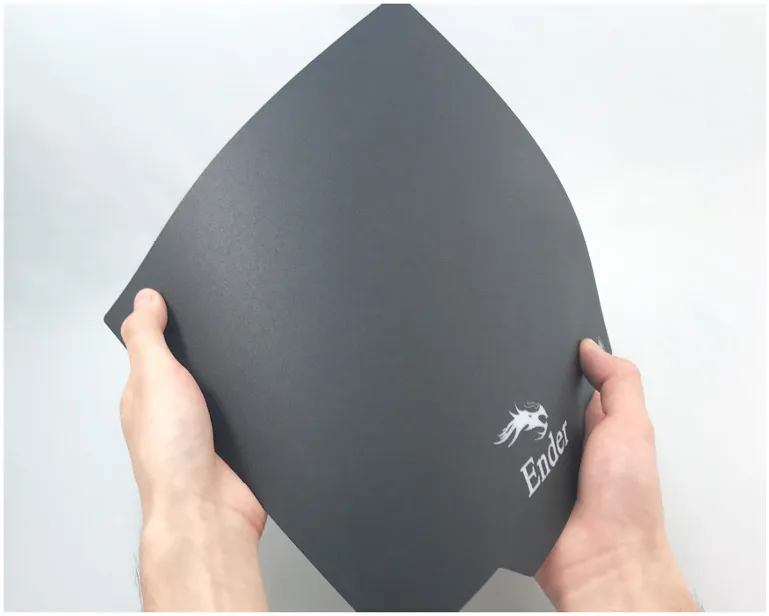
Figure 1.1 – Magnetic flexible build plate
Although having a removable flexible build plate certainly has its advantages, the magnetic layer of the build plate is limited to temperatures of around 80 degrees Celsius. This somewhat limits the types of materials that can be printed with this machine. We will discuss the different types of materials in the upcoming Materials available for 3D printing section.
The biggest upgrade of the Ender 3 Pro is the wider aluminum extrusion for the y axis. This upgrade provides more stability to the y axis, resulting in better prints.
Ender 3 Max
The Ender 3 Max offers a 300 mm by 300 mm by 340 mm build area and a glass bed upgrade. The glass bed allows for printing with materials that require a high bed temperature for adhesion. The...
Table of contents
- Simplifying 3D Printing with OpenSCAD
- Contributors
- Preface
- Part 1: Exploring 3D Printing
- Chapter 1: Getting Started with 3D Printing
- Chapter 2: What Are Slicer Programs?
- Chapter 3: Printing Our First Object
- Part 2: Learning OpenSCAD
- Chapter 4: Getting Started with OpenSCAD
- Chapter 5: Using Advanced Operations of OpenSCAD
- Chapter 6: Exploring Common OpenSCAD Libraries
- Part 3: Projects
- Chapter 7: Creating a 3D-Printed Name Badge
- Chapter 8: Designing and Printing a Laptop Stand
- Chapter 9: Designing and Printing a Model Rocket
- Part 4: The Future
- Chapter 10: The Future of 3D Printing and Design
- Other Books You May Enjoy
Trusted by 375,005 students
Access to over 1.5 million titles for a fair monthly price.
Study more efficiently using our study tools.
Frequently asked questions
Yes, you can cancel anytime from the Subscription tab in your account settings on the Perlego website. Your subscription will stay active until the end of your current billing period. Learn how to cancel your subscription
No, books cannot be downloaded as external files, such as PDFs, for use outside of Perlego. However, you can download books within the Perlego app for offline reading on mobile or tablet. Learn how to download books offline
Perlego offers two plans: Essential and Complete
- Essential is ideal for learners and professionals who enjoy exploring a wide range of subjects. Access the Essential Library with 800,000+ trusted titles and best-sellers across business, personal growth, and the humanities. Includes unlimited reading time and Standard Read Aloud voice.
- Complete: Perfect for advanced learners and researchers needing full, unrestricted access. Unlock 1.5M+ books across hundreds of subjects, including academic and specialized titles. The Complete Plan also includes advanced features like Premium Read Aloud and Research Assistant.
We are an online textbook subscription service, where you can get access to an entire online library for less than the price of a single book per month. With over 1.5 million books across 990+ topics, we’ve got you covered! Learn about our mission
Look out for the read-aloud symbol on your next book to see if you can listen to it. The read-aloud tool reads text aloud for you, highlighting the text as it is being read. You can pause it, speed it up and slow it down. Learn more about Read Aloud
Yes! You can use the Perlego app on both iOS and Android devices to read anytime, anywhere — even offline. Perfect for commutes or when you’re on the go.
Please note we cannot support devices running on iOS 13 and Android 7 or earlier. Learn more about using the app
Please note we cannot support devices running on iOS 13 and Android 7 or earlier. Learn more about using the app
Yes, you can access Simplifying 3D Printing with OpenSCAD by Colin Dow in PDF and/or ePUB format, as well as other popular books in Computer Science & Hardware. We have over 1.5 million books available in our catalogue for you to explore.