Reap the competitive benefits of Zoho, one of the best customer relationship management (CRM) solutions on the market today.
Learn How To:
>Store complete contact information, including name, company, phone numbers, mailing addresses, and e-mail addresses.
>Record dated notes for each of your contacts so that you can easily keep track of meaningful conversations and activities. This feature is handy for those of us who forget things on occasion.
>Keep a calendar that is cross-referenced with the appropriate contact so that you have a complete record of all interactions that you've had—or will have—with a contact.
>Access reports and dashboards so that you can glean insight into your business based on the information in your database.
>Merge your contact information into templates you create for marketing campaigns and other purposes. You can send those merged documents via snail mail, fax, or e-mail.
>Manage your sales pipeline with built-in forecasting tools.
What Is Customer Relationship Management (CRM)?
CRM stands for customer relationship management and typically refers to software, like Zoho, that helps you manage your customer relationships. From a sales perspective, it means things like inputting and tracking leads, checking up on those leads, converting leads to contacts, and ultimately to deals. From a management perspective, you can track the progress of your sales team, create and run reports, and gather insights into your sale cycles and forecasts. Simply stated, the goal of a capable CRM product, such as Zoho, is to run your business efficiently, effectively and to increase profitability.
Contents:
What in the World is Zoho?
Working with Contact Records
Working with Contact Records
Find And Change Records
Stay in Touch
Have it Your Way (set up the system)
Managing Users
E-mail Blasts
Pipelines and Deals
Managing Products
Projects
Cases
Reports and Dashboards
Hacks and Shortcuts
About the Author:
A full-time consultant and trainer since the 1980s, Karen Fredricks is the author of thirteen books on CRM and Contact Management Software, including eleven "For Dummies" titles. Her work includes titles on ACT, Outlook, SugarCRM, Outlook Business Contact Manager, and Microsoft Office Live. She created training videos on Outlook and ACT! for LinkedIn Learning. A true CRM fanatic, she is the Virtual CRM Users Group founder and holds frequent webinars focusing on CRM usage.
Karen's company, Tech Benders, provides consulting, support, and training services for a variety of CRM products. Her focus is on making companies more efficient and productive—and therefore more profitable. She has worked with numerous Fortune 500 companies and other well-known entities, including the PGA, the ATP, FPL, and Volvo of North America.

- 216 pages
- English
- ePUB (mobile friendly)
- Available on iOS & Android
eBook - ePub
About this book
Information

You Can Have It Your Way
If you’re the Database Administrator, you’ll be responsible for setting up the database initially and making sure that your database purrs along in the future. As the Administrator you have access to the Setup module where you can perform great feats of daring, including creating fields, customizing layouts and managing system settings. You are also able to setup users, defining their access and permissions to specific Zoho areas and functions.
Setting up the System
If you’re the Database Administrator, becoming familiar with the system configuration is a good practice. If you’re the sole user of the database, these settings can save your sanity. If you share the database with other users, these settings can probably save you a lot of future head scratching.
To access Zoho CRM’s Settings click the Setup Gear on far-right side of Zoho CRM’s Horizontal Navigation Bar. The Settings page is divided into 10 areas; although I only cover the most basic ones, feel free to flip through the other settings.
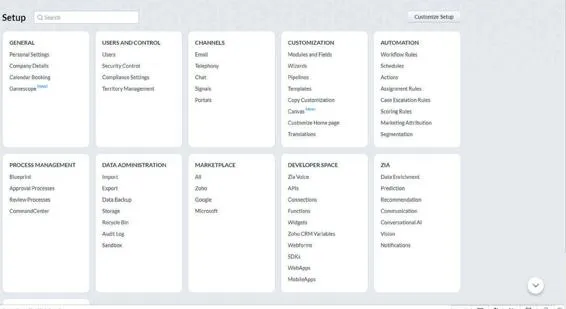
Fig 5-1. The Setup Page
Before You Start Modifying Your Database
You’re probably reading this book because you are relatively new to Zoho CRM. Unfortunately, there are a few mistakes that newbies very often make. Read on if you’d like to avoid making them!
Do Your Homework
Before getting started, I want to stress the importance of doing a bit of homework. I can’t stress enough the importance of this step. Plan ahead - or you might end up with a big mess!
- Familiarize yourself with the existing Zoho CRM fields. All too often, new Zoho CRM users create a bevy of fields, only to discover down the road that a similar field already exists. For example, you don’t need to create a Cell Phone Field if a Mobile Phone field already exists.
- Justify the need for the new field. Will it be used in a report? Do you need to segment or categorize your database by the field? If you can’t justify it, don’t create it!
- Determine what fields you’re going to add and what type of data will be stored in those fields (dates, numbers, drop- down items). If the field is to contain a drop-down list, now is the time to compile that list!
Take the time to whiteboard, create a digital document or draw your database customization ideas and plan on a napkin. The key is: don’t skip the planning. Whether going at the database design on your own or if you engage a Zoho Partner, it’s important to map out your Zoho CRM customization prior to jumping in. It’s always easier to do it right from the beginning than to try and fix the mess later!
To explore the Zoho CRM fields:
1. Click the Setup Gear. The Setup page opens.
2. Click Modules and Fields in the Customization area. You will be on the Modules tab.
3. Click the Module that you would like to analyze and then click the Fields Tab.
All of your fields are listed alphabetically by field name. Review this a bit to familiarize yourself with the “out of the box” fields before creating new ones.
Start by Creating the Lead Fields
I cannot stress this little tidbit of information enough. When you create a new Lead field, you are given the option to map it to the Contacts, Accounts and/or Deal modules. This option does not exist if a field is created in one of the other modules. Upon Converting a Lead, Zoho CRM copies the Lead field data to the new module fields – Contacts, Accounts and Deals.
Most databases will carry over certain key pieces of information from one module to the next. For example, if you capture in a field the kind of boat motor a Lead has, chances are you need to see that information once the Lead is converted to an Account and/or Contact record. And you might want it to appear in Deal records as well. The choice is yours. Lead Conversion Mapping eliminates you having to retype those field values. You can either do something once, or you can do it four times. You be the judge!
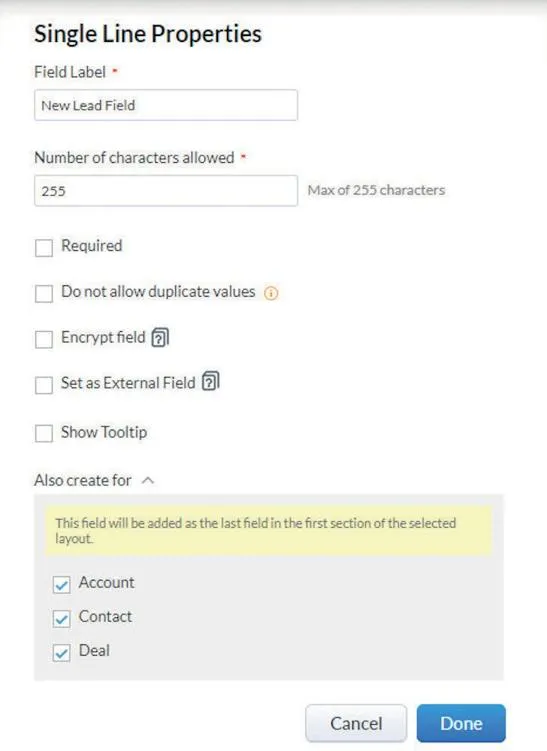
Fig 5-2 Cloning a Lead Field to Account
You Can’t Change the Field Type
Zoho CRM offers you a variety of different types of fields. Actually, 22 different field types are available, but who’s counting? Make sure you get this right the first time. Zoho CRM does not allow you to simply change the field type later. You have to delete the field and then recreate it, using the correct field type. Remember the previous section when we suggested planning? Define in advance whether a field should be a Pick List which is based on a drop- down list, or a Single Line is a manually typed in character field.
Zoho CRM uses the following field type structure:
- Single Line: This is probably the most common of the field type choices; a Single Line field can contain both numbers and characters. The field holds a maximum of 255 characters.
- Multi-Line: Th...
Table of contents
- Other Works by Karen S Fredricks
- What in the World is Zoho?
- Working with Contact Records
- Seek and Ye Shall Find – And Change -
- Please Stay in Touch
- You Can Have It Your Way
- Batten Down the Hatches
- Sending Email Blasts
- Let’s Make a Deal
- Show Me the Money
- I’m Between Projects Right Now
- (Untitled)
- Viewing the Fruits of Your Labors
- ZohoPaloozza: Hacks & Shortcuts
- I’d Like to Start with an App
- Help, Please
Trusted by 375,005 students
Access to over 1.5 million titles for a fair monthly price.
Study more efficiently using our study tools.
Frequently asked questions
Yes, you can cancel anytime from the Subscription tab in your account settings on the Perlego website. Your subscription will stay active until the end of your current billing period. Learn how to cancel your subscription
No, books cannot be downloaded as external files, such as PDFs, for use outside of Perlego. However, you can download books within the Perlego app for offline reading on mobile or tablet. Learn how to download books offline
Perlego offers two plans: Essential and Complete
- Essential is ideal for learners and professionals who enjoy exploring a wide range of subjects. Access the Essential Library with 800,000+ trusted titles and best-sellers across business, personal growth, and the humanities. Includes unlimited reading time and Standard Read Aloud voice.
- Complete: Perfect for advanced learners and researchers needing full, unrestricted access. Unlock 1.5M+ books across hundreds of subjects, including academic and specialized titles. The Complete Plan also includes advanced features like Premium Read Aloud and Research Assistant.
We are an online textbook subscription service, where you can get access to an entire online library for less than the price of a single book per month. With over 1.5 million books across 990+ topics, we’ve got you covered! Learn about our mission
Look out for the read-aloud symbol on your next book to see if you can listen to it. The read-aloud tool reads text aloud for you, highlighting the text as it is being read. You can pause it, speed it up and slow it down. Learn more about Read Aloud
Yes! You can use the Perlego app on both iOS and Android devices to read anytime, anywhere — even offline. Perfect for commutes or when you’re on the go.
Please note we cannot support devices running on iOS 13 and Android 7 or earlier. Learn more about using the app
Please note we cannot support devices running on iOS 13 and Android 7 or earlier. Learn more about using the app
Yes, you can access Zoho One Essentials by Karen S. Fredricks in PDF and/or ePUB format, as well as other popular books in Business & Business intelligence. We have over 1.5 million books available in our catalogue for you to explore.