eBook - ePub
Tips & Tricks for Excel-Based Financial Modeling, Volume II
A Must for Engineers & Financial Analysts
- 142 pages
- English
- ePUB (mobile friendly)
- Available on iOS & Android
eBook - ePub
Tips & Tricks for Excel-Based Financial Modeling, Volume II
A Must for Engineers & Financial Analysts
About this book
The purpose of this work is to show some advanced concepts related to Excel based financial modelling. Microsoft Excel™ is a very powerful tool and most of the time we do not utilize its full potential. Of course, any advanced concepts require the basic knowledge which most of us have and then build on it. It is only by hands-on experimentation that one learns the art of constructing an efficient worksheet. The two volumes of this book cover dynamic charting, macros, goal seek, solver, the routine Excel functions commonly used, the lesser known Excel functions, the Excel's financial functions and so on. The introduction of macros in these books is not exhaustive but the purpose of what is presented is to show you the power of Excel and how it can be utilized to automate most repetitive calculations at a click of a button. For those who use Excel on a daily basis in financial modeling and project/investment evaluations, this book is a must.
Trusted by 375,005 students
Access to over 1 million titles for a fair monthly price.
Study more efficiently using our study tools.
Information
CHAPTER 1
Creating Dropdown Lists
In this chapter, we will show how to develop dropdown lists or menus to control data entry and user choices available in the model. Dropdown lists can greatly facilitate data entry by limiting user entries and forcing users to choose a value from a controlled list. The data validation dialog box in the Excel’s Data tab is used to construct dropdown lists of various types and complexities.
Creating Simple Dropdown List
It is very helpful in financial models to be able to pick option from a dropdown menu of various options available in the model. For example, I have a worksheet that has products’ pricing scenarios under (a) Low Case, (b) Base Case, and (c) High Case. If I have a dropdown menu of these three pricing options in the model, I will be able to assess the impact of these three pricing scenarios on the economics of the project easily. Creating a dropdown menu requires the following steps.
1. Enter the names of the three scenarios in Cells A3, A4, and A5 as shown in Figure 1.1a.
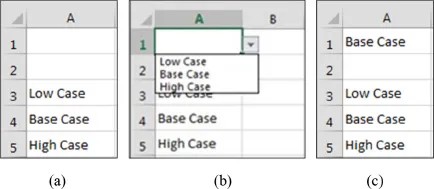
Figure 1.1 Stages of creating a dropdown menu in Excel
2. We would like to select the option in Cell A1. Upon selection of the desired option in Cell A1, VLOOKUP, INDEX, and MATCH functions are then used to read the respective pricing scenario from the products’ pricing worksheet.
3. Place the cursor in Cell A1.
4. Click on the Data tab of Excel’s Ribbon.
5. Click on Data Validation icon. The Data Validation dialog box appears as shown in Figure 1.2.
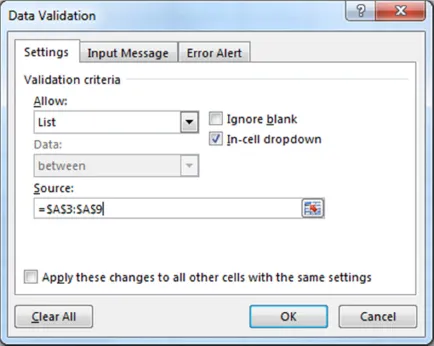
Figure 1.2 Data Validation dialog box
6. Select List in the Validation criteria Allow dropdown.
7. Select the Source, which is the list of options in Cells A3 to A5.
8. Tick the Ignore blank and In-cell dropdown in the dialog box.
9. Click OK—a dropdown arrow will appear in Cell A1. The arrow will show only when the cell is active (cursor is in the cell).
10. Click on the dropdown arrow to select the option. The dropdown list as shown in Figure 1.1b appears. The final option selection “Base Case” in Cell A1 is shown in Figure 1.1c.
11. The dropdown can be easily cleared by placing the cursor in Cell A1 → Data Validation → Clear All → OK.
Note: Normally the list of options in Cells A3 to A5 will be somewhere way below the main body of the model or even better somewhere to the right of the entire model. Therefore, the list will not be visible.
Another way to achieve the same objective is to actually enter the list in the Source of the Data Validation dialog box as shown in Figure 1.3. Place the cursor in the cell where you want to enter a dropdown menu. Click on Data Validation → List → Enter the list in the Source → OK. This will produce the same dropdown down menu as shown in Figure 1.1.
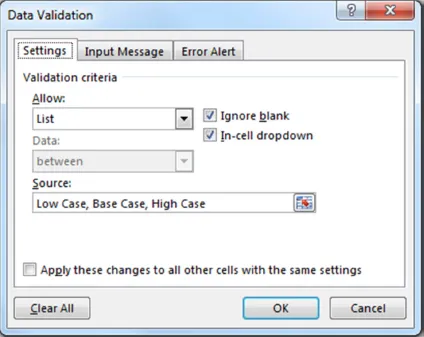
Figure 1.3 Data Validation dialog box with a list in the Source
Creating Dependent Dropdown List
In financial modeling, many times we will have variables that will be dependent upon other variables. One typical example is crude oil and products’ export. We have a worksheet (called “Pricing”) in the financial model. This worksheet has multiple scenarios of products’ pricing. We can run economics by selecting a pricing scenario from dropdown menus and then using the VLOOKUP or HLOOKUP to read the corresponding price for each year in the main body of the model. This will be shown later in the book. The “Pricing” worksheet contains the following scenarios.
1. Low Case Scenario
a. Crude Oil
i. Arab Extra Light
ii. Arab Light
iii. Arab Medium
iv. Arab Heavy
b. Condensate
i. Khuff Condensate
ii. Other Condensate
c. Export Products
i. Propane
ii. Butane
iii. Pentanes Plus
The same will apply to the Base Case Scenario and the High Case Scenario. The crude oil is exported to Far East (FE), Europe (EU), Asia, or the United State of America (USA). The price for each destination will be different because of the transportation and supply and demand for a particular product in the region.
Here we will show how to set up dropdown menus to enable us to select a particular pricing scenario from the pricing worksheet.
Figure 1.4 shows various pricing options or scenarios available in the “Pricing” worksheet. These will be located somewhere away from the main body of the model, either to the right or at the bottom. In this list, the product types in Columns B, C, and D are dependent on the Products in Column A. This means that if I pick Crude_Oil, I should be able to select what quality of crude oil. Column E has the pricing scenarios. The Low Case has (a) four pricing for the cr...
Table of contents
- Cover
- Half-title Page
- Title Page
- Copyright
- Contents
- Preface
- Chapter 1 Creating Dropdown Lists
- Chapter 2 Using Excel’s Data Tab
- Chapter 3 Presenting Information Using Charts
- Chapter 4 Automating Worksheets
- About the Author
- Index
- Backcover
Frequently asked questions
Yes, you can cancel anytime from the Subscription tab in your account settings on the Perlego website. Your subscription will stay active until the end of your current billing period. Learn how to cancel your subscription
No, books cannot be downloaded as external files, such as PDFs, for use outside of Perlego. However, you can download books within the Perlego app for offline reading on mobile or tablet. Learn how to download books offline
Perlego offers two plans: Essential and Complete
- Essential is ideal for learners and professionals who enjoy exploring a wide range of subjects. Access the Essential Library with 800,000+ trusted titles and best-sellers across business, personal growth, and the humanities. Includes unlimited reading time and Standard Read Aloud voice.
- Complete: Perfect for advanced learners and researchers needing full, unrestricted access. Unlock 1.4M+ books across hundreds of subjects, including academic and specialized titles. The Complete Plan also includes advanced features like Premium Read Aloud and Research Assistant.
We are an online textbook subscription service, where you can get access to an entire online library for less than the price of a single book per month. With over 1 million books across 990+ topics, we’ve got you covered! Learn about our mission
Look out for the read-aloud symbol on your next book to see if you can listen to it. The read-aloud tool reads text aloud for you, highlighting the text as it is being read. You can pause it, speed it up and slow it down. Learn more about Read Aloud
Yes! You can use the Perlego app on both iOS and Android devices to read anytime, anywhere — even offline. Perfect for commutes or when you’re on the go.
Please note we cannot support devices running on iOS 13 and Android 7 or earlier. Learn more about using the app
Please note we cannot support devices running on iOS 13 and Android 7 or earlier. Learn more about using the app
Yes, you can access Tips & Tricks for Excel-Based Financial Modeling, Volume II by M.A. Mian in PDF and/or ePUB format, as well as other popular books in Business & Finance. We have over one million books available in our catalogue for you to explore.