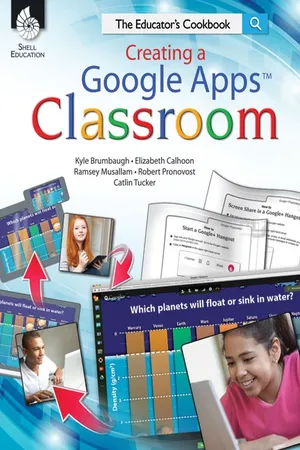
If you can teach, you can use Google! This "e;cookbook"e; provides both the beginner and the seasoned Google user with classroom-friendly recipes that support the integration of technology into all the content areas. The step-by-step procedures make each lesson easy to implement and understand. Using Google Apps will spice up lessons and activities such as literature circles, brainstorming, and analyzing texts to help achieve greater student success!
eBook - PDF
Creating a Google Apps Classroom
The Educator's Cookbook ebook
- 130 pages
- English
- PDF
- Available on iOS & Android
eBook - PDF
Creating a Google Apps Classroom
The Educator's Cookbook ebook
About this book
Information
Table of contents
- Cover
- Title Page
- Credits
- Page 3 - Table of Contents
- Page 4 - About This Cookbook
- Page 5 - How to Use This Book
- Page 9 - Correlation to the Standards
- Page 14 - Google Maps: My Life on a Map
- Page 16 - Google Docs: Class Drop/Pick-Up Box
- Page 18 - Google Scripts: Grading and Feedback
- Page 21 - Blogger: Class Discussions Made Easy
- Page 23 - Google Calendar and Gmail: Class Reminders
- Page 26 - YouTube and Google+ Hangouts: Creating Song Parodies
- Page 29 - Google Drive: Literature Circles
- Page 32 - Google Search and Drive: Expert Group Investigations—Research, Collaborate, and Present
- Page 35 - Google Sites and Other Google Tools: Bringing Everything Together
- Page 38 - Google+: Posting Persuasive Reviews
- Page 40 - Google Forms and QR Codes: Creating Interactive Anchor Charts
- Page 42 - Google Voice and Mobile Phones: Silent Brainstorming or Voting
- Page 43 - Coding in Google Sites: Getting Geeky
- Page 46 - Google Maps: Collaborative Map Making
- Page 48 - Google Drive: Searching and Evaluating Resource Credibility
- Page 51 - Google Drive: Analyzing Texts
- Page 52 - Google Alerts and Scholar: Easy Research
- Page 54 - Google Translate: Communicating with All Parents, Anytime, Anywhere
- Page 56 - YouTube and Goo.gl: Multimedia QR Code Scaffolds
- Page 58 - Google Drawings: Interactive Concept Maps
- Page 60 - Google Forms: Create a Review Game Buzzer
- Page 61 - YouTube: Create Your Own Adventure
- Page 63 - Google+: Hanging Out with Experts
- Page 65 - Google Presentations: Quickly Digitize Student Work
- Page 67 - Preparations
- Page 69 - How to Set Up a Google Alert
- Page 70 - How to Use Advanced Search Skills
- Page 71 - How to Create a Google Document
- Page 72 - How to Upload a Google Document
- Page 73 - How to Collaborate on a Google Document
- Page 74 - How to Make a Google Document into a Template
- Page 75 - How to Create a Google Form
- Page 76 - How to Add Questions to a Google Form
- Page 78 - How to Copy a Link to a Google Form
- Page 79 - How to Create a Google Spreadsheet
- Page 80 - How to Insert a Script into a Google Spreadsheet
- Page 81 - How to Create a Google Presentation
- Page 82 - How to Upload a Google Presentation
- Page 83 - How to Share a Google Document, Spreadsheet, or Presentation
- Page 85 - How to Create and Insert a Google Drawing into a Google Document
- Page 86 - How to Create a Google Folder
- Page 87 - How to Share a Google Folder
- Page 88 - How to Take a Snapshot in Google Documents or Presentations
- Page 89 - How to Create a Google Site
- Page 90 - How to Share and Collaborate on a Google Site
- Page 91 - How to Create a Page in Google Sites
- Page 92 - How to Embed a Google Document into a Google Site
- Page 93 - How to Embed a YouTube Video into a Google Site
- Page 94 - How to Embed a Google Map into a Google Site
- Page 95 - How to Embed a Gadget into a Google Site
- Page 96 - How to Create a Google Map
- Page 97 - How to Add Collaborators to a Google Map
- Page 98 - How to Share a Google Map
- Page 99 - How to Add Pins to a Google Map
- Page 100 - How to Add Text to a Google Map
- Page 101 - How to Change Pins in a Google Map
- Page 103 - How to Embed Multimedia Content into a Google Map
- Page 104 - How to Draw Lines Between Locations in a Google Map
- Page 105 - How to Create a YouTube Video
- Page 106 - How to Add Annotations and Links in a YouTube Video
- Page 107 - How to Research Using Google+
- Page 108 - How to Post a Local Business Review in Google+
- Page 109 - How to Start a Google+ Hangout
- Page 110 - How to Broadcast a Google+ Hangout Using Hangouts On Air
- Page 111 - How to Share a YouTube Video Within a Google+ Hangout
- Page 113 - How to Screen Share in a Google+ Hangout
- Page 114 - How to Create a Google Voice Number
- Page 116 - How to Create a Google Books Library
- Page 117 - How to Create a Google Books Bookshelf
- Page 118 - How to Shorten a URL Using the Google URL Shortener
- Page 119 - How to Resize a QR Code from the Google URL Shortener
- Page 120 - How to Create an Account with an RSS Widget Creator that Will Create an "iFrame" Tag to Embed RSS Feeds
- Page 121 - How to Create a Google Calendar
- Page 122 - How to Create a Blogger Page
- Page 123 - How to Create Filters in Gmail
- Page 124 - How to Add a Gadget on a Blogger Page
- Page 125 - How to Create a Recipe in IFTTT
- Thank You Page
Trusted by 375,005 students
Access to over 1.5 million titles for a fair monthly price.
Study more efficiently using our study tools.
Frequently asked questions
Yes, you can cancel anytime from the Subscription tab in your account settings on the Perlego website. Your subscription will stay active until the end of your current billing period. Learn how to cancel your subscription
No, books cannot be downloaded as external files, such as PDFs, for use outside of Perlego. However, you can download books within the Perlego app for offline reading on mobile or tablet. Learn how to download books offline
Perlego offers two plans: Essential and Complete
- Essential is ideal for learners and professionals who enjoy exploring a wide range of subjects. Access the Essential Library with 800,000+ trusted titles and best-sellers across business, personal growth, and the humanities. Includes unlimited reading time and Standard Read Aloud voice.
- Complete: Perfect for advanced learners and researchers needing full, unrestricted access. Unlock 1.5M+ books across hundreds of subjects, including academic and specialized titles. The Complete Plan also includes advanced features like Premium Read Aloud and Research Assistant.
We are an online textbook subscription service, where you can get access to an entire online library for less than the price of a single book per month. With over 1.5 million books across 990+ topics, we’ve got you covered! Learn about our mission
Look out for the read-aloud symbol on your next book to see if you can listen to it. The read-aloud tool reads text aloud for you, highlighting the text as it is being read. You can pause it, speed it up and slow it down. Learn more about Read Aloud
Yes! You can use the Perlego app on both iOS and Android devices to read anytime, anywhere — even offline. Perfect for commutes or when you’re on the go.
Please note we cannot support devices running on iOS 13 and Android 7 or earlier. Learn more about using the app
Please note we cannot support devices running on iOS 13 and Android 7 or earlier. Learn more about using the app
Yes, you can access Creating a Google Apps Classroom by Robert Pronovost,Ramsey Musallam,Elizabeth Calhoon,Kyle Brumbaugh in PDF and/or ePUB format. We have over 1.5 million books available in our catalogue for you to explore.