Create 'AAA' quality game audio with new features and tools built for UnityAbout This Book• Explore the basics of audio development in Unity to create spatial sound, mixing, effects, composition, adaptive audio and more.• Leverage the Audio Mixer of Unity 5.x to create blockbuster sound and music for your game.• Learn about developing professional audio for games with FMOD Studio and composing original music with Reaper.• Build amazing audio synchronized graphic visualizations with Unity.• Understand how real-time character lip syncing can be implemented.Who This Book Is ForThe ideal target audience for this book will be game developers, both Indie as well as semi pro. No prior knowledge of Unity and audio development is assumed, What You Will Learn• Develop game audio and other audio effects with Unity• Getting familiar with the new Audio Mixer introduced in Unity 5• Implement dynamic and adaptive audio using various tools and strategies• Explore interesting ways to incorporate audio into a game with sound visualization• Use 3rd party professional audio development tools like FMOD• Compose original music and record vocals• Understand and troubleshoot audio performance issuesIn DetailGame Audio is one of the key components in making a game successful and it is quite popular in the gaming industry. So if you are a game developer with an eye on capturing the gamer market then this book is the right solution for you.In this book, we will take you through a step by step journey which will teach you to implement original and engaging soundtracks and SFX with Unity 5.x. You will be firstly introduced to the basics of game audio and sound development in Unity. After going through the core topics of audio development: audio sources, spatial sound, mixing, effects, and more; you will then have the option of delving deeper into more advanced topics like dynamic and adaptive audio. You will also learn to develop dynamic and adaptive audio using the Unity Audio Mixer. Further, you will learn how professional third party tools like FMOD are used for audio development in Unity. You will then go through the creation of sound visualization techniques and creating your own original music using the simple yet powerful audio workstation Reaper. Lastly, you will go through tips, techniques and strategies to help you optimize game audio performance or troubleshoot issues.At the end of the book, you'll have gained the skills to implement professional sound and music. Along with a good base knowledge audio and music principles you can apply across a range of other game development tools.Style and approachThis book will have a step by step practical approach where downloadable free games will be given with the book and readers will be free to work with them.
- 404 pages
- English
- ePUB (mobile friendly)
- Available on iOS & Android
eBook - ePub
Game Audio Development with Unity 5.X
About this book
Information
Subtopic
Programación de juegosFMOD for Dyanmic and Adaptive Audio
As we saw in the last chapter, FMOD Studio is a powerful audio workstation that integrates seamlessly with Unity. It gives the sound designer or developer the ability to create professional quality audio that can be used across platforms and even game engines. Getting experienced with such a tool will take some time and certainly not all the capabilities can be explored in a single chapter. While in the last chapter, we only started covering the basics of using FMOD with Unity by completing some simple and familiar tasks. For this chapter, we will go far deeper into FMOD and explore the complex tasks of creating dynamic and adaptive audio, which took us a couple of chapters using the Unity Audio Mixer. We plan to only cover the same material in a single chapter, not because FMOD is so powerful, but because all the background material was previously covered in earlier chapters. Of course there will still be plenty of sample exercises and tasks for you to get up to speed with using FMOD quickly.
In this chapter, we are going to cover the tasks of creating dynamic and adaptive audio with FMOD. Since we have covered all the background material already in previous chapters, this chapter will be almost entirely hands on and in the software. There will also be plenty of repetitive tasks using FMOD that should make you more familiar and comfortable with the tool. Here is a summary of what we will cover in this chapter:
- Dynamic wind and environmental zones
- Unity scripting with FMOD
- Revisiting the footsteps example
- Adaptive music with FMOD
- Transition timelines and stingers
As already mentioned, this chapter will cover several complex examples and it is strongly suggested, as always, that you work through the exercises. Ultimately, you will be rewarded for your work. For those FMOD masters or readers that just don't have the tools or time, unfortunately no single completed project can be provided. However, the individual completed FMOD and Unity projects will be available for you to combine into the final example on your own.
Dynamic wind and environmental zones
In the previous chapter, we quickly touched on how to implement a simple audio zone with FMOD and no scripting. For completeness and practicality, we are going to revise the Environmental Zones example we created in Chapter 4, Advanced Audio Mixing, using FMOD, but this time without any scripting. This example will demonstrate the full capabilities of snapshots within FMOD.
In this chapter, we will start fresh with just the basic Viking Village and add the other project assets as needed. If you have not already done so, be sure to download the required assets from the Unity Asset Store and the book's source code from here. Be sure to refer back to Chapter 6, Introduction to FMOD, for instructions on how to install the village project and FMOD if you need to.
Open up Unity and follow the instructions, to get started:
- If you are continuing from the previous chapter, open up the GameAudio project we created. For those of you just getting here, create a new Unity project called GameAudio and then import the Unity Viking Village project from the Asset Store.
- From the menu, select Assets | Import Package | Custom Package and use the Import package dialog to locate and open the Chapter_7_Assets folder located in the book's downloaded source code. Import the Chapter_7_Start.unitypackage by selecting the file and clicking on the Open button. Follow the instructions to import the asset as you normally would.
- Locate the Chapter_7_Start.scene file in the Assets/GameAudio/Scenes folder of the Project window and double-click to open it.
- For the next step, you will need to manually copy the FMOD project folder from the book's downloaded source code into the Unity project folder. Before proceeding, make sure that FMOD Studio is closed. Use your computer's file explorer to locate and open the Chapter_7_FMOD folder found in the book's source code folder. Copy the FMOD project folder called GameAudio_FMOD by any means you prefer.
- Again, use your computer's file explorer to locate and open the GameAudio Unity project folder. Paste the GameAudio_FMOD folder into the GameAudio folder so it looks similar to the following screenshot:
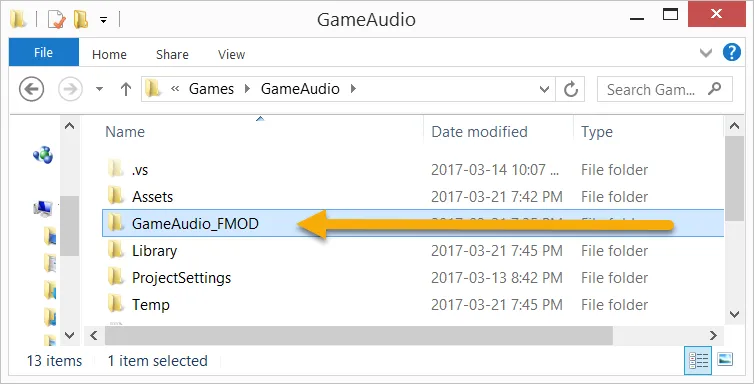
Copying the GameAudio_FMOD project folder to the Unity project folder
You may be prompted to confirm overwriting existing files. Be sure to accept and overwrite the files from last chapter. If you are blocked from copying over FMOD files, be sure that all instances of FMOD Studio are closed.
- Open the Unity editor and from the menu, select FMOD | Edit Settings. Go to the Inspector window and confirm that the Studio Project Path is still set correctly from the last chapter or set it using the Browse button as shown in the screenshot here:

Confirming the Studio Project Path is set correctly
If you don't see the FMOD menu option, you will need to return to Chapter 6, Introduction to FMOD, to download and install the FMOD Unity integration package.
- Launch FMOD Studio and from the menu select File | Open Recent | GameAudio_FMOD.fspro | GameAudio to open the project. If you have never launched Studio before or have it installed, return to the previous chapter and follow the instructions to download, install, and setup FMOD Studio.
- From the menu, select File | Build. This will make sure the streaming assets folder is updated within the Unity project.
- Return to the Unity editor and press play to run the scene. Move around the scene and you should hear the torches flickering and the sound of the lake waves. After you confirm things are working correctly, stop the scene.
- Locate the EnvironmentalZones prefab in the Project window and drag and drop it into the scene. This will add the EnvironmentalZones locations we used previously but the scripts have been removed. Expand the object and just review the zones as shown in the screenshot here:
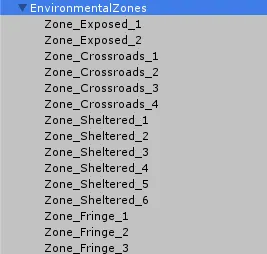
EnvironmentalZones object expanded showing the various zones around the scene
If you recall from the previous example, each of the zones was classified by type as summarized here:
Exposed: The areas that are exposed to the wind and out in the open, minimal reflections, and additional wind.
Crossroads: The junctions of the pathways; these areas are not as windy and provide almost no reflections.
Sheltered: The areas covered from the wind and close to buildings, maximum reflections and minimal wind.
Fringe: ...
Exposed: The areas that are exposed to the wind and out in the open, minimal reflections, and additional wind.
Crossroads: The junctions of the pathways; these areas are not as windy and provide almost no reflections.
Sheltered: The areas covered from the wind and close to buildings, maximum reflections and minimal wind.
Fringe: ...
Table of contents
- Title Page
- Copyright
- Credits
- About the Author
- About the Reviewer
- Acknowledgments
- www.PacktPub.com
- Customer Feedback
- Dedication
- Foreword
- Preface
- Introducing Game Audio with Unity
- Scripting Audio
- Introduction to the Audio Mixer
- Advanced Audio Mixing
- Using the Audio Mixer for Adaptive Audio
- Introduction to FMOD
- FMOD for Dyanmic and Adaptive Audio
- Visualizing Audio in Games
- Character Lip Syncing and Vocals
- Composing Music
- Audio Performance and Troubleshooting
Trusted by 375,005 students
Access to over 1.5 million titles for a fair monthly price.
Study more efficiently using our study tools.
Frequently asked questions
Yes, you can cancel anytime from the Subscription tab in your account settings on the Perlego website. Your subscription will stay active until the end of your current billing period. Learn how to cancel your subscription
No, books cannot be downloaded as external files, such as PDFs, for use outside of Perlego. However, you can download books within the Perlego app for offline reading on mobile or tablet. Learn how to download books offline
Perlego offers two plans: Essential and Complete
- Essential is ideal for learners and professionals who enjoy exploring a wide range of subjects. Access the Essential Library with 800,000+ trusted titles and best-sellers across business, personal growth, and the humanities. Includes unlimited reading time and Standard Read Aloud voice.
- Complete: Perfect for advanced learners and researchers needing full, unrestricted access. Unlock 1.5M+ books across hundreds of subjects, including academic and specialized titles. The Complete Plan also includes advanced features like Premium Read Aloud and Research Assistant.
We are an online textbook subscription service, where you can get access to an entire online library for less than the price of a single book per month. With over 1.5 million books across 990+ topics, we’ve got you covered! Learn about our mission
Look out for the read-aloud symbol on your next book to see if you can listen to it. The read-aloud tool reads text aloud for you, highlighting the text as it is being read. You can pause it, speed it up and slow it down. Learn more about Read Aloud
Yes! You can use the Perlego app on both iOS and Android devices to read anytime, anywhere — even offline. Perfect for commutes or when you’re on the go.
Please note we cannot support devices running on iOS 13 and Android 7 or earlier. Learn more about using the app
Please note we cannot support devices running on iOS 13 and Android 7 or earlier. Learn more about using the app
Yes, you can access Game Audio Development with Unity 5.X by Micheal Lanham in PDF and/or ePUB format, as well as other popular books in Ciencia de la computación & Programación de juegos. We have over 1.5 million books available in our catalogue for you to explore.