Get a fundamental understanding of how Google BigQuery works by analyzing and querying large datasetsAbout This Book• Get started with BigQuery API and write custom applications using it• Learn how BigQuery API can be used for storing, managing, and query massive datasets with ease• A practical guide with examples and use-cases to teach you everything you need to know about Google BigQueryWho This Book Is ForIf you are a developer, data analyst, or a data scientist looking to run complex queries over thousands of records in seconds, this book will help you. No prior experience of working with BigQuery is assumed.What You Will Learn• Get a hands-on introduction to Google Cloud Platform and its services• Understand the different data types supported by Google BigQuery• Migrate your enterprise data to BigQuery and query it using the legacy and standard SQL techniques• Use partition tables in your project and query external data sources and wild card tables• Create tables and data sets dynamically using the BigQuery API• Perform real-time inserting of records for analytics using Python and C#• Visualize your BigQuery data by connecting it to third party tools such as Tableau and R• Master the Google Cloud Pub/Sub for implementing real-time reporting and analytics of your Big DataIn DetailGoogle BigQuery is a popular cloud data warehouse for large-scale data analytics. This book will serve as a comprehensive guide to mastering BigQuery, and how you can utilize it to quickly and efficiently get useful insights from your Big Data.You will begin with getting a quick overview of the Google Cloud Platform and the various services it supports. Then, you will be introduced to the Google BigQuery API and how it fits within in the framework of GCP. The book covers useful techniques to migrate your existing data from your enterprise to Google BigQuery, as well as readying and optimizing it for analysis. You will perform basic as well as advanced data querying using BigQuery, and connect the results to various third party tools for reporting and visualization purposes such as R and Tableau. If you're looking to implement real-time reporting of your streaming data running in your enterprise, this book will also help you.This book also provides tips, best practices and mistakes to avoid while working with Google BigQuery and services that interact with it. By the time you're done with it, you will have set a solid foundation in working with BigQuery to solve even the trickiest of data problems.Style and Approach This book follows a step-by-step approach to teach readers the concepts of Google BigQuery using SQL. To explain various data querying processes, large-scale datasets are used wherever required.
eBook - ePub
Learning Google BigQuery
- 264 pages
- English
- ePUB (mobile friendly)
- Available on iOS & Android
eBook - ePub
Learning Google BigQuery
About this book
Information
Google Cloud SDK
Google Cloud Platform provides an SDK developed in Python to manage the resources in the Cloud. The framework is available for Windows, Linux, and macOS. Python 2.7 is a requisite for installing this SDK. The SDK provides command-line utilities to manage and interact with various services on Google Cloud.
The following are the three command-line utilities available in SDK:
- gsutil: This is the command-line utility to interact with Google Cloud Storage
- bq: This is the command-line utility to interact with Google BigQuery
- gcloud: This is the command-line utility to interact with all other services on Google Cloud
Installing Google Cloud SDK
The installers are available for Windows, Linux, and macOS. Since Linux has various distributions, some manual command execution is needed for installing and configuring the Google Cloud SDK on Linux.
Installing Google Cloud SDK on Windows
Google Cloud SDK for Windows comes with a friendly installer and it also comes with an option to install Python which is a prerequisite to run the commands in Google Cloud SDK:
- Download the installer from the link provided: https://cloud.google.com/sdk/docs/quickstart-windows. The installer is a GUI-based utility which will install the requisites for the SDK, and the SDK with default configuration.
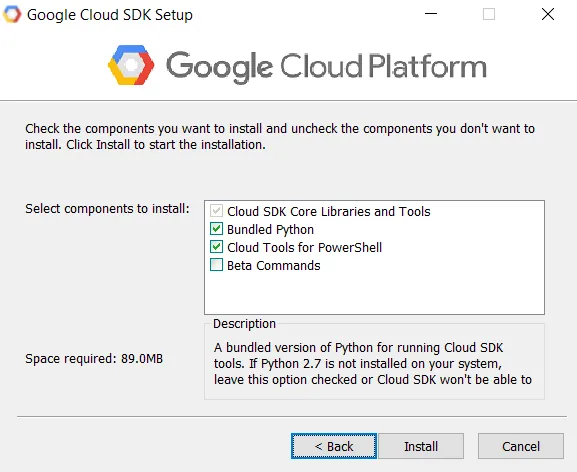
- In the installation wizard, choose the Bundled Python option and, if it is being installed on a developer machine, then enable the Beta Commands option to try out services in beta on Google Cloud:
- After the installation, the installer will launch a command terminal with the following command executed. If the command prompt is not launched, then open Command Prompt and type the following command:
gcloud init
- Log in using your Google Cloud account credentials and, after successful login, choose the projects available in your account. Kindly, remember the default Google Cloud project and the logged in account every time you run the commands.
- To view the saved project and account, run the following command. To use a different project in the Google Cloud Platform, run the same gcloud init command, choose the Re-initialize this configuration [default] with new settings option, and change the project:
gcloud info
- To get help on the commands in Google Cloud SDK, use the following command. This command will display the list of options available and a brief description about each:
gcloud help
- To update the Google Cloud SDK to the latest version, run the following command. It is better to have a scheduled task to do this once a month:
gcloud components update
Installing Google Cloud SDK on macOS
On macOS, Python must be manually installed before installing the Google Cloud SDK. The Python installers for macOS are available here: https://www.python.org/downloads/mac-osx/.
Let's follow these steps:
- To install Google Cloud SDK on macOS, download the archive file from https://cloud.google.com/sdk/docs/quickstart-mac-os-x, extract it, and move it to a folder of your choice
- Run the install.sh file from the Terminal
- The rest of the steps to configure the SDK are similar to those used for Windows
Installing Google Cloud SDK on Linux
Depending on the distribution of Linux, the commands and installation of Google Cloud SDK vary:
- The Google Cloud SDK can now be installed via the Google Cloud package repository and can also be installed via the following command in Debian-based distributions:
sudo apt-get install google-cloud-sdk
- To find out the version of the SDK and the packages that will be installed, type the following command to see the full details:
apt-cache showpkg google-cloud-sdk
- To simulate the installation of the package and see what packages will be installed or upgraded, run the following command:
apt-get -s install google-cloud-sdk
- To install Google Cloud SDK for other Linux distributions refer to this page: https://cloud.google.com/sdk/docs/quickstart-linux. The rest of the steps to configure the SDK are the same as those used for Windows.
It will be helpful to learn file related commands and sed and awk commands to transform and fix problems with the files before uploading them to Google Cloud Storage for importing into Google BigQuery.
gsutil for Google Cloud Storage
gsutil provides options to manage files, folders, and buckets in Google Cloud Storage. The first step in moving your data to Google Cloud and Google BigQuery is to export the data and upload to Google Cloud Storage:
- Manually via the browser if it is small
- Automate it for basic scenarios using gsutil, which comes with Google Cloud SDK
- The third option will be to use the Google Cloud Storage API to perform advanced automation
Before using the gsutil command, make sure that the project and credentials configured in the Google Cloud SDK are pointing to the project and account which you intend to use by typing the following command:
gcloud info
We will now look at the features available with gsutil:
- To see the list of options provided by gsutil, type the following command:
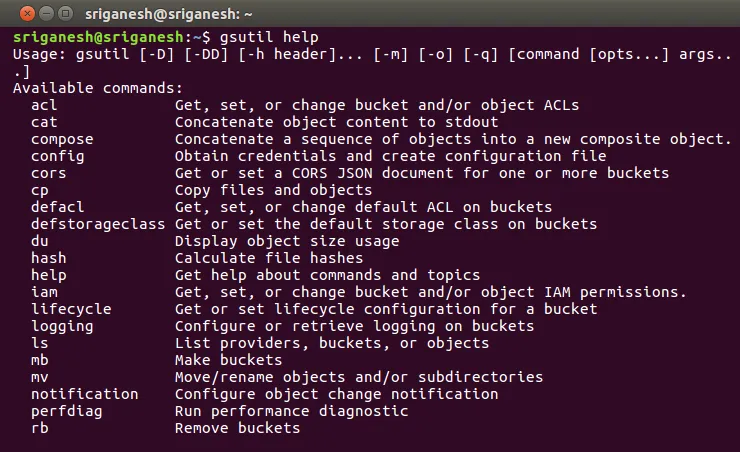
gsutil help
- The available commands section shows the command-line switches available in the gsutil command to perform various operations, as shown in the following screenshot:
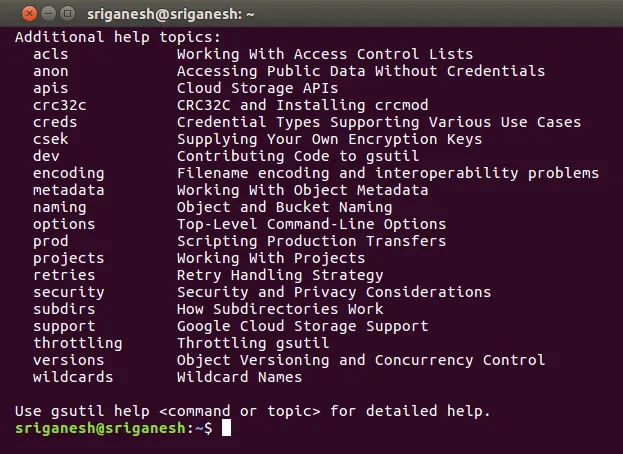
- The Additional help topics section provides a brief overview of the some concepts, guidelines, and techniques used to work with Google Cloud Storage, as shown in the following screenshot:
- To learn about the command-line switches or the help topics, type the following command. For example, the following command will show the list of options available in the command-line switch cp, which is used to copy files from local storage to Google Cloud and vice versa:
gsutil help cp
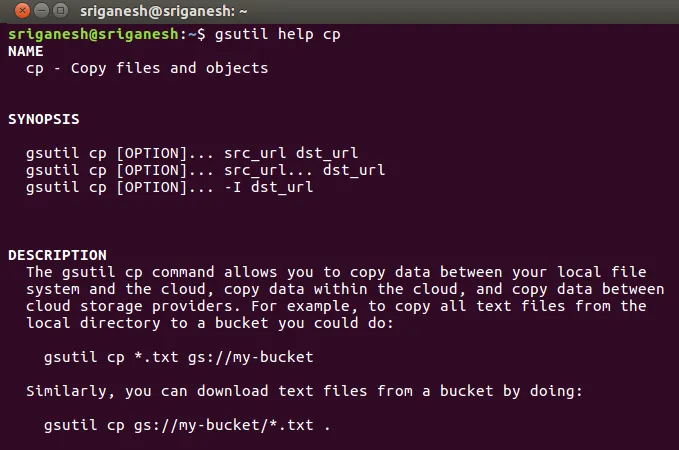
- The following command will display information about how to implement secure practices and the security features of Google Cloud Storage:
gsutil help security
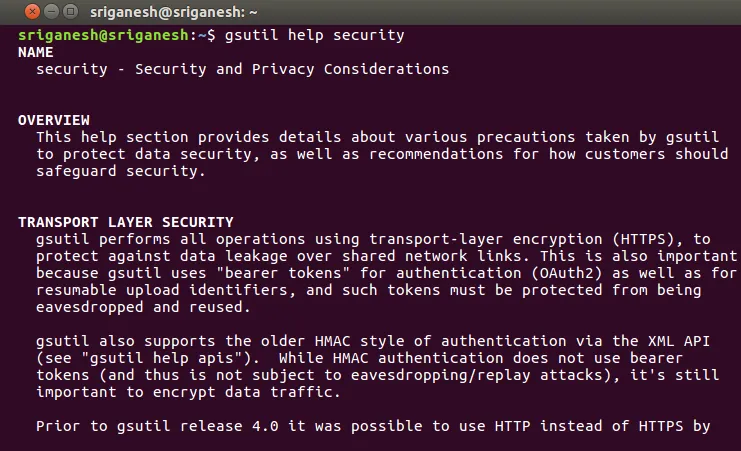
- Use the following command to get the version of gsutil installed on your system. To update the gsutil to the latest version use the update option as shown in the second line:
gsutil version
gsutil update
- The following are some of the common options in gsutil used in the day-to-day uploading, downloading, and management of files to and from Google Cloud Storage. The following command ...
Table of contents
- Title Page
- Copyright
- Credits
- Foreword
- About the Authors
- About the Reviewers
- www.PacktPub.com
- Customer Feedback
- Dedication
- Preface
- Google Cloud and Google BigQuery
- Google Cloud SDK
- Google BigQuery Data Types
- BigQuery SQL Basic
- BigQuery SQL Advanced
- Google BigQuery API
- Visualizing BigQuery Data
- Google Cloud Pub/Sub
Trusted by 375,005 students
Access to over 1.5 million titles for a fair monthly price.
Study more efficiently using our study tools.
Frequently asked questions
Yes, you can cancel anytime from the Subscription tab in your account settings on the Perlego website. Your subscription will stay active until the end of your current billing period. Learn how to cancel your subscription
No, books cannot be downloaded as external files, such as PDFs, for use outside of Perlego. However, you can download books within the Perlego app for offline reading on mobile or tablet. Learn how to download books offline
Perlego offers two plans: Essential and Complete
- Essential is ideal for learners and professionals who enjoy exploring a wide range of subjects. Access the Essential Library with 800,000+ trusted titles and best-sellers across business, personal growth, and the humanities. Includes unlimited reading time and Standard Read Aloud voice.
- Complete: Perfect for advanced learners and researchers needing full, unrestricted access. Unlock 1.5M+ books across hundreds of subjects, including academic and specialized titles. The Complete Plan also includes advanced features like Premium Read Aloud and Research Assistant.
We are an online textbook subscription service, where you can get access to an entire online library for less than the price of a single book per month. With over 1.5 million books across 990+ topics, we’ve got you covered! Learn about our mission
Look out for the read-aloud symbol on your next book to see if you can listen to it. The read-aloud tool reads text aloud for you, highlighting the text as it is being read. You can pause it, speed it up and slow it down. Learn more about Read Aloud
Yes! You can use the Perlego app on both iOS and Android devices to read anytime, anywhere — even offline. Perfect for commutes or when you’re on the go.
Please note we cannot support devices running on iOS 13 and Android 7 or earlier. Learn more about using the app
Please note we cannot support devices running on iOS 13 and Android 7 or earlier. Learn more about using the app
Yes, you can access Learning Google BigQuery by Thirukkumaran Haridass, Eric Brown, Jason Morris, Mikhail Berlyant, Ruben Oliva Ramos in PDF and/or ePUB format, as well as other popular books in Computer Science & Data Modelling & Design. We have over 1.5 million books available in our catalogue for you to explore.