This step-by-step guide will teach you to continuously improve your mobile application development processAbout This Book• Efficiently deliver continuous integration and deployment within all the stages of your application's lifecycle• Learn to implement mobile DevOps with Xamarin and Visual Studio• Deliver high quality and performing mobile applicationsWho This Book Is ForIf you are a programmer and developer who wants to increase the efficiency and scalability of your mobile application with the implementation of DevOps, then this book is for you. You need basic experience of the application process development.What You Will Learn• Become fluent with the basic components of Mobile Devops• Find out how to use code repositories and install Git on an EC2 server and manage users and groups• Set up an Android device for development and install Visual Studio and Xamarin on Windows• Create an Android project and UI for applications• Add permissions to Android Manifest• Write tests with Xamarin. UI and test using test cloud to check it on multiple devices• Monitor and optimize the application using the Android monitoring tool• Debug the mobile application and improve its efficiency In DetailToday's world is all about perfection, and there are hundreds of applications that are released each day out of which only a few succeed. Making sure that the app looks, performs, and behaves as expected is one of the biggest challenge developers face today.The main goal of this book is to teach developers to implement DevOps to build, test, and deliver. This book will teach you to implement Mobile DevOps at every stage of your application's lifecycle with Visual Studio and Xamarin Mobile Lifecycle solutions. Later, it will also show you how to leverage Mobile Center's continuous integration and automated testing to develop a high-quality applications. Next, you'll see how to mobilize your on-premises data to the cloud and increase your productivity with code reuse. Finally, you'll discover how to find and fix bugs beforehand, improving the efficiency of your application while it is being developed.By the end of this book, you will be well-versed with Mobile DevOps techniques, delivering high quality and high performance mobile apps.Style and approachThis clear, concise, and straightforward book will make you aware of mobile applications by showing you Devops fundamentals such as building, testing, and delivery. This book has been created to help you put new ideas into practice, and demonstrate precisely what's possible with mobile Devops.
- 376 pages
- English
- ePUB (mobile friendly)
- Available on iOS & Android
eBook - ePub
Mobile DevOps
About this book
Information
Writing Your First Android Application with Xamarin
Now that Visual Studio is installed on your Windows machine to start development, and the Android Virtual Device (AVD) is ready, we can get started with our first Android application.
In this chapter, we are going to build our first Android application using Xamarin in Visual Studio, while learning some fundamentals of Android application development.
Create your first Android project
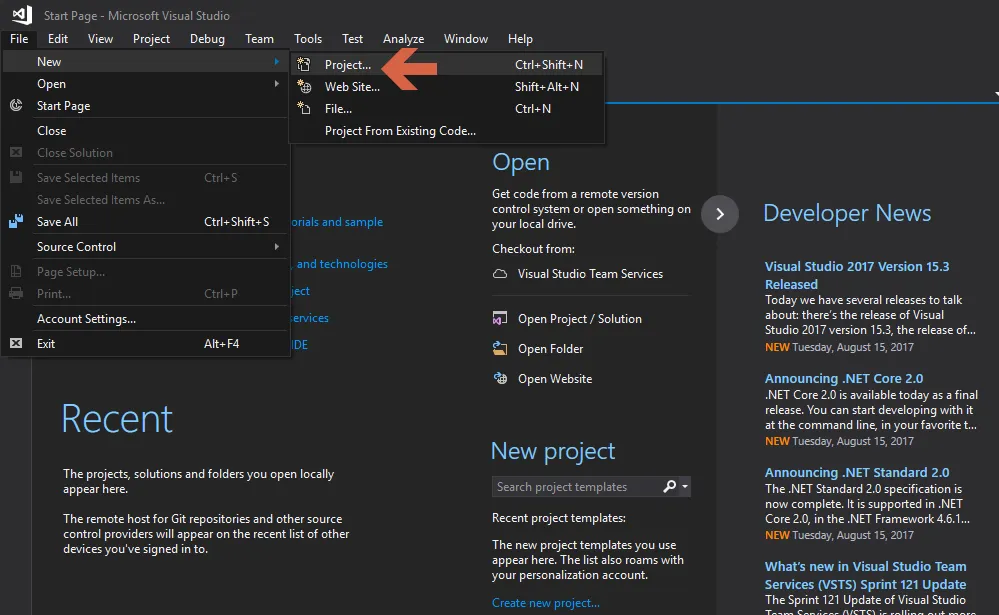
To create a new Android project in Visual Studio, follow these steps:
- Click on File | New | Project:
- From the left pane, click on Android and then select Blank App (Android):

- In the Name section, give a name to the project, select a preferred location for your project, and click on the OK button. You'll get the screen shown in the following screenshot:

Congratulations, you've created your first Android project in Visual Studio.
Xamarin solution structure
Once the project is created, you'll see the solution structure shown in the following screenshot:

The main parts of the solution that we need to understand for now are as follows:
- References: This section lists all the required libraries for the project. As we can see in the preceding screenshot, it references Mono.Android, which is the library for Xamarin.Android.
- Resources: It contains all the resources, for example, images, layouts, and much more.
- The MainActivity.cs file has our C# code for handling events and other things in our main screen.
Creating the UI for the application
- Let's expand the Resources folder we saw in the previous screenshot, and then the layout folder in Solution Explorer. Double-click on Main.axml to open it. This is the layout file for the app's screen. By default, it gets opened in Android Designer; you can also click on the Source tab at the bottom to see the XML code for it. This layout file is the main UI file that we'll add our UI controls to, and what we'll see when we run our app once it is finished:

Let's add an input field to enter a phone number. Drag the Phone field from the Toolbox (left pane) into the Designer view of the Main.axml file:

Having the phone text field gives us the advantage of restricting the user to entering a phone number. Also, when the user taps on the input box, they'll only get a number pad instead of a full text keyboard.
Now we have added an input for the user to add a phone number in order to make a call.
In order to recognize this field from the C# code and get a value inserted, we need to give it a unique ID.
- With the phone text field selected on the design surface, use the Properties pane on the right side to change the id property of the Phone input field to @+id/PhoneNumber, as shown in the following screenshot:

Now that we have added the input field so the user can enter their phone number, we need a button to take the action to make a call.
- Drag a Button from Form Widgets in the left pane of the Toolbox to the Designer view of Main.axml:

Similar to the input field, we need to give a unique ID to the button so that our C# code can recognize when the button is clicked and we can take the appropriate action; that is, make a call to the number inserted by the user.
Also, the text on the button should say Do you want to call, right? So, let's make that change as well in the next step.
- Select Button in the Designer, go to the Properties window on the right, scroll down, and change the ID to @+id/CallButton and the text to CALL, as shown in the following screenshot:

Now, a basic UI is ready for our app with a proper ID assigned to the respective fields and button.
It is now time to move to our C# code and connect our UI with some backend code to perform some actions.
When a user opens the application, MainActivity is opened and the Main.axml file is associated with it.
We will learn more about Activities later; for now, let's write code to handle interactions in MainActivity.
Handling user interactions
User intera...
Table of contents
- Title Page
- Copyright and Credits
- Packt Upsell
- Contributors
- Preface
- Introduction
- Working with Code Repository Systems
- Cross-Platform Mobile App Development with Xamarin
- Writing Your First Android Application with Xamarin
- Implementing Automatic Testing Using Xamarin
- Configuring TeamCity for CI/CD with Xamarin
- CI/CD for Android with Visual Studio Team Services
- Deploying Applications on AWS
- Monitoring and Optimizing Application
- Debugging the Application
- Case Studies
- Other Books You May Enjoy
Trusted by 375,005 students
Access to over 1.5 million titles for a fair monthly price.
Study more efficiently using our study tools.
Frequently asked questions
Yes, you can cancel anytime from the Subscription tab in your account settings on the Perlego website. Your subscription will stay active until the end of your current billing period. Learn how to cancel your subscription
No, books cannot be downloaded as external files, such as PDFs, for use outside of Perlego. However, you can download books within the Perlego app for offline reading on mobile or tablet. Learn how to download books offline
Perlego offers two plans: Essential and Complete
- Essential is ideal for learners and professionals who enjoy exploring a wide range of subjects. Access the Essential Library with 800,000+ trusted titles and best-sellers across business, personal growth, and the humanities. Includes unlimited reading time and Standard Read Aloud voice.
- Complete: Perfect for advanced learners and researchers needing full, unrestricted access. Unlock 1.5M+ books across hundreds of subjects, including academic and specialized titles. The Complete Plan also includes advanced features like Premium Read Aloud and Research Assistant.
We are an online textbook subscription service, where you can get access to an entire online library for less than the price of a single book per month. With over 1.5 million books across 990+ topics, we’ve got you covered! Learn about our mission
Look out for the read-aloud symbol on your next book to see if you can listen to it. The read-aloud tool reads text aloud for you, highlighting the text as it is being read. You can pause it, speed it up and slow it down. Learn more about Read Aloud
Yes! You can use the Perlego app on both iOS and Android devices to read anytime, anywhere — even offline. Perfect for commutes or when you’re on the go.
Please note we cannot support devices running on iOS 13 and Android 7 or earlier. Learn more about using the app
Please note we cannot support devices running on iOS 13 and Android 7 or earlier. Learn more about using the app
Yes, you can access Mobile DevOps by Rohin Tak, Jhalak Modi in PDF and/or ePUB format, as well as other popular books in Computer Science & Cloud Computing. We have over 1.5 million books available in our catalogue for you to explore.