- 360 pages
- English
- ePUB (mobile friendly)
- Available on iOS & Android
Learning Robotic Process Automation
About this book
Design RPA solutions to perform a wide range of transactional tasks with minimal cost and maximum ROI
Key Features
- A beginner's guide to learn Robotic Process Automation and its impact on the modern world
- Design, test, and perform enterprise automation task with UiPath
- Create Automation apps and deploy them to all the computers in your department
Book Description
Robotic Process Automation (RPA) enables automating business processes using software robots. Software robots interpret, trigger responses, and communicate with other systems just like humans do. Robotic processes and intelligent automation tools can help businesses improve the effectiveness of services faster and at a lower cost than current methods.
This book is the perfect start to your automation journey, with a special focus on one of the most popular RPA tools: UiPath.
Learning Robotic Process Automation takes you on a journey from understanding the basics of RPA to advanced implementation techniques. You will become familiar with the UiPath interface and learn about its workflow. Once you are familiar with the environment, we will get hands-on with automating applications such as Excel, SAP, Windows and web applications, screen and web scraping, working with user events, and we'll cover exceptions and debugging. By the end of the book, you'll not only be able to build your first software robot, but you'll also wire it up to perform various automation tasks with the help of best practices for robot deployment.
What you will learn
- Understand RPA
- Learn UiPath programming techniques to deploy robot configurations
- Explore various data extraction techniques
- Learn about integrations with various popular applications such as SAP and MS Office
- Debug a programmed robot including logging and exception handling
- Maintain code version and source control
- Deploy and control Bots with UiPath Orchestrator
Who this book is for
If you would like to pursue a career in Robotic Process Automation or improve the efficiency of your businesses by automating common tasks, then this book is perfect for you. Prior programming knowledge of either Visual Basic or C# will be useful.
Frequently asked questions
- Essential is ideal for learners and professionals who enjoy exploring a wide range of subjects. Access the Essential Library with 800,000+ trusted titles and best-sellers across business, personal growth, and the humanities. Includes unlimited reading time and Standard Read Aloud voice.
- Complete: Perfect for advanced learners and researchers needing full, unrestricted access. Unlock 1.4M+ books across hundreds of subjects, including academic and specialized titles. The Complete Plan also includes advanced features like Premium Read Aloud and Research Assistant.
Please note we cannot support devices running on iOS 13 and Android 7 or earlier. Learn more about using the app.
Information
Taking Control of the Controls
- Finding and attach windows
- Find controls
- Techniques to wait for a control
- Acting on controls—mouse and keyboard activities
- Working with UiExplorer
- Handling events
- Screen Scraping
- When to use OCR
- Types of OCR available
- How to use OCR
Finding and attaching windows
Implementing the Attach Window activity
- Create a blank project and give it a meaningful name.
- Drag and drop a Flowchart activity on the Designer panel. Also, drag and drop a Click activity inside the Designer panel. Set this Click activity as the Start node.
- Double-click on the Click activity and then click on Indicate on screen. Locate the Notepad icon.
- Drag and drop the Attach Window activity on the main Designer panel. Connect the Attach Window activity to the Click activity.
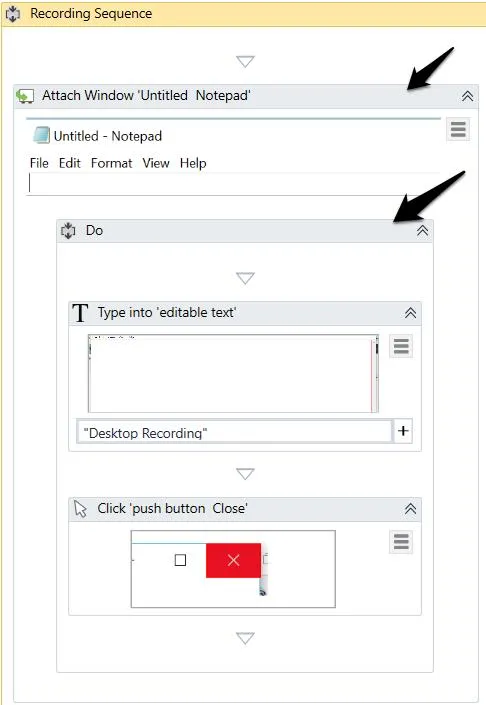
- Double-click on the Attach Window activity. Click on Click Window on Screen and indicate the Notepad window. The Notepad window is now attached to the previous activity:

- For the sake of completeness, we are going to add a Type into activity. Just drag and drop the Type into activity, inside the Attach Window activity. Click on the Indicate element inside window and locate the Notepad window where you want to write the text. Write the text in the Text property of the Type into the activity.
- Hit the Run button.
Finding the control
- Anchor base
- Element Exists
- Element scope
- Find children
- Find element
- Find relative element
- Get ancestor
- Indicate on screen
Anchor base
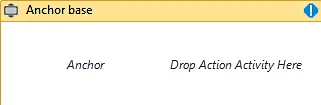
- Drag and drop a Flowchart activity on the Designer panel of a blank project. Also, drag and drop an Anchor base control from the Activities panel. Connect the Anchor base control with Start.
- Double-click on the Anchor base control:

- There are two activities that we have to supply to the Anchor base control: Anchor and action activities.
- Drag and drop the Anchor base activity (for example; Find Element activity) in the Anchor field and Action activity (for example; Type into) in the Drop Action Activity Here field of the Anchor base control.
Element Exists
Table of contents
- Title Page
- Copyright and Credits
- Packt Upsell
- Contributors
- Preface
- What is Robotic Process Automation?
- Record and Play
- Sequence, Flowchart, and Control Flow
- Data Manipulation
- Taking Control of the Controls
- Tame that Application with Plugins and Extensions
- Handling User Events and Assistant Bots
- Exception Handling, Debugging, and Logging
- Managing and Maintaining the Code
- Deploying and Maintaining the Bot
- Other Books You May Enjoy