Windows Server 2016 Administration Cookbook
eBook - ePub

Windows Server 2016 Administration Cookbook

  1. 248 pages
  2. English
  3. ePUB (mobile friendly)
  4. Available on iOS & Android
eBook - ePub

Windows Server 2016 Administration Cookbook

About this book

This book contains more than 65 recipes that will equip you with what you need to know to work with Windows 2016 Server. This book will help you learn how to administrate your Windows Server for optimal performance.

Key Features

  • A focussed guide to help you with the core functionalities of Windows Server 2016

  • Explore tasks that will help you build a datacenter from scratch using Windows Server 2016

  • Step-by-step instructions for common Windows Server administration duties

Book Description

Windows Server 2016 is an operating system designed to run on servers. It supports enterprise-level data storage, communications, management, and applications. This book contains specially selected, detailed help on core, essential administrative tasks of Windows Server 2016.

This book starts by helping you to navigate the interface of Windows Server 2016, and quickly shifts gears to implementing roles that are necessarily in any Microsoft-centric datacenter.

This book will also help you leverage the web services platform built into Windows Server 2016, available to anyone who runs this latest and greatest Server operating system. Further, you will also learn to compose optimal Group Policies and monitor system performance and IP address management.

This book will be a handy quick-reference guide for any Windows Server administrator, providing easy to read, step-by-step instructions for many common administrative tasks that will be part of any Server Administrator's job description as they administer their Windows Server 2016 powered servers.

The material in the book has been selected from the content of Packt's Windows Server 2016 Cookbook by Jordan Krause to provide a specific focus on key Windows Server administration tasks.

What you will learn

    • Become skilled in the navigation of Windows Server 2016, and explore the technologies and options that it provides
  • Build the infrastructure required for a successful Windows Server network
  • Move away from those open-source web server platforms and start migrating your websites to Server 2016's Internet Information Services today
  • Provide a centralized point for users to access applications and data by confguring Remote Desktop Services
  • Compose optimal Group Policies

Who this book is for

This book is for system administrators or IT professionals who want the skills to manage and maintain the core infrastructure of a Windows Server 2016 environment. Prior experience in Windows Server 2012 R2 environments will be helpful.
Trusted by 375,005 students

Access to over 1 million titles for a fair monthly price.

Study more efficiently using our study tools.

Information

Core Infrastructure Tasks

Windows Server 2016 has many roles and features that can be used to accomplish all sorts of different tasks in your network. This chapter reflects on the most common infrastructure tasks needed to create a successful Windows Active Directory environment by using Server 2016. In this chapter, we will cover the following recipes:
  • Configuring a combination Domain Controller, DNS server, and DHCP server
  • Adding a second Domain Controller
  • Organizing your computers with Organizational Units
  • Creating an A or AAAA record in DNS
  • Creating and using a CNAME record in DNS
  • Creating a DHCP scope to assign addresses to computers
  • Creating a DHCP reservation for a specific server or resource
  • Pre-staging a computer account in Active Directory
  • Using PowerShell to create a new Active Directory user
  • Using PowerShell to view system uptime

Introduction

There are a number of technologies in Windows Server 2016 that you need to know if you plan to ever work in a Windows environment. These are technologies such as Active Directory Domain Services (AD DS), Domain Name System (DNS), and Dynamic Host Configuration Protocol (DHCP). If you haven't noticed already, everything in the Windows world has an acronym. In fact, you may only recognize these items by their acronyms, and that's okay.
Nobody calls DHCP the Dynamic Host Configuration Protocol anyway. But do you know how to build these services and bring a Windows Server infrastructure online from scratch, with only a piece of hardware and a Windows Server 2016 installation disk to guide your way? This is why we are here today. I would like to instruct you on taking your first server and turning it into everything that you need to run a Microsoft network.
Every company and network is different and has different requirements. Some will get by with a single server to host a myriad of roles, while others have thousands of servers at their disposal and will have every role split up into clusters of servers, each of which has a single purpose in life. Whatever your situation, this will get us back to the basics on setting up the core infrastructure technologies that are needed in any Microsoft-centric network.

Configuring a combination Domain Controller, DNS server, and DHCP server

The directory structure that Microsoft networks use to house their users and computer accounts is called Active Directory (AD), and the directory information is controlled and managed by Domain Controller (DC) servers. Two other server roles that almost always go hand-in-hand with Active Directory are DNS and DHCP, and in many networks, these three roles are combined on each server where they reside. A lot of small businesses have always made do with a single server containing all three of these roles, but in recent years, virtualization has become so easy that almost everyone runs at least two DCs, for redundancy purposes. And if you are going to have two DCs, you may as well put the DNS and DHCP roles on them both to make those services redundant as well. But I'm getting ahead of myself. For this recipe, let's get started with building these services by installing the roles and configuring them for the first time: the first DC/DNS/DHCP server in our network.

Getting ready

The only prerequisite here is an online Windows Server 2016 that we can use. We want it to be plugged into a network and have a static IP address assigned so that as you add new computers to this network, they have a way of communicating with the domain we are about to create. Also, make sure to set the hostname of the server now. Once you create a domain on this controller, you will not be able to change the name at a later date.

How to do it...

Let's configure our first DC/DNS/DHCP server by performing the following set of instructions:
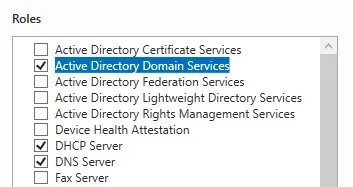
  1. Add the roles all at once. To do this, open up Server Manager and click on your link to add some new roles to this server. Now check all three: Active Directory Domain Services, DHCP Server, and DNS Server:
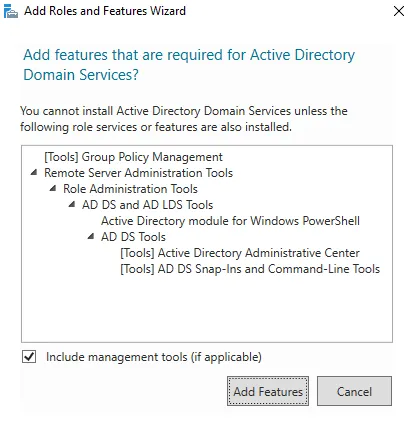
  1. When you click on Active Directory Domain Services, you will be prompted whether you want to install some supporting items. Go ahead and click on the Add Features button to allow this:
  1. You are going to click Next through the following few screens. We don't have to add any additional features, so you can read and click through the informational screens that tell you about these new roles.
  2. Once satisfied with the installation summary, press the Install button on the last page of the wizard.
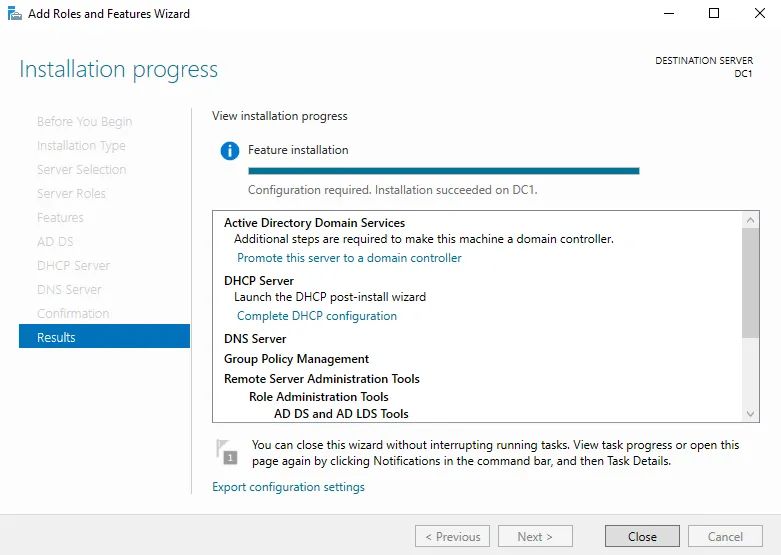
  1. Following installation, your progress summary screen shows a window with a couple of links on it. They are Promote this server to a domain controller and Complete DHCP configuration. We are going to click on the first link to promote this machine to be a DC:
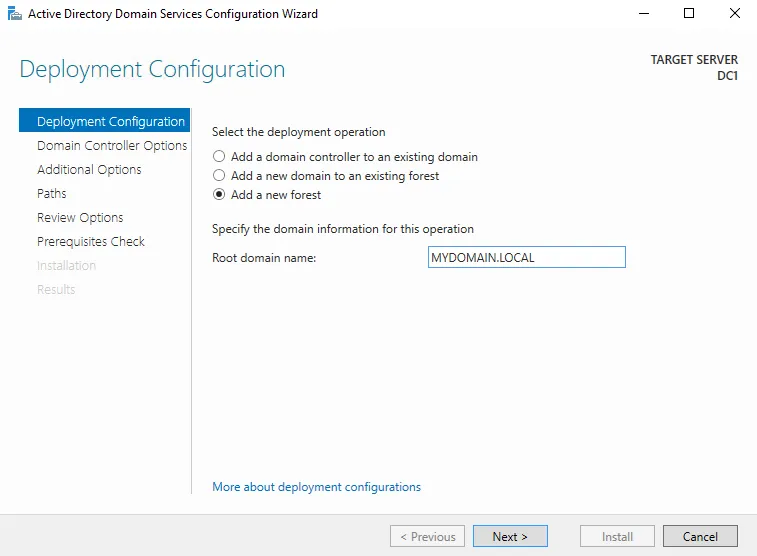
  1. Now we are taken into the configuration of our DC. Since this is the very first DC in our entire network, we choose the option Add a new forest. At this point, we also have to specify a name for our root domain:
It is very important to choose a root domain name that you like and that makes sense for your installation. Whatever you enter here will more than likely be your domain name forever and always!!
  1. This might be a good opportunity for a little side-bar of definitions and explanations. You can think of a forest as the top level of your Active Directory structure. Within that forest, you are setting up a domain, which is the container within your forest that contains your user, computer, and other accounts that will be joined to the domain. You can contain multiple domains within a forest, and multiple forests can share information and talk to each other by using something called a trust.
  2. You can see that I have named my domain MYDOMAIN.LOCAL. The .local is important to discuss for a minute. It is really just a common specification that many companies use to clarify that this domain is an internal network, not a public one. However, I could have just as easily named it CONTOSO.COM, or JORDAN.PRIV, or many different things.
  3. Another practice that I see often is for companies to use the same domain name inside their network as they do publicly. So basically, whatever their website ends in, that is their public domain name. You could certainly set up the internal domain name to be the same. This practice is commonly referred to as split-brain DNS. It used to be something that Microsoft warned against doing, but many companies do it this way, and all of the technology has evolved around this so that the Microsoft networking parts and pieces will all work just fine with split-brain DNS these days, though it does usually take additional consideration when setting up any new piece of technology.
One last important note: it is not recommended to set up your domain as a single label name, for example, if I had called it just MYDOMAIN. While this is technically possible, it presents many problems down the road and is not recommended by Microsoft.
  1. On the Domain Controller Options screen, you can choose to lower the functional level of your forest or domain, but this is not recommended unless you have a specific reason to do so. You must also specify a DSRM password on this screen in case it is ever needed for recovery. You will receive a DNS Options warning message on the next page. This is normal because we are turning on the first DC and DNS server in our environment.
  2. The following two screens for NetB...

Table of contents

  1. Title Page
  2. Copyright and Credits
  3. Packt Upsell
  4. Contributors
  5. Preface
  6. Learning the Interface
  7. Core Infrastructure Tasks
  8. Internet Information Services
  9. Remote Desktop Services
  10. Monitoring and Backup
  11. Group Policy
  12. Other Books You May Enjoy

Frequently asked questions

Yes, you can cancel anytime from the Subscription tab in your account settings on the Perlego website. Your subscription will stay active until the end of your current billing period. Learn how to cancel your subscription
No, books cannot be downloaded as external files, such as PDFs, for use outside of Perlego. However, you can download books within the Perlego app for offline reading on mobile or tablet. Learn how to download books offline
Perlego offers two plans: Essential and Complete
  • Essential is ideal for learners and professionals who enjoy exploring a wide range of subjects. Access the Essential Library with 800,000+ trusted titles and best-sellers across business, personal growth, and the humanities. Includes unlimited reading time and Standard Read Aloud voice.
  • Complete: Perfect for advanced learners and researchers needing full, unrestricted access. Unlock 1.4M+ books across hundreds of subjects, including academic and specialized titles. The Complete Plan also includes advanced features like Premium Read Aloud and Research Assistant.
Both plans are available with monthly, semester, or annual billing cycles.
We are an online textbook subscription service, where you can get access to an entire online library for less than the price of a single book per month. With over 1 million books across 990+ topics, we’ve got you covered! Learn about our mission
Look out for the read-aloud symbol on your next book to see if you can listen to it. The read-aloud tool reads text aloud for you, highlighting the text as it is being read. You can pause it, speed it up and slow it down. Learn more about Read Aloud
Yes! You can use the Perlego app on both iOS and Android devices to read anytime, anywhere — even offline. Perfect for commutes or when you’re on the go.
Please note we cannot support devices running on iOS 13 and Android 7 or earlier. Learn more about using the app
Yes, you can access Windows Server 2016 Administration Cookbook by Jordan Krause in PDF and/or ePUB format, as well as other popular books in Computer Science & Business Intelligence. We have over one million books available in our catalogue for you to explore.